
Appearance
AdminEnrollment statuses & transitions
Every program cycle enrollment carries a status that shows where the user is in the cycle. Most status changes happen automatically from the cycle's dates and the user's progress; you can also change a status directly when you need to intervene. This guide explains each status and how enrollments move between them.
Open Programs → Enrollments to see every enrollment and its current status.
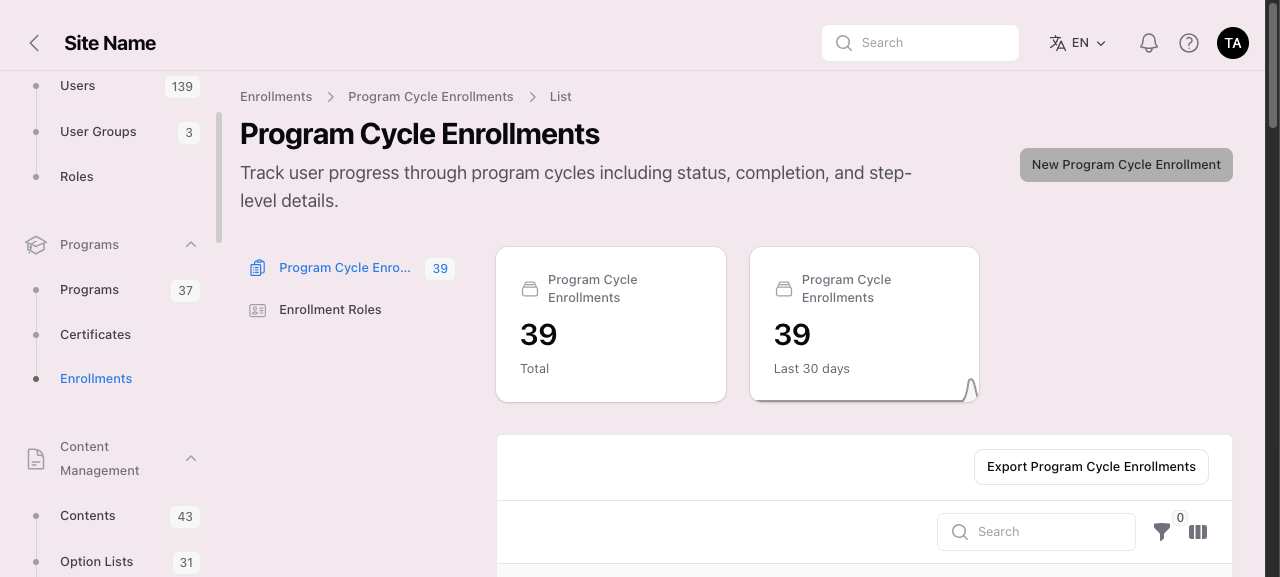 Programs → Enrollments. Each enrollment shows its status in this list and on its detail page.
The statuses
| Status | Badge | Meaning | Still workable? |
|---|---|---|---|
| New | primary | Enrolled, but the cycle hasn't started yet (before the start date). | Yes |
| In Progress | blue | The cycle is open and the user is working through it. | Yes |
| Overdue | red | Past the deadline but still inside the grace period — a last chance to finish. | Yes |
| Submitted | green | The user is done: every required step is complete and the enrollment is closed. This is the normal finished status. | No (terminal) |
| Completed | green | Every required step is done, but the user still has to press Submit. Only used when the program definition has Require completion submission turned on. Enrollment Analytics labels this Awaiting Submission. | No (terminal) |
| Incomplete | amber | The deadline (and any grace period or extension) passed without completion. | No (terminal) |
| Exempt | amber | The user has been excused from this enrollment; it's excluded from completion totals. | No (terminal) |
| Inactive | grey | The enrollment isn't active (for example, the user's account is disabled). | No (terminal) |
New, In Progress, and Overdue are the working statuses — the user can still make progress. The rest are terminal: the automatic update leaves them alone, and only a deliberate admin action reopens them.
How statuses change automatically
Time- and progress-based transitions are recomputed hourly by a background job, and again whenever a user completes work or an admin changes the cycle's dates — so a status is rarely more than an hour behind reality. All date boundaries are read in your site time zone.
For a standard (deadline-based) cycle, the status is derived in this order:
- Before the start date → New.
- All required steps complete → Submitted (whatever the date), or Completed if the program definition has Require completion submission turned on.
- On or before the deadline day, not yet complete → In Progress.
- Past the deadline, within the grace period → Overdue.
- Past the deadline with no grace period, or past the grace period → Incomplete.
A cycle with no deadline stays In Progress until the user completes it.
Submitted vs Completed
By default a program auto-submits: the moment the last required step is done, the enrollment goes straight to Submitted and never shows as Completed. Turn on Require completion submission on the program definition (Programs → open a program → Program Definitions) to make users acknowledge a disclaimer and press Submit themselves. Their enrollment then waits at Completed until they do. Both statuses count as finished in completion rates.
Extensions
An active extension replaces the deadline: the user stays In Progress through the end of the extension day, then becomes Incomplete. There is no Overdue window while an extension is in effect. Set one with Manage Date Overrides (below) or Reopen with Extension.
Rolling cycles
Rolling cycles don't lock on a single deadline. Their enrollments read as New until the user first opens them, then In Progress, with compliance tracked through milestone windows rather than an Overdue/Incomplete cutoff.
Changing a status yourself
Open an enrollment (Programs → Enrollments → a row) to intervene. The available actions depend on the enrollment's current state:
- Re-evaluate Status — recompute the status now from the dates and progress, without waiting for the hourly job.
- Force Complete — mark every step Completed and the enrollment Submitted.
- Reopen with Extension — reopen an Incomplete user by granting an extension, without discarding their completed work. This is the safe way to give someone more time.
- Reopen — reopen the enrollment to a working status.
- Reset Progress — clear the user's progress so they start over.
- Manage Date Overrides — set this user's own start, deadline, or extension date (see Dates & time zones).
At the cycle level, Reopen Incomplete Users reopens every Incomplete enrollment in the cycle at once — useful after extending a cohort's deadline.
Reopening is deliberate
The hourly update never resurrects a terminal enrollment on its own — a user who lapsed to Incomplete stays there until an admin reopens them. Prefer Reopen with Extension over Reset Progress when you only want to give more time: it preserves everything the user has already done.
Step statuses
Each step in an enrollment has its own status too. Admins see it in the Step Progress table on the enrollment (see Program enrollments); users see it on their program page.
| Status | Badge | Meaning | Still workable? |
|---|---|---|---|
| Not Started | grey | The user hasn't opened the step yet. | Yes |
| In Progress | blue | The user has opened the step or has work saved on it. | Yes |
| Overdue | red | Shown to the user only. The step's due date has passed and the step isn't Completed. | Yes |
| Completed | green | The step's completion criteria are met (or an admin marked it complete). | No (terminal) |
| Incomplete | red | An admin marked the step incomplete. | No (terminal) |
| Submitted | amber | The step is done and waiting on its sign-off chain. | No (terminal) |
| Locked | grey | Shown to the user only. The user can't work on the step yet (see Locked steps). | No |
| Exempt | amber | A Step Condition excused the user from this step. | No (terminal) |
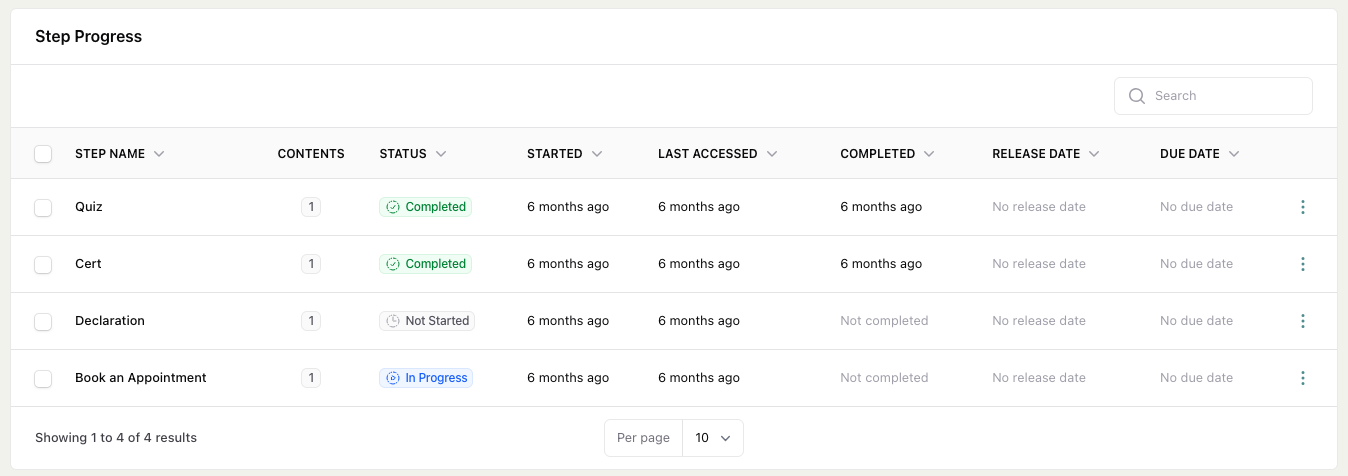 Programs → Enrollments → an enrollment → Step Progress. Each step shows its own status badge.
Overdue and Locked are only shown to users
Overdue and Locked are never saved on a step. They are worked out on the fly when the user opens their program page, so they never appear in the admin Step Progress badge. To see the same facts as an admin, check the Release Date column (a future release shows as "In N days") and the Due Date column (a passed due date shows in red as "Overdue by N days").
A step whose due date has passed shows as Overdue to the user unless it is Completed — so a Submitted or Incomplete step past its due date also reads Overdue on the user's page.
How step statuses change automatically
SkilSure checks a step's status whenever the user opens it, saves or submits work on it, or a review or sign-off is recorded:
- Not Started → In Progress — the first time the user opens the step, or as soon as they have work saved on it.
- The step is done when all of its required content is completed (or, if no content is required, all of its content), and any approvals required on the Mentorship tab have been given. A review on its own never completes or submits a step — it stays In Progress until the required approvals exist.
- Done, no sign-off chain → Completed. Steps that depend on it can now unlock.
- Done, with a sign-off chain → Submitted. Submitted is only ever reached this way. The last sign-off moves the step to Completed; a revision request sends it back to In Progress.
- No longer done → In Progress. If a Completed or Submitted step stops meeting its criteria (for example, a submission is reopened), it reverts to In Progress.
- Exempt — set by the step's Step Conditions when the enrollment matches a condition. If the enrollment later stops matching, the step goes back to the status it had before.
- Incomplete — never set automatically. Missing the enrollment deadline doesn't change step statuses. An Incomplete step only moves on if a later check finds it done, which makes it Completed.
Locked steps
A user sees a step as Locked when any of these is true:
- Its release date hasn't arrived yet.
- A prerequisite step isn't Completed or Exempt.
- The user's role isn't on the step's Role Access list (and the step isn't read-only for other roles, and the user isn't part of its sign-off chain).
- The step's role order hasn't reached the user's role yet.
A role restriction only controls access — it isn't a completion gate on its own. Only required steps on the user's own path count toward finishing the enrollment (see below).
Changing a step status yourself
Open an enrollment and use the Step Progress row menu, or select rows for a bulk action:
| Action | Resulting step status |
|---|---|
| Mark Complete (row) / Complete Selected (bulk) | Completed, directly — no sign-off chain runs. Hidden on a step that's already Completed. A later automatic check moves it back to In Progress if the step's criteria aren't actually met. |
| Mark In Progress | In Progress, reopening the step's completed work (you pick goals on a Learning Portfolio step, or approved activities on an Activities step). Only offered on a Completed, Submitted, or Incomplete step. |
| Mark Incomplete (row or bulk) | Incomplete. This is the only way a step becomes Incomplete. |
| Reset (row) / Reset Selected (bulk) | Not Started, clearing the step's progress. |
| Reopen Approved Activities | No change — it only unlocks the activities you pick. |
Enrollment-level actions also change step statuses:
- Reopen — moves every Completed or Submitted step to In Progress; Incomplete steps are left as they are.
- Reset Progress — sets every step to Not Started.
- Force Complete — sets every step to Completed and the enrollment to Submitted.
Users can also reopen a step themselves when the step allows it (see Let users reopen a step themselves); it moves to In Progress.
Completed, Submitted, Incomplete, and Exempt are terminal for the user — they can't work on the step until it is reopened. Steps in an audit may need an override reason before you can change them; see Program audits.
How step statuses feed the enrollment status
Every time a step's status changes, SkilSure re-checks the enrollment:
- Only required steps (steps with at least one required content item) on the user's active path count.
- A required step counts as finished only when it is Completed or Exempt. Submitted doesn't count — the step is still waiting for sign-off — and neither does Incomplete.
- When every counted step is finished, the enrollment moves to Submitted (or Completed) as described in How statuses change automatically.
- A program with no required steps never completes automatically.
Prerequisites follow the same rule: a prerequisite step is met only when it is Completed or Exempt.
Related
- Program enrollments — open an enrollment and manage step-level progress.
- Programs & cycles — set deadlines, grace periods, and lifecycle behaviour.
- Dates & time zones — how deadlines and grace windows are read.