
Appearance
AdminSite Settings → General
General settings are the tenant-wide basics — your site identity and how the admin and user navigation are laid out. They apply across every portal, unlike Portal Settings, which configure a single portal's menus and home page.
Open General settings
Open Settings → Site Settings → General.
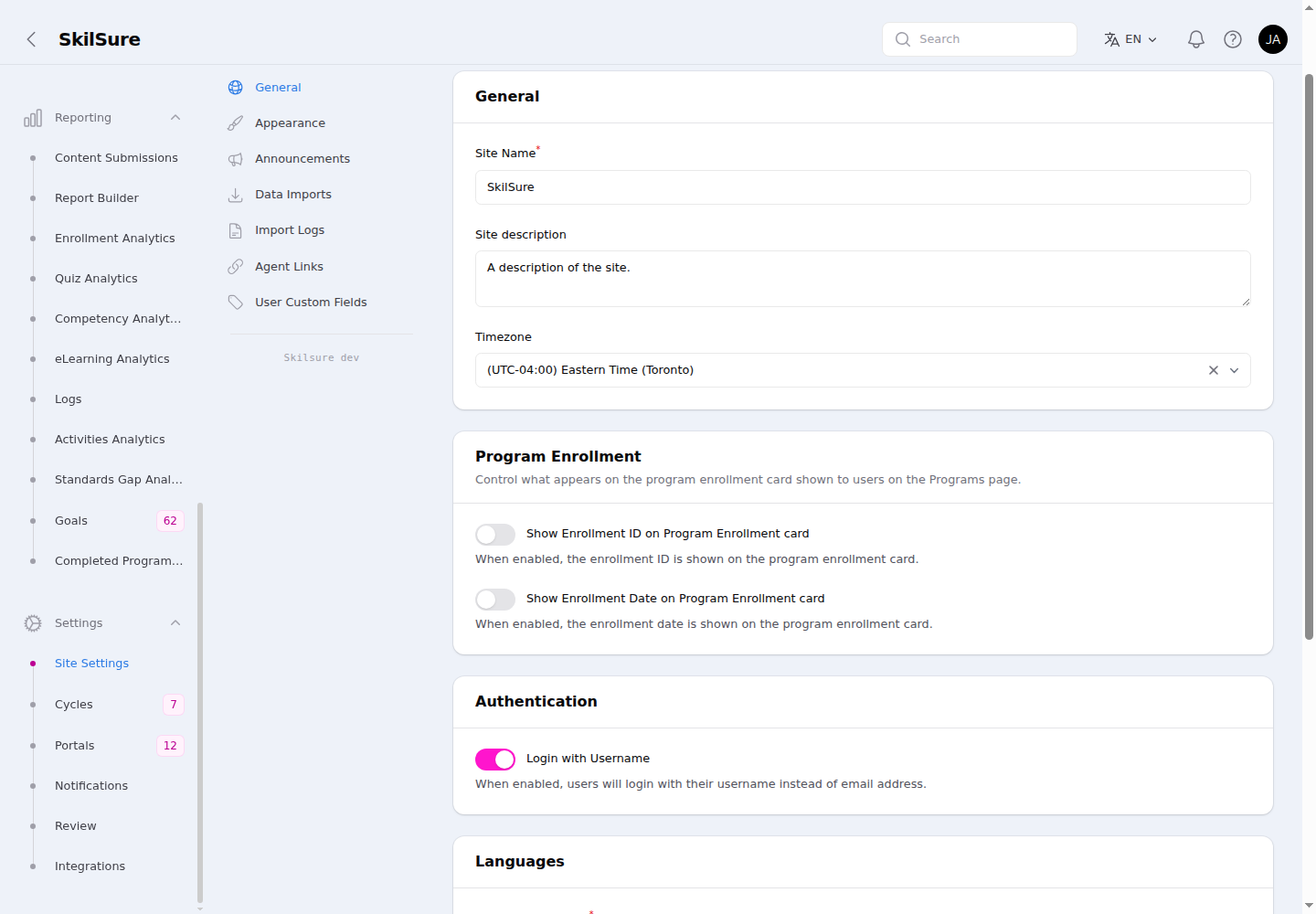 Site Settings → General. The Program Enrollment section controls what the enrollment card shows users.
What you can set
- Site identity — the site name, description, and timezone shown across the app. (The logo and favicon are set under Appearance.) For how the timezone shapes deadlines and displayed times, see Dates & time zones.
- Navigation layout — whether navigation appears as a top bar or a sidebar, and how items are grouped.
- Other tenant-wide defaults — baseline preferences that apply everywhere a more specific setting doesn't override them.
Program Enrollment
Control what appears on the program enrollment card that users see on their Programs page. Both toggles are off by default.
- Show Enrollment ID on Program Enrollment card — when on, the user's enrollment ID appears on the card and on the enrollment detail page.
- Show Enrollment Date on Program Enrollment card — when on, the enrollment date appears in the same places.
Click Save changes to apply. Updates take effect on the next page load.
Authentication
Login with Username — username vs. email uniqueness
By default, users sign in with their email address, and every user must have a unique email. Turn on Login with Username (in the Authentication section) when your organization needs something different — for example, when spouses or family members share one email inbox, or when people are identified by a member number rather than by email.
When Login with Username is on:
- Users sign in with a username instead of an email. The sign-in screen asks for a username and password. (See Signing in.)
- Email addresses no longer have to be unique. More than one user can share the same email address — the shared/spouse-email case.
- Username becomes the required, unique identifier. Every user must have a username, and usernames must be unique within your tenant. You set the username when you create or edit a user in Invite & manage users.
When Login with Username is off (the default), nothing changes: users sign in by email and each email must be unique.
Click Save changes to apply.
Before you turn it on
- Give existing users a username first. Once username login is on, an account with no username can't sign in. Set usernames for your current users before — or right after — enabling it.
- Email-based single sign-on can't be active at the same time. If your tenant has a connected email-based SSO integration (Microsoft Entra, SAML, OAuth, or OIDC), you can't enable username login while it's connected: a shared email could let one person's SSO login reach another account. Disconnect the SSO integration first.
Before you turn it off
If any users share an email address, give them distinct emails before turning username login back off. Once it's off, email must be unique again — so a shared-email user can no longer be edited or signed in until their email is unique.
Password resets for shared emails
When username login is on and an email is shared by more than one account, self-service Forgot password? can't tell which account to reset, so it asks the user to contact an administrator. Set the user's password from their record in Invite & manage users.
User Defaults
Baseline settings applied to users automatically, so you don't have to set them up person by person.
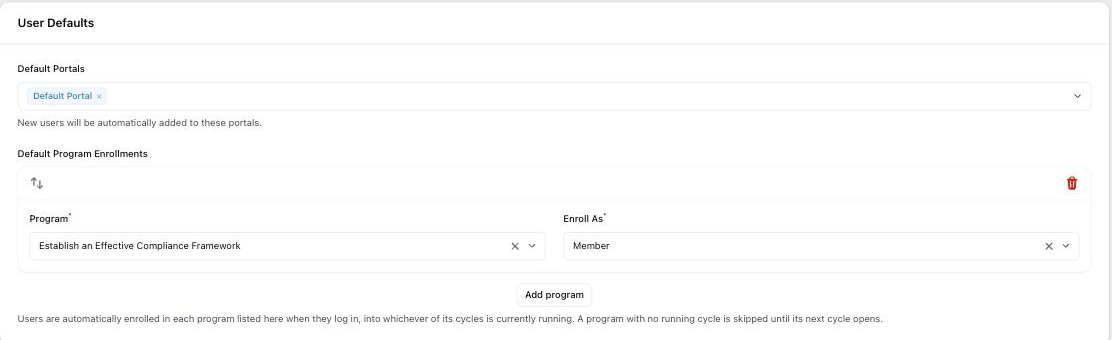 Site Settings → General → User Defaults. Each row pairs a program with the role people are enrolled as.
- Default Portals — new users are added to these portals when their account is created.
- Default Program Enrollments — users are enrolled in these programs when they sign in.
Default Program Enrollments
Use this when everyone should have the same programs — a yearly self-assessment, say, or a learning portfolio — without you enrolling each person by hand.
Click Add program, then pick:
- Program — the program to enroll people in.
- Enroll As — the role they're enrolled with. This is the role on their enrollment, not a change to the user's own permissions.
Add a row per program, then click Save changes.
How enrollment happens
Each time someone signs in, SkilSure checks the list and enrolls them in whichever cycle of that program is currently running. Because the cycle is worked out at sign-in rather than stored, one list keeps working year after year: when next year's cycle opens, people are enrolled in it the next time they sign in. You don't need to revisit this screen at rollover.
This also applies to people who already have accounts — they're enrolled the next time they sign in, not just brand-new users.
Saving doesn't enroll anyone
Saving the list changes only the configuration. Nobody is enrolled until they next sign in.
When a program is skipped
A person isn't enrolled in a listed program when any of these is true:
- No cycle is running right now. Between cycles there's nothing to enroll into, so the program is skipped until the next cycle opens.
- The program belongs to a portal they're not in. They wouldn't be able to open it, so it's skipped.
- The program is inactive. Inactive programs are hidden from users.
- They're an administrator or staff member. Only people with a member number are enrolled, so your admin team doesn't pick up member programs.
Good to know
- Each program can appear once. Adding the same program twice is rejected when you save — one role per program.
- Reviewer roles aren't offered in Enroll As. Roles that review or sign off other people's work are deliberately excluded.
- Removing a program from the list doesn't un-enroll anyone. The list controls who gets enrolled from now on; existing enrollments stay. Remove those from the person's record in Program enrollments.
- Deleting someone's enrollment isn't permanent while the program is on this list — they'll be enrolled again the next time they sign in. To exclude someone, take the program off the list.
- People who never sign in are never enrolled. This isn't a way to build a roster; to enroll a known group in one go, use the bulk enrollment tools in Program enrollments.
Check your enrollment notifications first
If you have a notification rule for the user enrolled event, everyone this affects will be emailed as they sign in — and again at each cycle rollover. Review your rules under Settings → Notifications before adding programs here, especially on a tenant with a large membership.
Related settings
- Appearance — colours, logos, and theme.
- Portal Settings — per-portal menus and home page.
- Program enrollments — enroll people individually or in bulk, and manage existing enrollments.