
Appearance
AdminDeadline reminders
Deadline reminders are automated emails that go out to users a set number of days before (or after) a cycle deadline. Use them to chase people who still have outstanding requirements — including the common case of someone who has done all the work but never clicked Finish to submit.
A reminder is made of two pieces, created in this order:
- An email template — the subject and body the user receives.
- A notification rule — when to send it, how many days out, and which programs it covers.
Open Settings → Notifications. The panel has three sections you'll use: Email Templates, Notification Rules, and Notification Logs.
Pair it with a homepage announcement
Email alone is easy to miss. For a hard deadline, also post a scheduled announcement so the message sits on the user's home page for the whole reminder period.
Before you start
Reminders are driven by each user's effective deadline date, so:
- The program cycle must have a deadline date set. Cycles with no deadline are skipped.
- Rolling cycles are not included in deadline reminders.
- Email sending must be switched on for your site under Settings → Notifications → Settings, where you also set the From name, From address, reply-to, and email footer.
Step 1 — Write the email template
Open Settings → Notifications → Email Templates and click New email template.
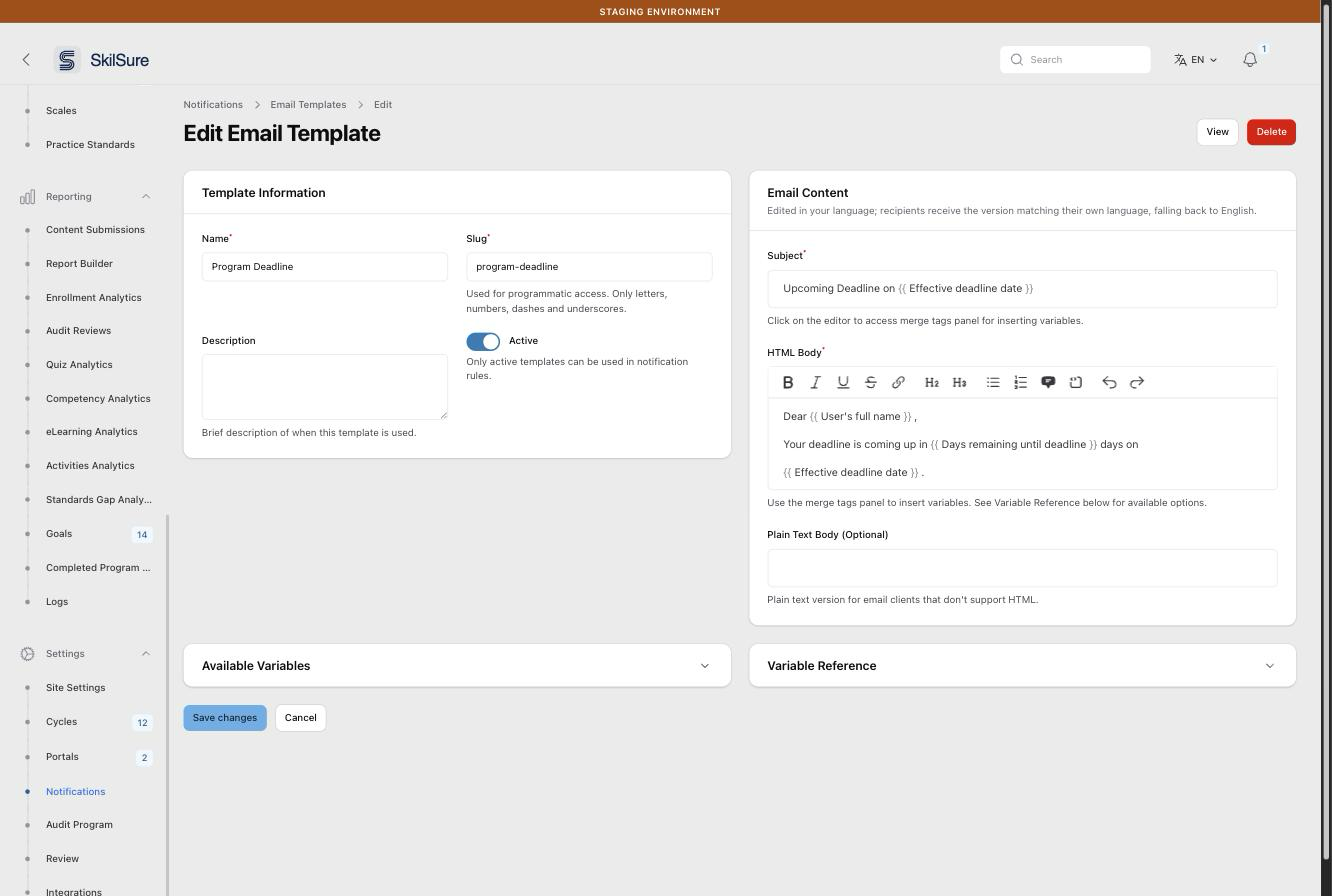 The template that a deadline rule sends. Merge tags are replaced per recipient when the email goes out.
- Name — how you'll recognise it in the rule's template picker.
- Slug — a short machine name. Letters, numbers, dashes and underscores only.
- Active — only active templates can be selected by a rule.
- Subject and HTML Body — the message itself. Click into the editor to open the merge tags panel, or type variables directly.
- Plain Text Body — optional fallback for mail clients that don't render HTML.
Useful variables for deadline reminders
| Variable | What it inserts |
|---|---|
{{user.name}} | The recipient's full name |
{{program.title}} | The program title |
{{enrollment.deadline_date}} | That user's effective deadline |
{{event.days_remaining}} | Days left, for the window that triggered this email |
{{event.course_list}} | A formatted list of the courses that user has due in this window |
The full list is in the Variable Reference panel at the bottom of the template form.
Variables show as friendly labels
Once inserted, a variable renders in the editor under its plain-English name — user.name appears as User's full name, event.days_remaining as Days remaining until deadline. The stored template still holds the variable, and the recipient still sees their own value.
Say exactly what to do
If your deadline is a lockout, spell out the action. "Sign in, open your program, and click Finish to submit" converts far better than "your deadline is approaching". You can paste a screenshot into the body to show where the button is.
Multiple languages
The Email Content panel is edited in your language, and each recipient receives the version matching their own language, falling back to English. Switch the language selector in the top bar to author the other version.
Step 2 — Create the notification rule
Open Settings → Notifications → Notification Rules and click New notification rule.
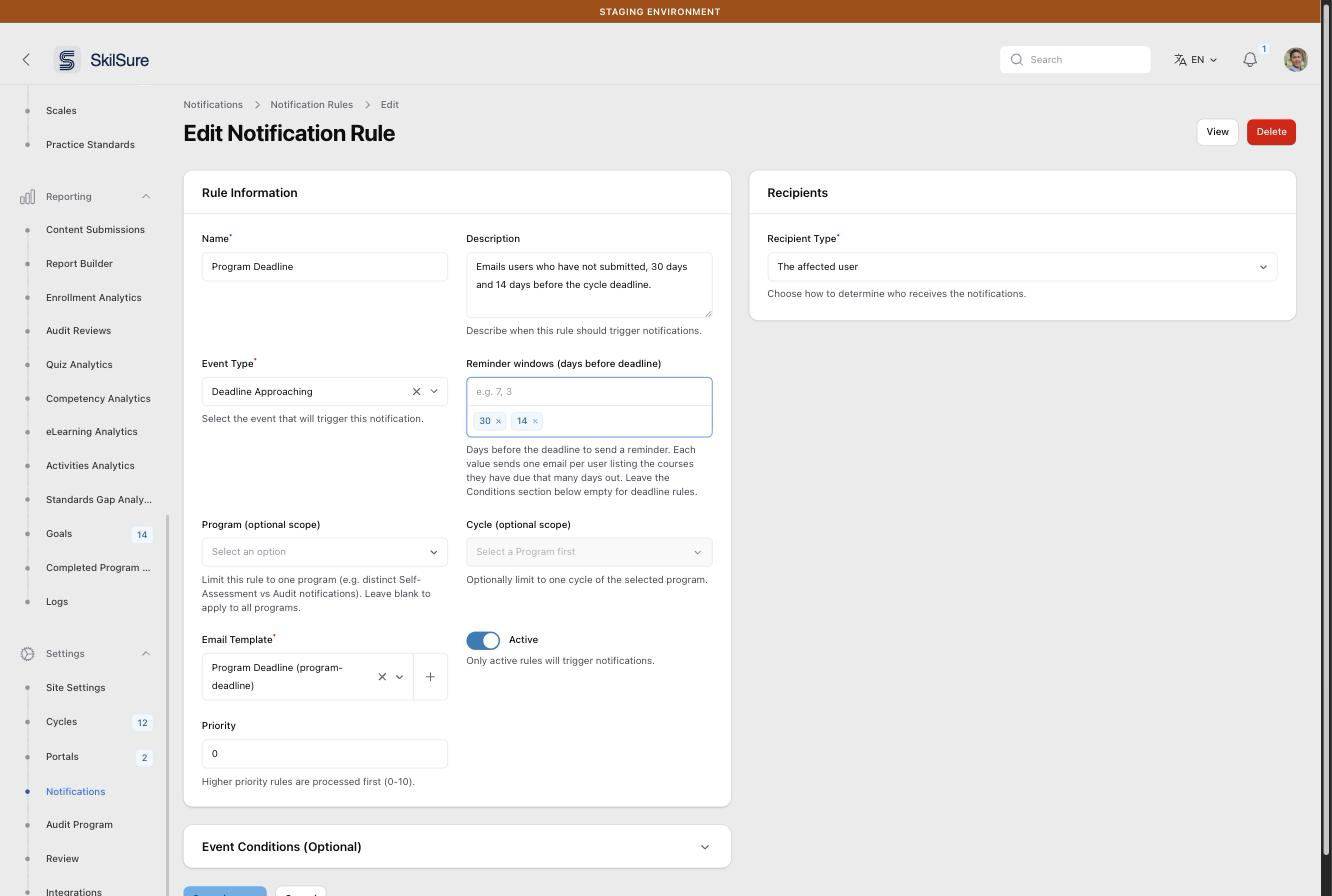 A single rule covering both reminder points — 30 days and 14 days before the deadline.
- Name and Description — for your own reference in the rules list.
- Event Type — choose Deadline Approaching for reminders sent before the deadline, or Deadline Passed for escalations sent after it.
- Reminder windows (days before deadline) — type a number and press Enter for each one. One rule can hold several windows:
30and14sends one email 30 days out and another 14 days out. Each window sends one email per user, listing everything they have due at that point. - Program (optional scope) — leave blank to cover every program, or pick one program so it gets its own wording. Add a second rule with its own template when two programs need different messages.
- Cycle (optional scope) — narrows the rule further to a single cycle of the selected program.
- Email Template — the template from Step 1.
- Active — only active rules send anything. Leave this off while you're drafting.
- Recipient Type — deadline reminders always go to the affected user, so choose The affected user.
Clear the Conditions section before saving
New rules open with one blank row inside Event Conditions (Optional), and its fields are required — so saving fails with "The field Name field is required" until you remove it. Expand the section and click the row's Delete button. Deadline rules never need conditions.
Step 3 — Check the rule is live
Back on the list, confirm the rule shows the right event and template.
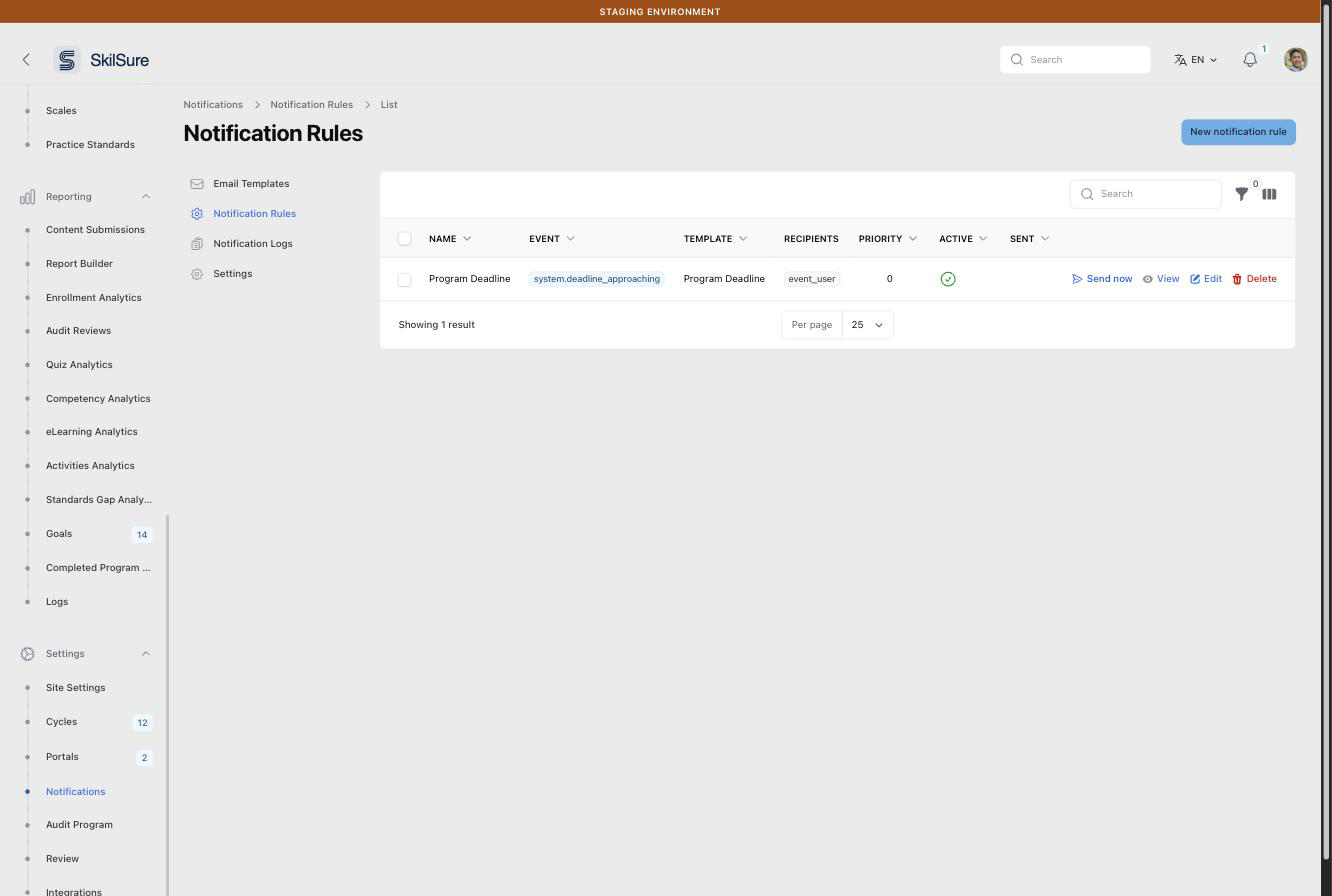 The saved rule. The Event column shows which sweep will pick it up.
Reminders are sent by a nightly sweep, so nothing goes out immediately:
- Deadline Approaching rules are processed daily at 01:30.
- Deadline Passed rules are processed daily at 01:45.
Every email that goes out is recorded under Settings → Notifications → Notification Logs, with the recipient, subject, and status. Check there the morning after a reminder date to confirm the send worked.
Don't want to wait for the sweep?
The rule's Send now row action opens a list of the users that rule currently covers, and emails the ones you tick — useful for testing the wording, or for a one-off chase outside your scheduled windows. It bypasses the once-per-window rule, so a user can receive a reminder they've already had. Each send still counts toward that user's reminder cap and appears in the logs. The action only shows on deadline rules, and only for admins.
Step 4 — Add a homepage announcement
For a firm cut-off, back the email up with an on-screen reminder. Create an announcement with a Start Date matching your first reminder and an End Date on the deadline, so it appears and disappears on its own. Leave Dismissible off if the message must stay visible.
Announcements can be targeted by program, role, or portal — but not by whether someone has finished, so everyone in the targeted group sees it, including users who have already submitted. Word it accordingly ("If you haven't yet clicked Finish…").
Who gets reminded
Users are selected from their enrollment status, not from how much work they've done. Someone who completed every requirement but never clicked Finish is still counted as outstanding, and will be reminded — which is the point.
Reminders are not sent to users whose enrollment is already completed, submitted, or inactive, and each user is reminded only once per window, so a rerun of the nightly job won't send a duplicate.
Past-due escalations
To chase people after the deadline has passed, create a second rule with Event Type set to Deadline Passed. The form then offers two different fields:
- Past-due reminders (days after deadline) — for example
1,14,30. Keep values at least two days apart; closer values share a boundary day and may both fire. - Maximum reminders per user — an optional cap per cycle. Leave blank for no cap.
Past-due reminders stop at the end of the grace or extension period, or after the last value you entered — whichever comes first.