
Appearance
UserAudit reviews
Some programs are audited: an auditor reviews a member's work and records an outcome for each step. This page covers each side of that — conducting a review if you're an auditor, signing off a review if you're a supervisor, and seeing an audit of your own work and replying if you're the audited member.
Setting audit programs up is an admin task — see Program audits (admin guide).
If you're an auditor
Your Audit Reviews dashboard
Open Audit Reviews from the sidebar. It appears once you hold a role that can conduct audits and you have at least one assignment.
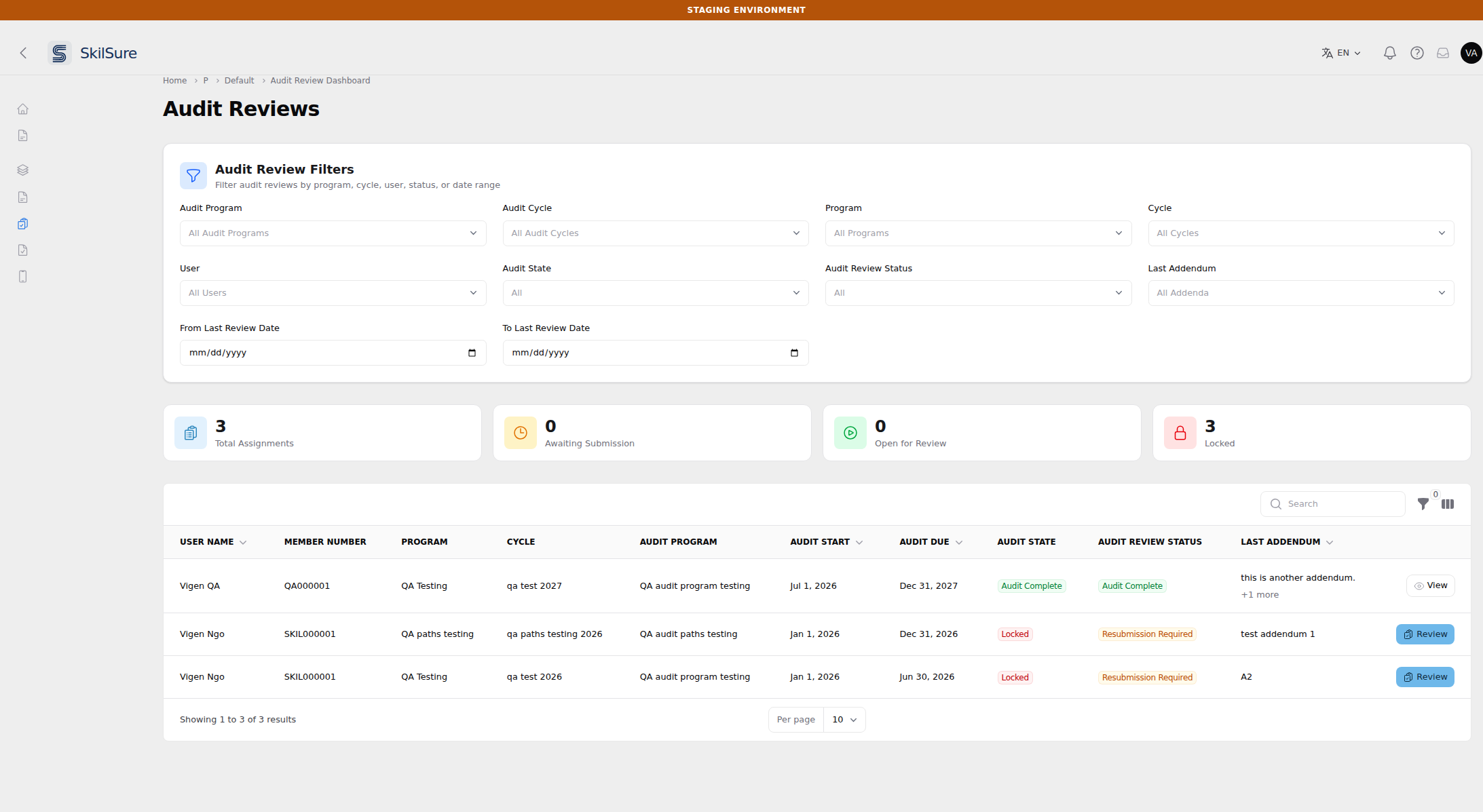 Audit Reviews. Every enrollment you're assigned to audit, with quick counts of how many are awaiting the member, open for you to review, or locked. Last Addendum follows Audit Review Status.
- The stat cards count your assignments by state: Total Assignments, Awaiting Submission (the member hasn't submitted yet), Open for Review (ready for you), and Locked (waiting on the member to resubmit flagged steps). A finished audit counts toward Total Assignments only.
- Audit State is where the audit itself has got to. It reads Awaiting Submission, Open for Review or Locked while the audit is in progress. A finished audit reads as its outcome instead: Audit Complete, Audit Incomplete or Audit Exempt. Your organisation may have renamed any of these.
- Filtering by Audit State returns exactly the rows that read that value. Filter by Locked for audits waiting on a resubmission, and by an outcome such as Audit Complete for finished audits.
- Audit Review Status is what your review of it says: Draft while you still have one in progress, otherwise the outcome you last submitted (Complete, Resubmission Required, Incomplete, Audit Exempt), or an em dash when you haven't reviewed it yet. It matches the Audit Review Status shown at the top of the review workspace, so the dashboard and the review page always agree.
- Last Addendum shows the most recent note an administrator has added to any review on this audit, with +N more when there are others. Hover a long note to read it in full, and open the review to see every note with the review it belongs to. Sorting the column brings the most recently annotated audits to the top and leaves un-annotated ones at the end.
- The Search box looks through every addendum on an audit, not only the one shown — so a note that has since been superseded is still findable.
- You'll only see this column if your administrator has Show Admin's Audit Review Addenda to Auditor switched on. With it off, the column and its filter are gone from this page.
- Filters narrow the list by audit/target program, cycle, user, Audit State, Audit Review Status, Last Addendum, and last-review date. Those last three each take more than one value at a time — pick two statuses to see both sets of rows at once, and remove a value with the × on its chip.
- Audit State, Audit Review Status and Last Addendum appear both in the filters card and in the table's own filter panel — they are the same filter shown twice, so changing one updates the other.
- Last Review Date (hidden by default — turn it on from the columns menu) is when you last submitted a review.
- Open a row to start or continue its review.
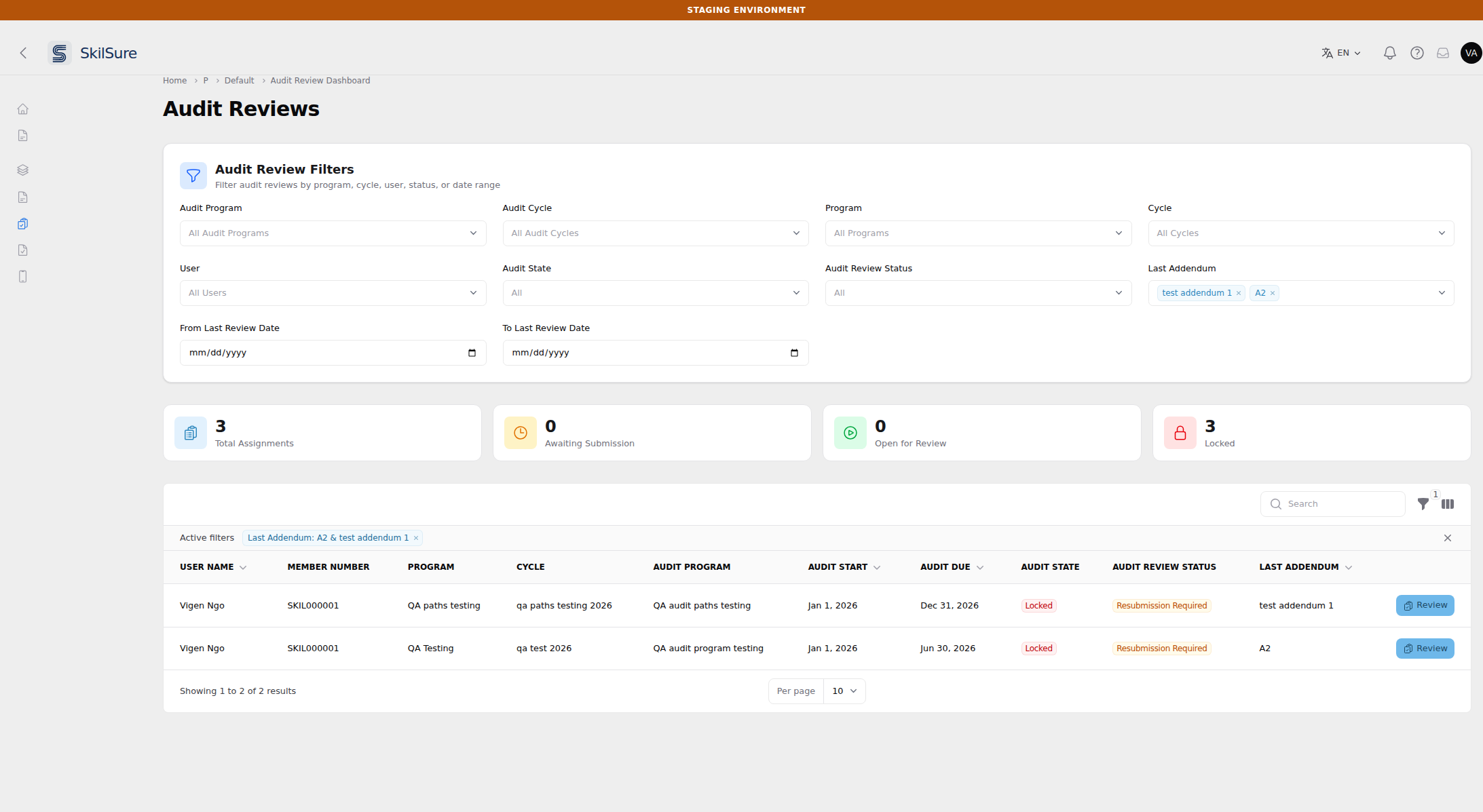 Choosing two addenda lists both sets of rows at once. The filter chip above the table mirrors the selection, because the filters card and the table's filter panel are the same filter.
If an assignment disappears from this list
An admin has deactivated or deleted it. The row leaves your dashboard and the review workspace stops opening, even if you had a draft in progress. Nothing you submitted is lost — an admin can see it in their Audit Reviews report — and if they turn the assignment back on, the row and your draft return exactly as they were. Ask your administrator if you were expecting to audit that member.
Conduct a review
Opening an assignment that's open for review takes you to the review workspace, which creates your draft automatically.
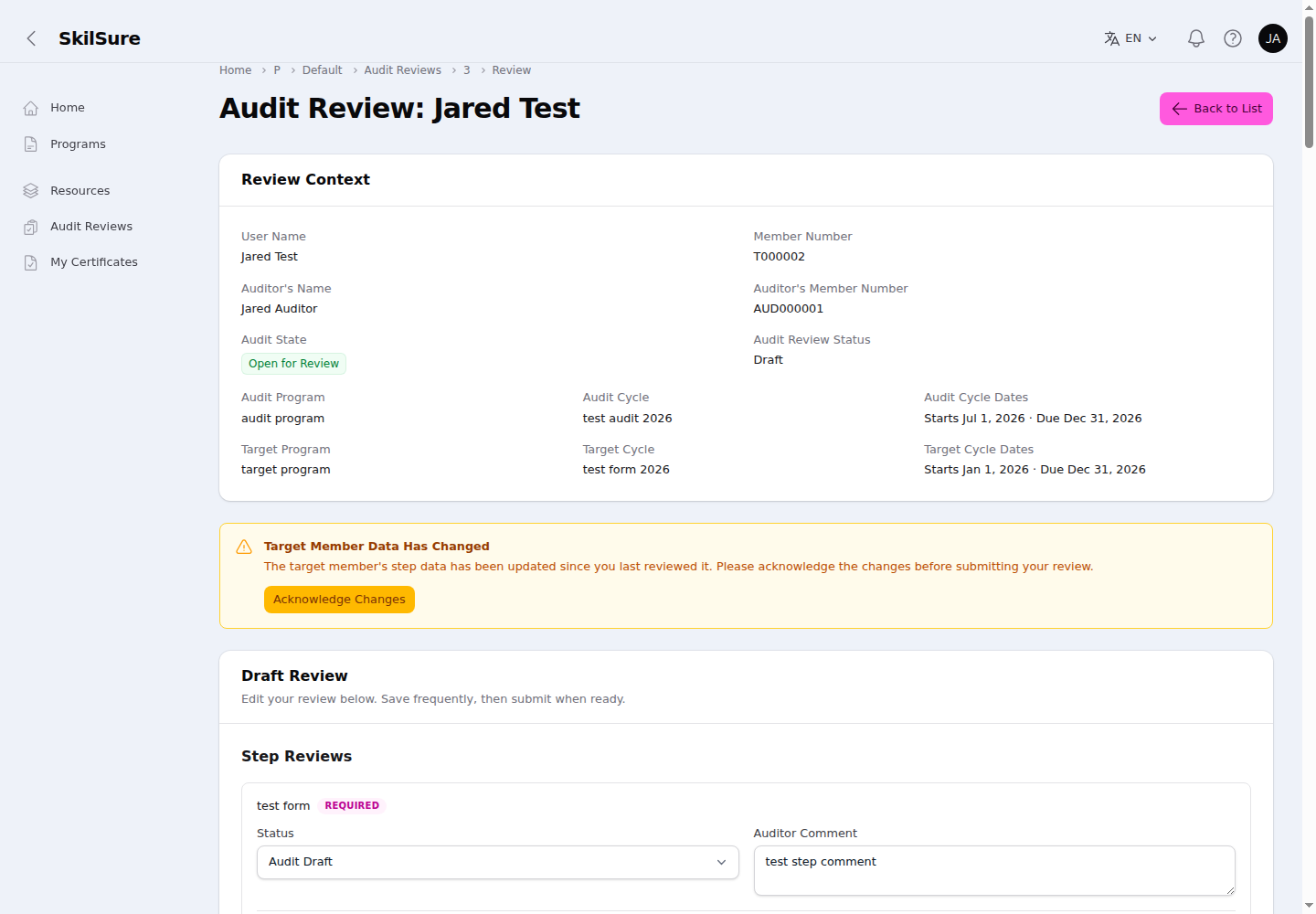 Audit Review. Set a status and comment on each step, complete the review form, then submit. Save frequently.
- Review Context shows who and what you're reviewing and the current audit state.
- Member Submissions shows each form the member submitted as their own form, read-only, with its headings, instructions, sub-forms and rating grids in the form's order. You can't change anything in it.
- Custom fields — your administrator can add extra member details (User Custom Fields) to the Review Context, after Member Number and before Auditor's Name. Dates follow your language's format.
- Completion Requirements — on each Activities step, the review shows that step's completion rules with the member's progress against them. While you conduct the review the progress is live; once you submit, it is kept as you saw it and appears the same way under Last Submitted Reviews. On older reviews, or where progress wasn't recorded, you see current progress marked Current progress. The requirements are hidden if your administrator has set auditors to the Redacted view (custom fields are still shown).
- Uploaded files — on a Competency Rating step, each file the member uploaded is listed under its competency (or under the group rating) with a Download link. Files are hidden if your administrator has set auditors to the Redacted view.
- Learning Portfolio requirements — each Learning Portfolio step shows its Completion Requirements (goals assigned and goals completed against the number required), plus any Form Completion Rules and Period Completion Rules, with the member's live progress, above the member's goals. Unlike Activities, these are not kept with a submitted review: Last Submitted Reviews does not show them. They are also hidden under the Redacted view.
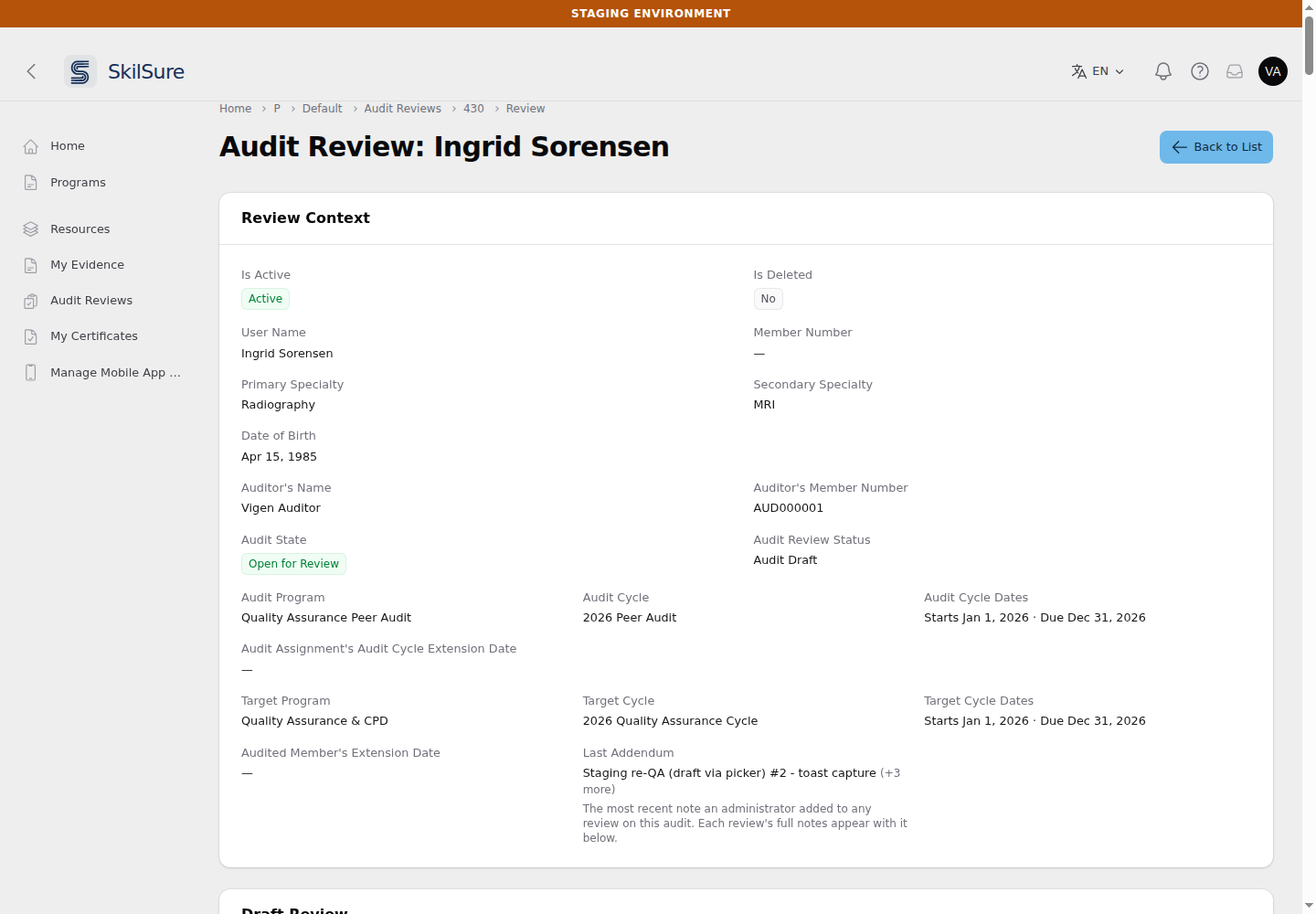 Audit Reviews → a review. The custom fields your administrator selected appear after Member Number.
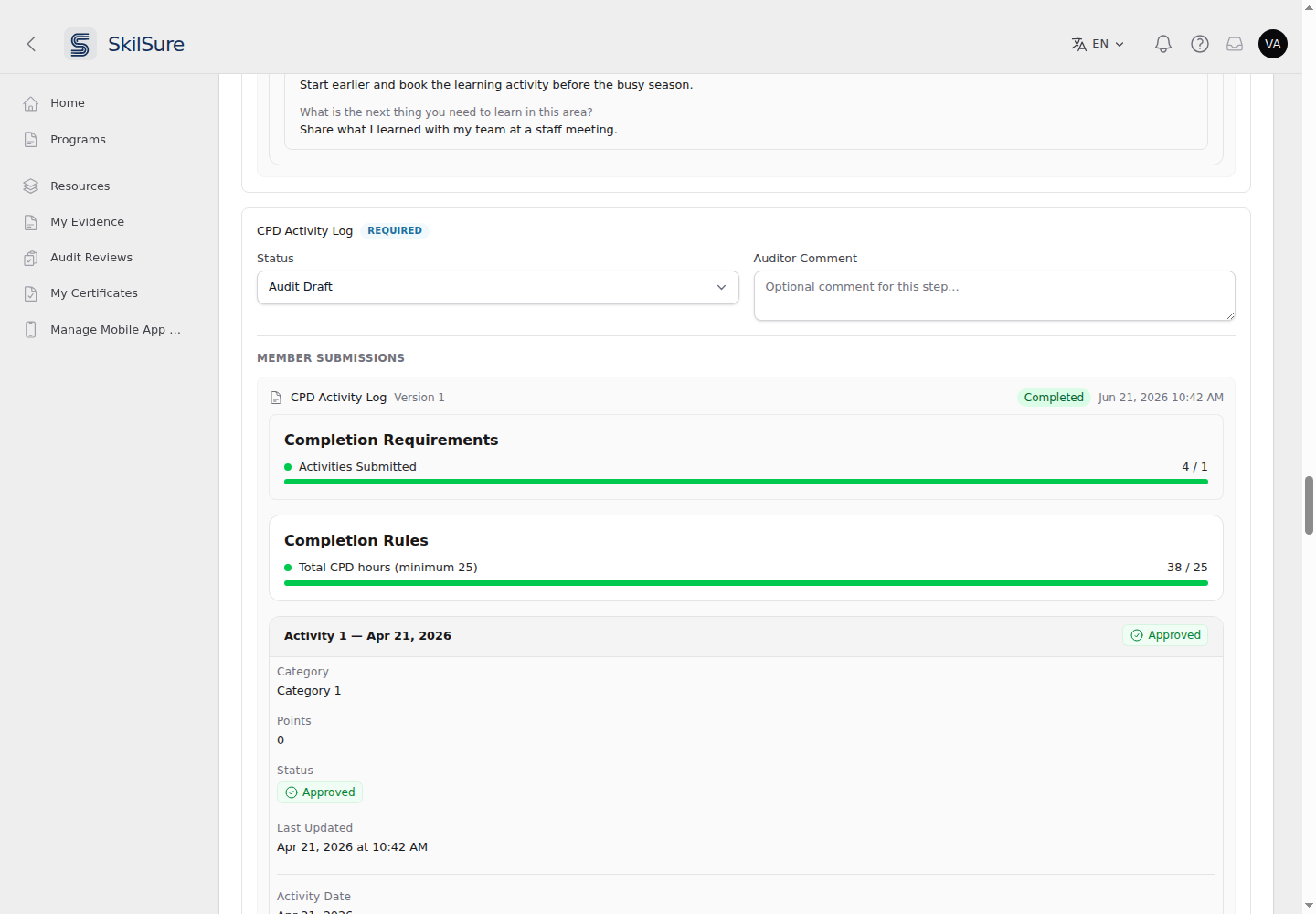 An Activities step shows its Completion Requirements and Completion Rules, including total hours against the requirement.
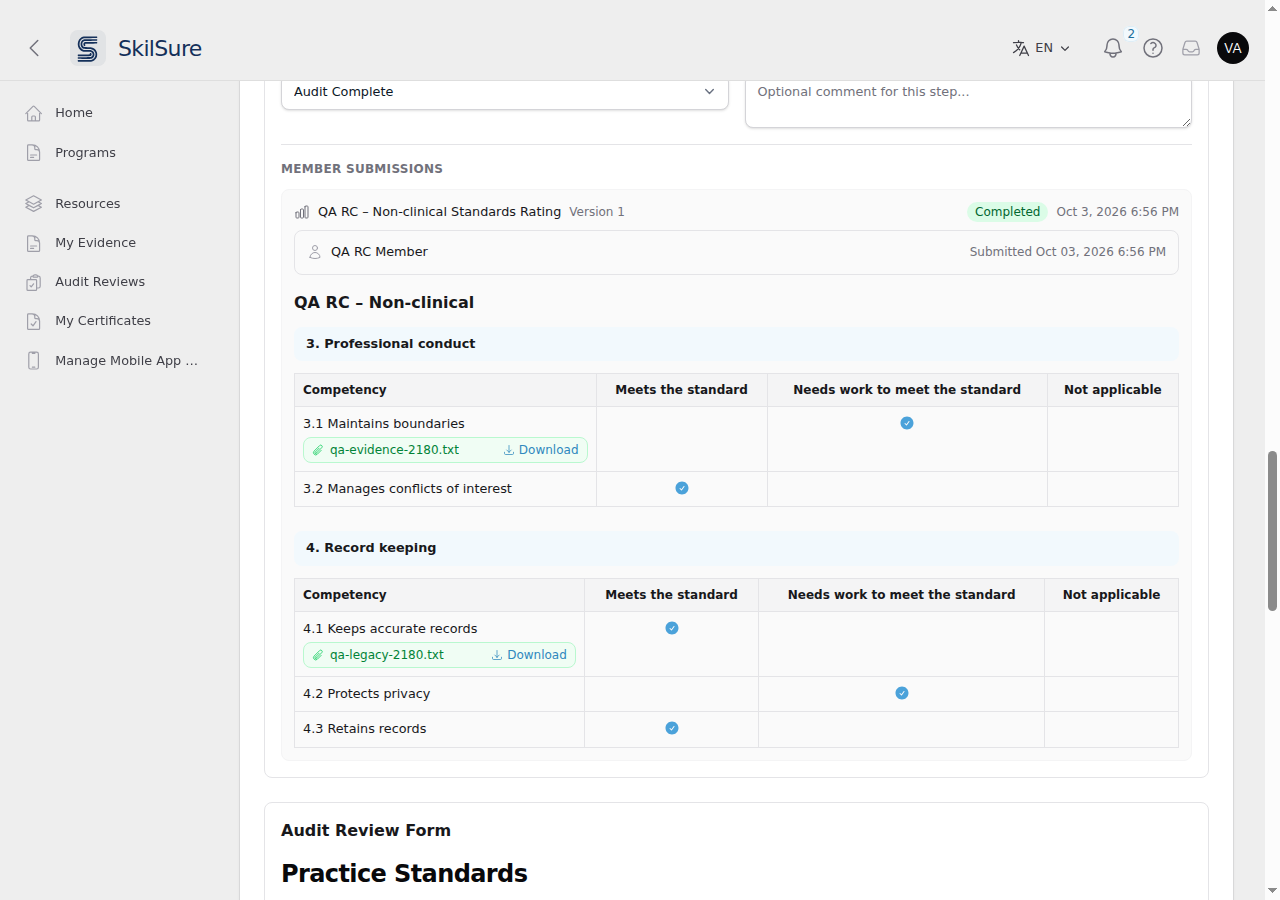 A Competency Rating step lists each file the member uploaded under its competency, with a Download link.
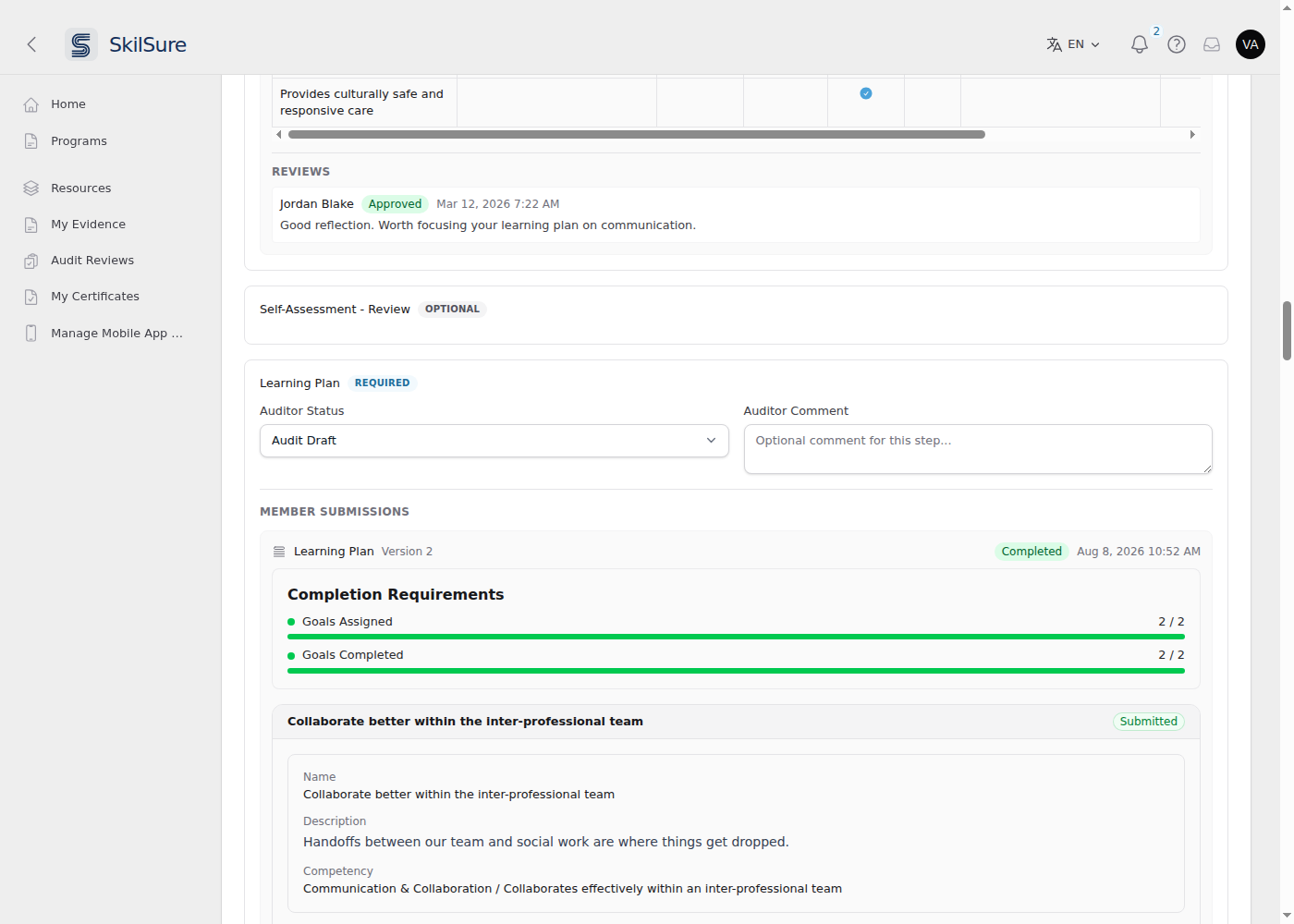 A Learning Portfolio step shows its Completion Requirements above the member's goals.
- Last Addendum, at the foot of the Review Context, is the most recent note an administrator has added to any review on this audit, with +N more when there are others. Each review's full set of notes appears with it under Last Submitted Reviews. Administrators can turn this off for auditors, in which case neither appears.
- An administrator can leave you a note before you submit your first review. It is attached to your draft — if you hadn't opened the review yet, your draft is already waiting for you when you do — and shows here as Last Addendum. It becomes part of the review when you submit.
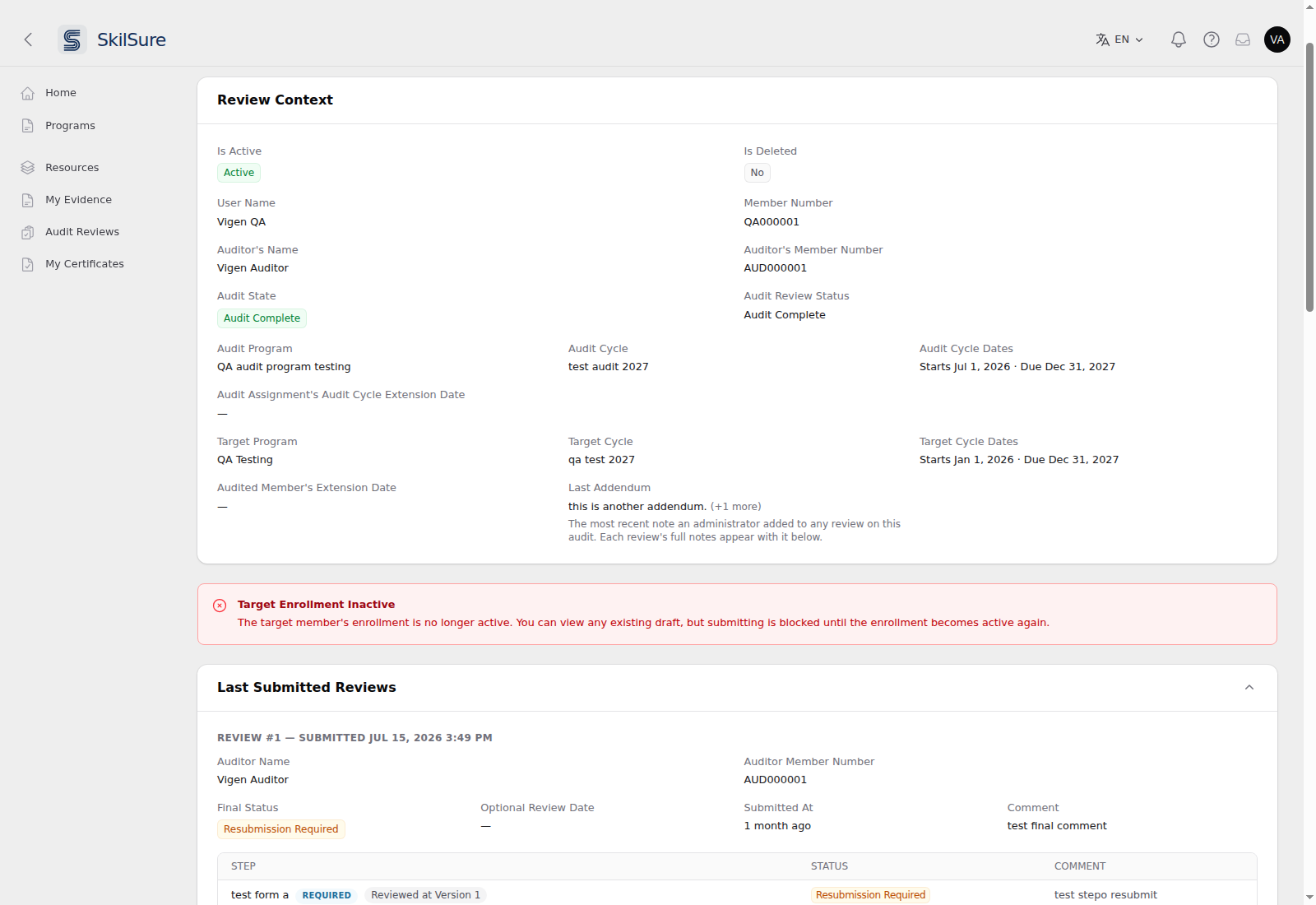 Audit Review. Last Addendum sits after Audited Member's Extension Date; "+1 more" means the audit carries other notes too.
- Under Step Reviews, set an Auditor Status (Audit Complete, Audit Exempt, Audit Incomplete or Resubmission Required, plus any your organisation has added) and an optional Auditor Comment for each step. Your administrator can limit an audit cycle to some of the program's steps. Then Step Reviews lists only those steps, the supervisor signs off on the same ones, and Audit Complete needs only those steps reviewed.
- Complete the audit review form and choose an Auditor Final Status, then submit.
- If your organisation uses supervisor sign-off, your submitted review waits for a supervisor first. See After you submit: supervisor sign-off.
- Submitting locks the review — it becomes a permanent record. If you set any step to Resubmission Required, those steps reopen for the member; once they resubmit, the context returns to Open for Review for your next pass.
- On an Activities step marked Resubmission Required, submitting first asks which approved activities to unlock — see below.
- If you have the same review open in two places — a second tab, or another device — only the first save is kept. The other one is refused with “This review was changed in another session”; nothing you saved is overwritten, and your unsaved entries stay on screen so you can copy them across. Reload latest discards them and brings in the saved version.
- Submitting is protected the same way. If the review changed elsewhere while your tab was open, Submit Review stops with that same warning instead of going through — so a stale tab cannot submit over work saved somewhere else. Reload, check the review still says what you intend, then submit.
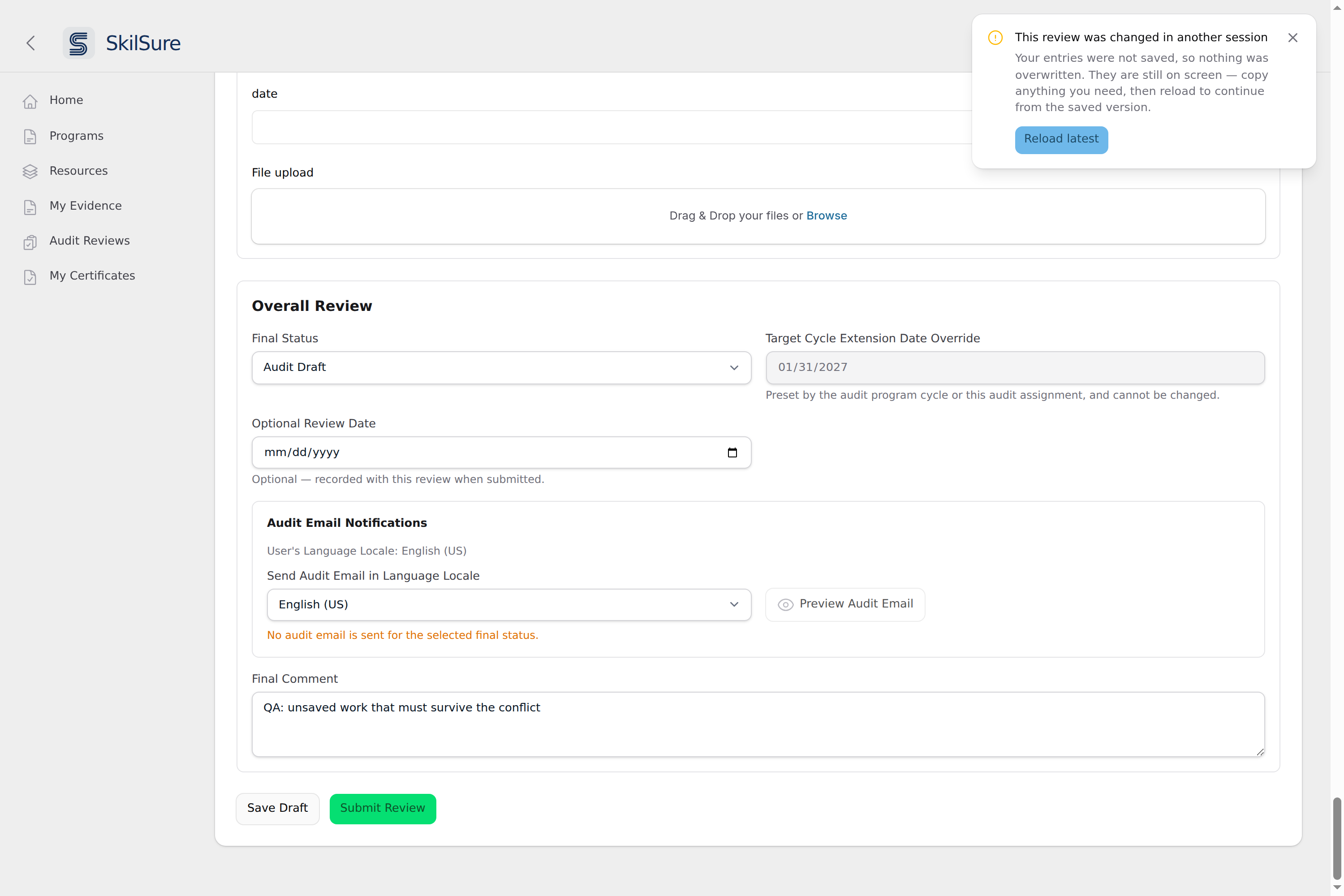 Saving from a second tab after the first one saved. Nothing is overwritten, your entries stay put, and Reload latest switches to the saved version when you are ready.
Two optional fields sit under Overall Review, beside the final status:
- Target Cycle Extension Date Override — gives the member more time to resubmit. It only applies when your final status is Resubmission Required, and the field says so when it doesn't; it stays visible either way so the section doesn't shift around as you change the status. If your administrator has preset an extension date for the audit cycle or your assignment, the field shows that date read-only and you can't change it. On submit the member gets until the end of the day you pick — and only that member. If the date you pick already falls inside their current deadline, grace period or extension, it is left on the review and their dates are untouched, so a review can never shorten someone's time.
- Optional Review Date — record the date you actually performed the review, when that differs from the day you submit. Empty by default and never filled in for you. It's stored with the review and shown in Last Submitted Reviews and to administrators; it is not shown to the audited member.
Review the required competencies
If your administrator has set required competencies for the audit cycle, the review form includes a list of them, grouped by standard, with the member's own rating beside each. Depending on the form, you rate each competency yourself, or the list is read-only. Some forms also give you a comment box per row.
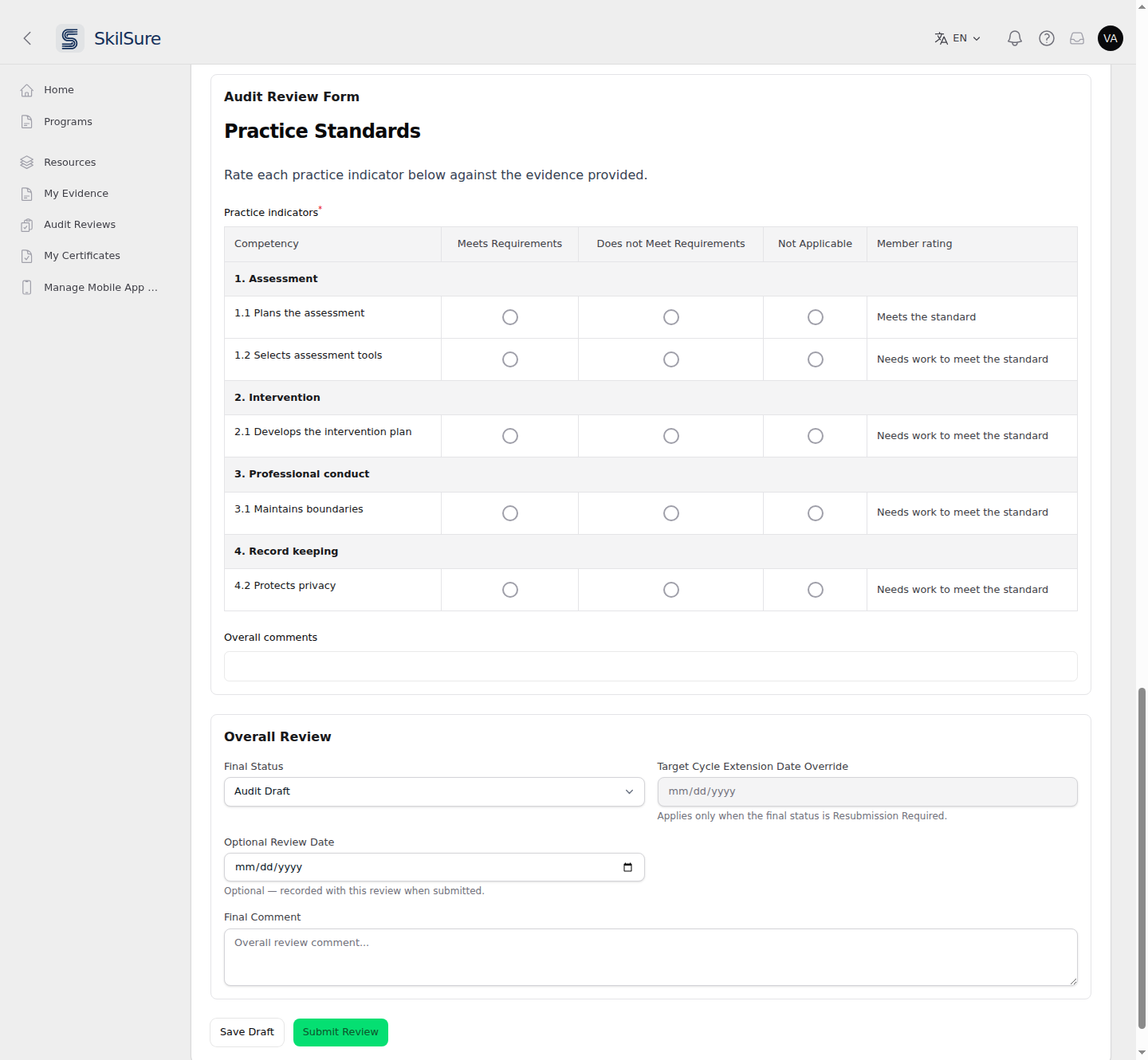 Audit Review. Rate each competency; the member's own rating is shown beside it.
Use Save Draft as you go. The list is based on the member's current ratings, so it can change while you work. If it has changed since your last saved draft, an amber notice above the list says how many competencies were added, removed, or have a different member rating. Answers for removed competencies are discarded.
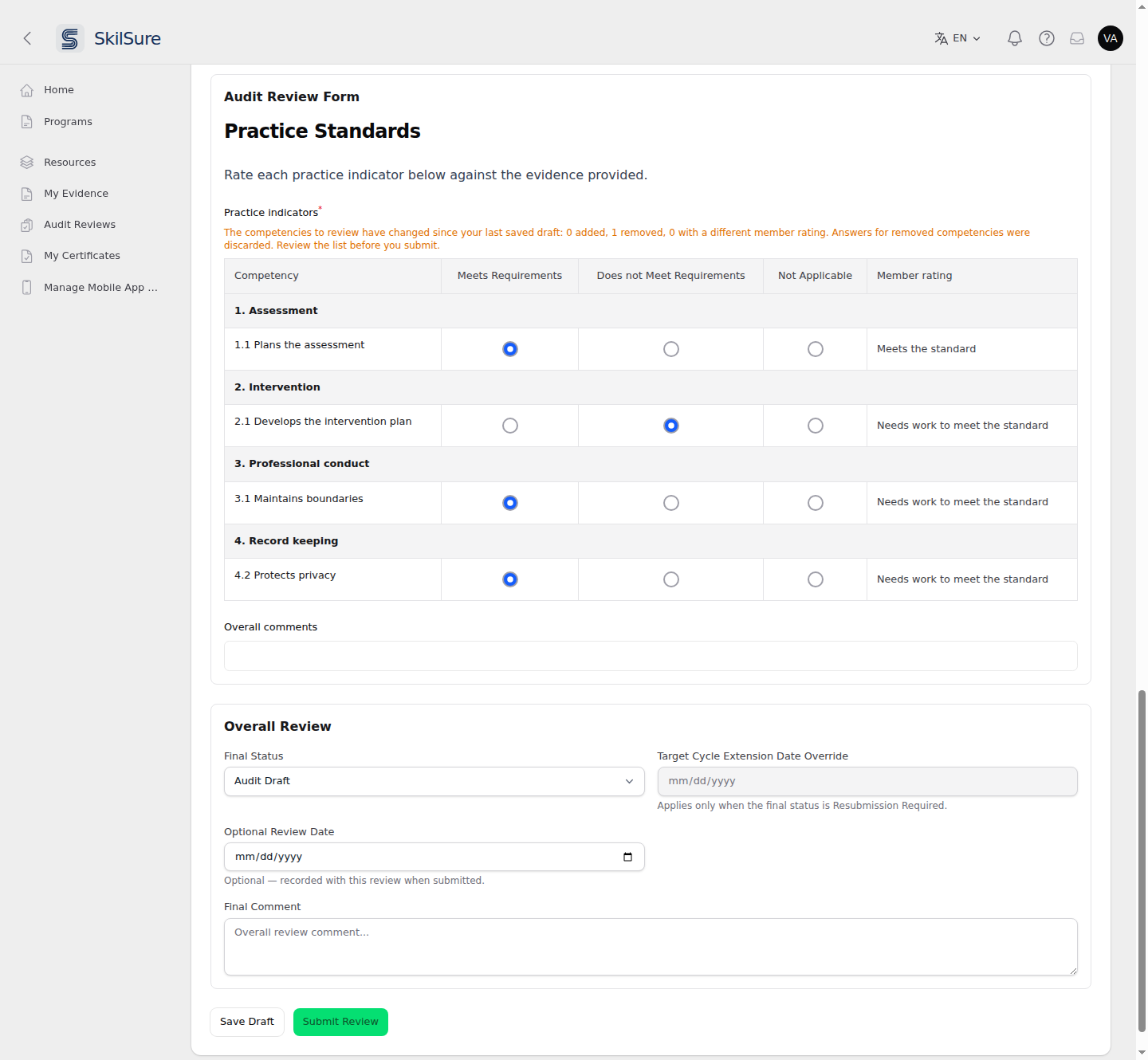 The notice appears above the list when it has changed since your last saved draft.
Submit Review is refused until you have reviewed the updated list and saved the draft again.
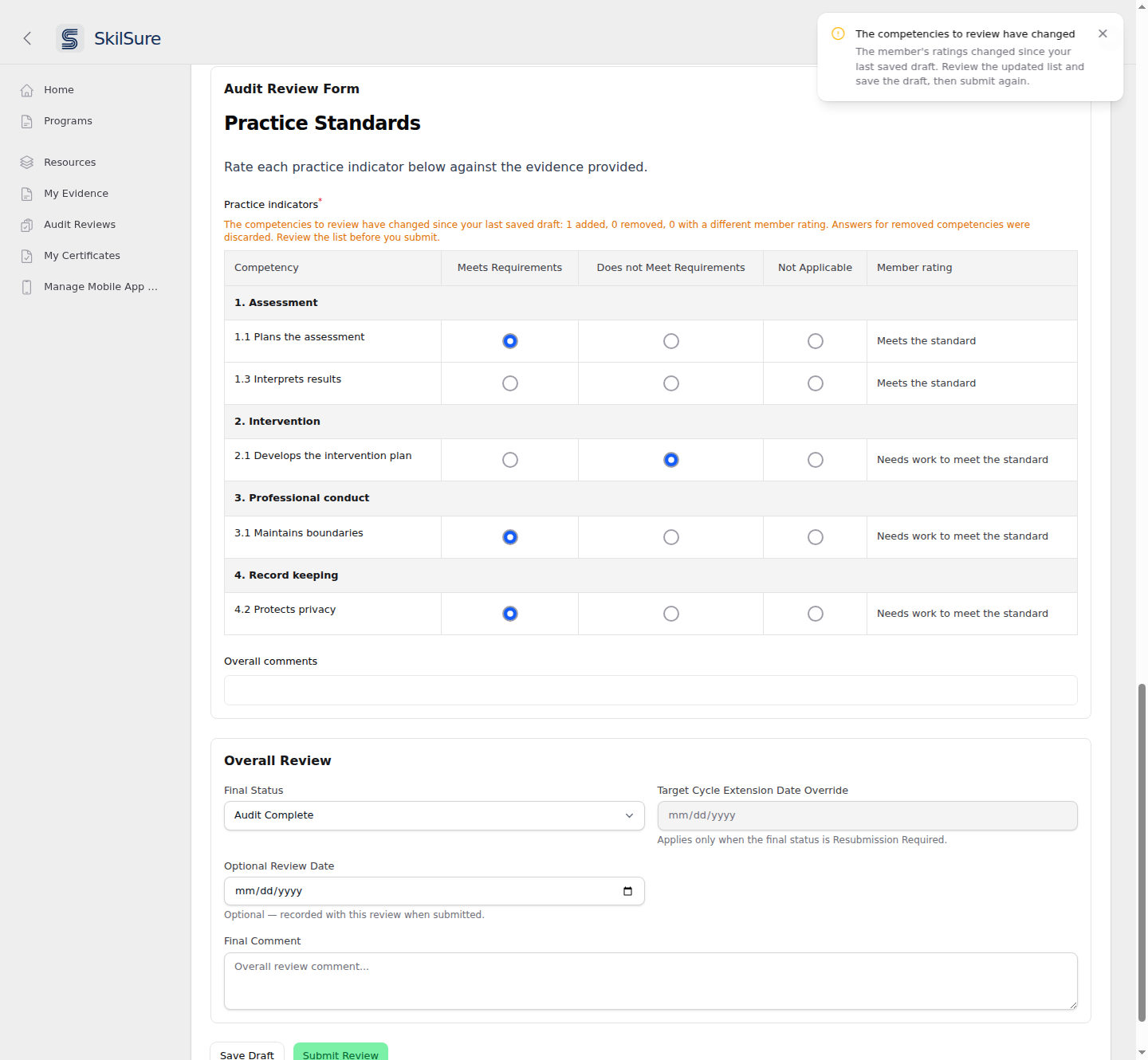 Submitting with an out-of-date list stops with this message. Save the draft, check the list, then submit again.
Once you submit, the list is kept exactly as you reviewed it. Later changes to the member's ratings do not alter a submitted review.
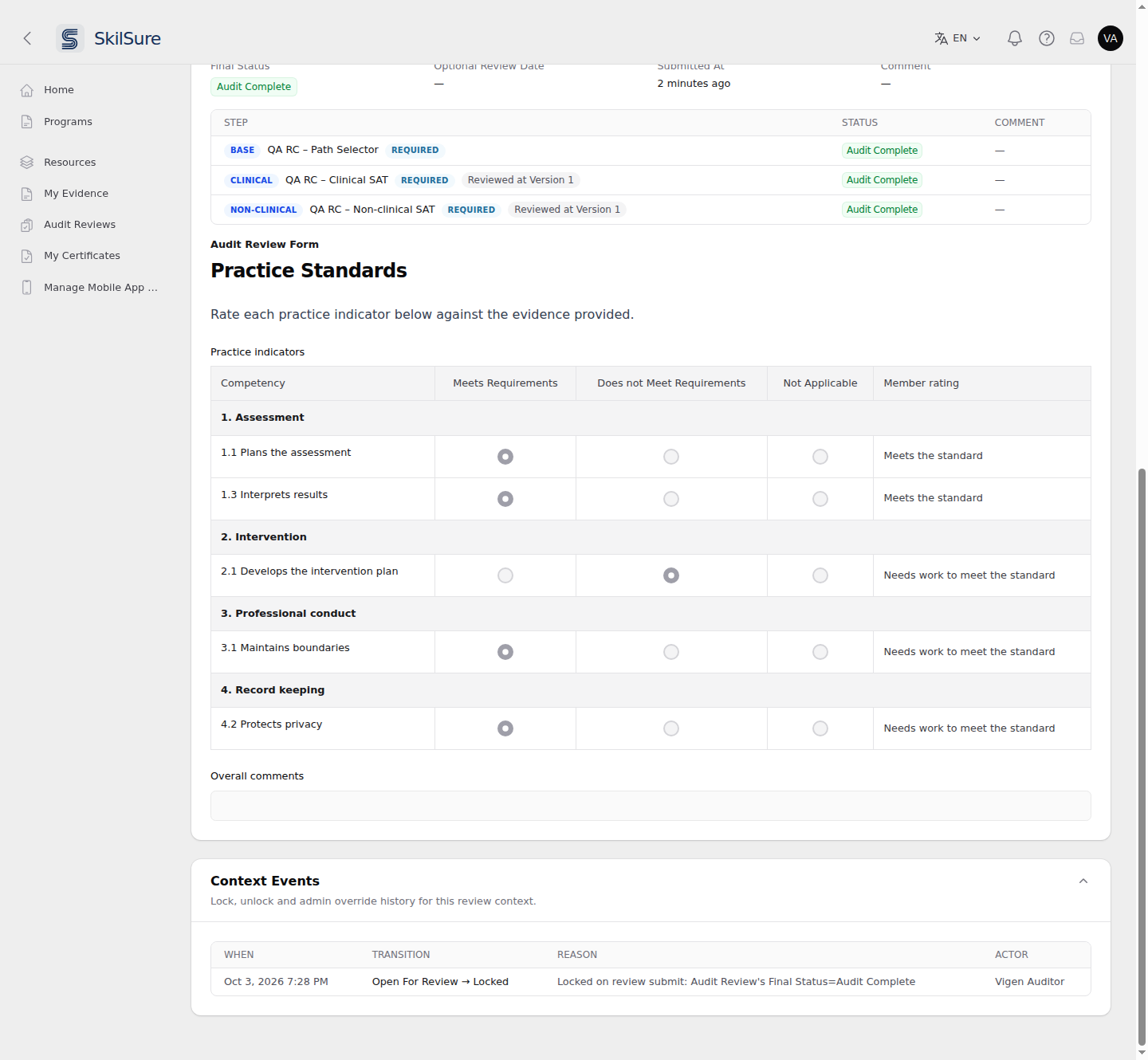 A submitted review shows the list as it was when you submitted.
Choose which approved activities reopen
When you mark an Activities step Resubmission Required and press Submit Review, a Reopen Approved Activities dialog appears before the review is submitted — one for each such step, in turn.
Each approved activity is listed with its date, a short description, and whether it was Auto-approved or Reviewer approved. Tick the ones the member needs to change.
- Anything you leave unticked keeps its approval, so you can send back one activity without disturbing the rest.
- At least one must be ticked. You flagged the step, so the member needs something they can actually edit — if nothing should change on this step, set it to a different status instead.
- Cancel abandons the submit. Your review stays a draft exactly as it was, so you can adjust a status or comment and try again.
- Activities still awaiting review (not yet approved) always reopen, whatever you tick — the member could not edit them otherwise.
Why reviewer-approved activities are listed
Unlike the member's own Reopen Activity button, which only offers automatically-approved items, this dialog lists everything approved — including decisions a reviewer made. Flagging the step is you questioning that work, so the choice is yours to make.
Email the member about the outcome
If your administrator has turned on audit review emails for this audit program, an Audit Email Notifications panel appears under Overall Review, just above Auditor Final Comment.
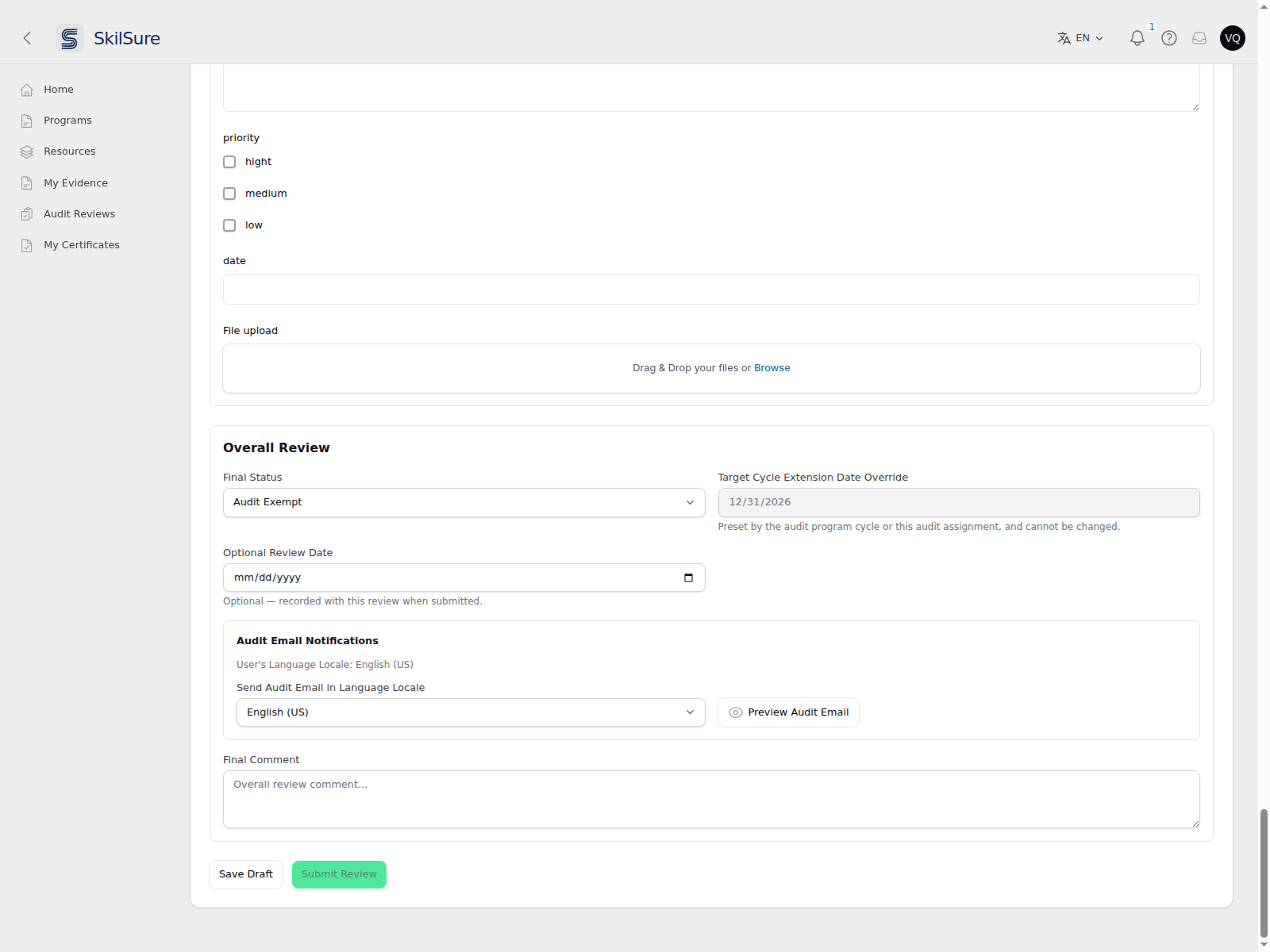 Audit Review → Overall Review. The panel tells you the member's own language and lets you preview the email before you submit.
- User's Language Locale — the language the member uses. Read-only; it's there so you know what they'll normally receive.
- Send Audit Email in Language Locale — the language this email will be sent in. It defaults to the member's own language, and you can override it for this review.
- Preview Audit Email — shows exactly what the member will receive.
The email goes out when you submit the review — nothing is sent while you're drafting, and previewing sends nothing. If your review needs a supervisor's sign-off, the email goes out when the supervisor approves it instead.
The panel stays visible whichever final status you pick. If the status you've chosen isn't one your administrator selected for emails, the panel says "No audit email is sent for the selected final status" and Preview Audit Email is greyed out — so you always know whether submitting will email the member.
Preview before you submit
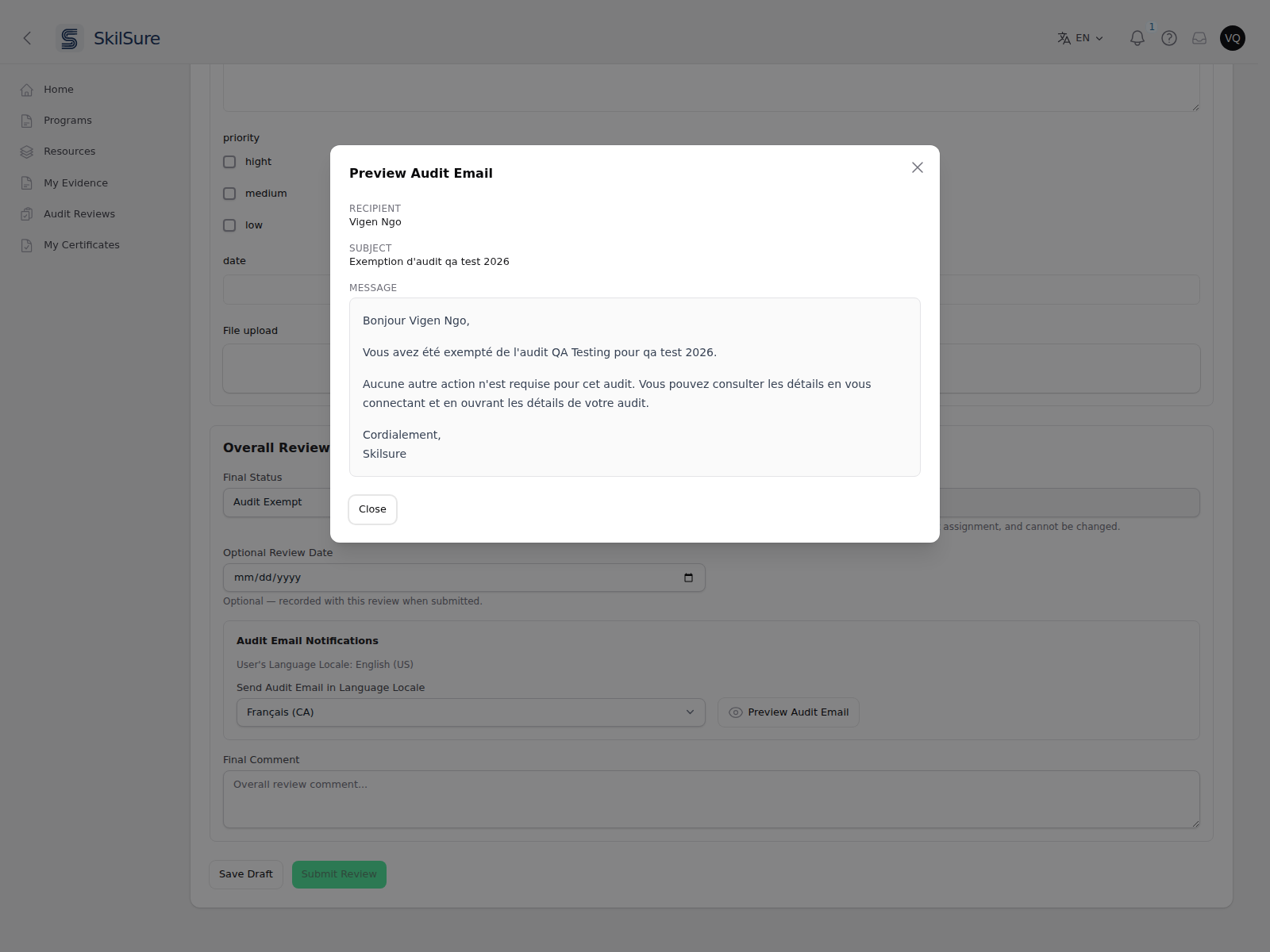 Preview Audit Email. Here the member's own language is English, but the auditor has chosen to send in Français (CA) — the preview updates to match.
The preview is read-only and shows the recipient, the subject, and the full message with the member's and programme's details already filled in. Change Send Audit Email in Language Locale and preview again to see the other language.
The preview is the email
The preview is generated the same way the real message is, so what you read is what the member gets. If the wording looks wrong for your organisation, an administrator can edit the templates under Settings → Notifications → Email Templates.
You can only review inside the audit window
Your access runs from the audit cycle's start date to the latest of its deadline, grace period and any extension — including an extension your administrator set on your assignment alone. Once it passes, the review workspace stops opening and you can no longer download the member's files, even though the assignment still appears on your dashboard.
If you need more time, ask an administrator to set an Audit Cycle Extension Date on your assignment — it extends your window without moving the cycle deadline for everyone else.
If the whole Audit Reviews area disappears rather than a single review, audits have been paused for your organisation — ask an administrator.
Acknowledge changed data
If the member edited their work after you started, an Acknowledge Changes banner appears. Review the updated work and acknowledge it before you can submit — this stops a review being submitted against stale data.
After you submit: supervisor sign-off
Your organisation can require a supervisor to sign off each review before it takes effect. This applies only to assignments that have a supervisor. On any other assignment, Submit Review works as described above.
When sign-off applies, submitting does not lock the review or reach the member yet:
- Your review shows under Awaiting Supervisor Sign-off, read-only, and your dashboard shows Pending Supervisor Sign-off in Audit Review Status. You cannot edit it while it waits.
- When a supervisor approves it, the review is submitted exactly as it would have been without sign-off. The member is notified, steps reopen for resubmission, and the review email goes out.
- When a supervisor returns it, it comes back to you as an editable draft. You get an in-app notification (the bell at the top of the page).
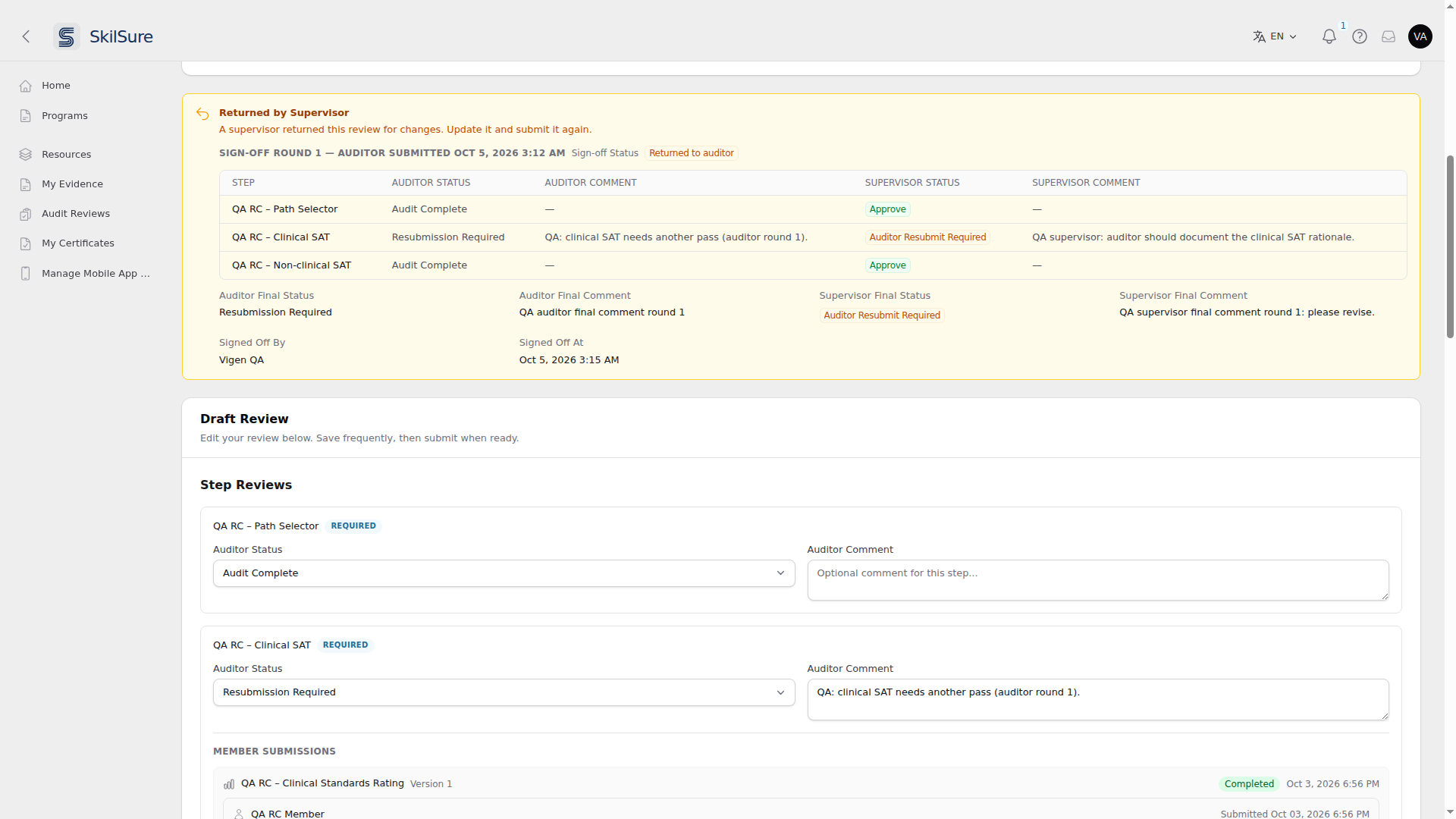 Audit Reviews → Review. A returned review comes back as an editable draft.
A returned review opens with a Returned by Supervisor callout above the draft. It shows the supervisor's Supervisor Status and Supervisor Comment on each step, and their Supervisor Final Status and Supervisor Final Comment. Update the review and submit it again. It then waits for a new sign-off round.
Under Last Submitted Reviews, a review that went through sign-off shows the supervisor's statuses and comments beside yours. Earlier rounds sit under Earlier Sign-off Rounds, with their statuses and comments only.
You never see the supervisor's form
If your organisation gives supervisors a sign-off form, its answers and uploaded files are never shown on your review page, in any round. You see the supervisor's statuses and comments, and only once they have decided. If you also hold an audit oversight permission in the admin panel, the admin Audit Reviews report shows you the form there.
If you're a supervisor
A supervisor checks an auditor's submitted review before it takes effect. You can sign off a review when you hold a role that can sign off audit reviews and you are listed as a supervisor on its audit assignment, directly or through a user group. You never sign off an audit you conducted, or an audit of your own work.
Find reviews waiting for you
You get an in-app notification (the bell at the top of the page) when an auditor submits a review for your sign-off. Its link opens the sign-off page.
You can also open Audit Reviews from the sidebar. It lists the audits you supervise, beside any you audit yourself.
- The Auditor column, after Member Number, names each audit's auditor with their member number.
- The Auditor filter narrows the list to the auditors whose audit assignments you supervise.
- Audit Review Status reads Pending Supervisor Sign-off on a review waiting for you.
- Open a row to go to its sign-off page.
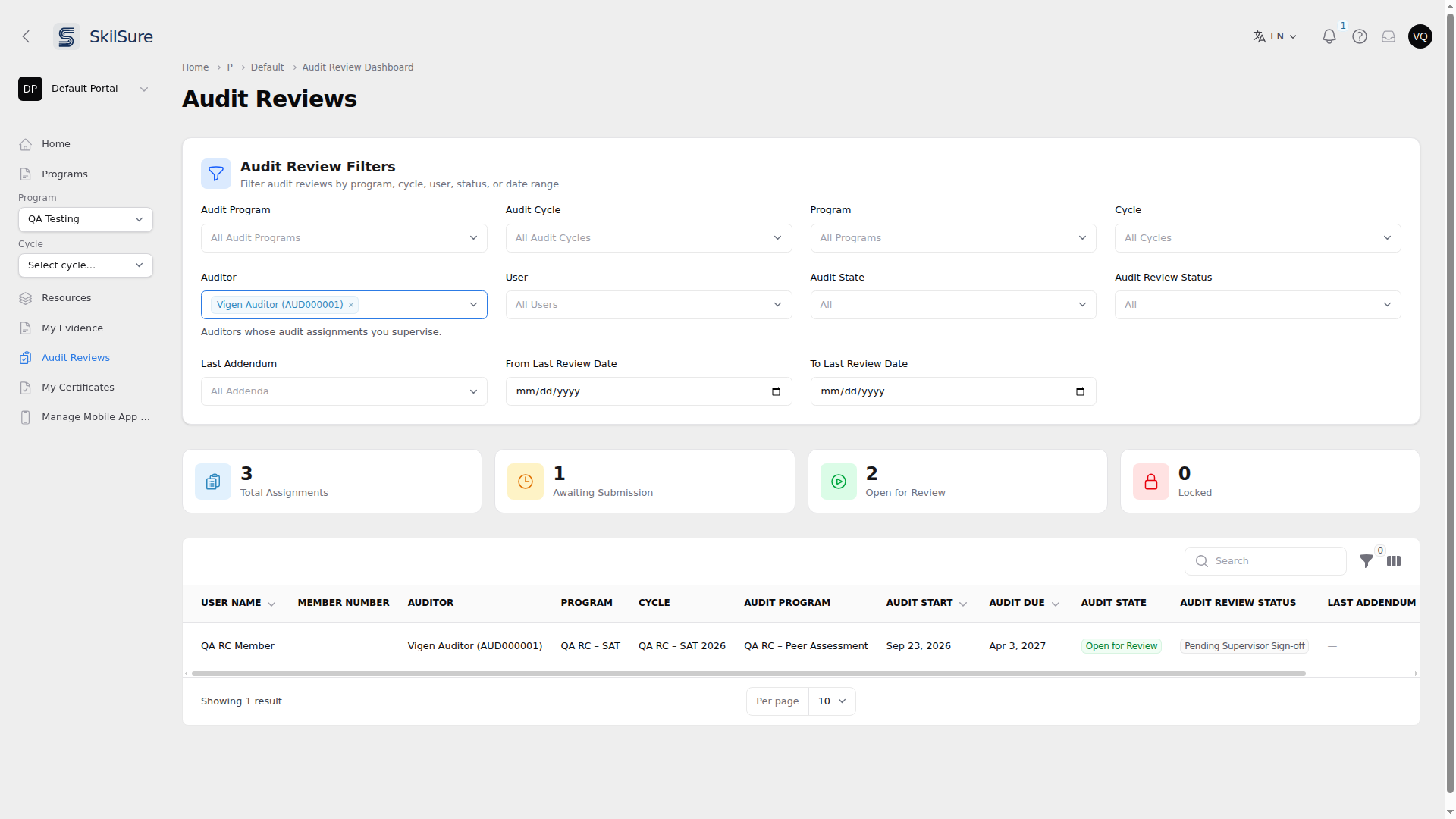 Audit Reviews, as a supervisor.
Sign off a review
The sign-off page shows the auditor's review and your sign-off, top to bottom:
- Review Context shows the member, the auditor and the audit, including the Supervisor(s) and Supervisor User Group(s) rows.
- Supervisor Sign-off, then Step Reviews. For each required step, set a Supervisor Step Status and an optional Supervisor Step Comment. Below them, Auditor's Submission shows the auditor's Auditor Status and Auditor Comment, and then the step's Member Submissions, including the member's uploaded files with Download links on a Competency Rating step. Optional steps show the auditor's submission and the member's work only.
- Auditor's Audit Review Form, read-only.
- Supervisor Sign-off Form, if your organisation uses one. Fill it in like any other form.
- Auditor Overall Review, read-only: the Auditor Final Status, Target Cycle Extension Date Override, Optional Review Date and Auditor Final Comment.
- Supervisor Overall Review: your Supervisor Final Status and Supervisor Final Comment.
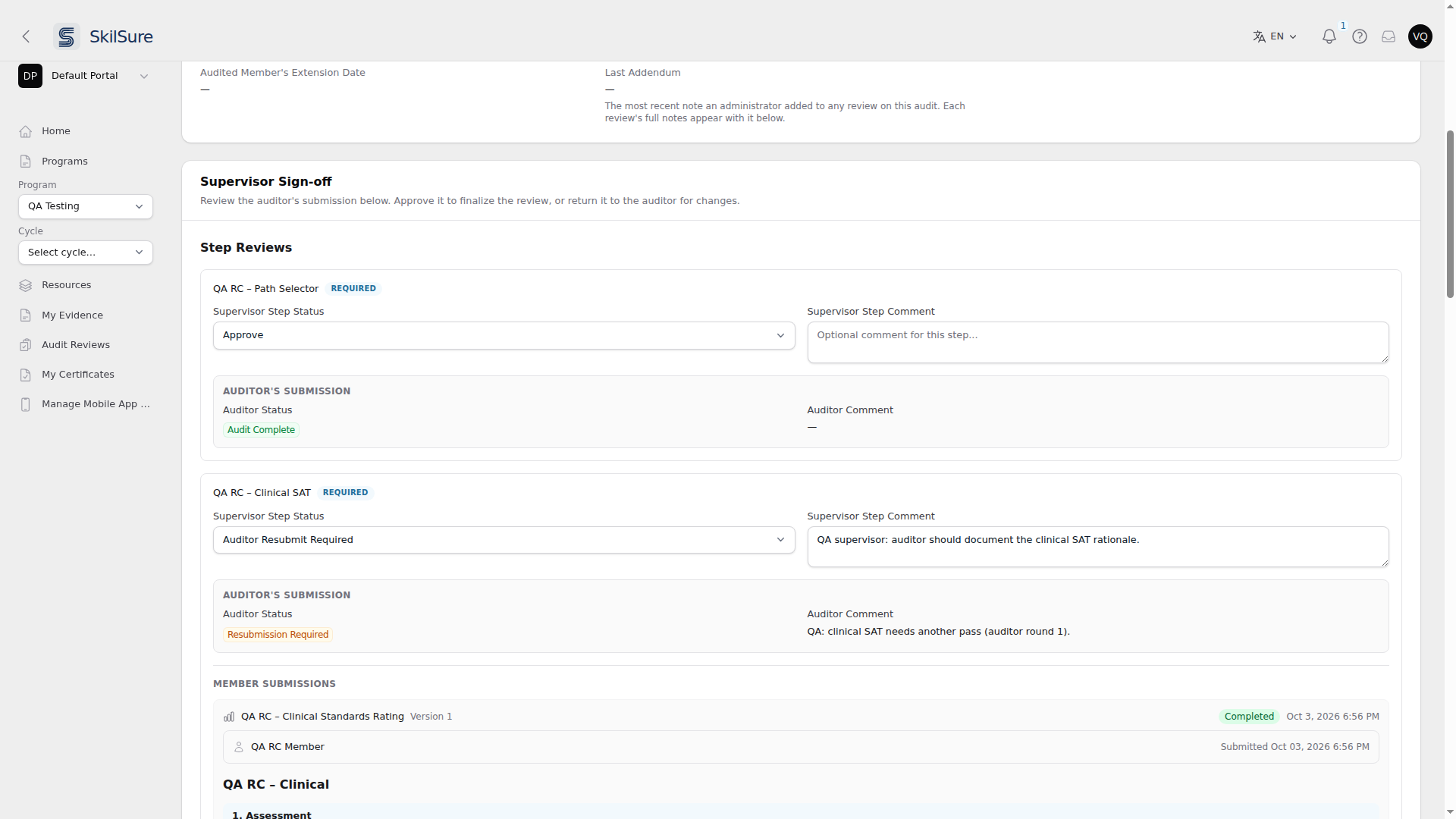 Audit Reviews → Sign Off. Each required step gets a Supervisor Step Status.
Each status is either Approve or Auditor Resubmit Required.
- Approve accepts the auditor's work.
- Auditor Resubmit Required sends the review back to the auditor to change and submit again.
Your Supervisor Final Status follows from your step statuses:
- It stays empty, and cannot be chosen, until every step has a Supervisor Step Status.
- It is set to Auditor Resubmit Required while any step is Auditor Resubmit Required. You cannot choose Approve then.
- When every step is Approve, it is set to Approve. You can still lower it to Auditor Resubmit Required to return the review anyway.
Save or submit
- Save Sign-off keeps your answers without deciding. You or another supervisor can come back to them.
- Submit Sign-off decides the review. With Approve, the review is submitted and the member sees the outcome. With Auditor Resubmit Required, it goes back to the auditor, who is notified.
If the member's enrollment is no longer active, the page shows Target Enrollment Inactive and you cannot approve. You can still return the review to the auditor.
Several supervisors on one review
Every supervisor listed on an assignment works on the same sign-off, and one decision settles it.
- If another supervisor saved after you opened the page, your save is refused with "This sign-off was changed in another session". Nothing is overwritten and your entries stay on screen. Copy what you need, then reload to continue from the saved version.
- If another supervisor already submitted, you see "This sign-off was already submitted by another supervisor."
Later rounds
When an auditor resubmits a returned review, it starts a new sign-off round. While round 2 or later is waiting, the page lists the earlier rounds under Earlier Sign-off Rounds, in full: the auditor's answers at that time, the supervisor's statuses and comments, and the sign-off form.
Once nothing is waiting, the page shows Last Submitted Reviews with each round, and Context Events.
If you're the audited member
Your program is being audited
When an enrollment is audited, a Program Audit panel appears on that program's page.
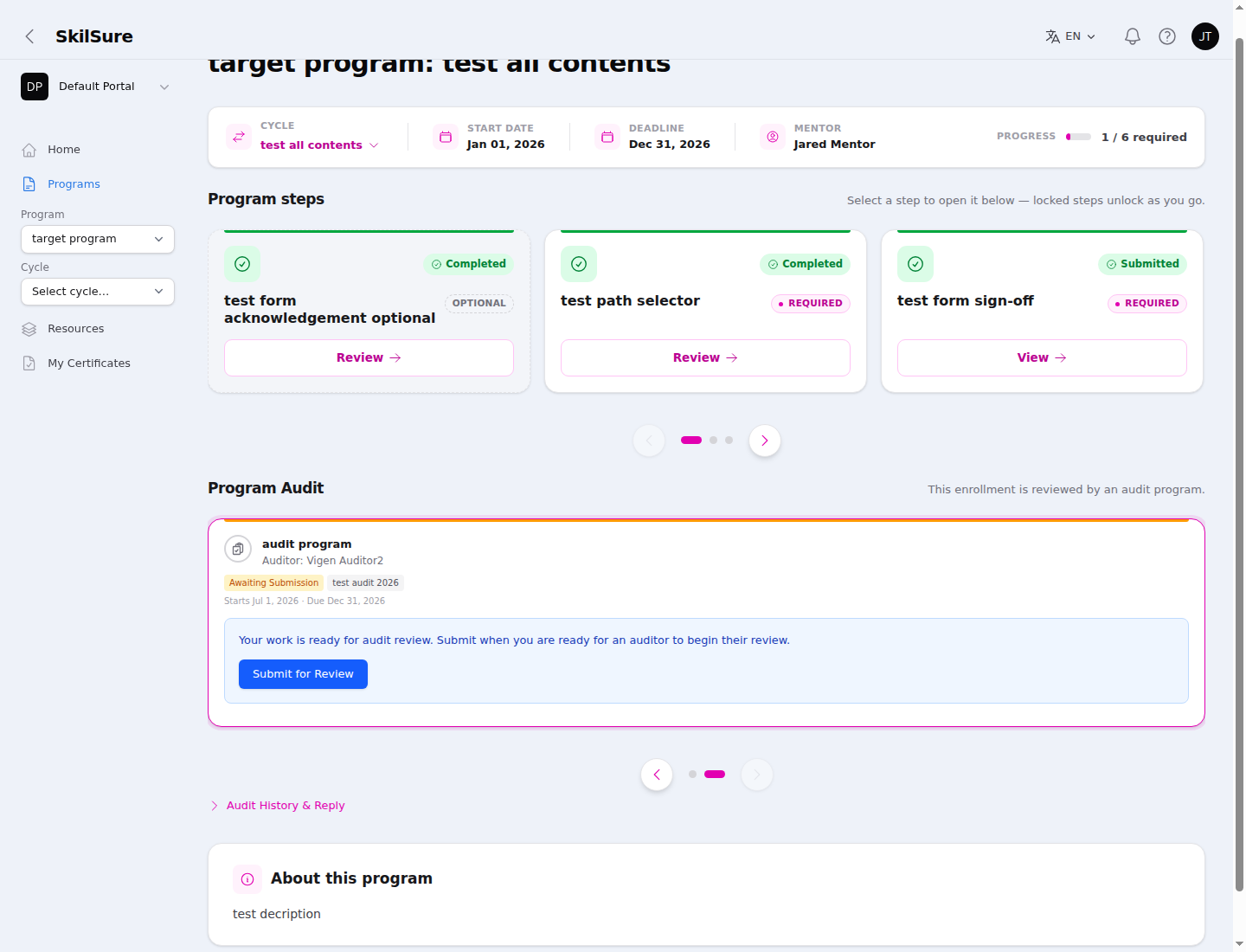 Your program page. The Program Audit panel shows who's auditing you and lets you submit your work when it's ready.
- The panel names the audit program and your auditor (unless the auditor is anonymized), and shows the current state.
- When your work is ready, click Submit for Review to hand it to the auditor. (Some audits don't require this step and open for review automatically.)
- The panel disappears entirely — along with Audit History & Reply — if an admin withdraws the audit (by deactivating or deleting the assignment). That is expected, not an error; if the audit had already finished, your audited steps may stay locked until the assignment is deleted rather than merely switched off. Ask your administrator if a Program Audit panel you were expecting is not there.
- The button only appears once every required step is complete. While one is outstanding you'll see a note saying so instead — finish the remaining step(s) and it becomes available. Three things don't count against you: a step you've been exempted from, a step you've submitted that is waiting on someone else to sign off or evaluate, and the Path Selection step in programs where it stays visible for the audit. Your part is done in all three cases, so the button stays available.
Review outcomes and replies
Expand Audit History & Reply to see every review of your work.
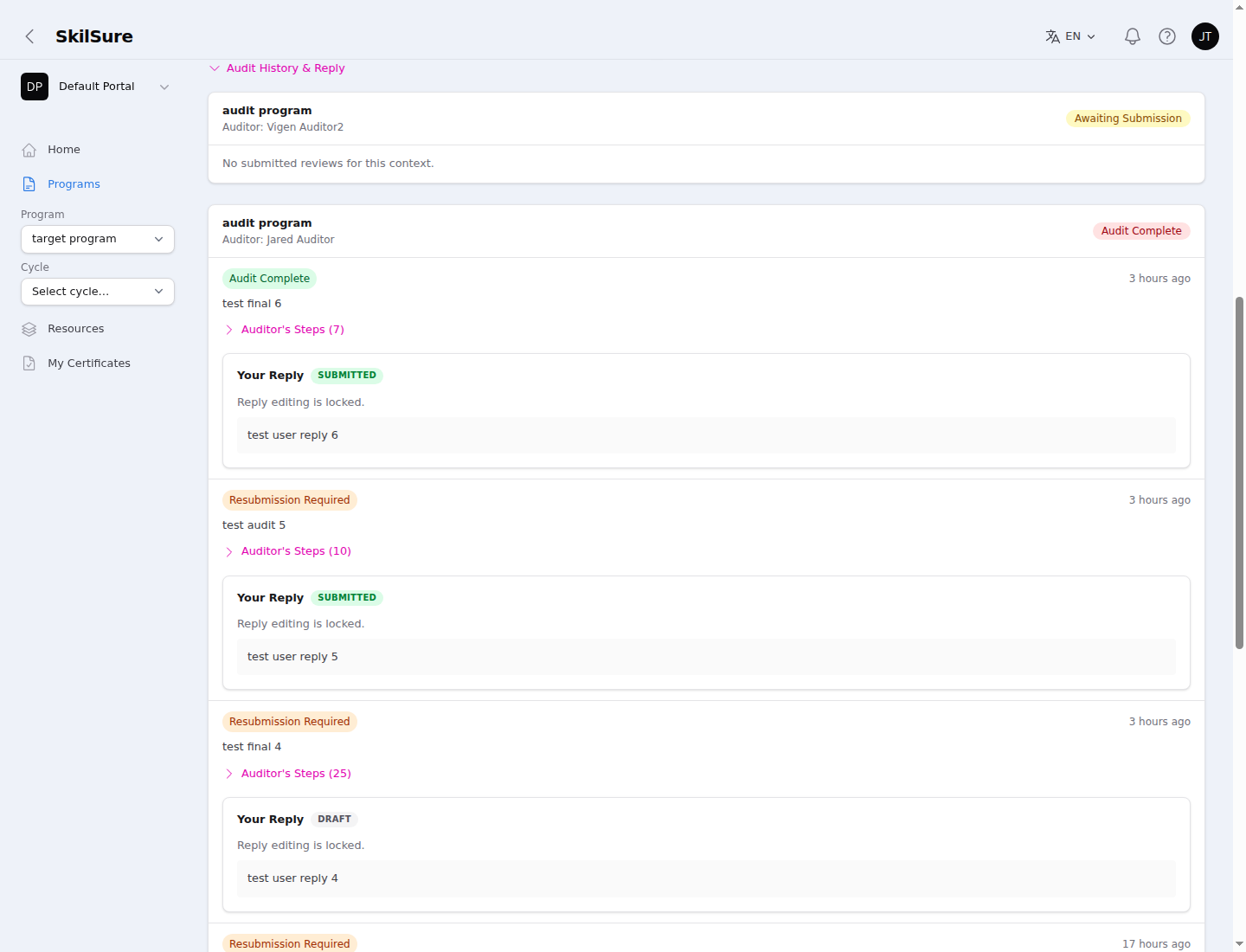 Audit History & Reply. Each past review keeps its own outcome, step list, and your reply — here three reviews with 7, 10, and 25 auditor steps.
- Each entry shows the review's outcome (Audit Complete, Resubmission Required, …) and when it was submitted.
- Auditor's Steps expands the steps that review covered, each with the auditor's status and comment. Every review preserves the steps as they were when it was submitted, so older reviews always show what was actually audited.
- If replies are enabled, use Your Reply to respond to the review overall and per step. Save keeps a draft; submitting locks your reply.
Resubmission Required
When a review comes back Resubmission Required, the flagged steps reopen so you can update them — your program becomes editable again even if it had already been marked complete or submitted. Fix them, submit for review again, and the auditor picks up where they left off.
The auditor's review appears on your Program Audit card with each step they looked at. A step may carry a Reviewed at Version {number} tag, naming the version of that step's content the auditor actually reviewed — useful when the content has been updated since. Your administrator can turn that tag off, so you won't see it on every site.
This can take a moment to appear: reopening happens in the background just after the auditor submits. If the steps still show as complete, reload the page shortly afterwards.
If they're still locked after that, the background task hasn't run — it isn't something you can fix from here. Ask your administrator, who can apply it immediately from the Audit Reviews page.