
Appearance
AdminData imports
Data import configurations let you load records from CSV files on a schedule — for example a nightly user feed. Each configuration tells the system which files to pick up, when, and how to map their columns to fields.
Browse import configurations
Open Settings → Data Imports.
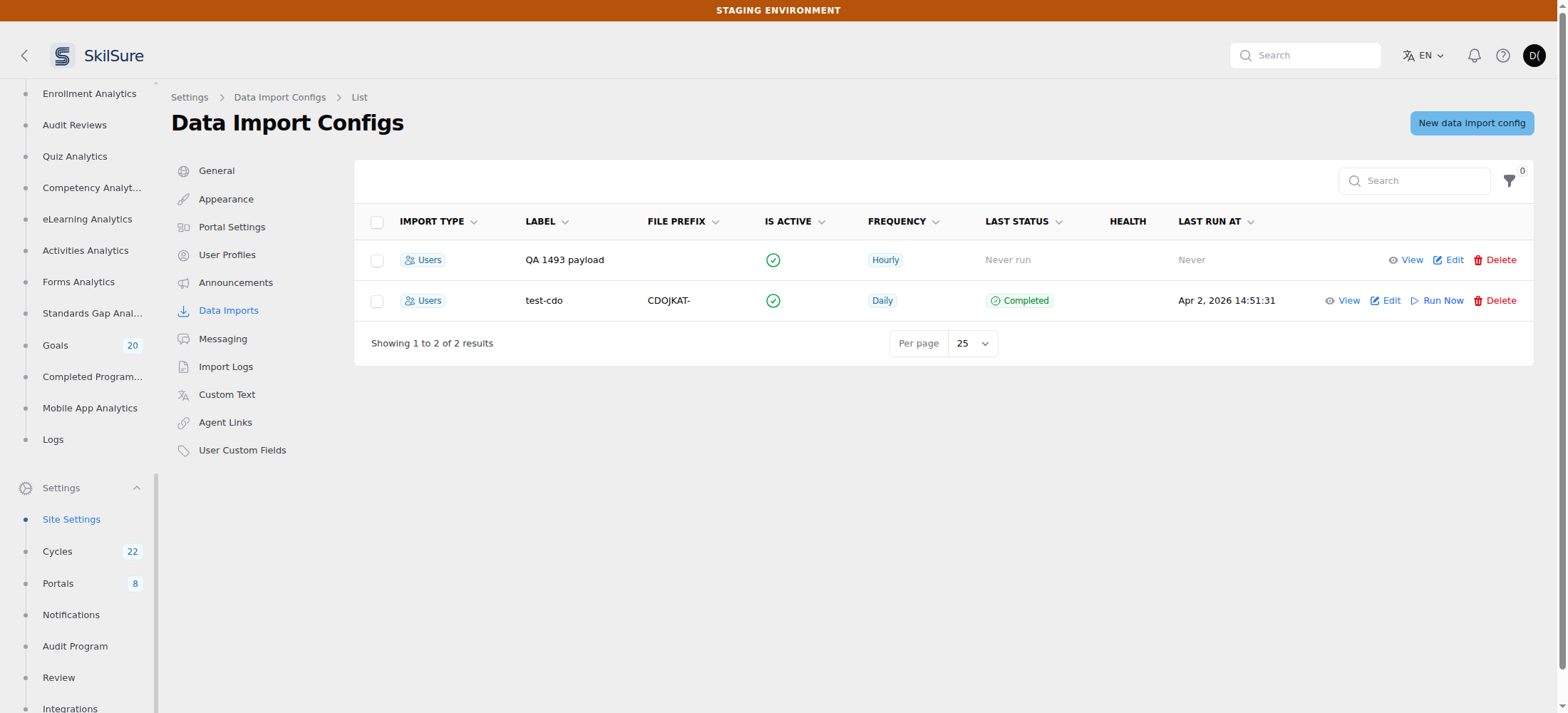 Settings → Data Imports. View opens the configuration read-only; Run Now appears only on file-based configurations, and only for admins who can edit.
Each row offers View, Edit and Delete, and file-based configurations also offer Run Now. Clicking anywhere else on the row opens the read-only view.
Look at a configuration without editing it
Click View on a row — or just click the row.
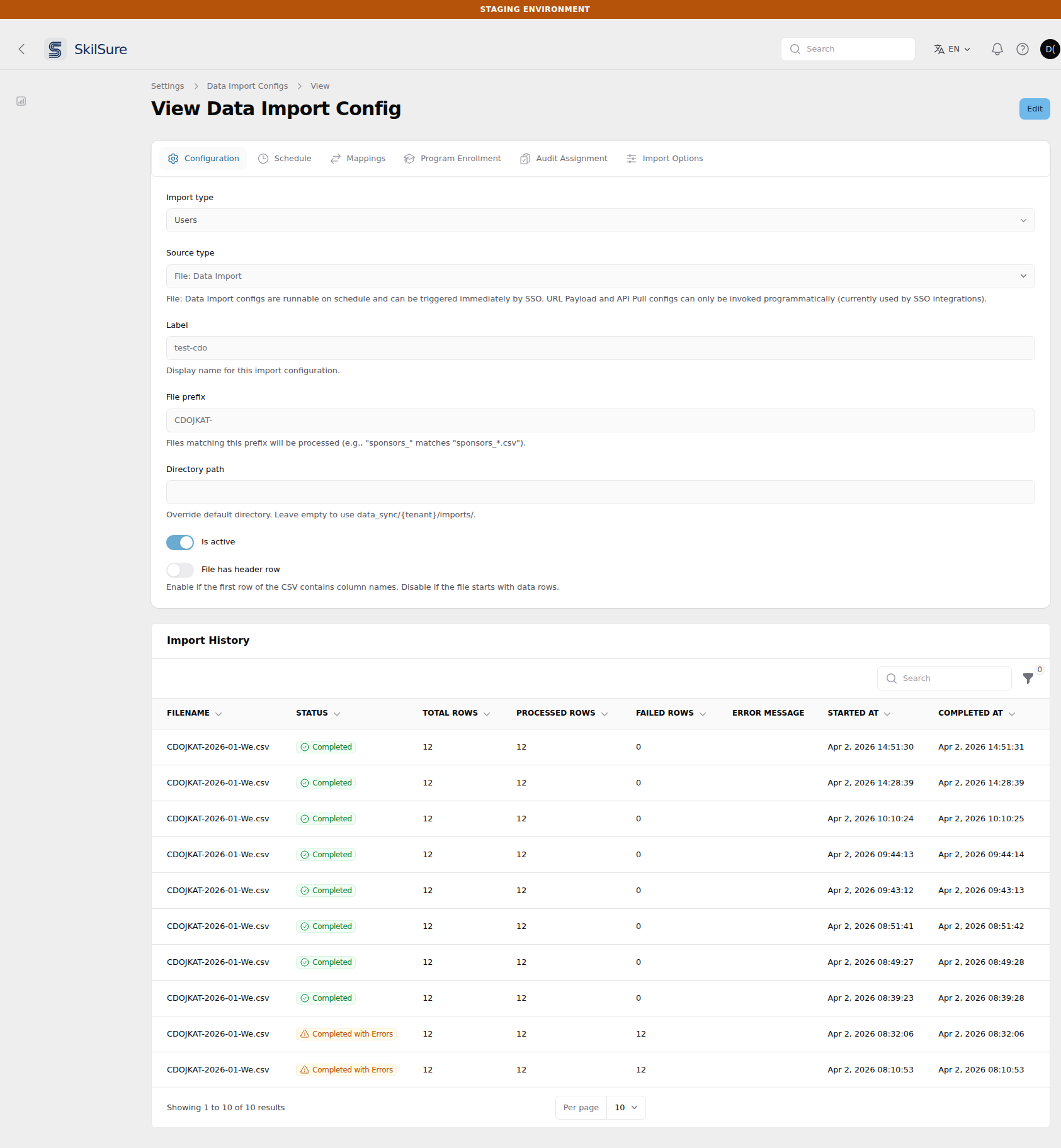 The read-only view. Every field is greyed out, there is no Save and no Delete, and the configuration's whole run history sits underneath.
The view shows the same six tabs as the edit form, with the same values, plus the configuration's Import History underneath. Nothing on the page can change anything: there is no Save, no Delete and no Run Now, and every field is read-only. You can still sort and filter the history.
This is the page to open when you want to answer "did last night's run succeed, and how many rows failed?" — you no longer have to open the edit form of a live import to find out.
Who can open it
Viewing needs only the view permission for data import configurations. Someone who can view but not edit sees the page and its history, but no Edit button and no Run Now — because running an import writes: it creates and updates members, enrolments, portal roles and audit assignments.
The default password is never shown here
If the configuration sets a Default Password, that field is left out of the view entirely. Open the edit form to see or change it.
Create an import configuration
Click New, or open an existing configuration to edit.
Name — a display name for the configuration.
File prefix — files whose names start with this are processed (e.g.
sponsors_matchessponsors_*.csv).Header row — enable if the first CSV row contains column names; disable if the file starts with data.
Schedule — how often to run (e.g. daily or weekly) and, for those, the time of day.
The scheduled time is not in your time zone
The time of day is read in the system time zone (UTC on most installations), not the time zone set for your organisation. A feed you want at 02:00 local has to be entered as the matching UTC time. The field's helper text names the zone in use.
This also means the local run time moves when the clocks change. Because the time is fixed in UTC, a feed that runs at 02:00 your time in summer runs at 01:00 in winter — or the other way round, depending on your hemisphere. If your file is delivered at a fixed local time, check that the gap between its arrival and your scheduled time is still comfortable after each clock change, and leave yourself at least an hour of margin.
The run starts at the first check after your scheduled time
The system checks for due imports once an hour, so a daily import runs at the first check at or after the time you set — up to an hour later, never earlier. A feed scheduled for 07:00 starts a few minutes past 07:00 in practice. Treat the scheduled time as "not before this", not as an exact start.
A daily import runs once per day, on the day's scheduled time, regardless of what time the previous day's run happened to start. If a run is delayed — a large file, a restart, a manual run — the next day still goes back to your scheduled time.
Do not schedule in the last hour of the day
Because the check happens once an hour and the scheduled time is only considered on its own day, a time late enough that no check falls between it and midnight is never reached — the import stops running entirely, with no error. Keep the scheduled time at or before 23:00. If you need a late-evening run, use 23:00 rather than 23:30.
If this has already happened, the configuration shows the Overdue badge once a file has been waiting, so it is visible on the list — see Spot an import that needs attention.
Column mappings — map each CSV column (by header name or index) to the system field it fills.
Save.
A weekly schedule ignores the time of day
The time of day is applied to daily schedules only. A weekly configuration runs roughly a week after its last run, at whatever time that works out to — the time you enter is not used. If you need a weekly feed to land at a particular time, use a daily schedule and have the source system publish the file only on the day you want it.
Files are picked up from your tenant's import directory (data_sync/{tenant}/imports/ by default, or an override you set).
Assign users to a group
For a user import, map a column to the User Group field to place each user in a group as they import. The value can be a group name or a Parent > Child path, and behaves exactly as in an interactive user import — see Assign users to a group during import.
Match a fixed-width member number
Registries often publish a fixed-width member number and then send it unpadded — 619 where the member is really 00619. Importing the short form creates a second account for someone who already exists, because the member number is both the username and the value rows are matched on.
On a column's mapping in Mappings, set Pad to length (and optionally Pad with, which defaults to zero). Padding is applied before the value is used for anything, so matching, the username and the enrolment rules all see the padded form.
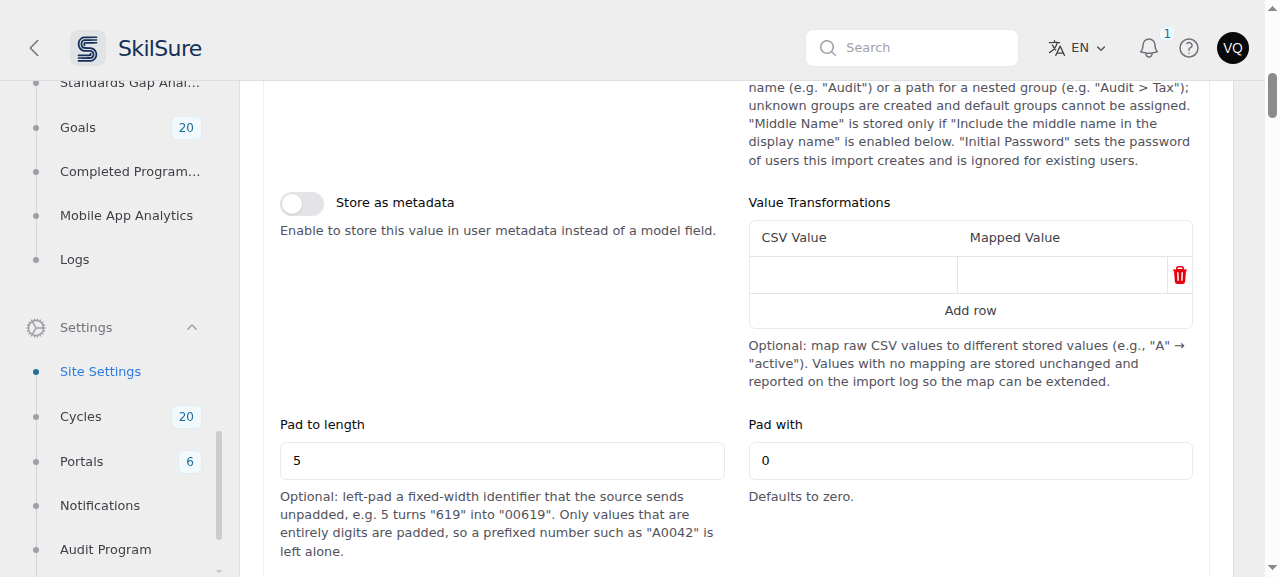 Settings → Data Imports → Mappings. The pad settings sit on the individual column's mapping, beside its value transformations.
Prefixed numbers are never padded
Only values that are entirely digits are padded. A prefixed number such as A0042 is left alone — left-padding it would produce 0A042, which no longer starts with the prefix and would quietly move that member into another class.
Give new users a password from their own data
Some registries expect a member's first password to be derived from data they already hold, such as the member's birth date.
On Import Options, set Initial Password From Column to a mapped column, and optionally Initial Password Format to a PHP date format: mdy turns 1990-01-05 into 010590. Leave the format empty to use the value exactly as the file supplies it.
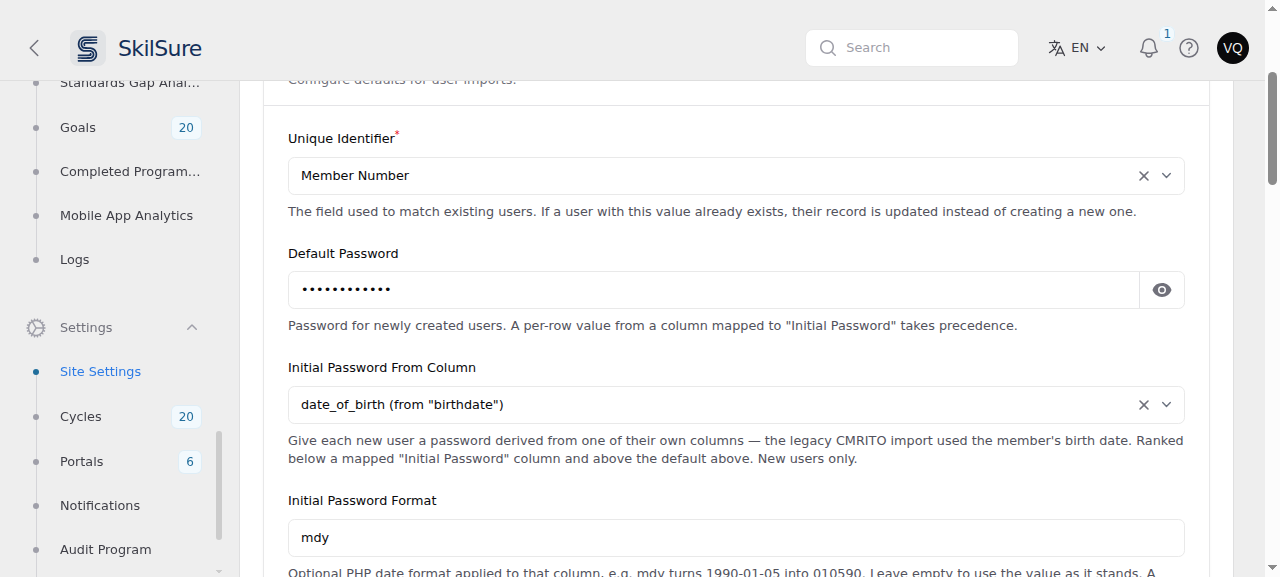 Settings → Data Imports → Import Options. The derived password sits between the fixed Default Password and a mapped Initial Password column in precedence.
This applies to new users only — an import never resets a password a member has since changed. It ranks below a column mapped to Initial Password and above the fixed Default Password, so a feed carrying real credentials still wins. A value the format cannot parse, or a blank cell, falls back to the default password rather than failing the row.
A password change is always required
A password derived from a birth date is a first-login credential, not a secret — it is guessable from data the registry may already publish. So any user who receives one is required to change it at first login, whether or not Require a password change at first login is switched on. That setting still governs users whose password came from anywhere else.
Enrol imported users into programs
Open a configuration and select the Program Enrollment tab. Add one entry per program you want imported users enrolled into — a member can be enrolled into several programs in a single run.
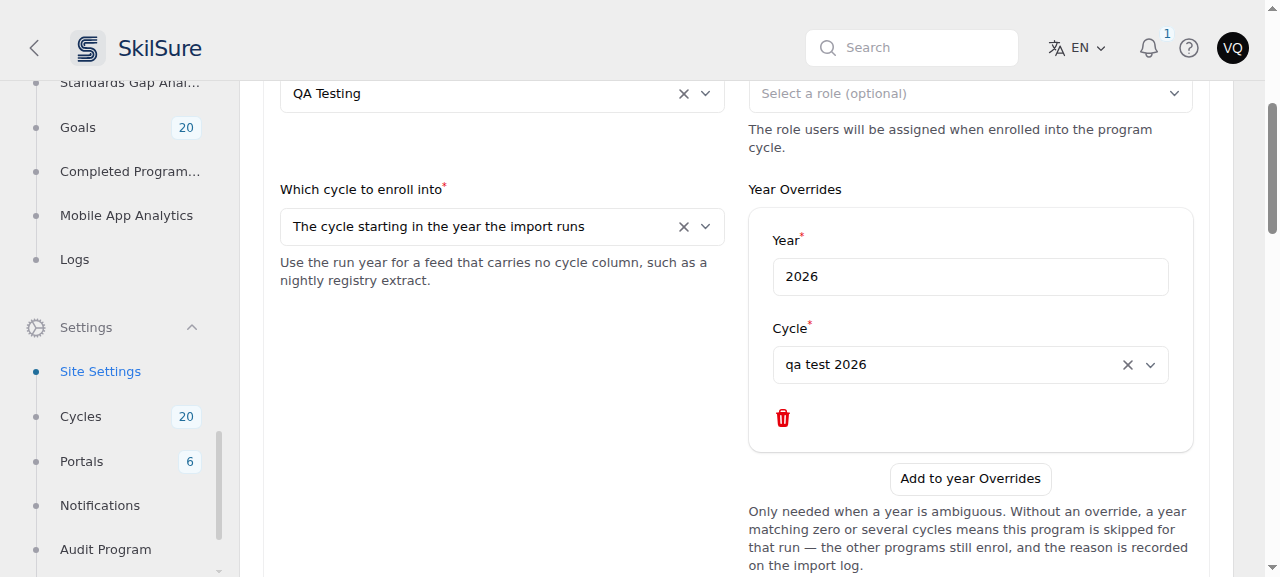 Settings → Data Imports → edit a configuration → Program Enrollment. Each entry picks its own program, role and cycle.
For each entry:
- Program — which program to enrol into. Audit programs are not listed; members belong to the audited program instead.
- Enrollment Role — optional role to give the user on that enrolment.
- Which cycle to enroll into —
- Named by a column in the file — a column's value names the cycle, matched against the cycle mappings you list. Use this when the file carries a cycle or year column.
- The cycle starting in the year the import runs — no cycle column needed. Use this for a nightly registry extract.
- Year Overrides — only needed when a year is ambiguous. If a year matches zero cycles, or more than one, that program is skipped for that run rather than guessing; the other programs still enrol and the reason is recorded on the import log. Add an override to say exactly which cycle a given year means.
- Who to enrol — leave empty to enrol everyone, or restrict by member type and by a column's value.
Two cycles starting in the same year
A program with both a real cycle and a test cycle starting in the same year is ambiguous, and that program will be skipped until you add a year override. This is deliberate — enrolling a whole college into a test cycle is much harder to undo than adding an override.
Deleting an enrollment doesn't stop the import
Each run enrolls every member in the file who matches Who to enrol and isn't already enrolled. A deleted enrollment doesn't count as enrolled, so the next run creates it again. This most often catches out test accounts. To keep someone out, remove them from the file or exclude them with a Who to enrol rule.
Enrol different member classes under different rules
Under Who to enrol, Member classes restricts an entry to one or more of the classes you defined under Member Classification, and the value rules accept a column plus equals one of and is none of lists. An excluded value always loses, and an empty equals list means "anything not excluded".
To enrol two classes under different rules, add the same program twice — once for each. For example: registrants only when their status is Active Member, and applicants whenever their status is anything other than Deceased.
Decide roles from the member number
Most registries tell one kind of member from another by the member number itself — A0042 is an applicant, 00619 a registrant. Two settings on the Import Options tab turn that into portal roles.
1. Member Classification
List each prefix and the class it means, then name the fallback class for every member whose number matches no prefix.
- Prefixes are matched without regard to case, against the member number exactly as the file sends it.
- When several prefixes match, the longest one wins — with both
AandASconfigured,AS0042is in theASclass. Row order never decides, which is why the table cannot be dragged. - A blank member number gets the fallback class.
- Leave the prefix list empty if every member belongs to one class.
Class names are yours to choose: applicant, student, honorary, whatever the registry uses. They are lower-cased for you.
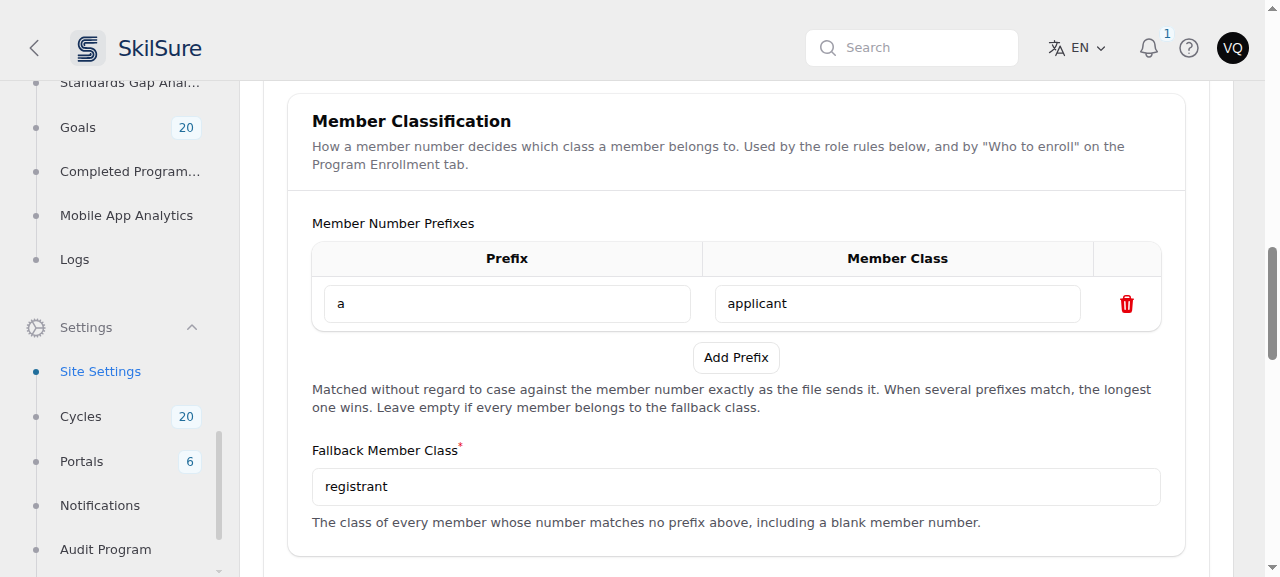 Settings → Data Imports → edit a configuration → Import Options. Everything whose number matches no prefix belongs to the fallback class.
Upgrading from the old settings
A configuration that used Applicant Member Number Prefixes, Registrant Roles and Applicant Roles is read as classification A → applicant with a registrant fallback, plus one By Member Class rule. Nothing changes about who gets which role, and you do not have to do anything — opening the configuration shows you the same behaviour in the new shape.
2. Auto-assign Roles Rules
Add as many rules as you need. Each one picks a Rule Type:
| Rule type | What it does |
|---|---|
| Fixed Role | Gives the same role or roles to every member in the file. |
| Role From Field | Gives each member the role named by one of their own columns, read after any value transformations on that column. A value that names no role is skipped. |
| By Member Class | Gives each class its own roles. The only type that can take a role away. |
A Role From Field value must match a role name exactly
The column's value is looked up as a role name, character for character. Pharmacist Technician does not match a role called Pharmacy Technician.
If you set Value Transformations on that column, saving checks every value it can produce against your existing roles and refuses the save, naming the ones that match nothing. Create the missing role, or correct the mapped value. Without Value Transformations the column's raw values cannot be listed in advance, so nothing is checked — make sure the feed's own values match your role names.
Check this if users can't reach their programs
A value that names no role is skipped silently at import time — the user imports fine, just with no role. If a step restricts access by role, those users see Restricted Access on it. Open an affected user and check Portal Roles on their profile.
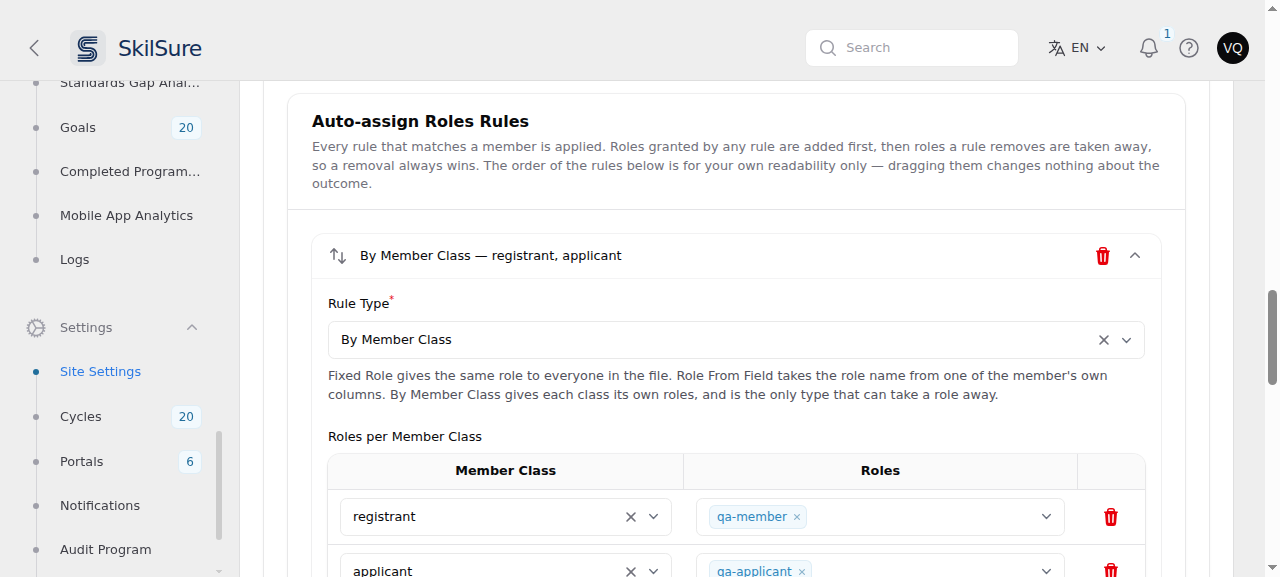 Each rule collapses to a summary line, so a configuration with several rules stays readable.
A rule has to name something
A rule is only saved once you have filled in the field for its type — roles for a Fixed Role, a column for Role From Field, at least one row for By Member Class. In a By Member Class rule each row needs both a class and at least one role: a class row left with no roles gives that class nothing, and once no row names a role the whole rule is dropped. A rule that names nothing would do nothing, and saving one would simply make it disappear the next time you opened the page.
Switching a rule's type does not discard the settings of the type you switched away from. Switch back and they are still there.
Every rule that matches a member is applied. Roles granted by any rule are added first, then roles a rule removes are taken away — so a removal always wins. The order of the rules is for your own readability only: dragging them changes nothing about the result.
A Fixed Role protects itself from removal
Because grants are collected before removals, a role granted by a Fixed Role rule can never be taken away by a By Member Class rule. If you want a role to belong to one class only, do not also list it as a fixed role.
Taking roles away
A By Member Class rule has a Remove roles belonging to other classes switch, on by default. With it on, a member who changes class — an applicant issued a registrant number — loses the roles that rule gives their previous class and gains their new one's.
Only list roles you want the import to manage
A rule can only remove roles named in its own table. A role that appears in no rule is never touched, so keep Mentor, Auditor and administrator roles out of every rule — otherwise a member of one class would have them stripped on every nightly run.
A rule naming a class that cannot happen is skipped
If a rule gives roles to a class no prefix produces and that is not the fallback, that rule is skipped for the run and the reason is recorded on the import log. The other rules still apply. This stops a typo in a class name from stripping roles from your whole member base.
Status when the file leaves it blank is on the same tab. Some registries treat a blank status as meaning the member is active. Set the status to use in that case; a status the file does send is never overwritten.
Create audit assignments from the feed
If your feed carries an audit selection start date, the Audit Assignment tab turns it into audit assignments automatically.
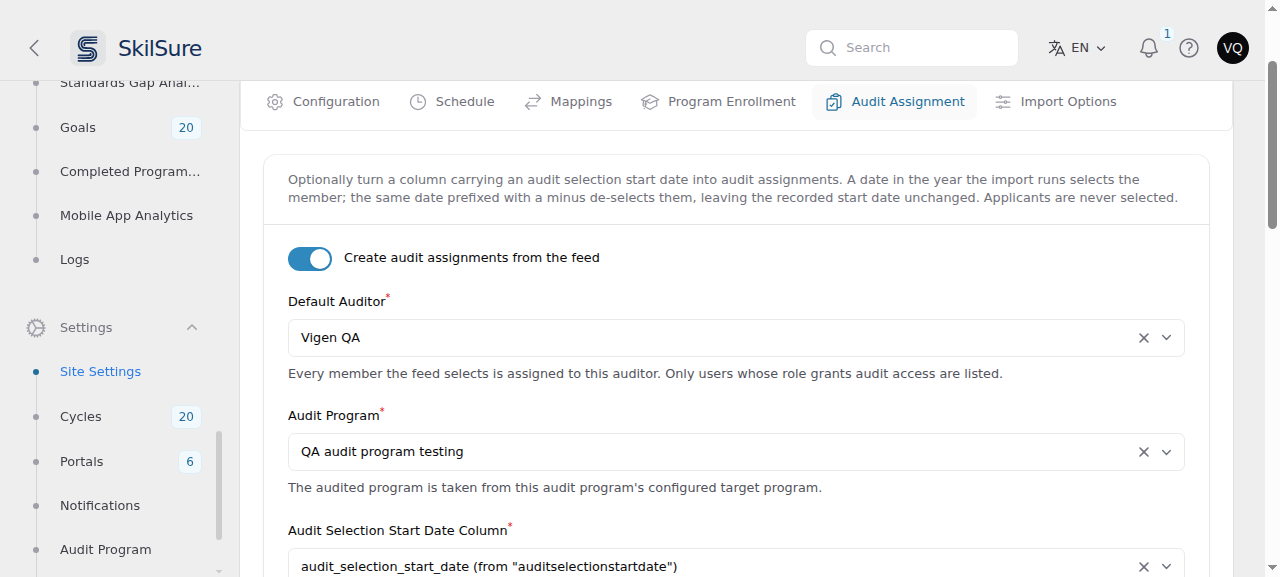 Settings → Data Imports → edit a configuration → Audit Assignment.
- Turn on Create audit assignments from the feed.
- Default Auditor — every member the feed selects is assigned to this auditor. Only users whose role grants audit access are listed.
- Audit Program — the audited program is taken from this audit program's configured target program.
- Audit Selection Start Date Column — which mapped column carries the date.
- Date Format — the format your feed uses,
Y-m-dby default. - Year Overrides — as on Program Enrollment, but listed separately for the audit program's cycles and the audited program's cycles, because the two have their own.
How the column's value is read:
| Value | Effect |
|---|---|
A date in the year the import runs, e.g. 2026-02-01 | Selects the member for audit; the audit window starts on that date |
The same date prefixed with a minus, e.g. -2026-03-01 | De-selects the member; the recorded start date is left unchanged |
| Empty, or a date in any other year | No change |
Only the fallback class is selected
Members whose number matches one of your classification prefixes are never selected for audit, whatever the column says — for most registries that means applicants are excluded and registrants are not.
Do not set a Date Format on that column's mapping
The audit step reads the column exactly as the file supplies it, so that a leading minus survives. A Date Format on the column's own mapping in Mappings would strip it, silently turning every de-selection into "no change". Set the format on the Audit Assignment tab instead.
Skip members whose row has not changed
A registrar's nightly feed usually sends the whole membership every night, even though only a handful of members changed. On Import Options, switch on Skip members whose row has not changed and each run stores a fingerprint of every member's row; the next run compares against it and re-applies only the members whose row is different.
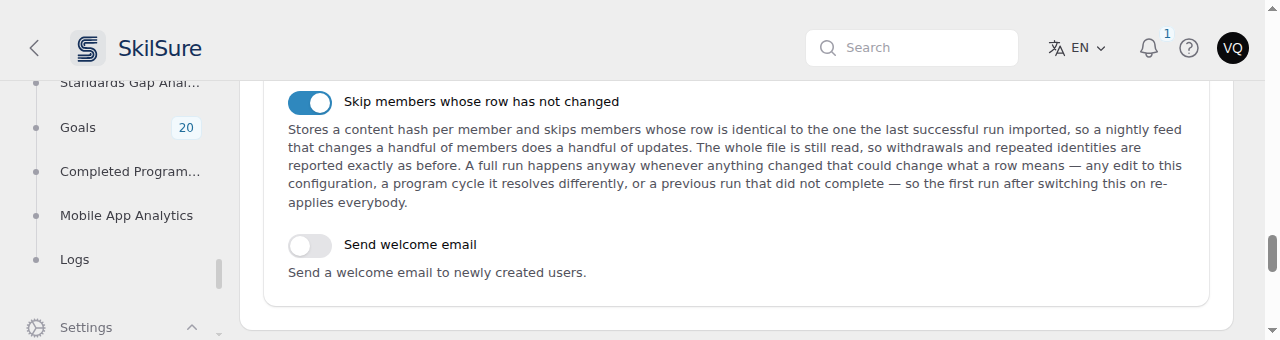
The whole file is still read every night. Withdrawals, repeated identities and the skip condition all behave exactly as before — the setting changes only whether an unchanged member's record is written again.
The first run after switching it on is still a full one
Turning the setting on is itself a change to the configuration, so the first run re-applies everybody and stores their fingerprints. The second run is the first that skips anything. If you switch this on and that night's run takes just as long, that is why.
When a full run happens anyway
The import re-applies every member, ignoring the fingerprints, whenever it cannot be sure a skip would be safe:
- it is the first run since the setting was switched on;
- anything in the configuration changed — a column mapping, an import option, an enrolment or audit setting;
- a program cycle the configuration resolves now resolves to a different cycle, which is what happens as a new year's cycles are created;
- the previous run did not complete, whether it failed or was interrupted;
- someone asked for one (below).
Each of these is reported on the run's log, so a full run is never a mystery.
Force a full run
Open the configuration and click Force a full run. The next run re-applies every member in the file; after that, skipping resumes. Use it if you have changed something outside the import — a member's record edited by hand, say — and want the feed to assert itself over it.
The request applies to one run only, and the log records who asked for it.
What the log tells you
On an import log, the Results section gains:
- Unchanged rows — how many members were skipped because nothing about their row changed. On a quiet night this is nearly the whole file.
- Change detection — one sentence: either
Unchanged rows skipped: 39 of 40., or the reason this run re-applied everybody.
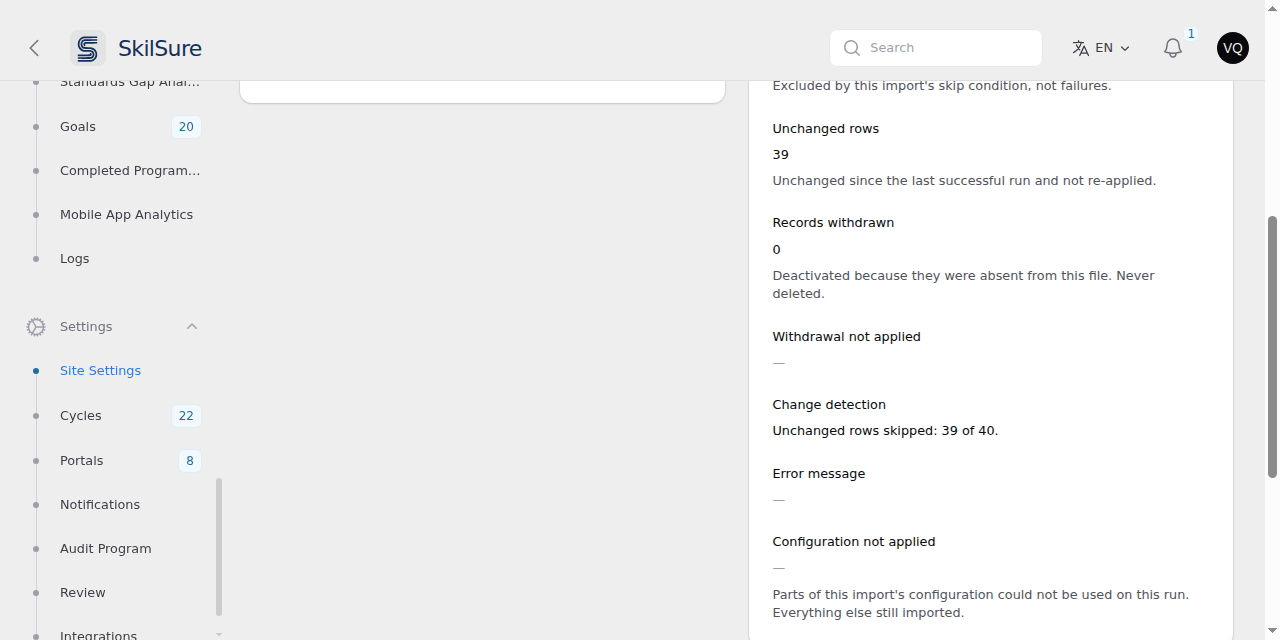
Processed rows keeps its meaning: members the run actually applied. With this setting on, that is the changed count, not the file size.
A few members are applied every night
Skipping is per member, and a member is only skipped once the run has applied them completely. If part of a member's import could not be done — a program that could not be enrolled, say — that member is left unskipped and the next run tries them again, even though their row has not changed.
This is deliberate. Skipping a member whose enrolment never happened would leave them that way permanently: the run that would have retried them is the run that skips them, so nothing would ever put it right and the Configuration not applied note would stop appearing.
So a handful of members processed every night, alongside a Configuration not applied list that keeps naming the same program, is the feed telling you there is something to fix. Fix it and they stop.
Spot an import that needs attention
The Health column on the import list flags a configuration that is not doing what you expect. A healthy row shows nothing there — a badge only appears when something is worth looking at.
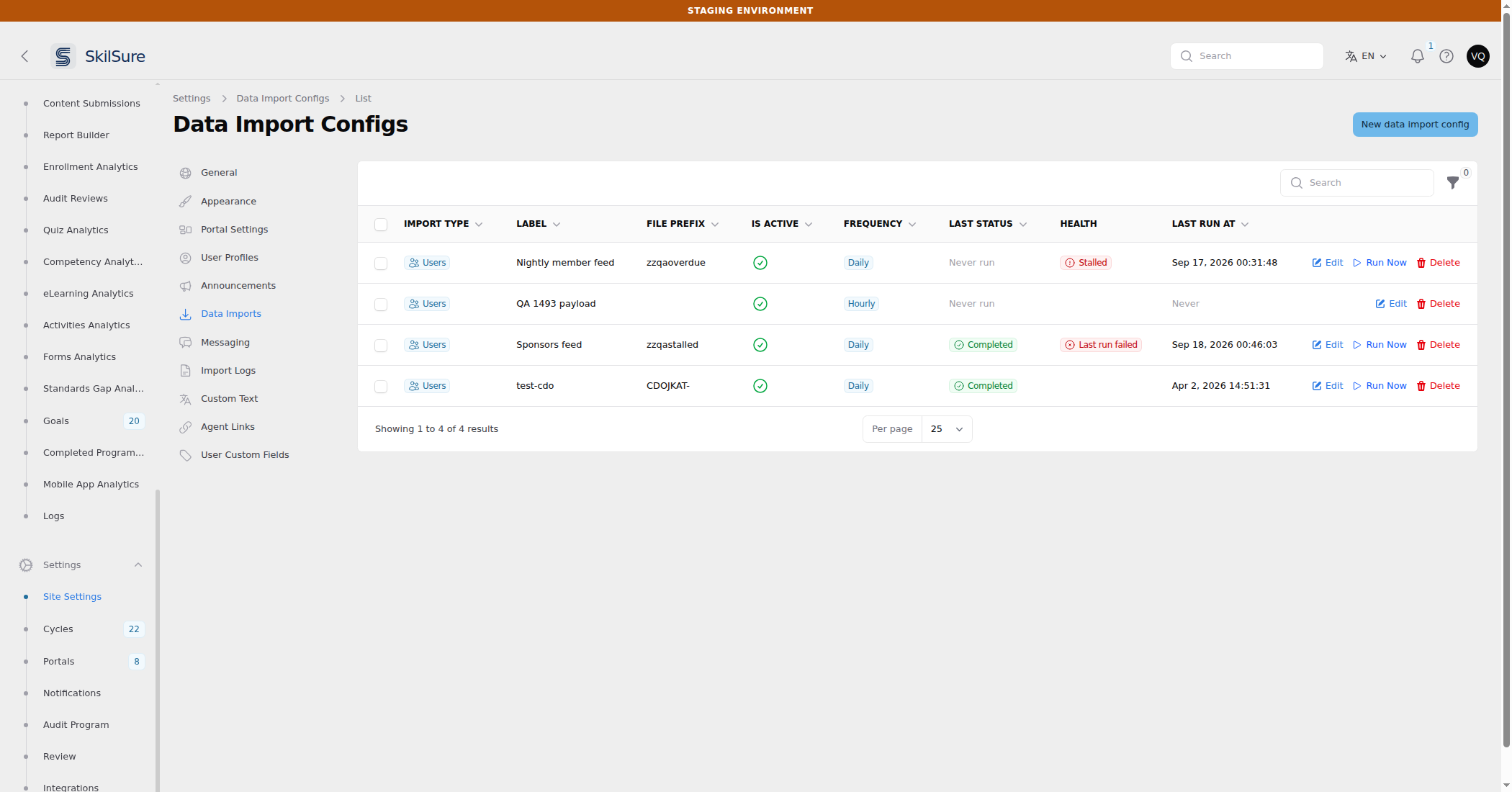 Settings → Data Imports. The Health column reads the runs themselves — note the row badged Last run failed whose Last status still says Completed.
| Badge | What it means | What to do |
|---|---|---|
| Stalled | A run started and then stopped making progress — the process it was running in died part-way through the file. | Nothing urgent: a scheduled sweep marks it as failed on its own within the hour. Open Import History to see how far it got. |
| Last run failed | The most recent run did not finish. This stays until a later run succeeds. | Open Import History for the reason. If the run was stalled and swept, the note names where the source file was left. |
| Overdue | A file has been waiting more than two hours and the import has not picked it up. | Check that the schedule is right and that the file name matches the configuration's file prefix. For a daily schedule this is measured from your scheduled time, so a file that arrives well before it is not counted as late until then. |
Hover any badge for the detail — which run, how many rows it reached, and when it was last making progress.
Why "Last status" can still say Completed
Last status and Last run describe the last run that finished. A run that died part-way never finished, so it does not update them — which is why a configuration could previously look healthy while its most recent attempt was dead. The Health column reads the runs themselves, so it tells you about the attempt, not the last success.
A late file is not an overdue one
The two-hour clock starts when the file arrives, not when the import became due. A feed that lands a few hours late is imported on the next run without ever being badged. Overdue means work has genuinely been sitting untouched.
When part of a configuration cannot be used
A run reports Completed with errors when it could not use part of its configuration. The rest of the file still imports and the other programs still enrol. Open the import log's Configuration not applied list to see what was skipped and why.
You will see it for:
- a program whose cycle year matched zero or several cycles, with no year override;
- a cycle mapping or year override naming a cycle that no longer exists, or that belongs to a different program than the entry it sits under — which is what happens if you repoint an entry at another program without clearing its cycle rows;
- a role rule naming a member class that no member number can produce — a typo in a class name, or a prefix removed without updating the rule. Only that rule is skipped; the others still apply;
- a Role From Field rule whose column is not one this import maps, which is what happens if you remove or repoint that column mapping afterwards. The rule would otherwise read a column that is not there and give nobody a role, silently, on every run;
- Who to enrol naming a member class that no member number can produce. Those entries enrol nobody, which is easy to miss because nothing fails — so the run says so instead. This is what you will see after renaming a class without updating the programs that name it;
- a program that could not be enrolled for some members — the note names the program and how many members it affected. Each program is attempted on its own, so the member's other programs still enrol; only the one that failed is skipped, and only for the members it failed on. Those members are re-tried on every later run, even with Skip members whose row has not changed switched on;
- an audit cycle year that matched zero or several cycles, or an audit year override pointing at another program's cycle. Members still import and enrol; only the audit step is skipped for that run.
A configuration problem that could give the wrong person audit access — a default auditor who no longer exists or no longer holds an auditing role — stops the run instead and reports Failed. Creating an assignment grants that user the Auditor role, so the import will not proceed on a stale setting.
Why an unresolvable audit cycle does not fail the run
The new year's audit cycle usually does not exist until someone creates it. If that stopped the feed, every 1 January would cost you a night of member updates, enrolments and deactivations — and the file is not retried. So the audit step stands down on its own and tells you why.
Availability
Data Imports may not be enabled for every tenant. If you don't see it under Settings, it isn't enabled for yours.
Missing a button?
Run Now, Force a full run, Edit and Delete all need permission to edit import configurations, not just to view them. If you can see the list and open a configuration but those buttons are absent, your role has view access only.