
Appearance
AdminProgram audits
An audit program reviews another program's enrollments — an auditor works through a member's steps, records an outcome for each, and either signs the audit off or sends steps back for resubmission. Outcomes are Audit Complete, Audit Incomplete, Audit Exempt and Resubmission Required, on individual steps and on the review as a whole. This page covers setting an audit program up, assigning auditors, the module settings, and the Audit Reviews report where you monitor and open reviews.
The auditor's own workspace and the member's experience live in the portal — see Audit reviews (user guide).
Feature flag
Program audits are gated by the Audit Module feature. If you don't see the screens below, ask your SkilSure contact to enable it for your tenant.
Set up an audit program
An audit program is a normal program flagged as an audit program and pointed at the target program it reviews:
- Create (or edit) a program and turn on Is audit program, then choose the target program it audits.
- Give the audit program a cycle and link it to the target program's cycle(s), so the audit runs against the right enrollment window.
Once linked, every target enrollment in scope gets an audit review context — the durable record of "this auditor reviewing this member's enrollment" — as soon as you assign an auditor.
If the target program uses a Path Selection step
When a program is audited, its Path Selection step stays visible to members even after they've chosen a path — including where the step's selection mode would normally replace the default path and hide it.
This matters across resubmission rounds: an audit can send steps back, and the member needs the selection step to remain reachable to work through them. Programs that aren't audit targets are unaffected, and a selection step on a path the member has chosen stays visible too.
Because that step is kept visible for the audit, it never counts as outstanding work of the member's own: it doesn't hold back their Submit for Review, doesn't count toward their step progress, and doesn't affect their compliance. Keeping it reachable is the whole point of showing it — being finished with it was never the point.
Assign auditors
Open Programs → Audit Assignments.
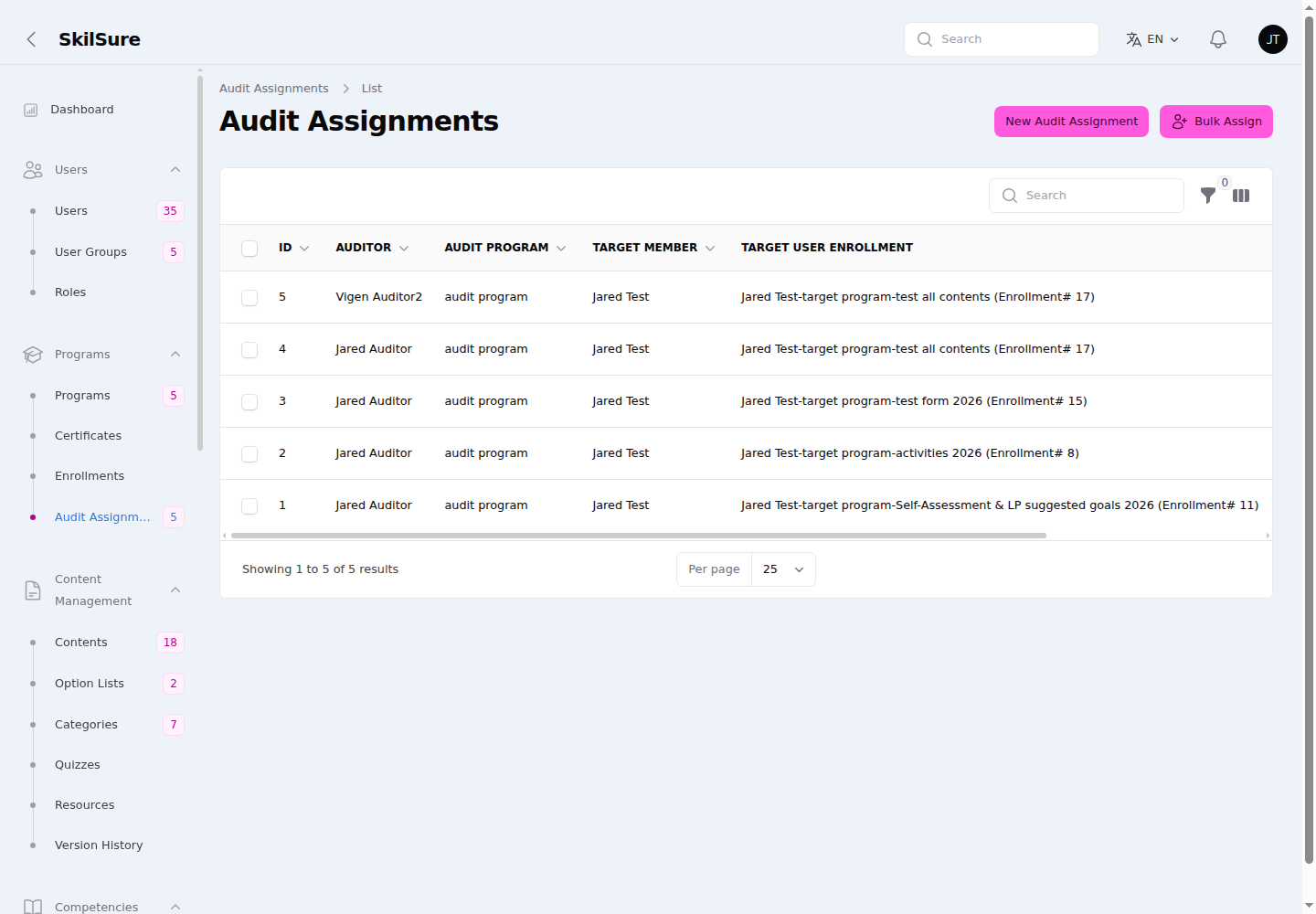 Programs → Audit Assignments. Each row assigns one auditor to one target enrollment; use Bulk Assign to create many at once.
- New Audit Assignment assigns a single auditor to a target member's enrollment.
- Bulk Assign creates many assignments at once (e.g. one auditor across a whole cycle). It shows the same Audit Program Cycle Dates section as the single-assignment form, so you can set one Audit Cycle Extension Date for the whole batch — every assignment created gets it, and every audited member is extended accordingly.
- Import Audit Assignments creates them from a spreadsheet — see Import audit assignments.
- With supervisor sign-off on, each assignment can also list the supervisors who sign off its reviews.
- Assigning an auditor grants them an auditor role automatically, if they don't already have one — see Who can audit. Access is tied to an active assignment — deactivate the assignment to revoke an auditor's access immediately (including their ability to download that member's files).
- The Auditor and Target User Enrollment pickers search as you type and ignore capitalisation, so "vigen" finds "Vigen Test".
- The table starts with the same columns as the Audit Reviews report, in the same order: User Name, Member Number, Auditor Name, Auditor Member Number, Supervisor(s), Supervisor User Group(s), Audit Program, Audit Cycle, Target Program and Target Cycle. Each one sorts, is searched by the table's search box, and can be hidden from the columns menu. Target User Enrollment follows them, hidden by default.
- The table's filters match them: User, Auditor, Supervisor Name, Supervisor User Group, Audit Program, Audit Cycle, Target Program and Target Cycle. The two member number columns have no filter of their own; type the number in the search box instead. The two supervisor filters appear only while sign-off is on.
- Audit Cycle Extension Date is a column on the list, just after Active, showing each assignment's own extension (or an em dash). Use the column toggle above the table to hide it.
Audit Program Cycle Dates
The assignment form shows the selected audit cycle's Start Date, Deadline Date and Grace Period Date read-only — they come from the cycle, and change as soon as you pick a different one — plus one field you can set per assignment:
Audit Cycle Extension Date — gives this one auditor on this one assignment more time, beyond the cycle's deadline and grace period. Leave it empty for the normal cycle window. Use the Clear button beside the field to empty a date you've already set.
The date must be later than the cycle's deadline and its grace period date — the calendar starts the day after whichever is later. Anything on or before that extends nothing, since the auditor already has until the later of those two. A date already saved on an assignment always stays acceptable, so a record whose date now falls below that bound (because the cycle's dates moved later) can still be edited and deactivated normally; you just can't move the date earlier than it already is.
Clearing or lowering it takes the extra time back. Empty the field (or set an earlier date) and the audited member's extension is recalculated from the assignments that still apply to them — so the member returns to their normal cycle window, or to the later date another auditor's assignment still gives them. Deactivating or deleting the assignment does the same. Three things it will never do:
- It won't drop a member below their normal window. If the date you set or clear would land inside the cycle's own deadline, grace or extension, the override is simply removed and the member keeps that window.
- It won't take back time that something else granted since — an extension an auditor gave when submitting a review, or one you set by hand under Manage Date Overrides. In that case the date stays as it is, and Reporting → Logs records why. Giving more time still works: a date later than what the member currently has is always applied, and clearing it afterwards returns them to that other extension rather than removing it.
- It won't take time back from a member whose enrollment is Submitted, Incomplete, Inactive or Exempt. Those statuses don't accept date changes, so the extension you granted stays on the member after you clear the field, and Reporting → Logs records that it was left alone. Adding time to them still works — it's only the taking-back that stops. If you need it removed, clear the member's Extension Date directly under Manage Date Overrides on their enrollment.
It also leaves the member's status alone. If taking the time back puts them outside their window, that shows up through the normal overdue processing rather than the moment you save.
Only an Active assignment extends anyone. Setting a date on a deactivated assignment records it without changing the member's dates — it takes effect if you switch the assignment back on.
Saving a date here also extends the audited member, through the end of that day, so they still have access to the work being reviewed. Only that member is affected. If their enrollment had already lapsed as Incomplete, the extension reopens it so they can work again — provided the new date is in the future. Two things it will not do: it never shortens anyone's time (a date that falls inside the member's existing deadline, grace period or extension is recorded on the assignment but not passed on to them), and clearing it does not take back time the member already has — adjust that on the enrollment itself if you need to.
An extension earlier than the cycle's own end date never shortens the window — the later of the two always wins. See When auditors can work for the full rule.
Identity fields lock once a review exists
As soon as any review exists for an assignment — even an unsubmitted draft — the Auditor, Audit Program Cycle and Target User Enrollment fields become read-only. Re-pointing them would orphan the existing review and leave a submitted review attached to an assignment describing a different auditor or member.
You can still change Active, Assigned At and the Audit Cycle Extension Date. To move the work to a different auditor, retire this assignment and create a new one — the original review stays intact as a record either way. See Retire, delete and restore an assignment.
Act on many assignments at once
Select rows on Programs → Audit Assignments and the bulk actions appear: Change Auditor, Disable Assignments, Enable Assignments, plus Delete and Restore.
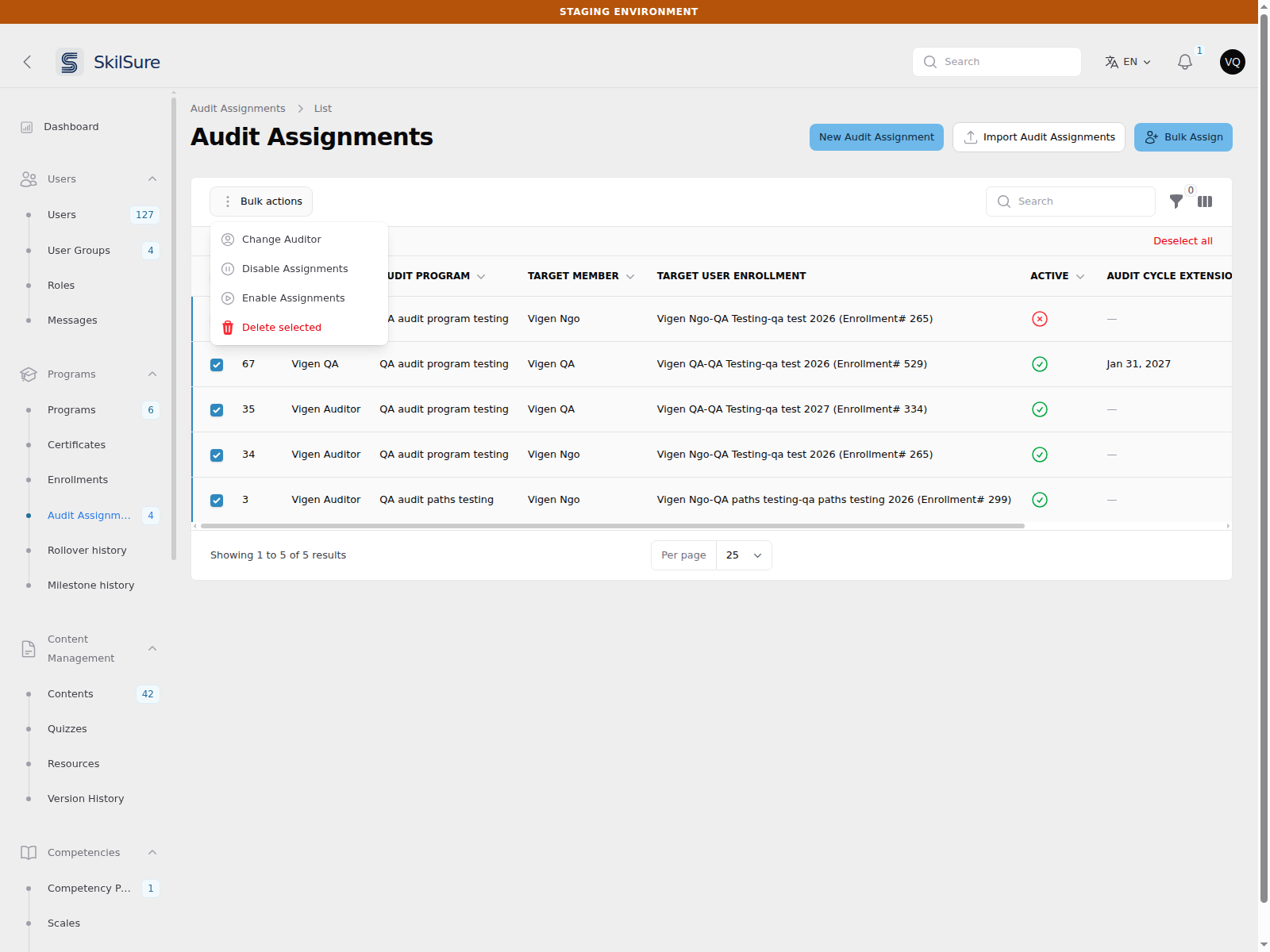 Programs → Audit Assignments. Select rows, then choose an action from Bulk actions.
Each one applies to as many of the selected rows as it can and then reports exactly what happened — the confirmation stays on screen until you close it, so you can read which rows were changed and which were not before moving on.
Change Auditor
Pick the new auditor. The list offers only users who hold a role with audit permission, and eligibility is re-checked when the change is applied — so an ineligible user cannot be assigned even if the request is tampered with. This matters because assigning someone as an auditor grants them audit access.
An assignment can only be re-pointed while it has no audit reviews. As soon as any review exists, even an unsubmitted draft, the auditor is fixed: re-pointing it would leave a review on record describing someone who never performed it. Those rows are skipped and named.
Five reasons a row is skipped, each listed separately with its own explanation:
| Skipped because | What to do instead |
|---|---|
| The chosen user is not an eligible auditor | Give their role Can Conduct Audits, or pick someone who already has it. Nothing is changed — the whole selection is skipped. |
| An audit review already exists | Create a new assignment for the other auditor. The existing review stays intact as a record. |
| The chosen auditor already covers that audit cycle and member | Nothing — an auditor cannot hold two assignments for the same enrollment. |
| It is already assigned to that auditor | Nothing; it was already what you asked for. |
| It is deleted | Restore it first, then change it. |
Disable and Enable
Disable stops the auditor working on those assignments and stops them backing the member's audit card; nothing is deleted, and the row is stamped with the date it was disabled, exactly as if you had unticked Active on the row itself. Enable puts them back in service and clears that stamp. Rows already in the target state are reported as skipped rather than counted as changed, and deleted rows are never enabled — restore them first, deliberately.
Expect partial results
Because the auditor locks as soon as a review exists, selecting everything and choosing Change Auditor will usually change only some rows. That is the design, not an error — read the confirmation to see which, and why the rest were left alone.
Retire, delete and restore an assignment
Three ways to take an assignment out of use, in increasing order of finality:
| Action | What happens | Reversible |
|---|---|---|
| Deactivate (untick Active) | The auditor can no longer work on it, and it stops backing the member's audit card. The row stays on the list. | Yes — re-tick Active |
| Delete | The row leaves the list and the assignment is also deactivated. Nothing is destroyed — every audit review it produced survives untouched. | Yes — see below |
| (permanent removal) | Not offered. It would destroy submitted audit reviews. | — |
Deleting an assignment is a soft delete: the record is hidden rather than removed, so an assignment that already has reviews can be deleted safely and the reviews remain intact and reportable.
Deleting also deactivates
A deleted assignment is always inactive, so it can never keep an audited member's steps locked. That holds even if it is later restored.
To restore one: open Programs → Audit Assignments, open the filters and set Deleted records to include them, then use Restore on the row — or select several and use Restore from the bulk actions.
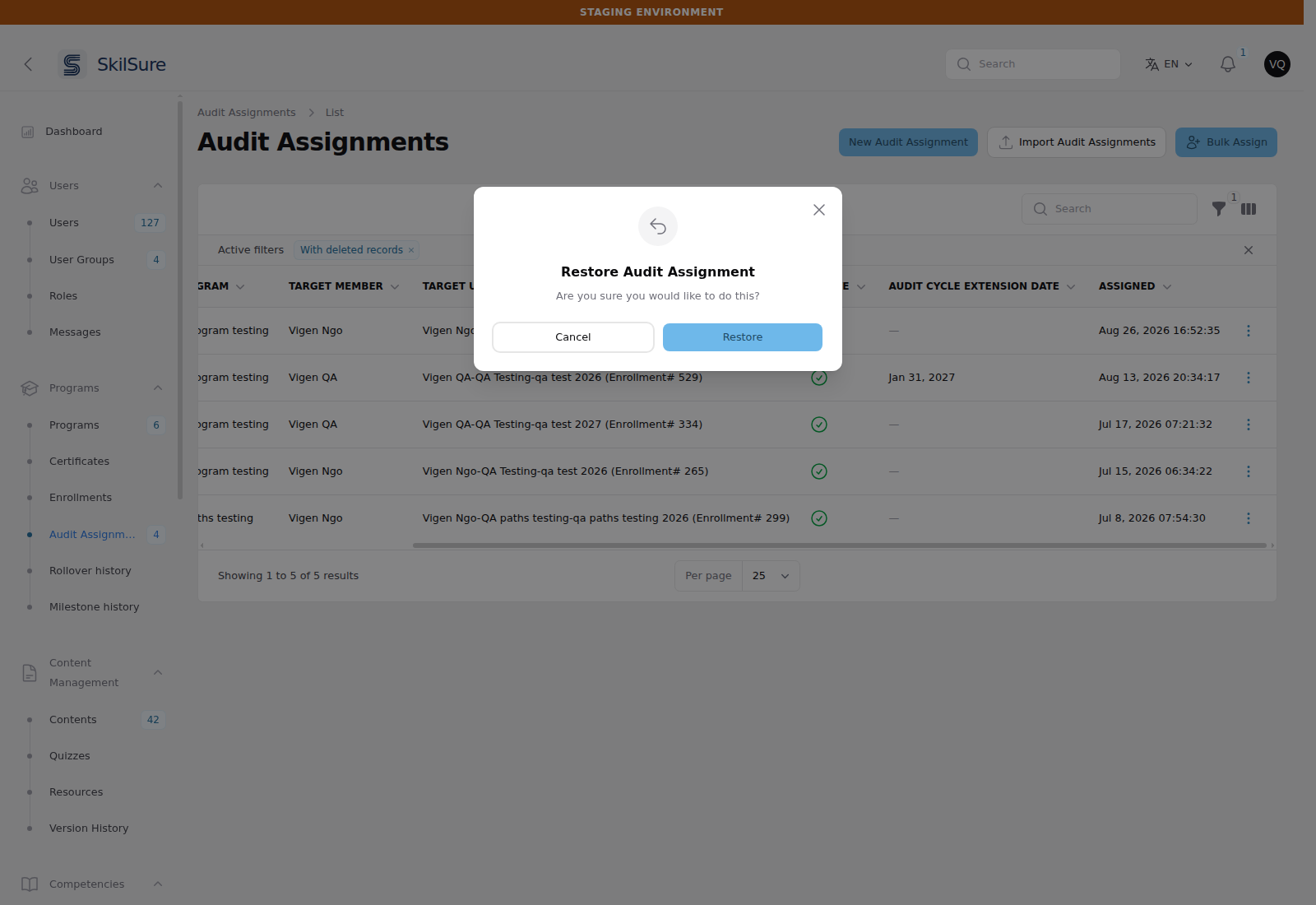 Programs → Audit Assignments, filtered to include deleted records. The deleted row shows as inactive, and Restore asks for confirmation.
A restored assignment comes back inactive
Restoring returns the row but leaves Active off, so an auditor is never silently put back to work on a member. Open the assignment and tick Active when you actually want them auditing again.
Editing a member whose work has been audited
Once an auditor has submitted a review that locks a member's steps, the admin actions that would undo or rewrite that work stop and explain themselves rather than going ahead. This covers Mark In Progress, Mark Incomplete, Reset, Delete and their bulk equivalents on a member's step list, plus Reset Progress, Reopen Enrollment, Force Complete and Reopen Enrollments in bulk.
A review locks the work either because it is finished — outcome Audit Complete, Audit Incomplete or Audit Exempt with no steps flagged for resubmission — or because it is waiting on the member, outcome Resubmission Required with steps still flagged. The two behave differently when you override, so the modal tells you which one you are looking at.
Without the Unlock audit reviews permission the modal explains the situation and offers a link to Reporting → Audit Reviews; there is no way to proceed. That is deliberate — releasing an audit is the same decision as clicking Unlock on the report, and it belongs to whoever holds that permission.
A finished audit — the override releases it
With the permission you can type a reason and choose Override and Proceed to Unlock Audit Review. That reopens the completed audit reviews on the enrollment for the auditor, records the override in the audit trail with your name and reason, and then performs the action you originally clicked — all in one step.
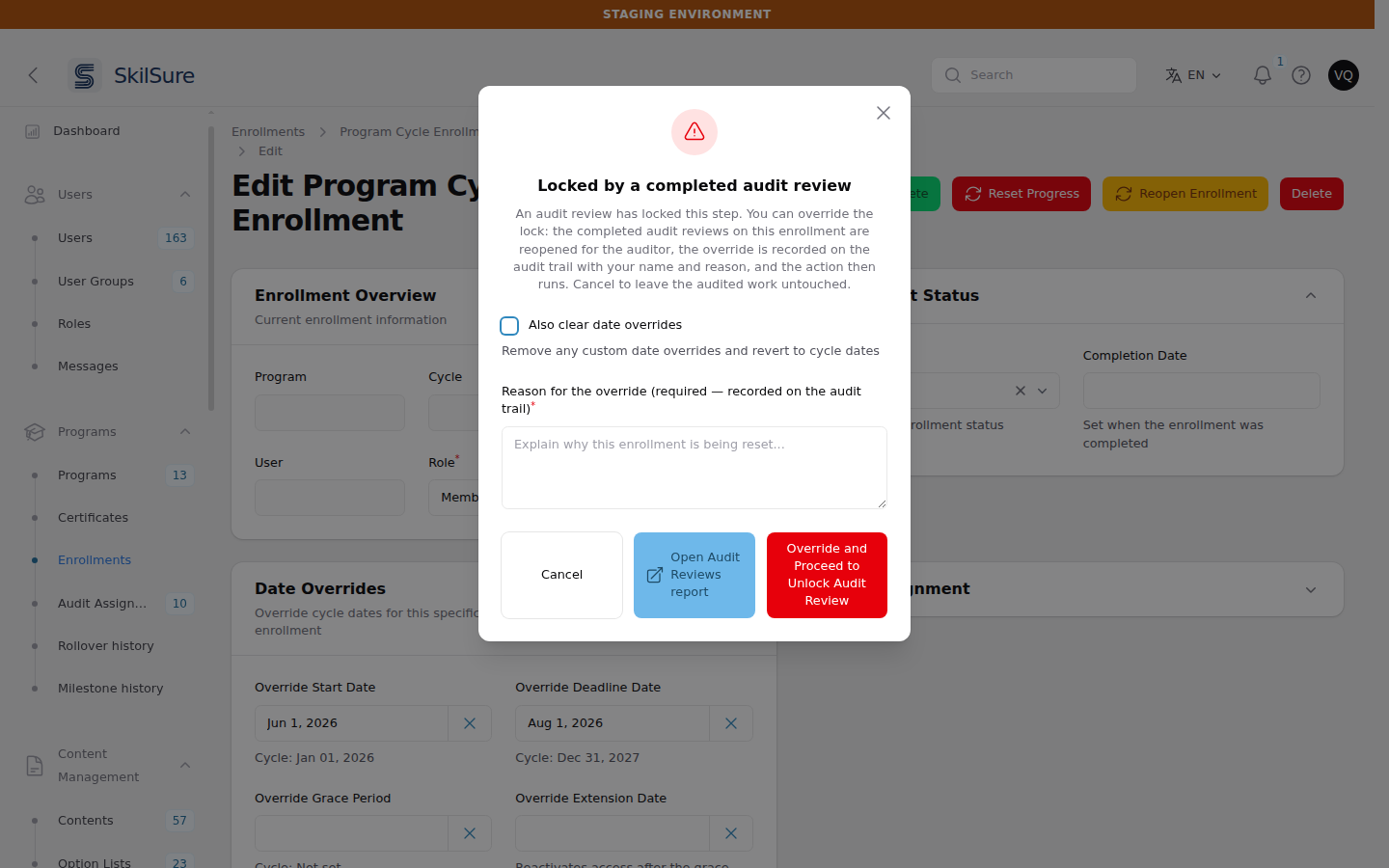 Enrollments → a member's Step Progress → Mark In Progress on an audited step. The reason is required and is recorded with your name.
Overriding hands the audit back to the auditor
An unlocked review returns to Open for Review. The auditor can start a new review of the member, and the member's audit card shows the audit as live again. If you only need the member's work back, the override is the right tool; if the audit itself is finished and should stay finished, it is not.
An audit waiting on the member — the override leaves it alone
When the review's outcome is Resubmission Required and the member still has flagged steps to redo, the auditor is simply waiting for them. Overriding here does not unlock that review: it stays with the member, the normal resubmission cycle continues, and the auditor keeps every finding they have already recorded.
The action you clicked still runs — that is the point, because letting the member get back to work is usually exactly why you are here. The modal says so, and the button reads Proceed Without Unlocking the Audit Review rather than offering an unlock.
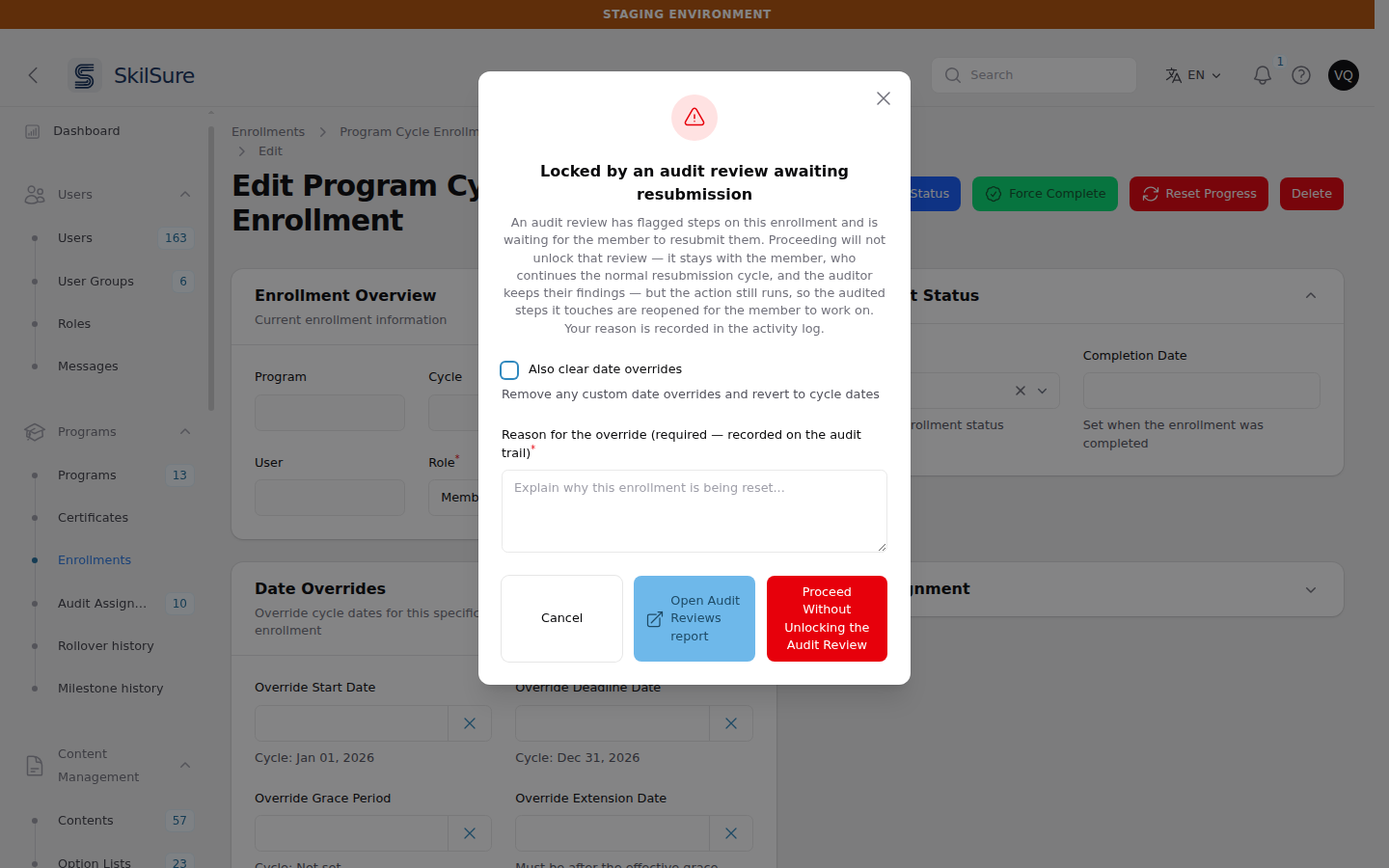 The same Mark In Progress action, on a member whose audit is mid-resubmission.
A reason is still required, and it is recorded in Reporting → Logs against the member's enrollment — the audit trail on the review itself is deliberately left untouched, because writing to it is what would cost the auditor their carried-forward findings.
A mix of both
An enrollment can hold one finished audit and one mid-resubmission audit at the same time. The override handles them separately: the finished one is released, the one waiting on the member is left locked, and the confirmation tells you both counts. You never have to choose between them.
Bulk actions ask before releasing anything
On the bulk actions the override is off by default, so selecting a mix of audited and ordinary rows behaves exactly as it always has: the audited ones are left alone and you are told how many were skipped.
Ticking Also unlock audit-locked items (override) reveals the list of members whose audit reviews will be released — up to fifteen, with "…and N more" beyond that — above the reason box. Read it before confirming: one click can release several members' audits, and each auditor then has to review them again.
If any of the selected members' audits are waiting on a resubmission, they are listed separately under Audit reviews that will be left locked (waiting on the member) and are not released. When every audit in the selection is of that kind there is nothing to unlock at all, so the checkbox reads Proceed anyway (the audit reviews below stay locked) instead, and the confirmation afterwards tells you plainly that nothing was unlocked.
Force Complete leaves audited steps as the auditor left them
Force Complete completes every step that is not under an audit lock and reports how many it skipped, rather than refusing outright. Use the override checkbox if the audited steps genuinely need completing too — otherwise an auditor's recorded Audit Incomplete would be silently overwritten with Completed.
What the member and the auditor see once it is retired
Deactivating or deleting an assignment hides the audit from the audited member entirely — the Program Audit card, the submit-for-review controls and the embedded review history all disappear from their program page, whether or not a review was ever submitted. It also drops off the auditor's Audit Reviews dashboard, and they can no longer open the workspace.
Nothing is lost: the context and every review it produced stay in Reporting → Audit Reviews, where the new Is Active and Is Deleted columns tell you the audit is retired rather than missing. Re-tick Active (restoring first, if it was deleted) and everything returns for both of them.
Deactivate keeps a finished audit's lock; delete releases it
On a completed audit, deactivating leaves the member's audited steps locked. Deleting the assignment is what releases them. So if your aim is to hand the member's steps back, delete the assignment rather than only unticking Active.
When auditors can work
An auditor can only open, edit and submit a review inside the review window. It runs from the audit cycle's start date to the latest of:
| Deadline Date | the cycle's normal end |
| Grace Period Date | if set, extends past the deadline |
| Extension Date | the cycle's own extension, if one has been set for it |
| Audit Cycle Extension Date | the per-assignment extension, for that assignment only |
Dates are inclusive and evaluated in your tenant's timezone, so an auditor has the whole of the final day.
"Audit Review Target Program Extension Date" is not one of these dates
Despite the name, that audit-cycle field gives auditors no extra time at all. It presets the Extension Date Override applied to every review in the cycle — the date that extends the audited member, shown read-only to auditors so they can't change it. Setting it does not move the review window by a single day.
To give auditors longer, use the cycle's Grace Period Date or Extension Date, or one assignment's Audit Cycle Extension Date.
The same window governs file downloads — once it closes, an auditor can no longer open the member's uploaded evidence, not just the review. If an auditor reports they cannot reach a review they expect to have, check these four dates first, then whether their assignment is still Active.
Giving one auditor more time
Set that assignment's Audit Cycle Extension Date. It affects only that assignment, so you don't have to move a cycle deadline (and everyone else's window) to accommodate one auditor.
The member's own access is a separate question
These dates bound the auditor. To keep the audited members open for the same window, turn on Extend Audited Members to the Audit Cycle Window.
"The member can't submit for review"
On audit programs that use the member submission gate, the member's Submit for Review button only appears once every required step of their program is finished. If someone reports the button missing, check their steps before anything else.
Two cases look like a block but aren't the member's to fix: a step they've been exempted from never counts against them, and a step they have submitted that is still awaiting someone else's sign-off or evaluation counts as done — the button should be there. A step still in progress is the only thing that genuinely holds it.
Import audit assignments
Programs → Audit Assignments → Import Audit Assignments creates assignments in bulk from a CSV. Download the example file from the import dialog to get the exact headers.
Who is who — people are matched on member number, not name or email:
| Column | Required | Notes |
|---|---|---|
auditor_member_number | yes | Must be an existing user who can act as an auditor |
member_number | yes | The audited member |
audit_program + audit_cycle | yes* | Names of the audit program and its cycle |
target_program + target_cycle | yes* | Names of the target program and cycle the member is enrolled in |
audit_program_cycle_id | — | Use instead of the audit program/cycle names |
target_program_enrollment_id | — | Use instead of the target program/cycle names |
assigned_at | no | Defaults to the time of import |
audit_cycle_extension_date | no | Per-assignment extension, as above. Must be later than the audit cycle's deadline and grace period, exactly as the form requires — a row with an earlier date fails and tells you the earliest accepted date |
is_active | no | Defaults to active |
supervisor_member_numbers | no | Supervisors, separated by |. See Import supervisors |
supervisor_user_groups | no | Supervisor user groups, separated by |. See Import supervisors |
* Provide either the name pair or the matching ID column.
The import fails a row rather than guessing. A row is rejected — and reported in the failed-rows CSV — when a member number matches no one, when a program/cycle name matches more than one record, when the named auditor cannot act as an auditor, when the target enrollment isn't in the audit cycle's target program, or when is_active isn't recognisable. Nothing is half-created: each rejected row is skipped and the rest still import.
Re-running the same file is safe. The import only creates, never updates, and a row is rejected as a duplicate if an active assignment already exists for that auditor, audit cycle and enrollment.
Where to check afterwards — every import is recorded in two places: Settings → Site Settings → Import Logs (with the per-row errors and the failed-rows download) and Reporting → Logs → Activity Log (a run summary, plus an entry per assignment created).
If an extension didn't reach the member
Extending the member is a follow-on step: the assignment (or the review) saves first, and the member's own dates are updated straight after. That second write is deliberately allowed to fail without undoing the save you just made — so on the rare occasion it does fail, the page still reports success. Look in Reporting → Logs → Activity Log for an entry reading "could not be applied to the audited member", which names the assignment or review involved. If you see one, re-save the date to apply it again.
Permission required
The import button only appears for roles granted Import audit assignments (CSV) and the ability to create audit assignments. Both are set per role on the Roles page. The import permission is granted to Admin and Super Admin by default.
Who can audit
Being an auditor is a capability you grant to a role, not a role with a particular name. On the Roles page, any provider role granted Can Conduct Audits makes its holders eligible to audit — so you can use the built-in Auditor role, or add the capability to a role of your own.
- Assigning someone as an auditor grants them the built-in Auditor role automatically, but only if they don't already hold a role that can audit. Someone already on your own audit-capable role keeps it and isn't moved onto the built-in one.
- The Auditor picker on the assignment form (and Bulk Assign, and the CSV import) only offers users who can audit. If someone you expect is missing, check that their role has Can Conduct Audits.
- Removing the capability from a role, or removing the role from a user, stops them reaching new work. Existing assignments stay on record — deactivate them if you also want the assignment closed out.
Deactivating an auditor who lost the capability
You can still edit and deactivate an assignment whose auditor is no longer able to audit — that's the normal way to close it out.
Audit permissions
Audit access is set per role on the Roles page, under the Program audit tabs. Every permission there is enforced, so grant only what a role needs:
- Program audit — Administration covers the audit configuration on programs and cycles, audit assignments, the module settings, admin unlocks, addenda, and View audit history (see below).
- Program audit — Auditor covers conducting reviews from the admin panel.
- The Audit Assignment and Audit Review sections carry the standard view / create / update / delete permissions for those two screens.
Two distinctions worth knowing before you grant anything:
- Seeing the page is not seeing everyone's rows. A plain view permission on Audit Reviews shows a user only their own audit contexts. Cross-auditor oversight — seeing every auditor's reviews — comes specifically from View audit history.
- Read access never implies write access. Bulk Assign and the CSV import each need the ability to create audit assignments on top of their own permission, so a read-only or import-only role cannot create assignments.
The Manager role no longer has audit access
Managers receive view and update permissions broadly, which previously included the audit screens without granting any working access. Now that every audit permission is enforced, those would have become real access — including the ability to extend an auditor's reach into a member's files or cancel an audit — so audit permissions are excluded from Manager and removed from existing tenants. Grant audit access deliberately, to the roles that need it.
Your own roles may show audit boxes unticked after this release
Manager was only the built-in role carrying dead audit permissions. Because the Roles page has a select-all toggle, roles you created yourself may have been carrying the Audit Assignment / Audit Review boxes too — ticked, but governing nothing. Enforcing them would have turned each one into real access nobody chose, including the ability to create assignments (which grants someone the auditor role) and to extend an auditor's reach into a member's files.
So those boxes are unticked on release, which leaves each role's actual access exactly as it was — a permission that did nothing cannot have been doing anything for you. If a role was meant to have audit access, tick the boxes again on the Roles page and it will now work properly.
Roles that already held a Program audit permission keep their boxes for the screens that permission covers: those were real access, so they were clearly granted on purpose.
Users without the audit-configuration permission don't see the audit sections on the program and cycle forms at all, and cannot set them by any route. That covers:
- Audit Configuration on the program form — audit mode, target program, auditor visibility, the review form, and the submit-email notification.
- Audit Review Selected Target Program Steps on the program cycle form — which of the target program's required steps auditors review in that cycle.
- Audit Review Target Program Extension Date on the program cycle form — the preset extension auditors must apply to every review in that cycle.
- Override Custom Audit Messages on the program cycle form — the per-cycle wording members see.
The two cycle sections previously appeared for anyone who could edit a program cycle. They now require the same Program audit — Administration permission as the program form, so a cycle editor without audit access no longer sets an audit-wide extension date or rewords member-facing audit messages. If someone reports those sections disappearing, that is why — grant them the permission on the Roles page.
Configure the module
Open Settings → Audit Program.
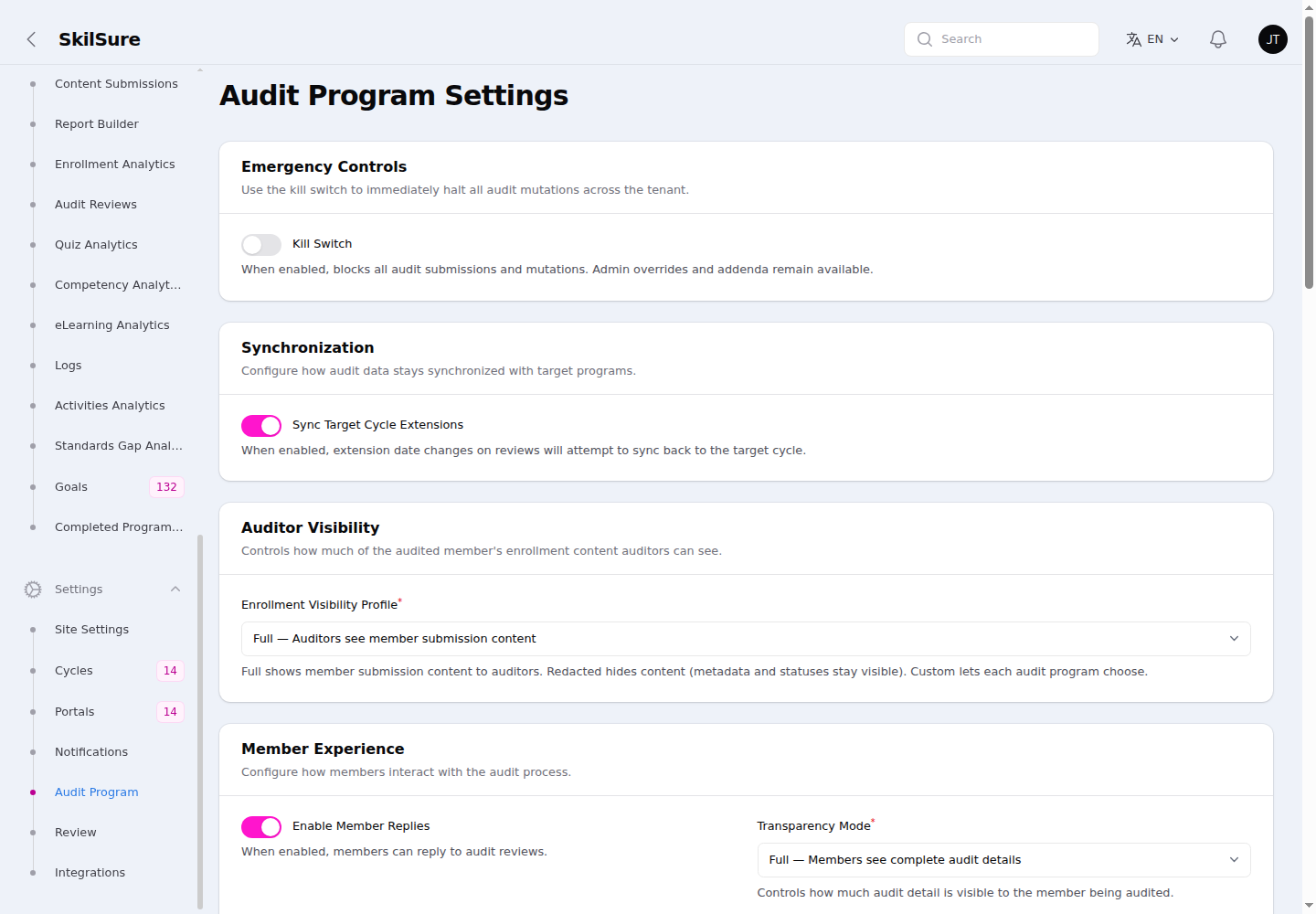 Settings → Audit Program. Tenant-wide controls for the audit workflow.
- Kill Switch — immediately halts all audit submissions and mutations across the tenant during an incident. Admin overrides and addenda stay available.
- Apply Review Extension Dates — when an auditor sets a Target Cycle Extension Date Override on a review, extend the audited member's enrollment through the end of that day on submit. Only that member is affected — other members in the same cycle keep their dates — and a date that falls inside the member's existing window is ignored, so a review can never shorten someone's time. Turn it off to keep an auditor's override on the review only, changing nobody's dates.
- Extend Audited Members to the Audit Cycle Window — keeps each audited member's own enrollment open for as long as their auditor can review. Off by default. See Keep audited members open for the audit window.
- Audit Review Supervisor Sign-off — makes each submitted review wait for a supervisor's approval. See Supervisor sign-off.
- Enrollment Visibility Profile — how much of the member's submission an auditor sees: Full (content visible), Redacted (metadata and statuses only), or Custom (each audit program decides).
- Display User Custom Fields in Audit Review — choose which User Custom Fields auditors see in the Review Context on the review page and in the Audit Review History view. Empty by default. The fields appear in the order you select them, after Member Number and before Auditor's Name. They are shown even when the Enrollment Visibility Profile is Redacted, so leave any sensitive field unselected.
- Activities completion rules — no setting: on the review page auditors also see each Activities step's Completion Requirements (or Completion Rules) card. While conducting a review the values are live; they are frozen when the review is submitted, so Last Submitted Reviews and the history show what the auditor saw. Reviews submitted before this existed show current progress instead, with a Current progress badge on the step and a note. Nothing is shown when the profile is Redacted.
- Learning Portfolio completion rules — no setting: each Learning Portfolio step on the review page shows its Completion Requirements card (goals assigned / goals completed) and any Form and Period Completion Rules, with the member's live progress. Supervisors see the same on the sign-off page. These are live only — they are not frozen into a submitted review. Nothing is shown when the profile is Redacted. Their wording can be changed under Settings → Custom Text (the General and Learning Portfolio cards).
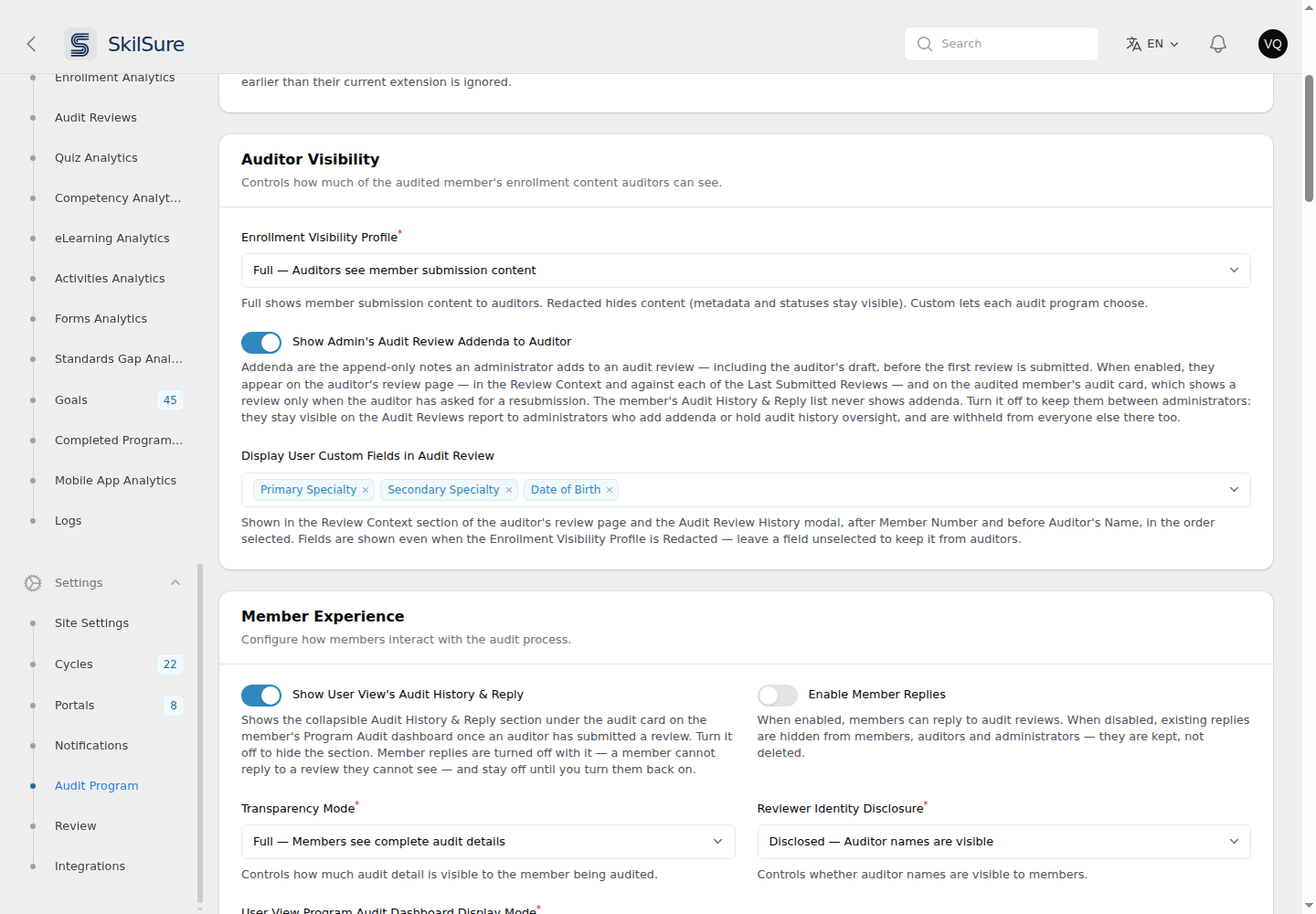 Settings → Audit Program Settings → Auditor Visibility. The selected custom fields appear in the audit review's Review Context in this order.
- Show Admin's Audit Review Addenda to Auditor — on by default. Addenda are the append-only notes you add to an audit review — a submitted one, or the auditor's draft before the first review is submitted (Reporting → Audit Reviews → Add Addendum). While this is on, the auditor sees them in two places: on their Audit Reviews dashboard, as a Last Addendum column and a matching filter; and on their review page, as a Last Addendum line in the Review Context plus each review's own notes under Last Submitted Reviews. The audited member sees them too, but only on the review their audit card shows, which appears only when the auditor has asked for a resubmission — the member's Audit History & Reply list never shows addenda. Turn it off to keep addenda between administrators — the column and the filter disappear from the auditor's dashboard along with everything else. They stay visible on the Audit Reviews report — the Last Addendum column, its filter, the CSV export and the View history — to administrators who can add addenda or who hold audit history oversight, and are withheld from anyone else who can open that report, which includes auditors given admin access.
- Show User View's Audit History & Reply — on by default. Shows the collapsible Audit History & Reply section under the audit card on the member's Program Audit dashboard, once an auditor has submitted a review. Turning it off hides the section, and turns Enable Member Replies off with it — a member cannot reply to a review they cannot see. Turning the section back on leaves replies off until you switch them on yourself.
- Enable Member Replies — let members reply to an audit review. Turning it off hides replies that already exist from members, auditors and administrators alike — nothing is deleted, and turning it back on brings them back.
- Reply Mutability — when a member's reply locks: Editable until resubmit, or locked as soon as they submit it.
- Transparency Mode and reviewer identity disclosure — how much audit detail the member sees, and whether the auditor's name is shown or anonymized.
- User View Program Audit Dashboard Display Mode — where the Program Audit panel sits on the member's program page: Below Program Steps dashboard (the default) or above it. Use "above" when the audit is the main thing you want members to see on that page.
- User View Program Dashboard, Display step content version number — on by default. When the auditor asks for a resubmission, their review appears on the member's Program Audit card with each reviewed step, and each of those steps carries a Reviewed at Version {number} tag recording which version of the content was audited. Turn it off to hide that tag from members. It affects the member's view only: the version stays visible to admins in the review History and to auditors in their workspace, where it is the point of the record. Two things to know: this is the only member-facing place the tag appears — the Audit History & Reply list shows no version tags at all — and a step shows one tag per piece of content, naming the newest version the member had, not one per saved submission. A step built from two different pieces of content therefore shows two tags, one for each.
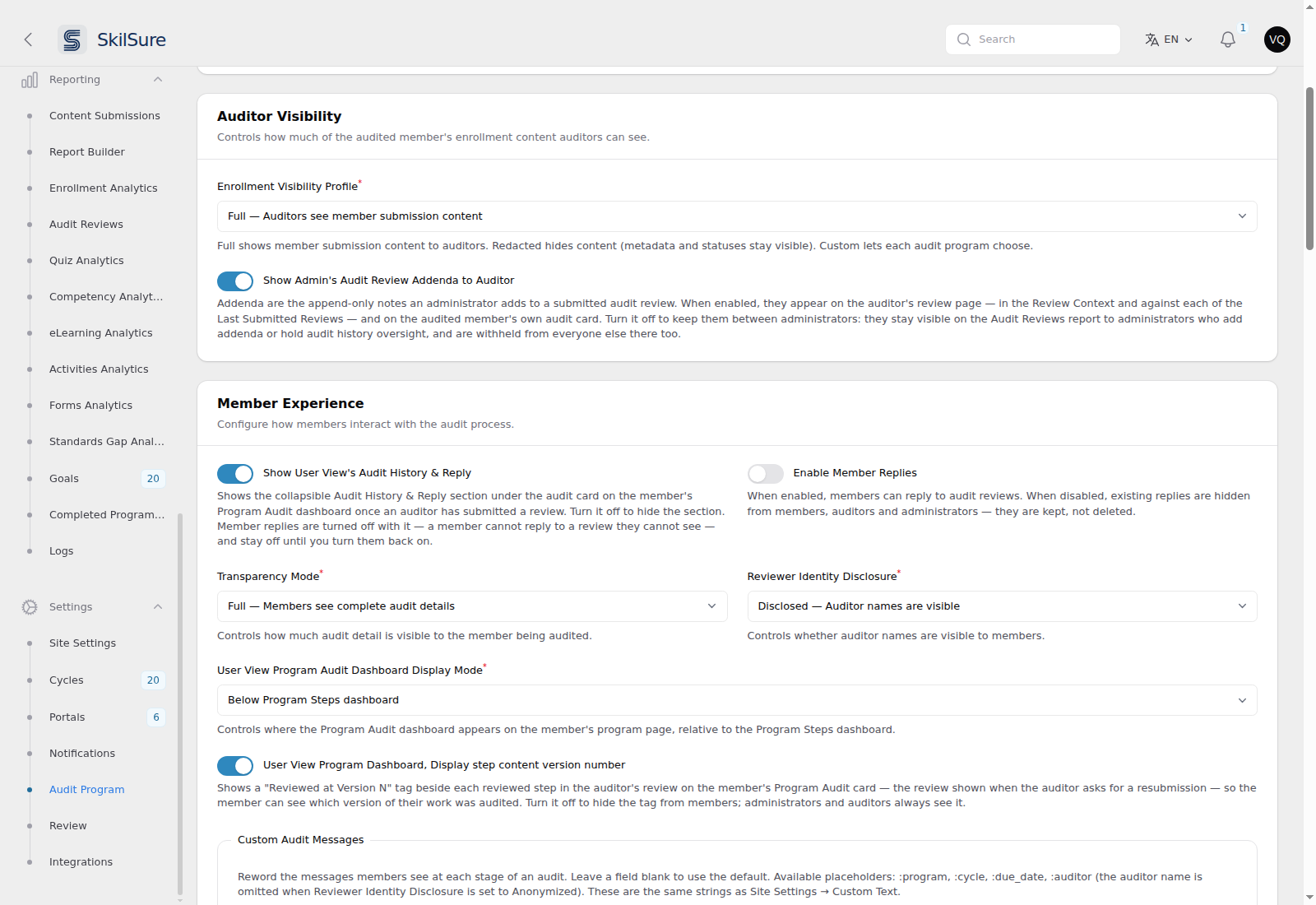 Settings → Audit Program. The addenda switch sits under Auditor Visibility; the Audit History & Reply switch leads the Member Experience section.
Keep audited members open for the audit window
By default, an audit cycle's dates only bound the auditor. If the audit cycle runs past the end of the member's own program cycle, the member can lose access to their program — becoming read-only, or Incomplete — while their auditor is still reviewing. Only an assignment's Audit Cycle Extension Date moves the member's dates today.
Turn on Extend Audited Members to the Audit Cycle Window (Settings → Audit Program → Synchronization) to keep every actively assigned member open until the review window closes:
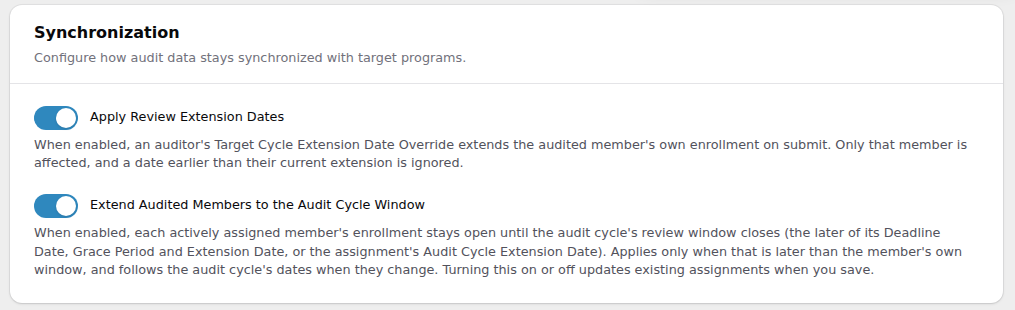 Settings → Audit Program → Synchronization.
- Which date. The member's enrollment gets an extension date at the end of the latest of the audit cycle's Deadline Date, Grace Period Date and Extension Date, and the assignment's own Audit Cycle Extension Date — the same window the auditor works in (see When auditors can work).
- Only ever longer. Nothing changes for a member whose own deadline, grace period or extension already ends on or after that date.
- It follows the audit cycle. Move the audit cycle's deadline, grace period or extension date and the audited members move with it — later or earlier — in the background shortly after you save (allow a few minutes on an audit cycle with thousands of members). Moving it earlier gives the time back the same way clearing an Audit Cycle Extension Date does: never below the member's own window, and never below an extension you set on their enrollment before the audit.
- Locked statuses are left alone when time is taken back. A member who is Submitted, Exempt, Inactive or Incomplete keeps their date; the skip is recorded in Reporting → Logs. A lapsed Incomplete member who gains time is reopened.
- It steps aside when the member's own window grows. If the member's own cycle is later moved past the audit window, the audit extension is removed, so it can never cut short the later deadline.
- Audit cycles that have already ended still apply. Their window end is in the past, so turning the setting on records that past date as the member's extension. Nobody gains or loses access, and a lapsed member is not reopened, but the date shows on their enrollment.
- New, reactivated and moved assignments apply straight away. Deactivating or deleting an assignment takes its time back.
- Switching it on or off updates existing assignments. Saving the setting recalculates every audited member in the background — on extends them, off gives the time back — so allow a minute or two on a large tenant.
The member sees the result as continued access. Their program header still shows the cycle Deadline.
Reword the audit statuses
Every audit status name — the per-step outcomes and the final statuses — is reworded under Site Settings → Custom Text, not on the Audit Program page. One change reaches every surface at once: the auditor's pickers, the Audit Reviews report column and its filter options, the member's audit history, the review emails, and the CSV export.
That matters because the same status used to read differently in different places. It now doesn't — so if you rename Audit Complete to something like "Met Requirements", auditors, admins and members all see your wording.
The Step Status Catalog and Final Status Catalog on the Audit Program page show the fixed set with their keys and labels read-only. You can't add, delete or reorder them, and a label edited there in the past has been reset to the built-in name — that field never drove what anyone saw.
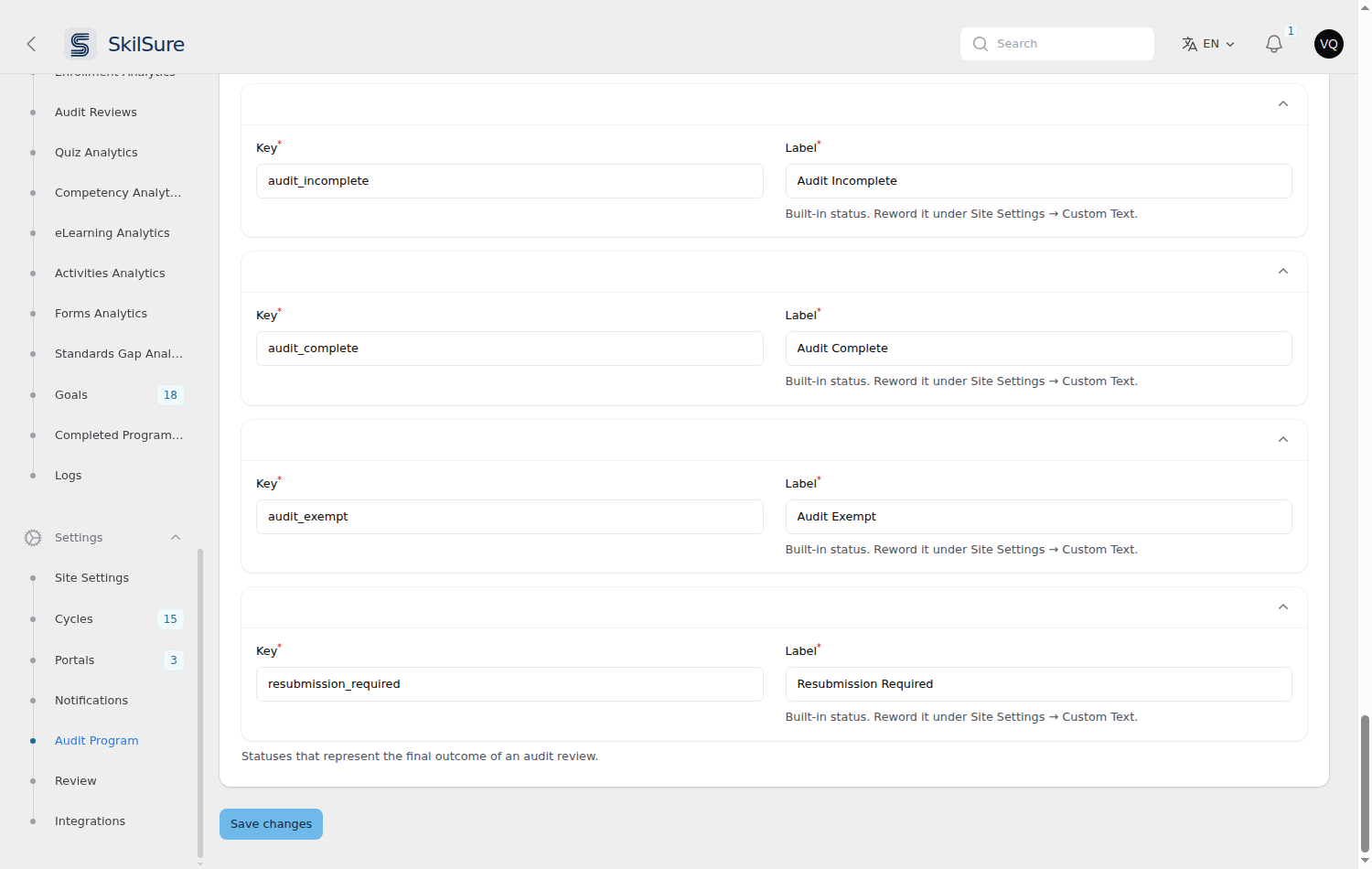 Settings → Audit Program → Status Catalogs. The set is fixed; the note on each row points at where the wording actually lives.
Reword what members see
The same Audit Program settings page carries Custom Audit Messages — the eleven messages a member reads at each stage of an audit, in every language your tenant has enabled.
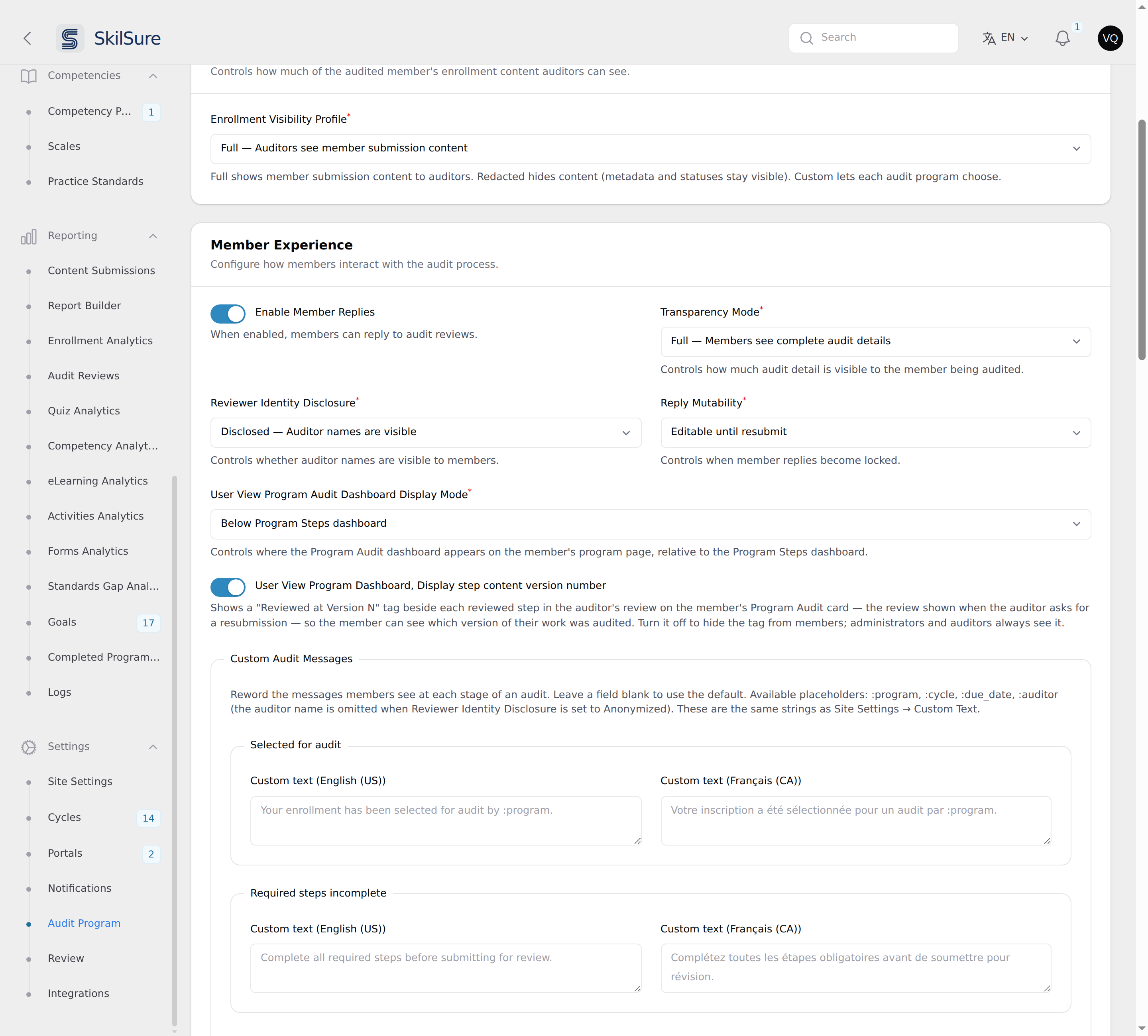 Settings → Audit Program. The placement control, the version-number switch, and the per-stage message overrides, each with one box per enabled language.
- Each stage — Selected for audit, Required steps incomplete, Ready to submit, Just submitted, Awaiting auditor review, Audit review in progress, Resubmission required, Just resubmitted, Audit complete, Audit exempt, Audit closed as incomplete — has one box per language. The greyed text in each box is the default that will be used, so you can see what you are replacing.
- Leave a box blank to keep the default. You only need to fill in the stages you actually want to reword.
- Tick Hide this text to show nothing at that stage. Each language has its own toggle, so you can drop a message in English and keep the French. Blank still means "use the default" — hiding is the separate toggle. Selected for audit has no toggle, because it prints the program name and hiding it would take the name with it.
- Placeholders
:program,:cycle,:due_dateand:auditorfill in from the audit.:auditoris omitted automatically when Reviewer Identity Disclosure is set to Anonymized, so a custom message can't leak an auditor's name that the policy hides.
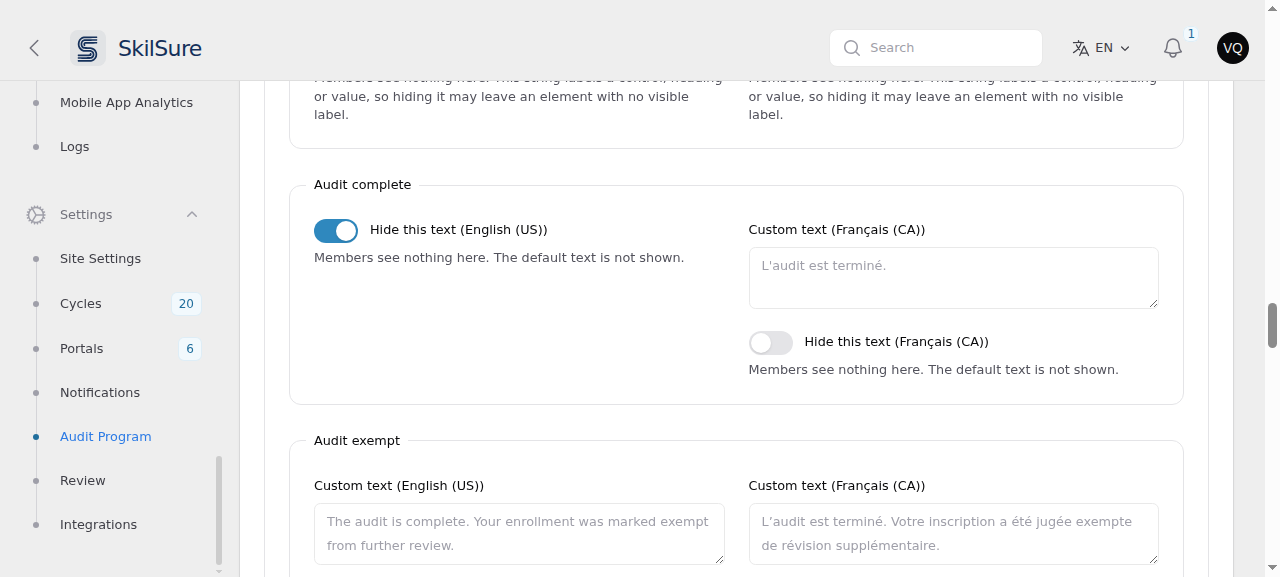 Each stage has one box and one toggle per language. Hiding English leaves French untouched.
These are the same strings as Custom Text
Editing them here is exactly the same as editing them under Site Settings → Custom Text — one store, two places to reach it. A change in either shows up in the other.
Override the wording for one cycle
A single audit program cycle can use different wording from the rest of the tenant. Edit the cycle (from the audit program's Program Cycles tab) and open Override Custom Audit Messages:
- Turn on Enable Override Custom Audit Messages — the per-stage boxes appear.
- Fill in only the stages you want changed for this cycle; blanks fall back to the tenant-wide wording above, and then to the default.
There is no Hide this text toggle here. A blank box in this section already means "use the tenant-wide wording", so it cannot also mean "show nothing". Hide a stage message tenant-wide instead, in the section above or under Site Settings → Custom Text.
Resolution is cycle → tenant-wide → default, per message and per language. Switching the toggle off keeps what you typed but stops applying it, so you can retire an override without losing the text.
Both cycle sections need audit permission
Override Custom Audit Messages and Audit Review Target Program Extension Date on the cycle form both require the Program audit — Administration permission. See Audit permissions.
Settings are pinned per review
The transparency, disclosure, and reply settings in force when a review is submitted are recorded on that review. Changing a setting later doesn't retroactively change what an already-submitted review shows the member.
Choose the steps auditors review
By default an audit review covers every step of the member's program. You can narrow that, per audit cycle, to the required steps you care about.
Open Programs → Programs, open the audit program, and go to its Cycles. Create a cycle, or edit one, and find the Audit Review Selected Target Program Steps section, just above Audit Review Target Program Extension Date.
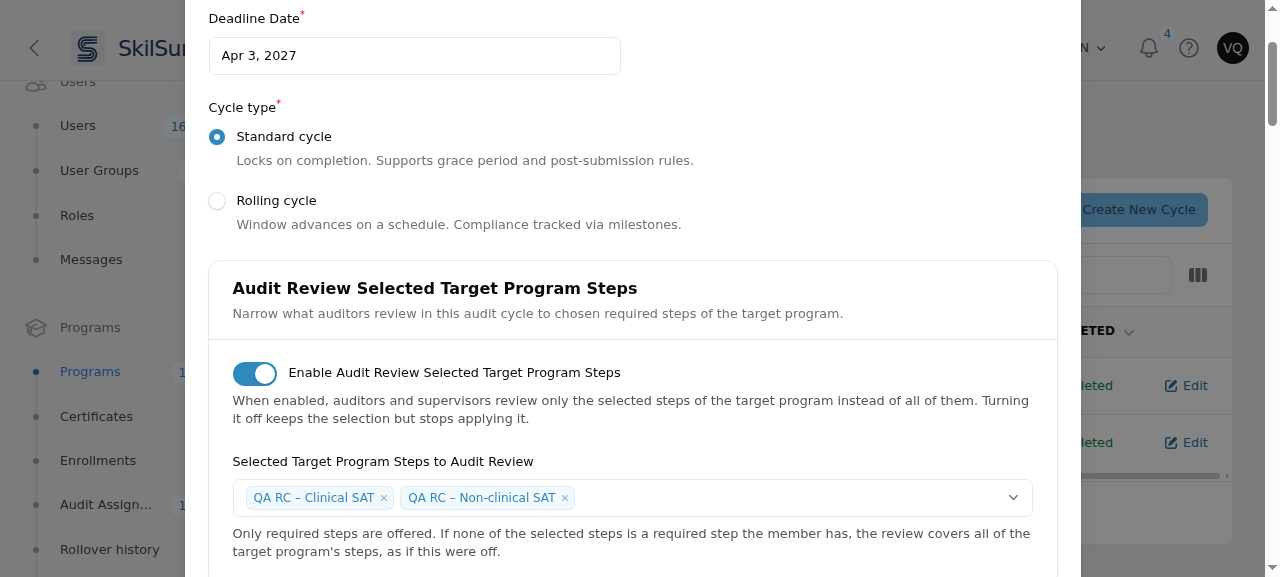 Edit Program Cycle → Audit Review Selected Target Program Steps. Only the chosen steps appear in new reviews.
- Enable Audit Review Selected Target Program Steps — off by default. While it is off, reviews cover every step.
- Selected Target Program Steps to Audit Review — appears once the switch is on. It lists the required steps of the target program; optional steps are not offered. When the target cycles use more than one program definition, the steps are grouped by definition.
With the switch on, each new review lists only the selected steps that are required and on the audited member's own path. The auditor reviews those steps, the supervisor signs off on those steps, and Audit Complete needs only those steps to be dispositioned. Steps that are not selected, including optional ones, are left out of the review.
Things to know:
- Nothing usable selected means every step. If the list is empty, or none of the selected steps is a required step the member has (deleted, made optional, or on a path the member did not choose), the review covers every step, exactly as if the switch were off. A review can never end up with no steps.
- The member still completes the whole program. The selection changes only what the auditor reviews. Before Submit for Review, the member must still finish every required step.
- Reviews already started keep their steps. The selection applies when the auditor opens a new review. A draft that already exists keeps the steps it started with.
- Edits to unselected steps don't interrupt the auditor. While a review covers only the selected steps, a member changing a step outside that list does not trigger the "member data changed" notice.
- Switching it off keeps your selection. The steps stay saved, so you can switch it back on later.
- The section appears when you create a cycle and when you edit one, and requires the Program audit — Administration permission. See Audit permissions. When you create a cycle, the list offers the required steps of every cycle of the target program, because the new cycle isn't linked to any target cycles yet.
Choose the competencies auditors review
Some audit reviews ask the auditor to look at specific competencies for the member being audited. You choose which ones per audit cycle, and the auditor sees them in the audit review form.
Set the rules on the cycle
Open Programs → Programs, open the audit program, and go to its Cycles. Create or edit a cycle (or open the cycle's own Edit Cycle page) and find the Audit Review Required Competency section.
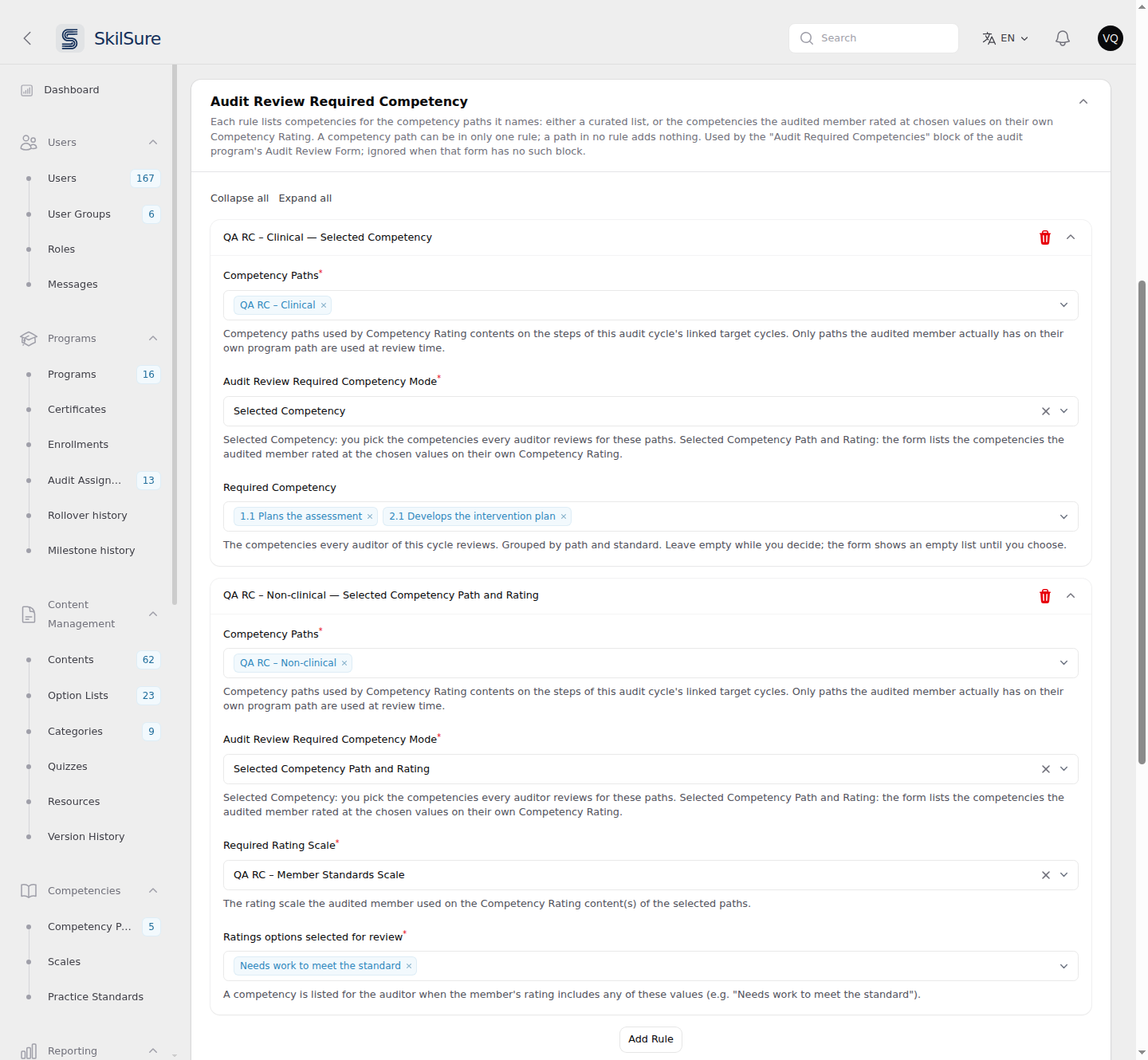 Edit Cycle → Audit Review Required Competency. Each rule names its competency paths and how the competencies are picked.
Click Add Rule for each group of paths. A rule has:
- Competency Paths — one or more competency paths. Only paths used by Competency Rating content on the steps of this audit cycle's linked target cycles are offered.
- Audit Review Required Competency Mode — how the competencies are chosen:
- Selected Competency — you pick the competencies (Required Competency) that every auditor of this cycle reviews for these paths. Leave it empty while you decide; the form then shows an empty list.
- Selected Competency Path and Rating — choose a Required Rating Scale (the scale the member used on their Competency Rating) and the Ratings options selected for review. A competency is listed when the member rated it at any of those values on their own Competency Rating.
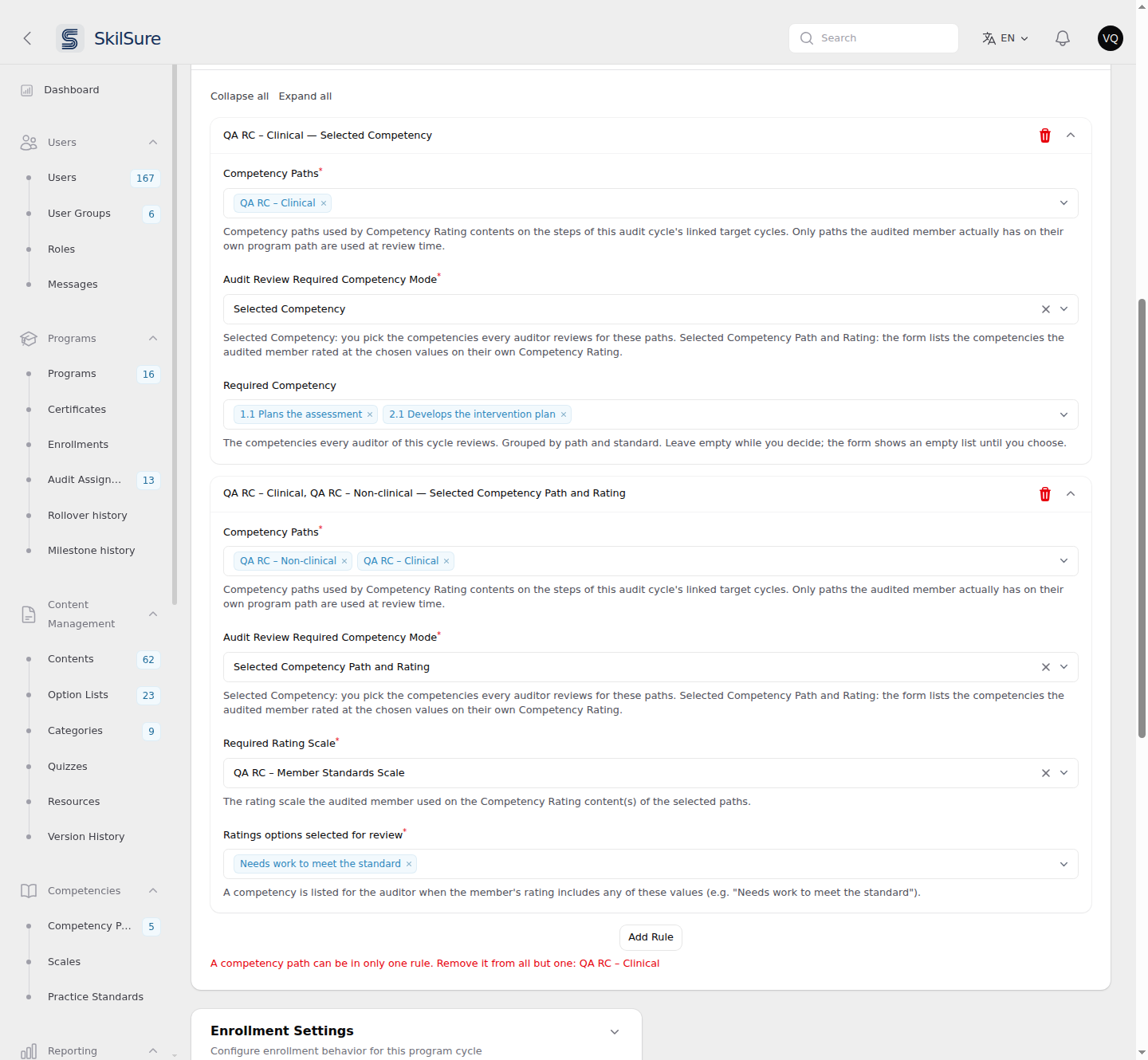 A path can be in only one rule. Saving with the same path in two rules shows this message and nothing is saved.
- With no rules, the feature is off and the cycle adds nothing to the form.
- A path in no rule adds nothing.
- Each auditor only sees rows for the paths the audited member is actually on.
- The section is on both the standalone Edit Cycle page and the edit window opened from the program's Cycles tab, and works the same in both.
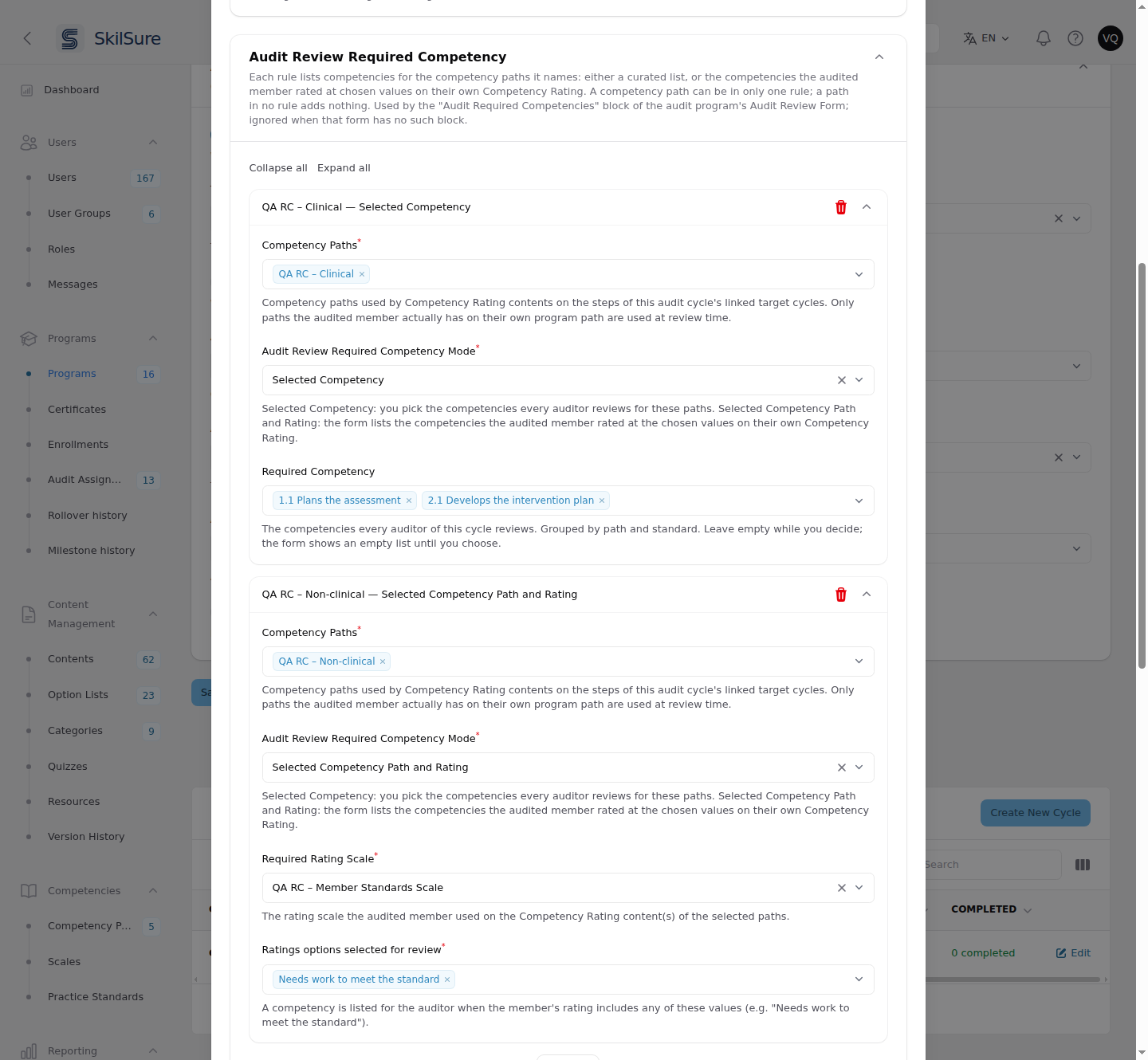 Programs → (audit program) → Cycles → Edit. The same section inside the cycle's edit window.
Permission needed
You need the audit_program.manage permission to see and change this section. Without it the section is hidden and the cycle's rules are left as they are.
Add the block to the Audit Review Form
The rules do nothing until the audit program's Audit Review Form includes the Audit Required Competencies block. Add it in the form builder like any other block, then choose:
- Display — Rating scale shows each competency with the rating scale you choose, so the auditor rates every row; List shows read-only rows with the member's rating.
- Whether each row has a comment box.
- Whether the block is required before the review can be submitted.
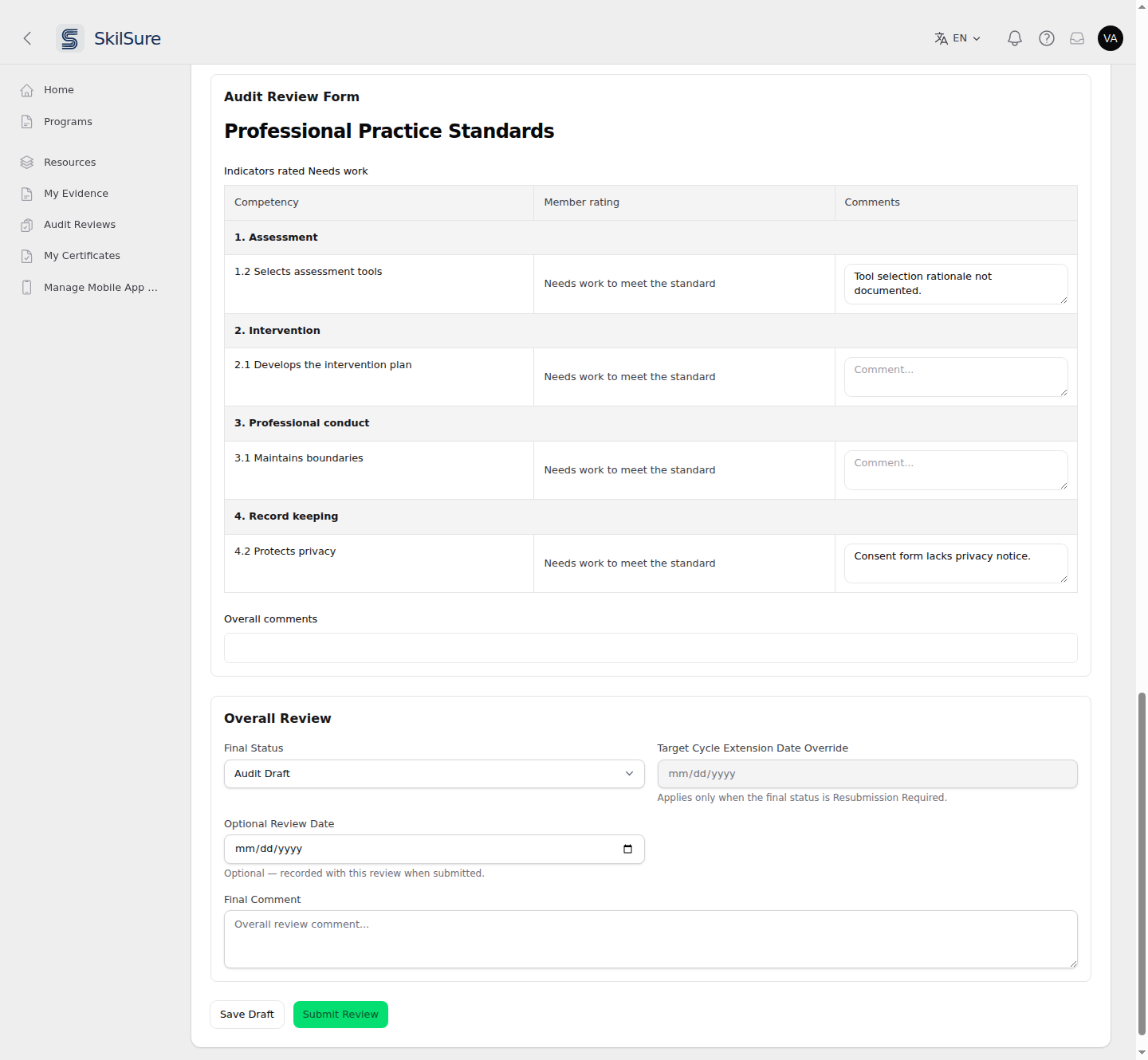 A List display with per-row comments, as the auditor sees it.
If the form is opened outside an audit review (for example in a preview), the block shows a note that the list appears when the form is opened from an audit review.
Reword the text
The block's labels and messages are Custom Text under the audit group, so you can reword them under Settings → Custom Text. French is available.
What reviewers see of a member's form
When a step's content is a form, the auditor sees the member's submission under Member Submissions as the member's own form, read-only. Headings, instructions, sub-forms, signatures, required markers and rating grids appear as the form shows them, and the answers follow the form's own order. Uploaded files are download links under their original names. Nothing in it can be changed: the auditor records their findings in the step's Auditor Status and Auditor Comment and in the review form.
The same read-only form appears on the supervisor's sign-off page, in the mentor's review, in View Step Content on an enrollment, and in View Details on the Reporting → Content Submissions report.
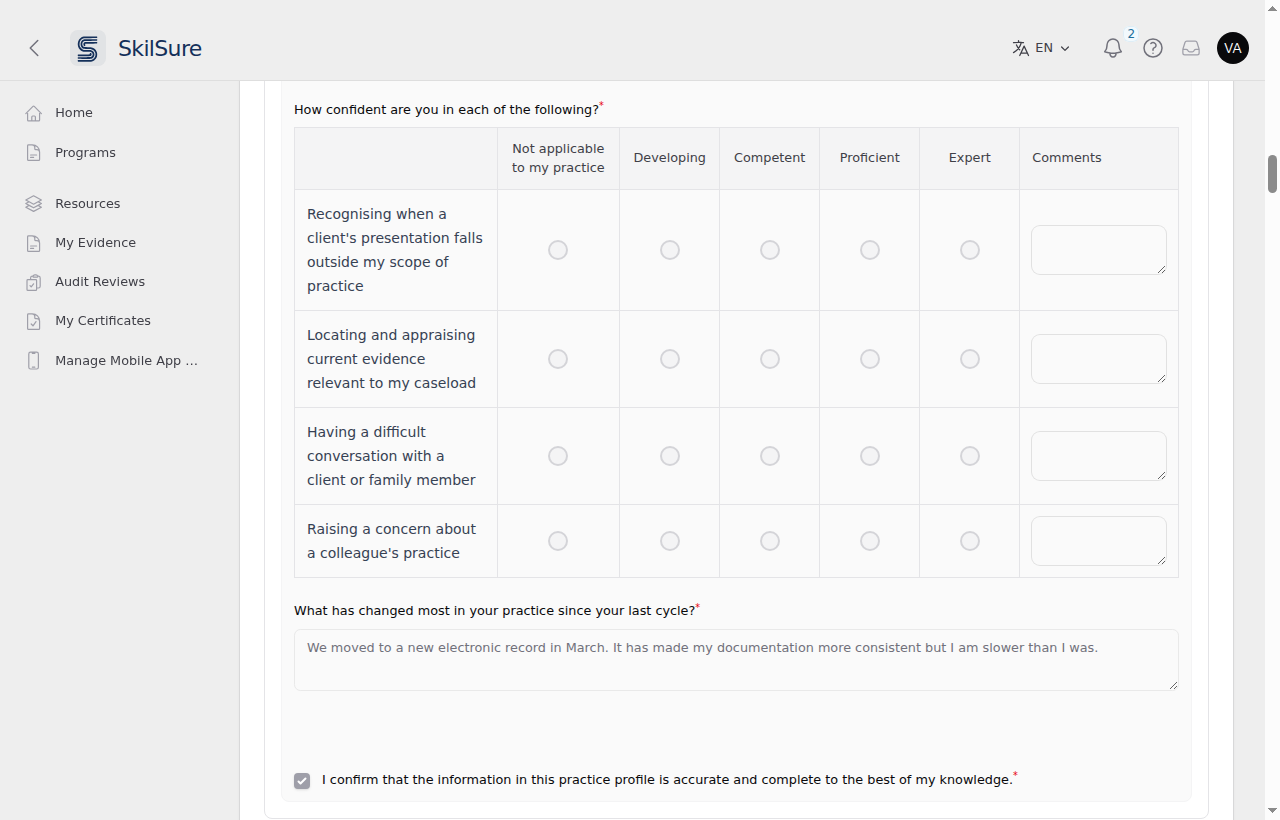 A rating grid keeps its borders and columns, and each required question keeps its red asterisk.
Learning Portfolio goals
A Learning Portfolio goal's phase answers still show as a list of labels and values, now in the order the phase form asks them.
Review outcomes
An auditor sets an outcome on each step and one final status for the review. Four outcomes ship as standard:
| Outcome | What it means |
|---|---|
| Audit Complete | The audit is finished and satisfied. The member's reviewed steps are locked and the audit closes. |
| Audit Exempt | The member was excused from this audit. Treated exactly like Audit Complete everywhere it matters — the audit closes, reviewed steps lock, and it counts as a finished audit in reports and history. Use it when someone shouldn't have been audited this cycle at all. |
| Audit Incomplete | The audit closed without being satisfied. Steps are not locked against the member, so they can still improve them. |
| Resubmission Required | Sends the flagged steps back to the member to rework and resubmit. The review reopens for another pass once they do. |
Exempt and Complete both close the audit
Because Audit Exempt is a finished outcome, it locks the member's reviewed steps and blocks them from reopening those steps themselves — the same as Audit Complete. If you need to undo it, use an admin override on the review context. Audit Incomplete deliberately does not lock, so a member is never trapped with work they can't fix.
These four are the only outcomes, and the same is true of the per-step statuses. You can't add your own: an outcome you invented would carry none of the behaviour above — no locking, no reopening, no submit email — and it couldn't be translated, so members on French would see an English word.
What you can do is reword them. Every status name comes from Site Settings → Custom Text, in each language your tenant has enabled, and the new wording follows through everywhere it appears at once: the auditor's step and final-status pickers, the Audit Reviews report and its filters, the member's audit history, the review emails, and the exports.
Reword the status, not the catalog
Settings → Audit Program lists the statuses under Step Status Catalog and Final Status Catalog, but the key and label there are fixed and shown read-only. Editing that label never changed what anyone saw — the display text has always come from Custom Text. Change it there instead.
Email the member when a review is submitted
By default, submitting a review changes what the member sees in their portal but sends them no email. Turn that on per audit program, and choose which outcomes are worth an email.
The Programs list carries an Enable Audit Mode column so you can see at a glance which programs are audit programs. It sits between Title and Current Cycle, reads Enable or Disable, sorts, can be hidden from the columns menu, filters the list to just one or the other, and is included when you export the list. The column only appears when your organization has the audit module.
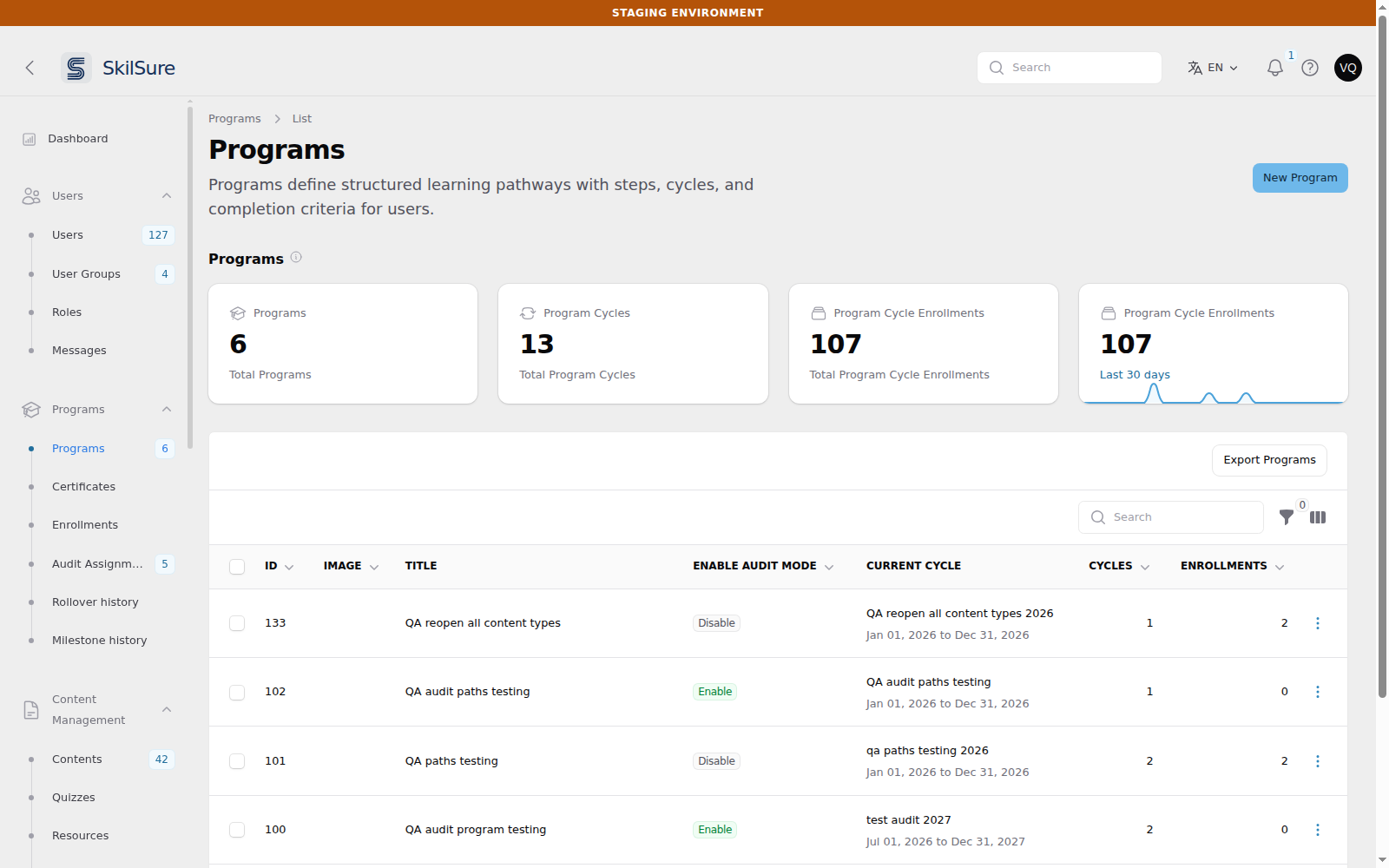 Programs → Programs. Sort by the column header, narrow the list with the filter, or hide the column from the columns menu.
Open Programs → Programs, edit the audit program, and open Audit Configuration.
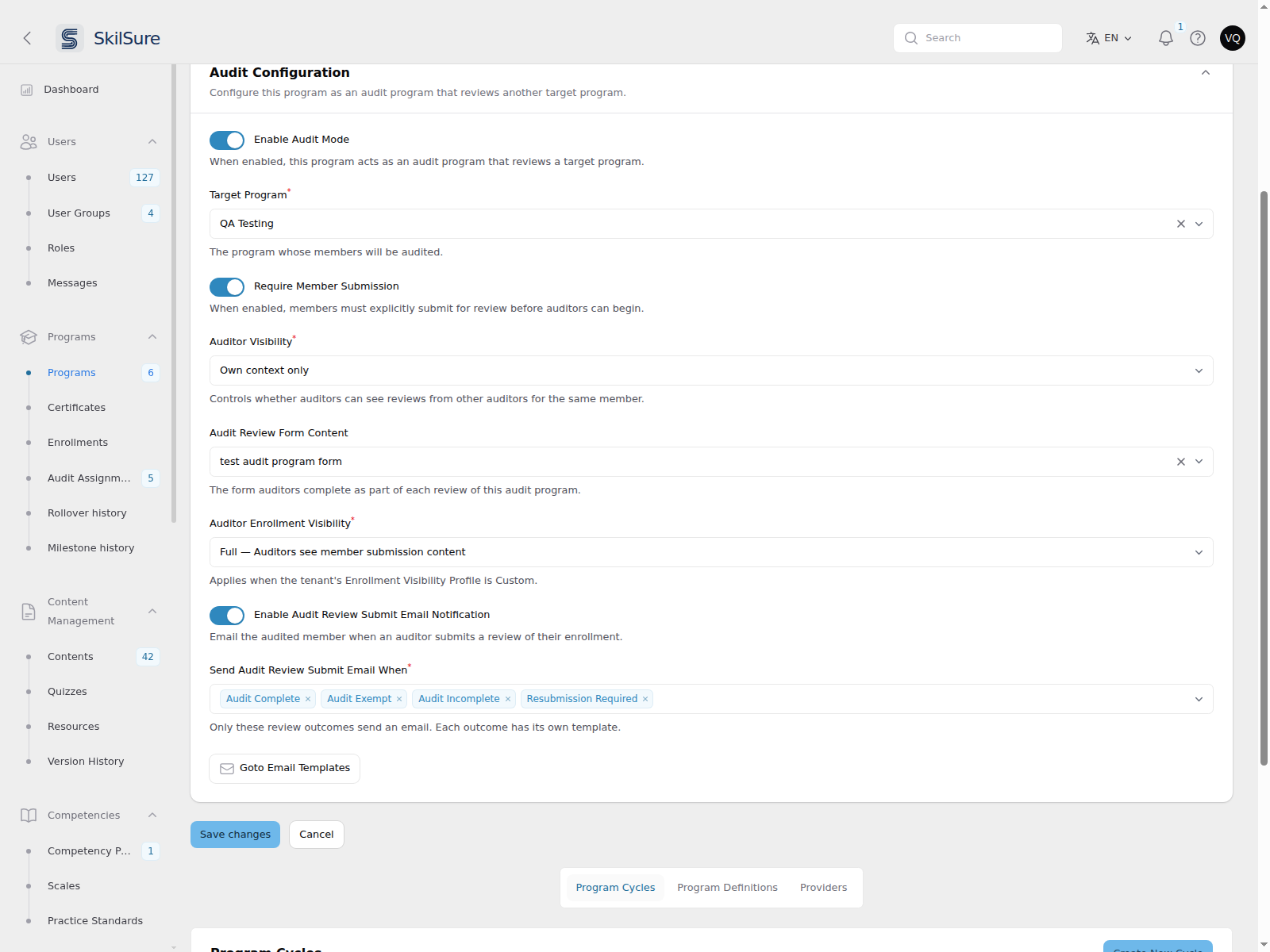 Programs → (audit program) → Audit Configuration. The notification is off until you enable it, and then only the outcomes you pick send mail.
- Enable Audit Review Submit Email Notification — off by default. Nothing is emailed until you turn this on.
- Send Audit Review Submit Email When — the review outcomes that trigger an email: Resubmission Required, Audit Complete, Audit Incomplete, Audit Exempt. Each has its own template. An outcome you leave out sends nothing.
- Goto Email Templates — opens the templates list in a new tab so you can read or reword the copy.
Turning the notification off clears the outcome list
Switching Enable Audit Review Submit Email Notification off empties Send Audit Review Submit Email When, so turning it back on later never silently resumes mailing outcomes you last selected months ago. Re-pick the outcomes when you re-enable it.
The four templates
Open Settings → Notifications → Email Templates. One template ships per outcome, already written in every language your tenant has enabled.
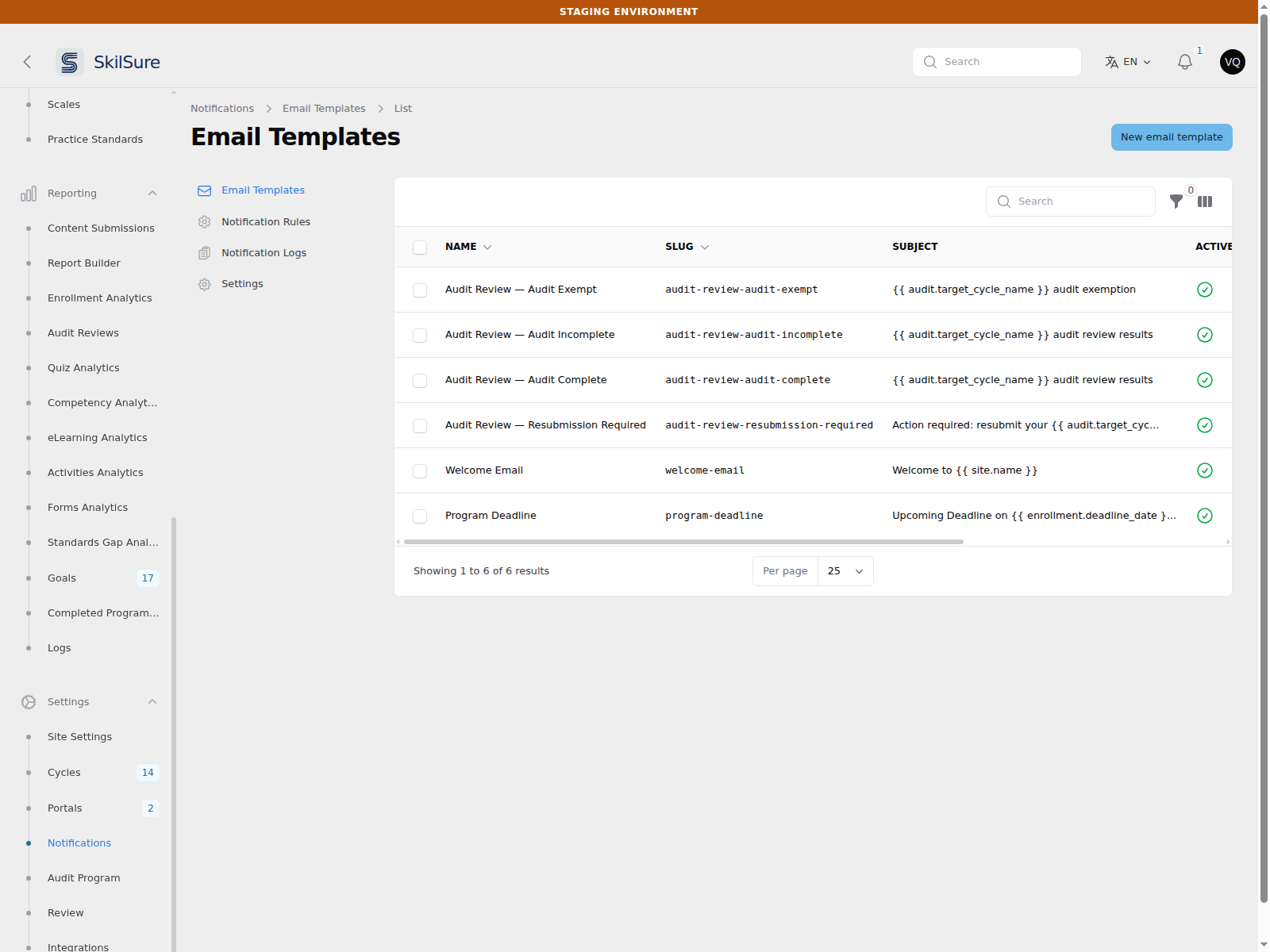 Settings → Notifications → Email Templates. The four audit review templates, with the merge tags visible in their subjects.
Edit them like any other template — subject, body, and the Active switch are all yours, and the wording is deliberately generic so it suits any organisation. Two differences from a template you create yourself:
- They can't be deleted, and their slug can't be changed. SkilSure looks each one up by slug when a review is submitted, so removing or renaming one would stop the emails without warning.
- To stop one going out, switch it to inactive (or remove that outcome from Send Audit Review Submit Email When). That's the supported way to silence an outcome.
Check the wording before you enable
The templates use merge tags — audit.member_name, audit.target_cycle_name, audit.target_deadline_date and others — that fill in from the audit and the member's enrollment. Use Preview on the auditor's review screen to see a real rendered example before you switch the notification on. The full tag list is in the Variable Reference panel on the template editor.
Monitor reviews
Open Reporting → Audit Reviews.
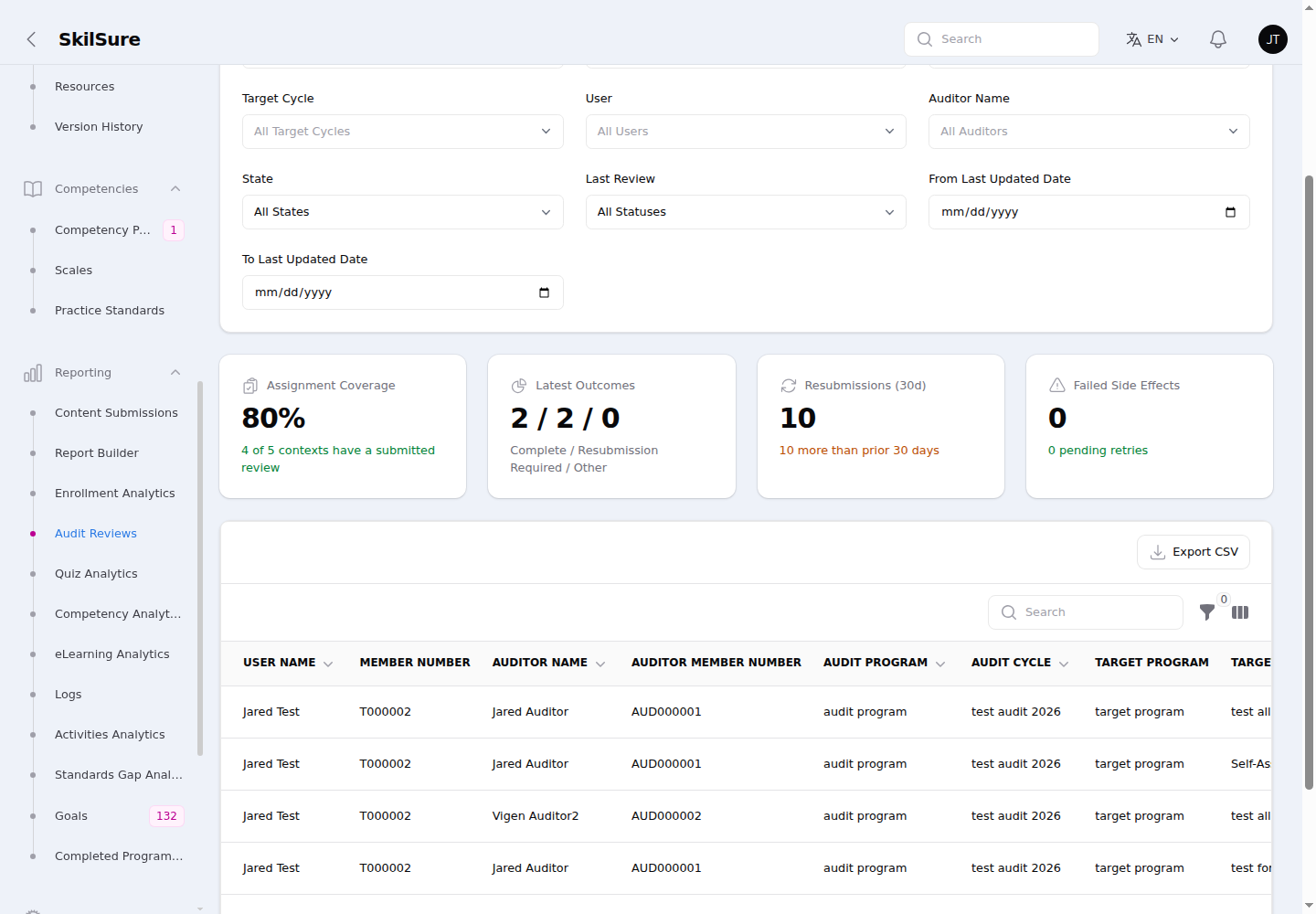 Reporting → Audit Reviews. Each row is an audit review context; the stat cards summarise coverage and outcomes across the filtered set.
- Filters narrow the list live by Audit Program, Audit Cycle, Target Program/Cycle, User, Auditor Name, State, Last Review outcome, Last Addendum, and last-updated date range.
- State offers every value the State column shows: Awaiting Submission, Open for Review, Locked (waiting on the member's resubmission), and the finished outcomes Audit Complete, Audit Incomplete and Audit Exempt. A finished audit is found under its outcome, not under Locked.
- State, Last Review and Last Addendum each take more than one value at a time — pick two outcomes to see both sets of rows together, rather than filtering twice. Remove a value with the × on its chip, and clear the whole filter to go back to everything.
- Last Review includes Not yet reviewed, and it combines with real outcomes: choosing Not yet reviewed and Audit Complete lists both, which is a question you could not ask before.
- These three appear both in the filters card and in the table's own filter panel — the same filter shown twice, so changing one updates the other.
TIP
Links you share carry the filters with them, and links shared before multi-select still work — they simply arrive with the one value they were saved with.
- Stat cards summarise the filtered set: Assignment Coverage (how many contexts have a submitted review), Latest Outcomes (Complete / Resubmission Required / Other), Resubmissions in the last 30 days, and Failed Side Effects (pending background retries).
- The table shows the member (User Name, Member Number), the Auditor Name and Auditor Member Number, and the audit/target program and cycle.
- Last Addendum (after Last Updated) shows the most recent addendum anyone has added to this context, with +N more when there are others. Sorting it puts the most recently annotated contexts first, and contexts with no addendum at the end. Hover to read a long note in full, or open View for the complete history. Like the other optional columns it can be hidden from the column picker.
- Is Active and Is Deleted (after Last Addendum) report the audit assignment behind the row: whether it is still active, and whether it has been deleted. This is where a retired audit stays visible after it has disappeared from the member's and the auditor's own screens. Both columns sort (rows with no assignment last) and can be hidden from the column picker.
- An em dash in either column means the row has no assignment to report — its assignment was edited onto a different auditor, cycle or member, which leaves the earlier reviews behind as a historical record belonging to nobody.
- Goto Audit Assignment on the row's action menu opens that assignment's edit page, so you can reactivate, restore or correct it without hunting for it in Audit Assignments. It works on a deleted assignment too. The action only appears if you can edit audit assignments.
- Export CSV downloads the filtered rows — including the auditor columns, Last Addendum, and Is Active / Is Deleted — for reporting.
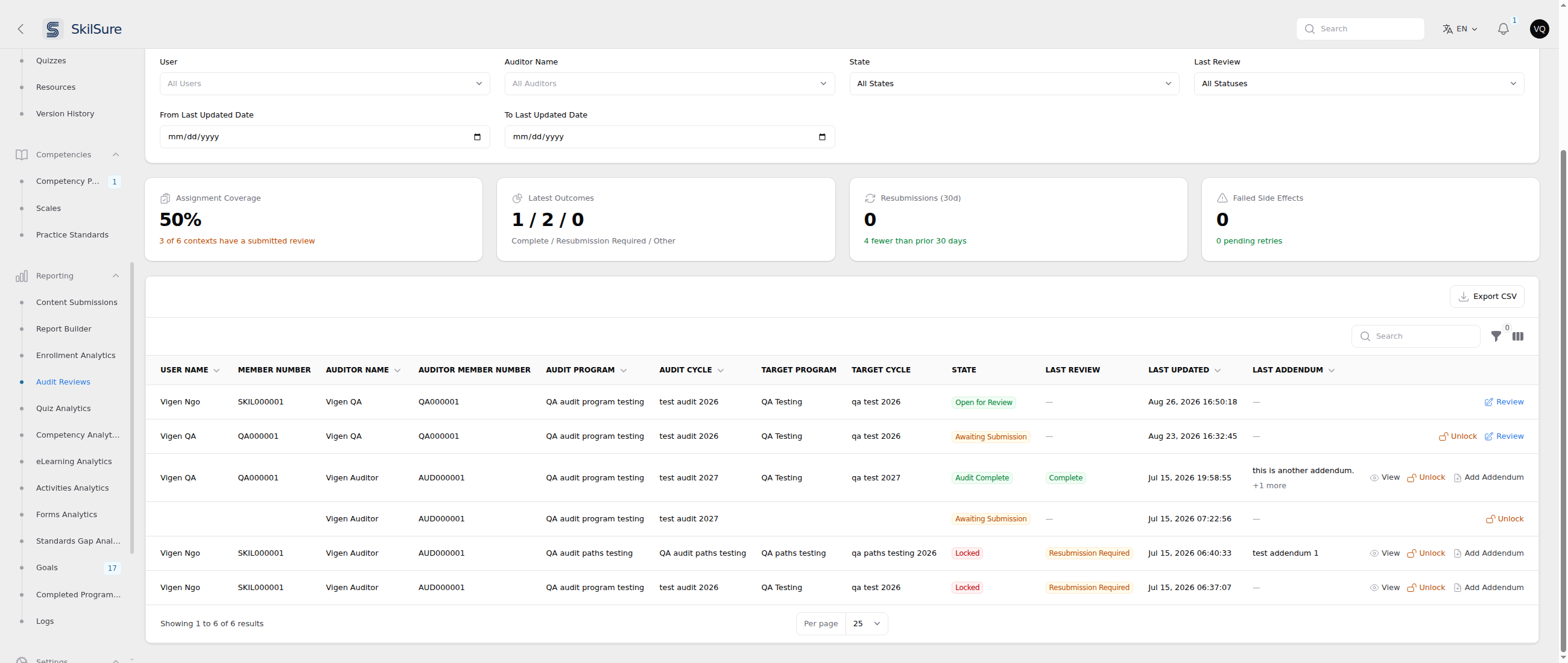 Reporting → Audit Reviews. Last Addendum sits after Last Updated; the "+1 more" hint means that context carries other addenda too.
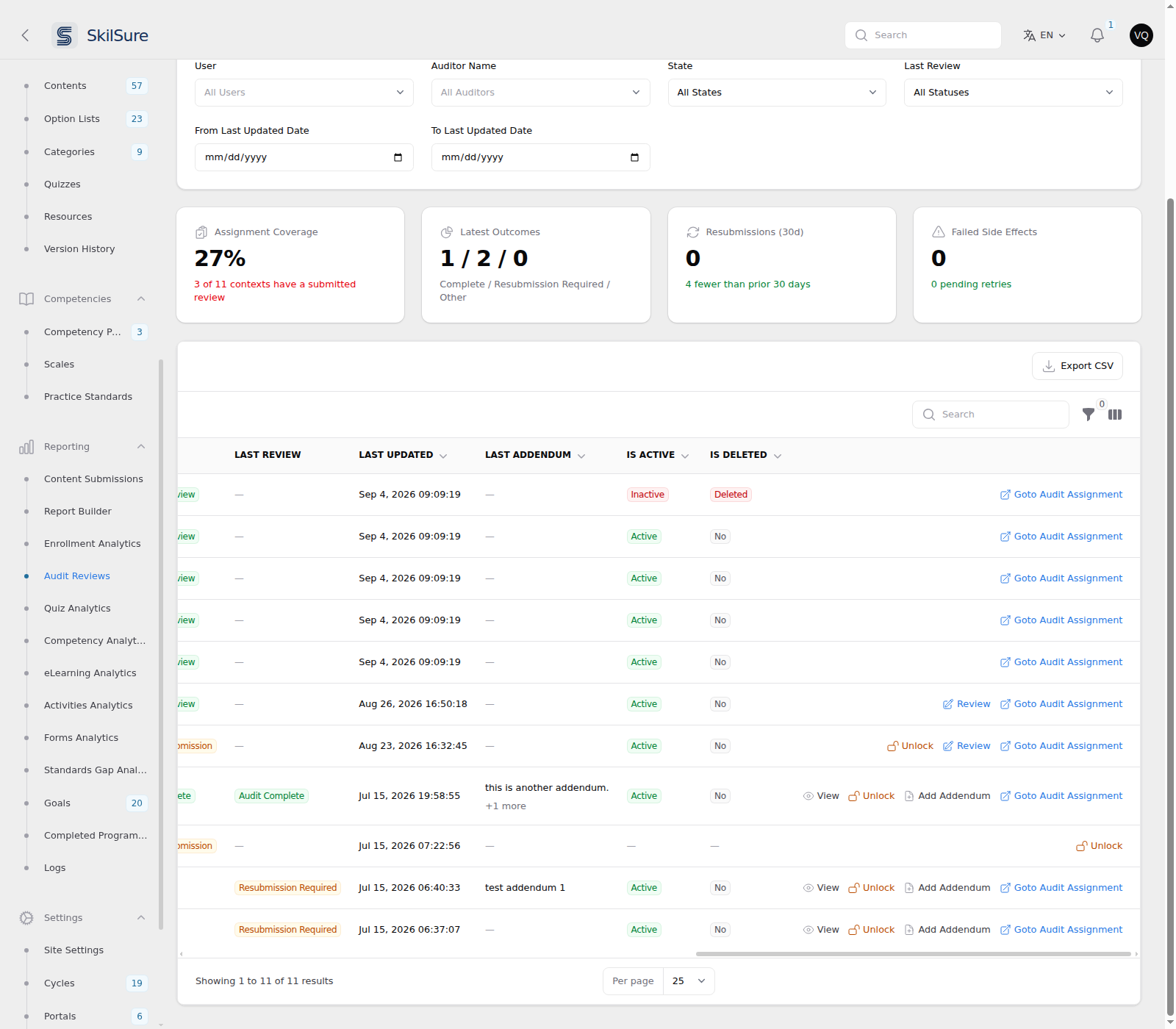 Reporting → Audit Reviews. Is Active and Is Deleted follow Last Addendum. The row with em dashes has no assignment at all, so it offers no Goto Audit Assignment either.
View a review
Click View on a row to open the Audit Review History for that context — read-only, no page navigation.
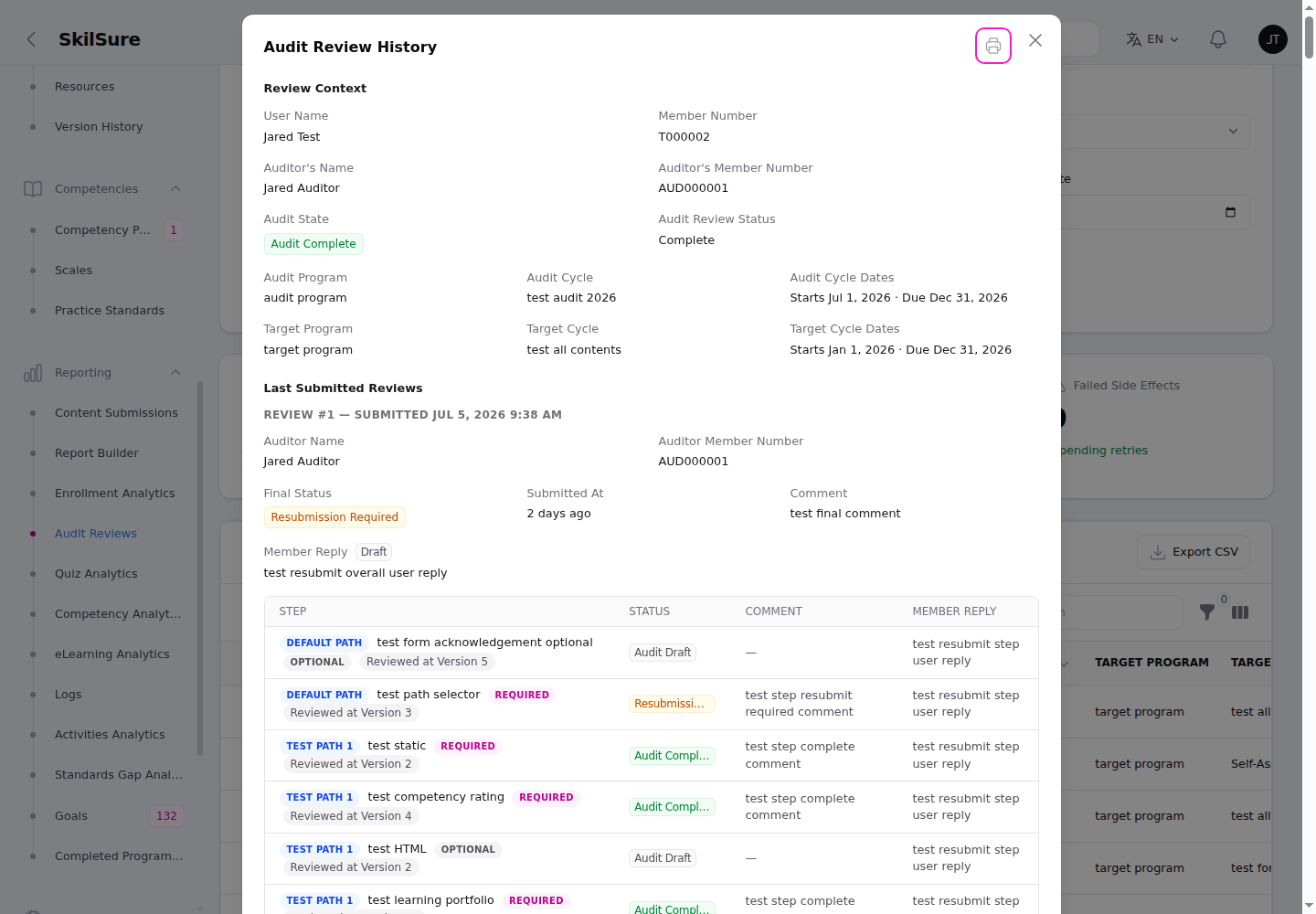 View. The full context, every submitted review, and the per-step outcomes — with a Print button in the title bar.
- Review Context opens with Is Active and Is Deleted for the audit assignment this review belongs to, then summarises the member, auditor, audit state, and the audit/target program, cycle, and dates — including the Audit Assignment's Audit Cycle Extension Date (this assignment's own extension, if any) and the Audited Member's Extension Date (that one member's own extension, not a date on the shared cycle), so you can see at a glance how long the auditor had.
- Review Context also ends with Last Addendum — the most recent note anyone has added to any review on this audit, with +N more when there are others, and each review's full notes beneath it under Last Submitted Reviews. It reads the same value as the Last Addendum column and filter on the table, so the two can never disagree.
- Last Submitted Reviews lists each submitted review with its final status, the auditor's optional review date (if they recorded one), the submitted date, the auditor's comment, and the member's reply.
- Step Reviews shows every step the review covered with its status, the auditor's comment, and the member's per-step reply. Each review keeps its own set of steps as they stood when it was submitted.
- A Print button in the modal's title bar (just left of the close ✕) prints — or saves as a PDF — the whole review, expanded and untruncated.
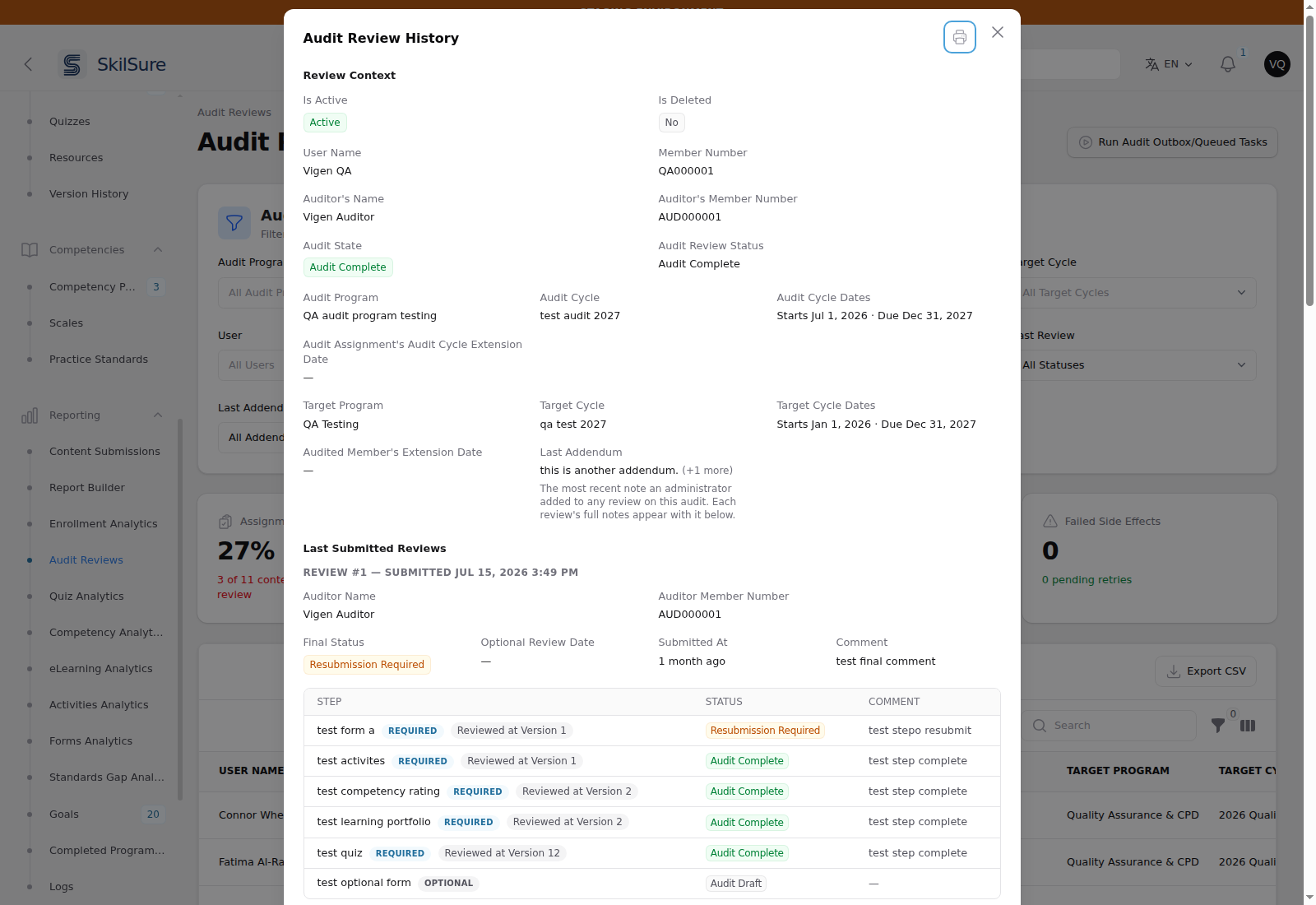 View. Last Addendum closes the Review Context; the "+1 more" hint means the audit carries other notes too.
The row's other actions let an authorised admin Unlock a locked context (with a reason, recorded on the context's event trail) and Add Addendum — an append-only note on a review.
Adding an addendum before the first review is submitted
You don't have to wait for the auditor. On a row whose State is Open for Review and whose Last Review is empty, Add Addendum lets you leave the auditor a note on the review they're about to write. Pick the review in Review and write the note:
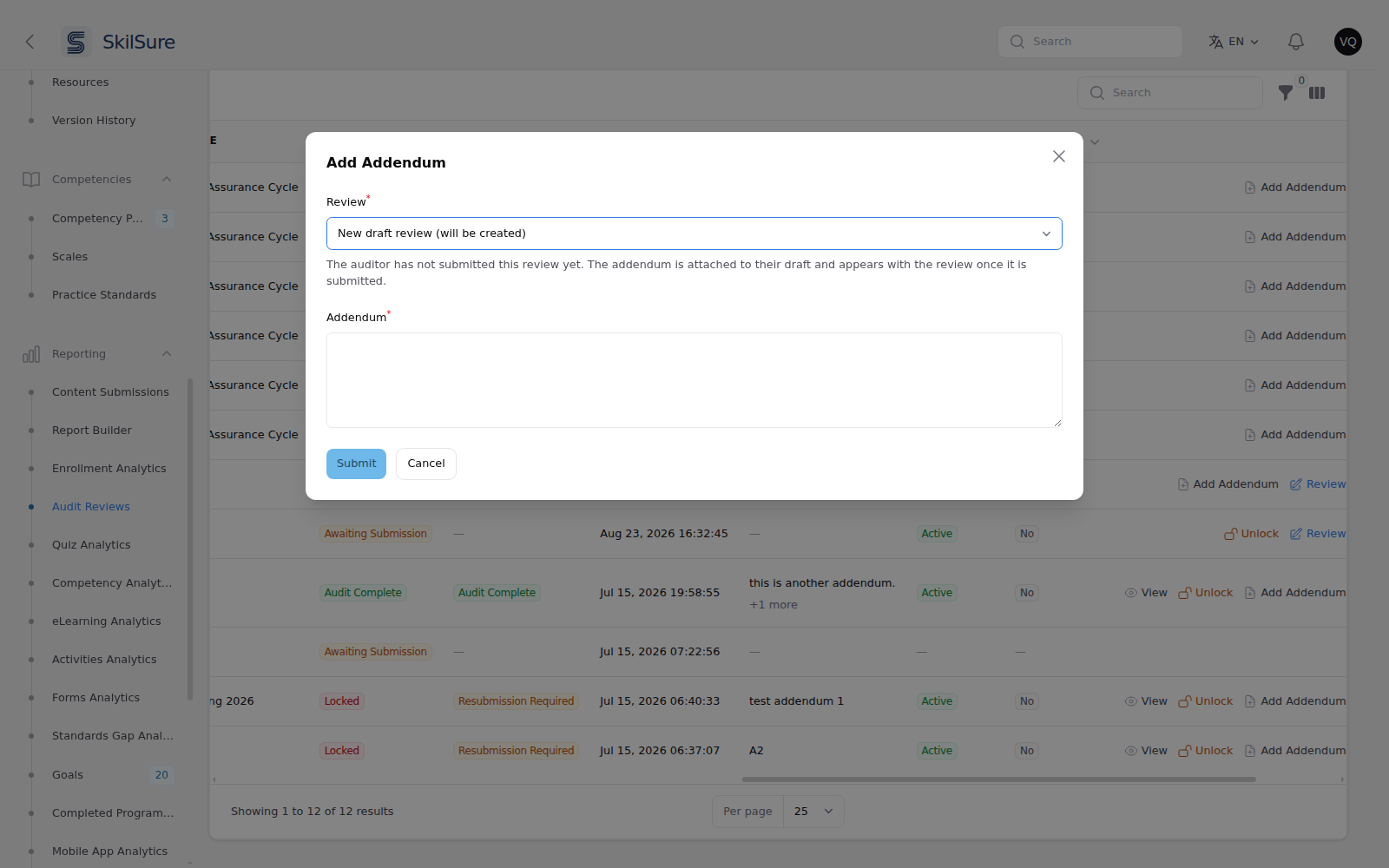 Reporting → Audit Reviews → Add Addendum on an Open for Review row before the auditor has started. The only choice is New draft review (will be created).
- New draft review (will be created) — the auditor hasn't opened the review yet. Your note creates their draft review (it belongs to the row's auditor, not to you) and is attached to it. When the auditor opens the review, they land in that draft.
- Draft review — not yet submitted — the auditor has already started. Your note is attached to their draft. On audits that already have submitted reviews, the auditor's current draft is offered alongside them.
The note shows straight away in Last Addendum, and on the auditor's review page when Show Admin's Audit Review Addenda to Auditor is on. It becomes part of the review when the auditor submits. The member never sees a note on a draft.
INFO
The New draft review option only appears for the audit's first review, and only while an active audit assignment is still behind the row — if the assignment has been deactivated or deleted, you can still annotate an existing draft but no new one is created. It works during a Kill Switch lockdown, so you can leave incident notes.
"The member's steps didn't reopen" — Run Audit Outbox/Queued Tasks
A Resubmission Required review doesn't reopen the member's steps on the spot. It queues that work as a background task. Normally it runs within seconds; if nothing is processing the queue — or a task was interrupted part-way — the steps stay Completed and uneditable, the member can't resubmit, and nothing on the page explains why.
Run Audit Outbox/Queued Tasks, at the top of Reporting → Audit Reviews, applies those outstanding tasks immediately. A number on the button counts what's waiting; no number means nothing is outstanding.
- Safe to click more than once. Work already applied is skipped, and a repeat run doesn't use up a task's automatic retries. If a task can't be applied, click again — that's the retry.
- It works in batches. A large backlog stops deliberately after a batch or about 20 seconds and tells you so; run it again to continue. This keeps the page responsive instead of timing out half-way with nothing reported.
- A task that keeps failing eventually stops being retried and moves to Failed Side Effects on this page. That's deliberate: a task that can never succeed (because the step it points at was deleted, say) would otherwise be re-run on every click forever and the button's count would never clear. Failed tasks need a look rather than another click.
- It only touches what you can see. If your role can see every auditor's reviews, the run covers the whole tenant. If it's limited to your own, the run and its count are limited the same way — you can't apply, or count, another auditor's outstanding work.
- Paused audits stay paused. During an emergency lockdown the button refuses to run, and a lockdown switched on mid-run stops it part-way — it says so, and tasks already in flight stay in progress for up to 15 minutes before they can be retried. Revert the pause, then run it again.
- Every run is recorded in Reporting → Logs, and any audit whose state changes as a result is attributed to you on that context's event trail — not to the auditor, which is how it would otherwise read.
Requires the same permission as Unlock (Program audit — Administration), because it changes member and audit state.
Check this before assuming a bug
If a member reports that a Resubmission Required review left their steps locked, look at this button's count first. A non-zero count means the work is queued and simply hasn't run — one click usually resolves it.
Supervisor sign-off
Supervisor sign-off adds a check after the auditor. When an auditor submits a review, it waits for a supervisor to approve it before it takes effect. The supervisor reviews every required step and either approves the review or returns it to the auditor for changes.
Sign-off applies to an assignment only when it has at least one eligible supervisor. An assignment with no supervisor, or whose supervisors are no longer eligible, skips the sign-off: the auditor's Submit Review works exactly as it did before.
Until a supervisor approves, nothing reaches the member. The member's audit card, their notification and the review submit email all wait for Approve, and a returned review never reaches the member at all. The supervisor's statuses, comments, name and form are never shown to the member, even after approval.
The supervisor's own workspace is described in Audit reviews (user guide).
The auditor's fields are now labelled as the auditor's
On every audit review screen, including the member's audit card, the auditor's fields now read Auditor Status, Auditor Comment, Auditor Final Status and Auditor Final Comment. This applies whether or not you use supervisor sign-off, so the auditor's answers are never confused with a supervisor's. If you had reworded Final Status under Site Settings → Custom Text, your wording carries over to Auditor Final Status.
Turn it on
Open Settings → Audit Program and find the Audit Review Supervisor Sign-off section, directly after Synchronization.
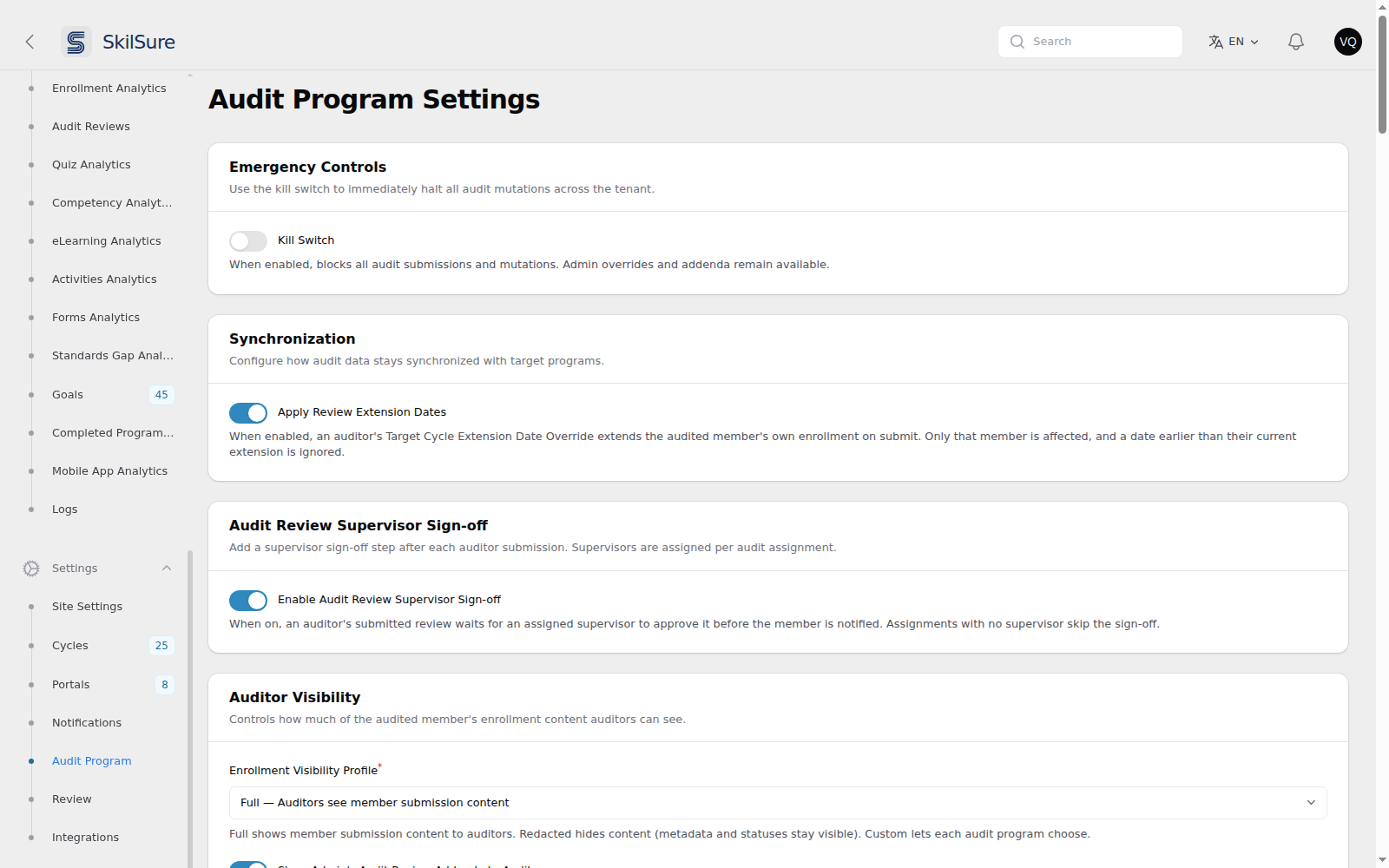 Settings → Audit Program. The new section sits after Synchronization.
- Enable Audit Review Supervisor Sign-off turns the feature on for the whole tenant. Off by default.
- While it is on, the supervisor picker appears on audit assignments and the Supervisor Sign-off Form Content field appears on audit programs.
- Turning it off stops new submits from waiting for a supervisor. A review already waiting stays waiting, and its supervisors can still decide it. You can also decide it yourself with Resolve Sign-off. The supervisor columns stay on the Audit Reviews report while any sign-off data exists, so you can still find it.
Who can sign off
Signing off is a capability you grant to a provider role, like auditing. On the Roles page, a provider role granted Can Sign Off Audit Reviews makes its holders eligible to sign off.
- The built-in Supervisor provider role has Can Sign Off Audit Reviews by default. A Supervisor role your organisation created itself does not; tick the permission if you want it to.
- A user is an eligible supervisor of an assignment only when they hold that permission and are listed on the assignment, directly or through a user group.
- The auditor and the audited member are never eligible, even when listed. Nobody signs off their own audit, and no member signs off an audit of themselves.
- A user group contributes its direct members who also hold Can Sign Off Audit Reviews. Members of child groups are not included, and an inactive group contributes nobody.
- Eligibility is checked live. Removing the permission, a group member or the group itself takes effect on the next request.
Assign supervisors
Open an assignment under Programs → Audit Assignments. With sign-off on, the form has a Supervisor(s) or Supervisor User Group(s) field after Target User Enrollment.
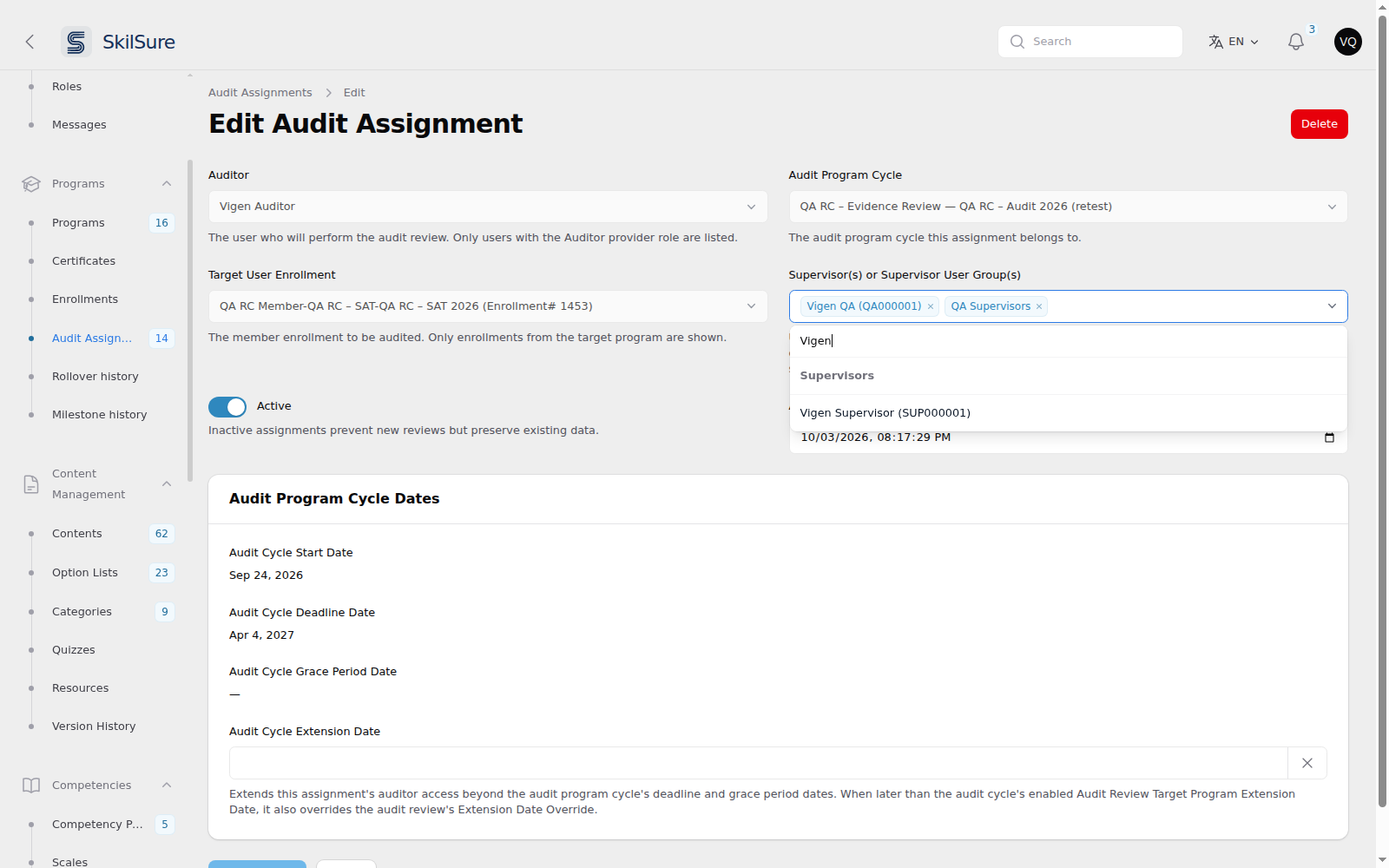 Audit Assignments → Edit. Pick supervisors by user, by user group, or both.
- Pick any mix of users (under Supervisors) and user groups (under Supervisor User Groups). Only users holding Can Sign Off Audit Reviews and active groups are offered.
- Every listed supervisor can open, edit and submit the same sign-off. One decision is enough.
- Choosing the auditor or the audited member is refused when you save.
- A supervisor or group that is no longer available stays on the assignment, labelled (no longer available), until you remove it.
- The Audit Assignments table shows Supervisor(s) and Supervisor User Group(s) columns after Auditor Member Number while sign-off is on. They read the same as on the Audit Reviews report: a supervisor who comes from a group carries that group's code, such as
[G1].
Bulk Assign has the same Supervisor(s) or Supervisor User Group(s) field, directly after the auditor field. The supervisors you choose are added to every assignment it creates. Where a chosen supervisor is the auditor or the audited member of one pair, they are left off that pair only, and the confirmation tells you how many were dropped. Rows skipped as duplicates keep their supervisors untouched.
Import supervisors
The audit assignment import takes two optional columns:
| Column | Format |
|---|---|
supervisor_member_numbers | Member numbers separated by |, for example 10234|10567. Each must hold a role with Can Sign Off Audit Reviews. |
supervisor_user_groups | Active user group names separated by |. |
Spaces around each value are trimmed, and blanks and repeats are ignored. Both columns blank means no supervisors, which is valid.
A row fails, and nothing is written for it, when a member number matches no one, when that user cannot sign off, when a supervisor is the row's auditor or audited member, when no active group has that name, or when two active groups share it. The failed-rows CSV names the value at fault.
The columns are saved even while sign-off is turned off, so a file you prepare in advance keeps its supervisors.
Choose a sign-off form
A supervisor can complete a form as part of the sign-off. Edit the audit program, open Audit Configuration, and find the Audit Review Supervisor Sign-off section after the email settings.
- Supervisor Sign-off Form Content picks the form. Leave it empty for no form.
- The field appears only on audit programs, and only while sign-off is on.
Monitor sign-offs on the Audit Reviews report
Reporting → Audit Reviews gains these while sign-off is on, or while any sign-off data exists:
- Supervisor Name filter (All Supervisors by default). It lists every eligible supervisor of the contexts you can see.
- Supervisor User Group filter (All Supervisor User Groups by default). It lists the groups assigned to the contexts you can see.
- Sorting Supervisor(s) orders rows by the alphabetically first supervisor; sorting Supervisor User Group(s) by the first group. The search box finds a supervisor's name or member number, or a group's name.
- Supervisor(s) column. Each name is followed by its member number, and names are separated by
|. To use a different separator on screen, find the keyaudit.supervisor_list_separatorunder Settings → Custom Text and change its value. Enter the symbol alone, such as/or,; spacing is added for you. The same separator joins the groups in Supervisor User Group(s) and in Review Context. The CSV export always uses|. A supervisor who comes from a user group carries that group's code, such as [G1]. A supervisor listed directly carries no code. - Supervisor User Group(s) column. Each group is prefixed with its code, so you can match a [G1] in the Supervisor(s) column to its group.
- Supervisor Sign-off column, hidden by default (turn it on from the columns menu). It shows the latest round: Pending, Approved, Returned to auditor, Approved by administrator or Returned by administrator.
- Export CSV includes all three columns.
![Audit Reviews report filtered by Supervisor Name, showing the Supervisor(s) column with a [G1] group code, the Supervisor User Group(s) column and the Supervisor Sign-off column.](/screenshots/admin-157-audit-reviews-supervisor-columns.png) Reporting → Audit Reviews. A supervisor who comes from a group carries that group's code.
Reporting → Audit Reviews. A supervisor who comes from a group carries that group's code.
View shows every sign-off round of the review. Each round records the auditor's answers as they were when the auditor submitted, then the supervisor's step statuses and comments, final status and comment, who signed off and when. A review still waiting shows under Awaiting Supervisor Sign-off with the supervisor's answers so far. The Context Events list records each submit for sign-off, each save, and each approval or return, with the round number.
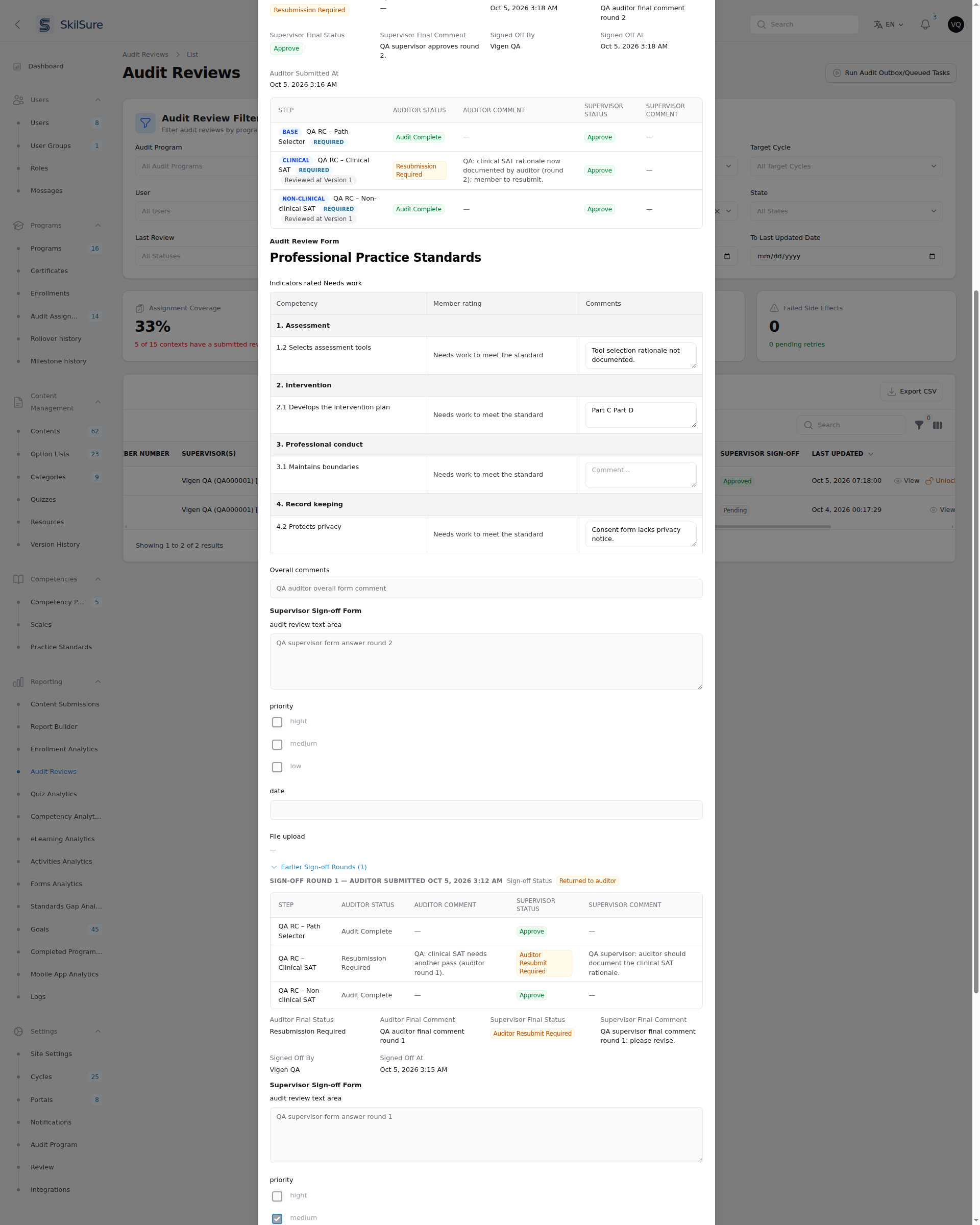 Reporting → Audit Reviews → View. Every sign-off round is listed with its answers.
Who sees the supervisor's form
The Supervisor Sign-off Form answers, and the in-progress answers of a waiting round, appear in View only to oversight administrators: roles holding View audit history or Override audit context state. An auditor who also holds one of those permissions sees them too, on their own reviews included. An auditor who can open the admin report without either permission never sees them, and sees supervisor statuses and comments on decided rounds only, as in their own workspace. Files uploaded to a sign-off form follow the same rule.
Resolve a stuck sign-off
Sometimes no supervisor can decide a round: the assignment was deactivated, the review window closed, or every supervisor was removed. Resolve Sign-off on the row's action menu decides it for them.
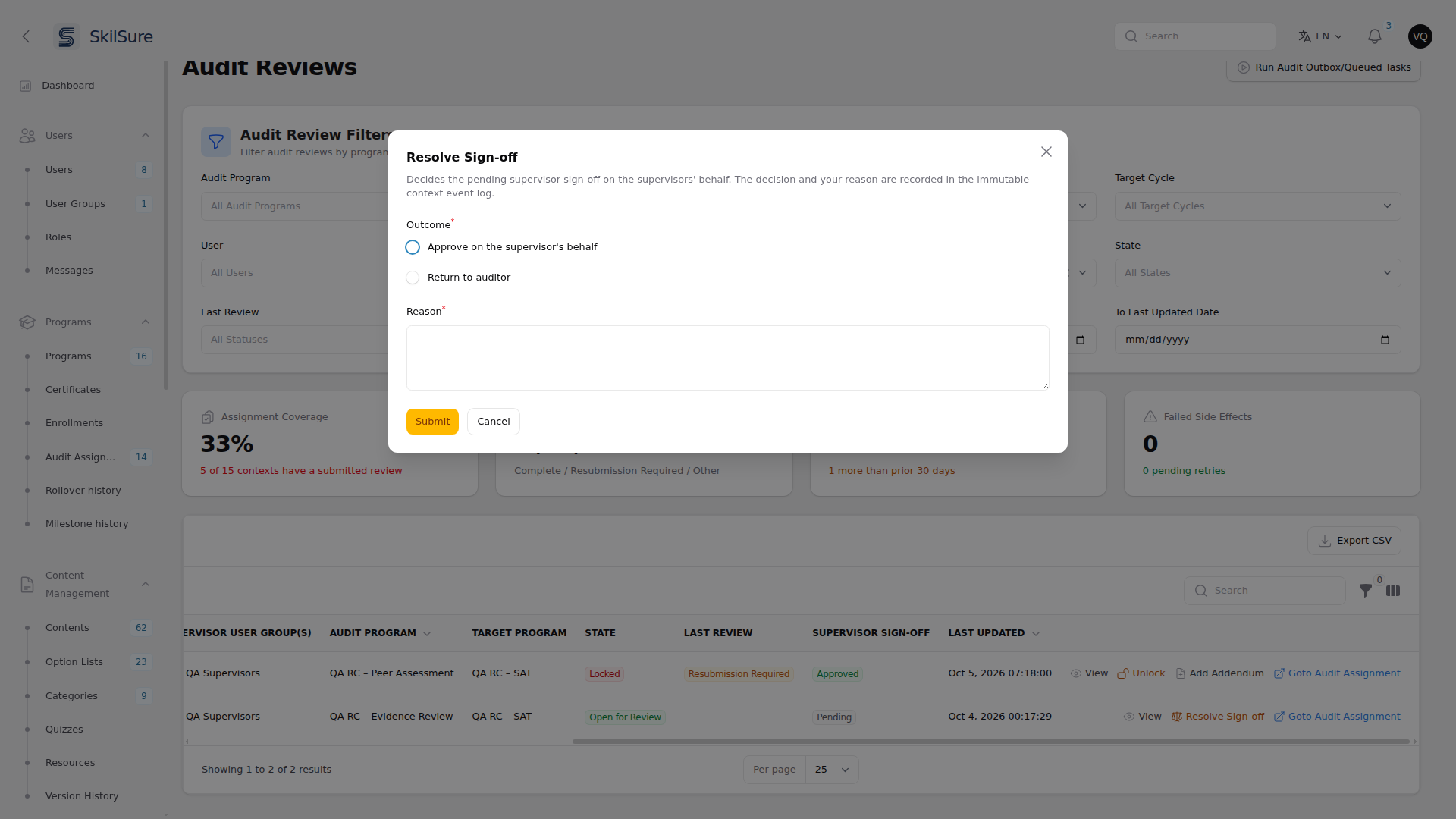 Reporting → Audit Reviews → Resolve Sign-off, on a review waiting for sign-off.
- It appears only on a row with a pending sign-off, and only to roles holding Override audit context state. It never appears on a review you audited yourself, so another administrator has to resolve it.
- Choose an Outcome: Approve on the supervisor's behalf or Return to auditor. A Reason is required.
- The decision and your reason are recorded in the context's event log, and the round reads Approved by administrator or Returned by administrator. View stays on the row afterwards, even when nothing has been submitted yet, so you can read the decision under Context Events.
- Approve is refused when the member's target enrollment is inactive. Approving would lock and notify a member who can no longer act on it. Return the review to the auditor instead.