
Appearance
UserLog activities
An Activities step is where you record the activities you've done — continuing education, professional development, or any activity your program tracks — and submit them.
Open the step from your program page. Your completion progress shows at the top, and the activities you've logged appear in a table below.
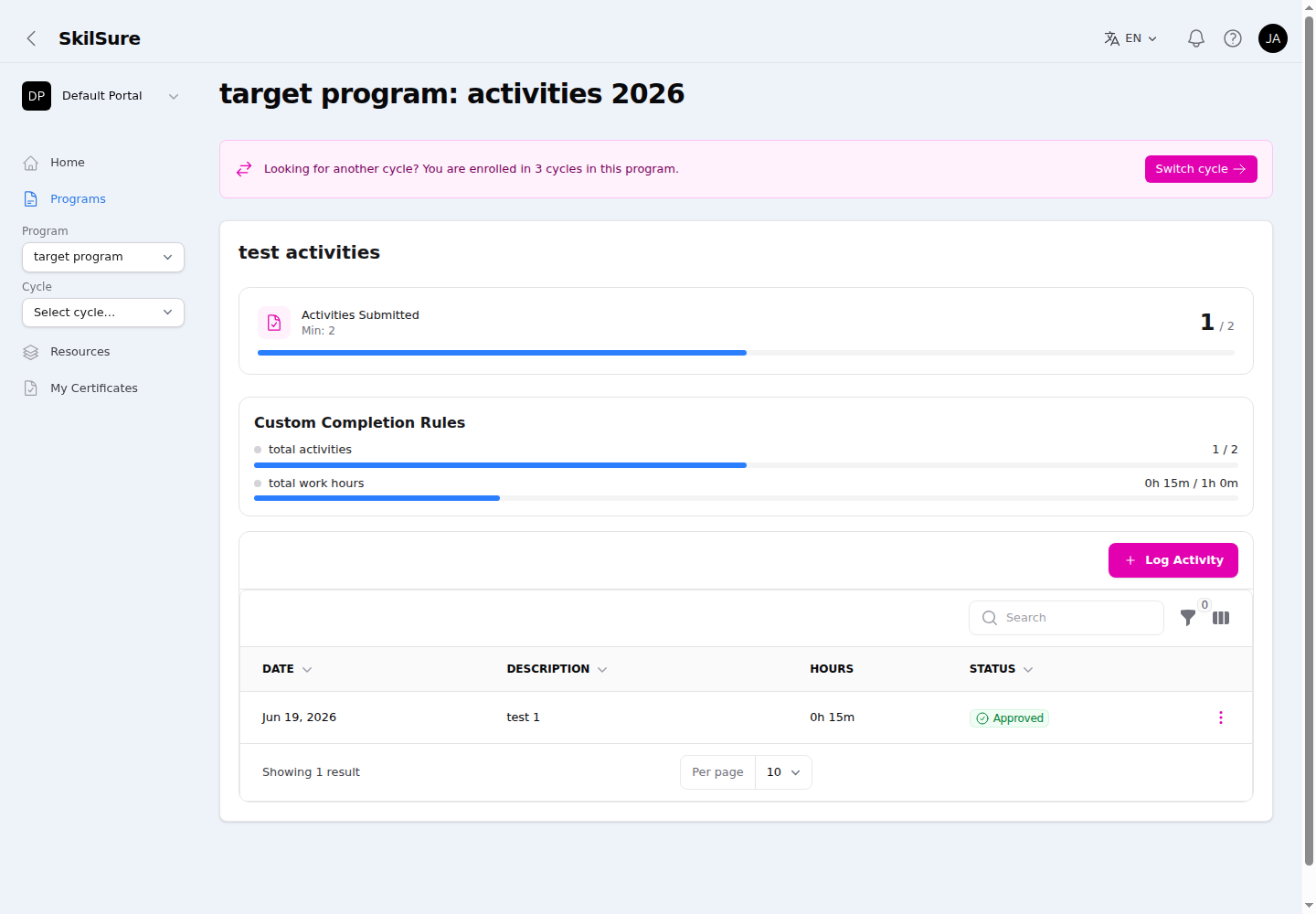 The Activities step. The panels at the top track your progress; the table lists every activity you've logged.
Read your progress
- The top panel shows the main requirement — for example Activities Submitted, Min: 2.
- Completion Rules below it track totals your program cares about, such as total activities and total work hours. Your program names this section and its rules, so the labels you see match your program's language.
Log an activity
Click + Log Activity to record a new activity. Fill in the form — date, description, hours, and any other fields your program asks for — and submit it. It then appears in the table and counts toward your progress.
You can date an activity today and still save it as a draft, come back, edit it and submit it later — the date stays allowed. When a date field blocks future dates, "today" is your own local date, so late in the evening you can still choose today but not tomorrow.
When two dates belong together
Some forms pair two date fields, such as a start and an end date. When your program sets that up, picking one date limits the other: the calendar greys out the days that would put the pair in the wrong order.
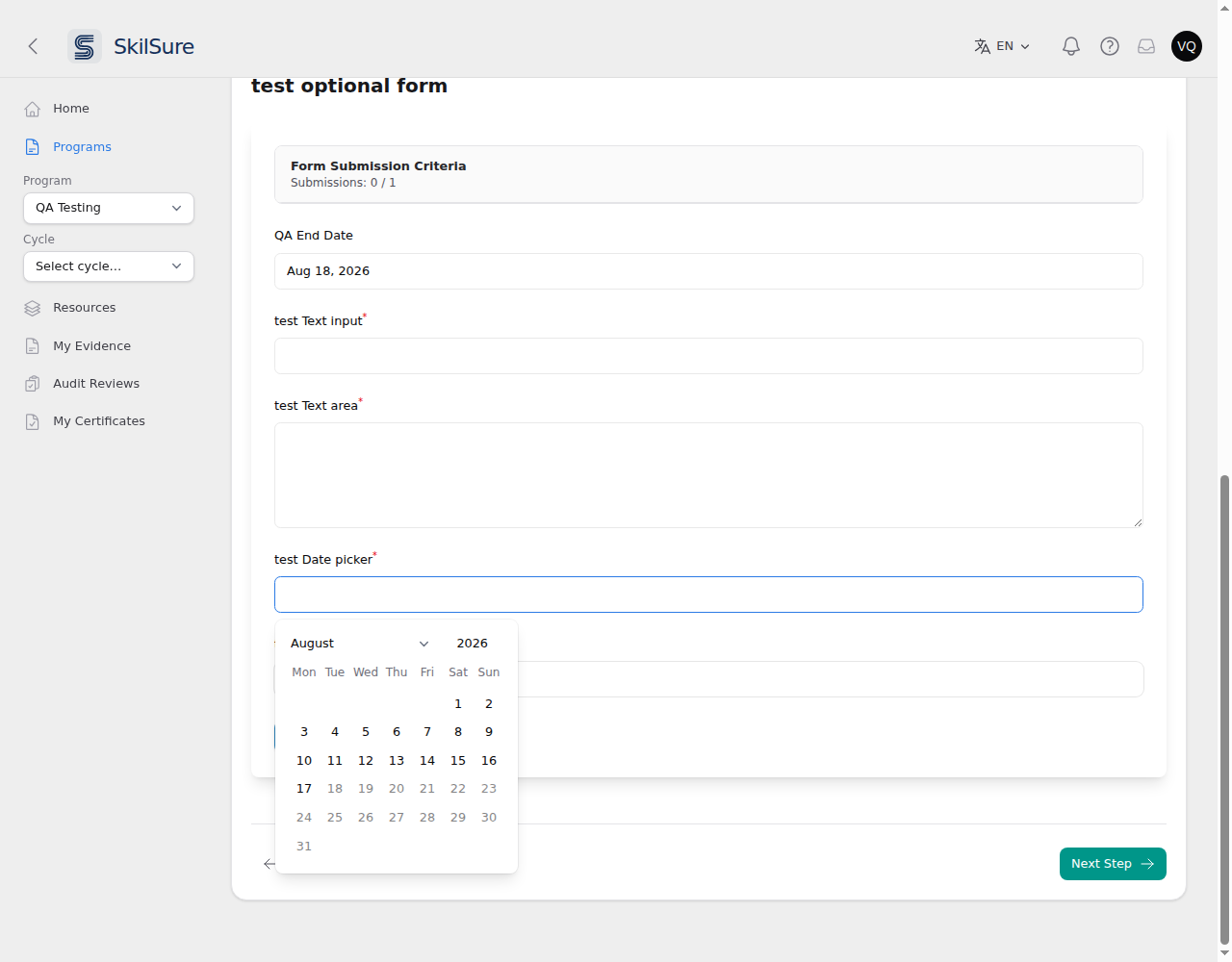 With the end date set to 18 August, the earlier field only offers days before it.
Fill in either field first — the other adjusts to match. If you change your mind, clear one of the dates and the calendar opens up again. Should a pair still end up in the wrong order, the form tells you when you submit and nothing is saved until you fix it.
You can also Save as draft to finish the activity later — your draft is kept and won't count toward your progress until you submit it. (Some programs turn this off, in which case you can only submit.)
You don't have to remember to do that, though: a moment after you stop typing, pick an option from a list or choose a date, SkilSure saves what you've entered as a draft on its own and briefly shows Auto-saved next to the buttons. Saving happens in the background, so you can keep typing. The form stays open until you save, submit, close it with the × in its top corner or press Esc. Clicking outside it won't close it, and pressing Esc to close an open list or calendar only closes that list or calendar. Once you close the form, the draft appears in your activities list with a Draft status, so a closed tab or an expired session won't cost you your work. Auto-saving never submits the activity for you, and it never changes an activity you've already submitted — finish it and press Submit Activity when you're ready.
If your program turns it on, a note under the buttons reminds you that a draft doesn't count until you submit it.

If you press Submit Activity and something still needs fixing, the form scrolls to it and shows what to change under the field — nothing is saved as submitted until every field is valid. The time field takes hours and minutes such as 6h 8m, 40m or 1h.
Your program may show an empty time field as 0h 0m. If the field is required, leaving it at 0h 0m submits 0 hours. If the field has a minimum, enter at least that much time: 0h 0m is below it, and the form asks for a value when you submit.
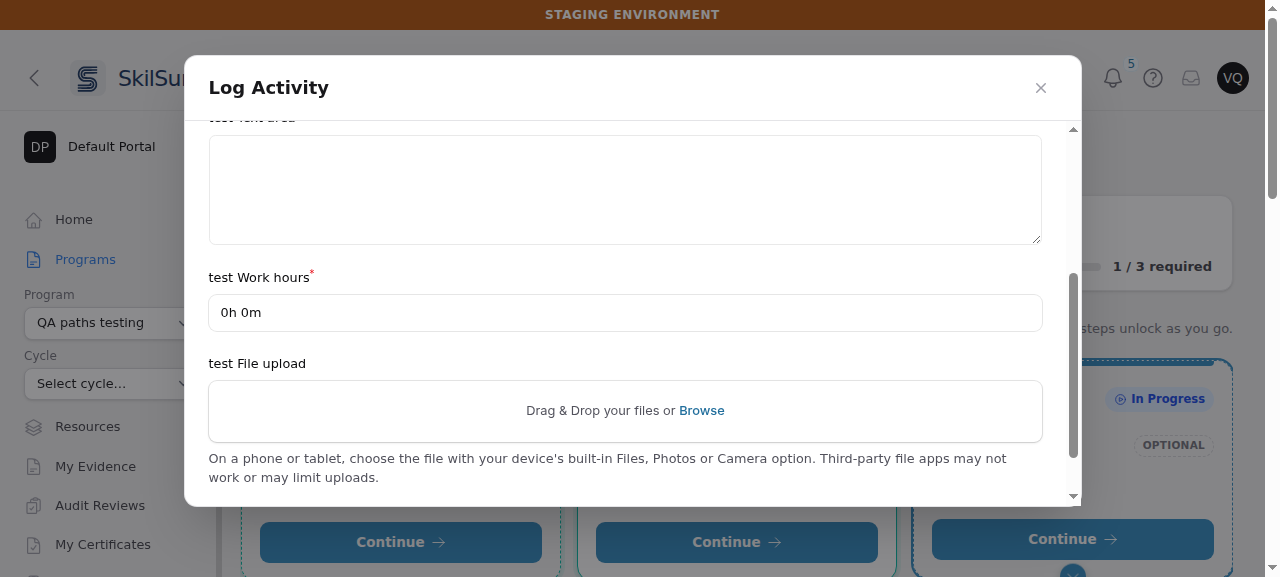 A time field your program set to show an empty value as 0h 0m.
Where your program shows draft warnings, while any of your activities on the step are still drafts, a yellow banner above the table says so. Open each draft from its three-dot menu, choose Edit, and press Submit Activity; the banner goes away once none are left.
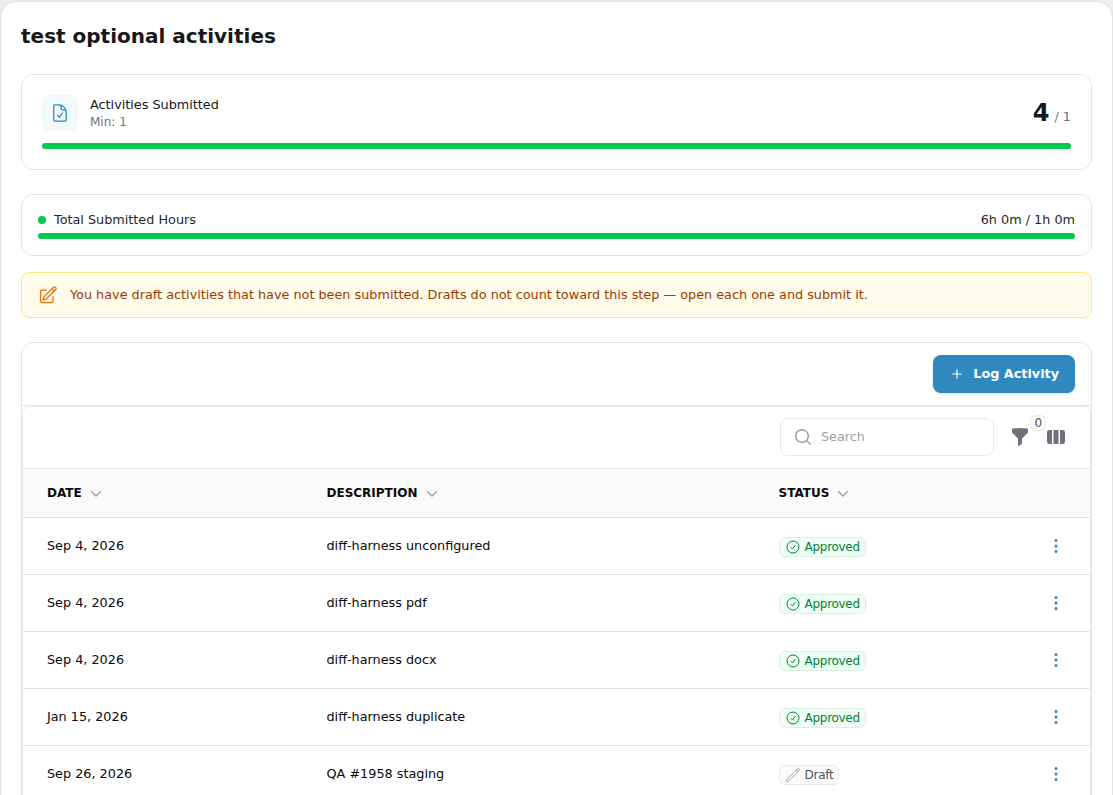
Submitting the whole step
Most Activities steps complete themselves as soon as you have logged what the step asks for. Some are set up to wait for you instead: once you have met the requirements, a green banner appears with a Submit button.
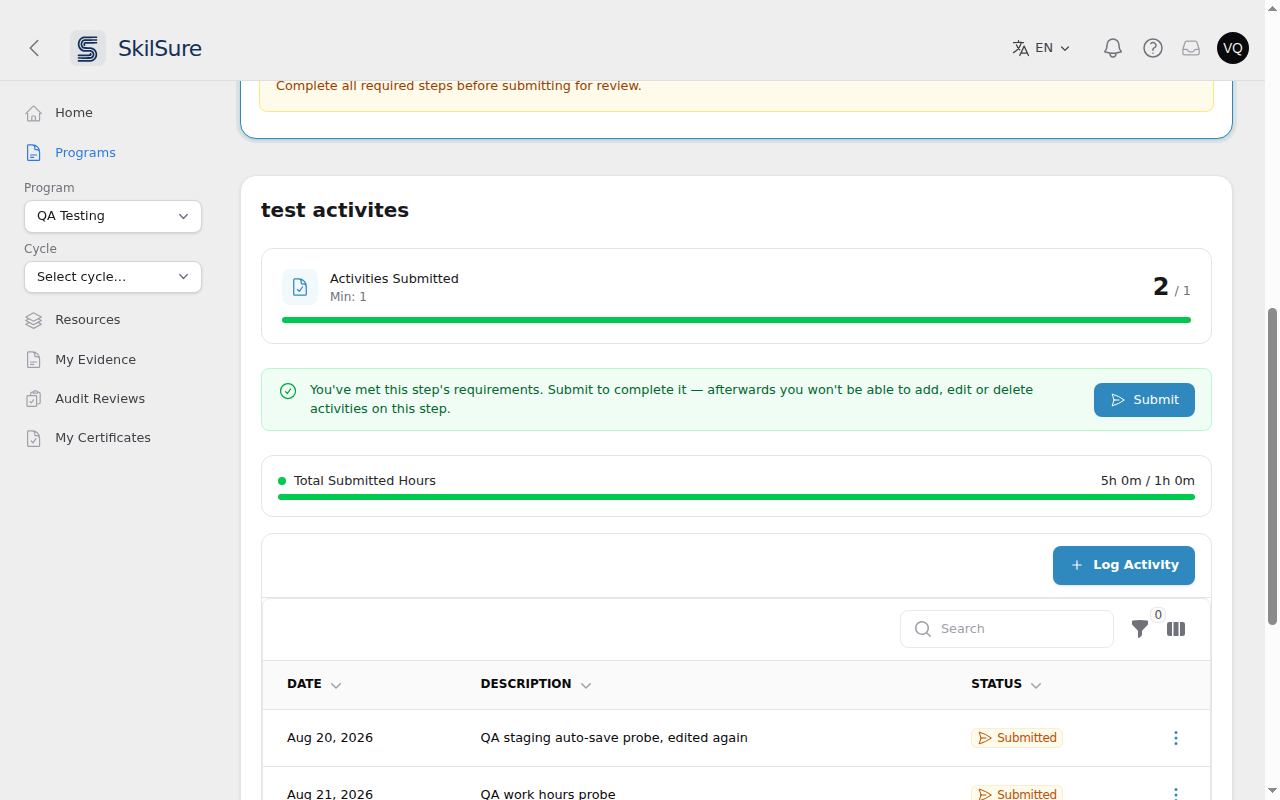 The Submit button only appears once you have met the step's requirements.
Submitting closes the step: you won't be able to add, edit or delete activities on it afterwards, and you'll be asked to confirm first. If you submit before you meant to, ask your administrator — they can reopen the step, which returns your activities to draft so you can carry on.
If a step you had already finished starts asking you to Submit, nothing you did has been undone — your step is still complete, and pressing Submit simply confirms it. Until you do, the step stays complete only while it still meets the requirements, so deleting activities can put it back to In Progress.
Your activities table
Each activity you've logged is a row, with columns for Date, Description, and Status. Your program may add custom columns (such as a calculated total of hours) in a set position.
Newest at the bottom
Activities are listed oldest first, so your most recent entry is at the bottom of the table — the same order used when your work is exported.
Use the three-dot menu on a row to View an activity (read-only). While an activity is still editable — a draft you haven't submitted, or one a reviewer has rejected — and while the program is still open, the menu also offers Edit and Delete; once an activity is submitted, under review, or approved, those options no longer appear.
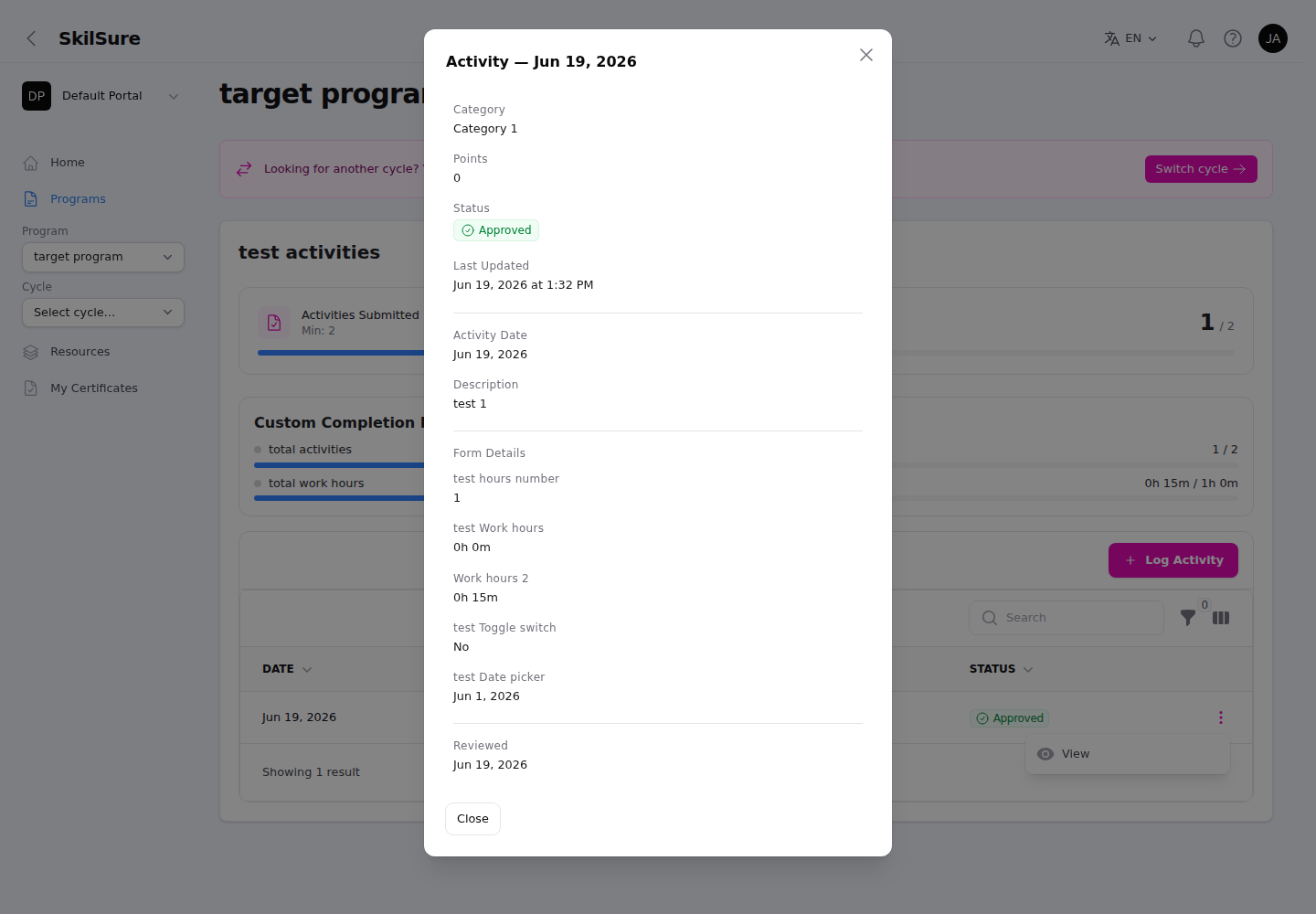 Viewing an activity. The modal shows the activity's status and every detail you submitted.
- The Status badge shows where the activity stands. A saved-but-not-submitted activity shows Draft.
- What happens when you submit depends on your program: if it uses submission review, the activity moves to Under Review until a reviewer or administrator approves it; otherwise it's marked Approved straight away.
When an administrator reviews your activity
If an administrator approves, rejects, changes the category of, or corrects one of your activities, you get a notification in the bell at the top of the page:
- Approved shows the activity type, its date and the points awarded.
- Rejected shows the activity type, its date and the administrator's reason. You can then edit the activity and submit it again.
- Category changed shows the old and new category, and any comment.
- Corrected tells you an administrator corrected the activity and shows its new points. If they correct it again before you read the notification, the same notification is updated rather than a new one added.
When several of your activities are approved or rejected together, you get one notification with the count. Select View Details to open the Activities step. Your program may also send these notifications by email.
Reopen an approved activity
Once an activity is approved it is locked — the three-dot menu offers only View. If your program allows it, you can send an approved activity back to draft yourself and edit it, without waiting for an administrator.
When that is switched on, a Reopen Activity button sits next to Log Activity above your table.
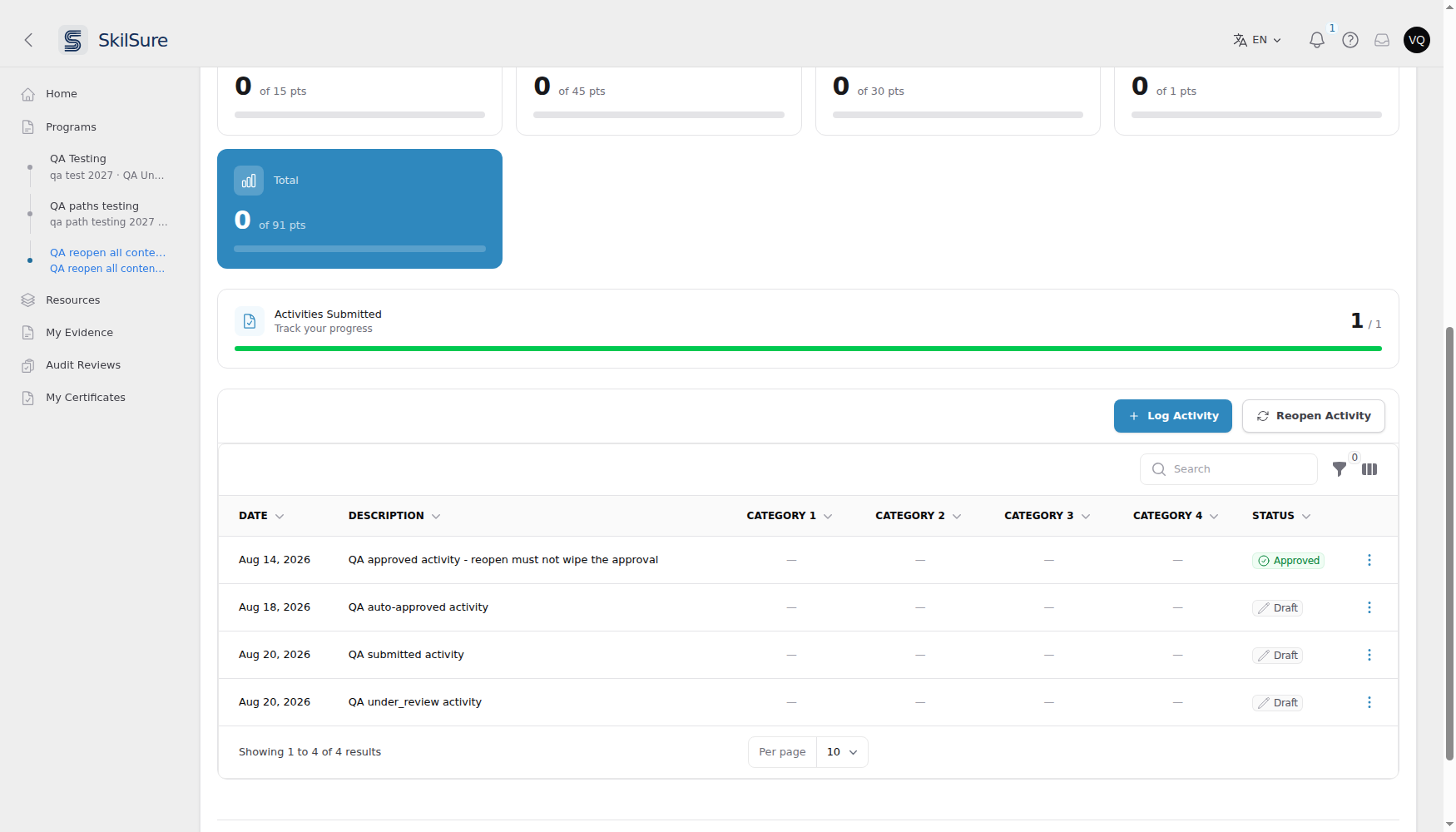 Reopen Activity appears beside Log Activity while the step is still in progress and you have at least one activity you can unlock.
Select it and a Reopen Approved Activities dialog lists the activities you can unlock. Tick the ones you want back, then press Reopen Activity.
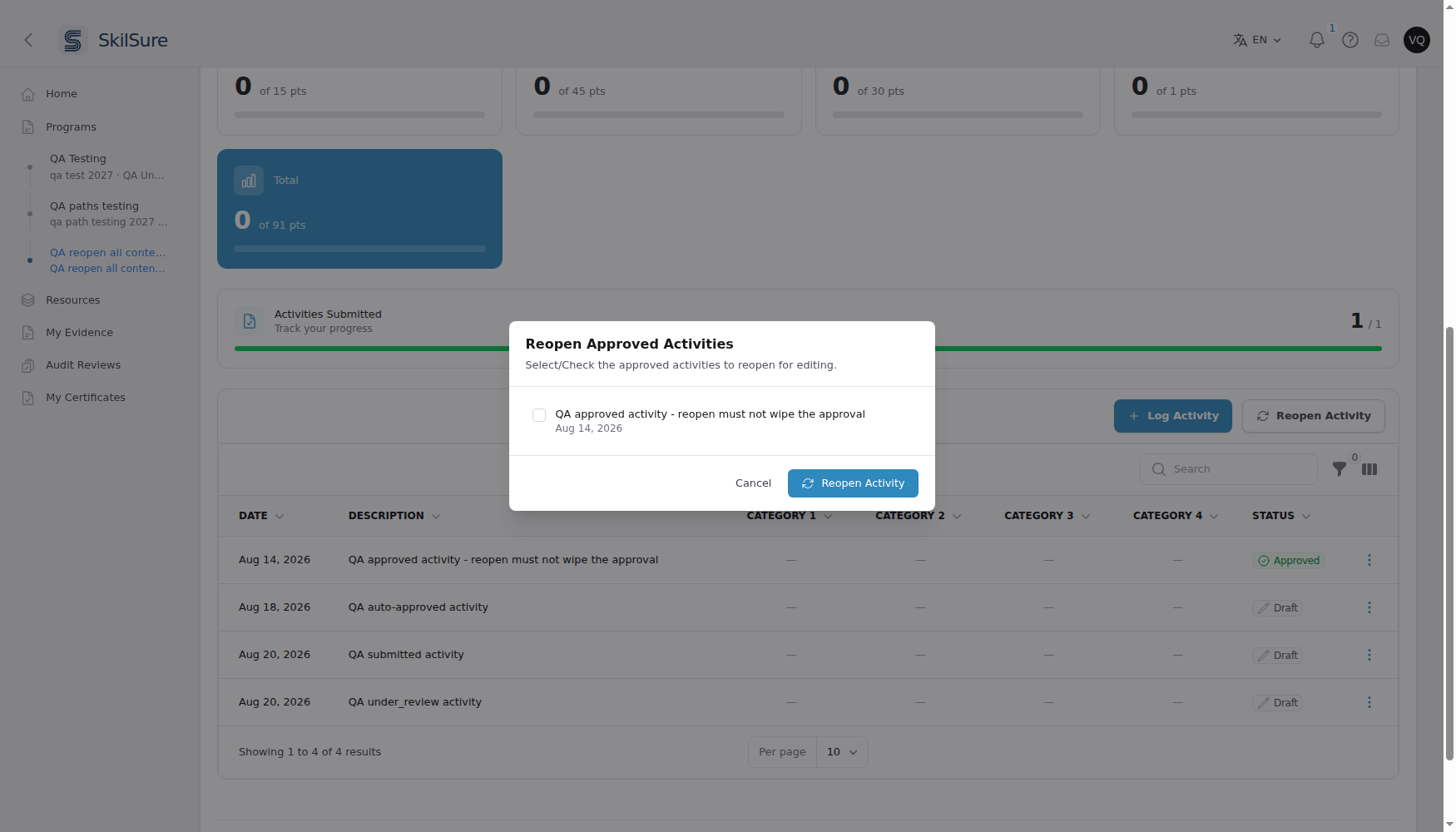 Only the activities you tick are reopened. Anything you leave unchecked keeps its approval.
- Only the activities you tick return to Draft — the rest stay approved.
- A reopened activity behaves like any other draft: Edit and Delete come back on its three-dot menu, and you submit it again when you're done.
- You must tick at least one activity; the dialog tells you if you press Reopen without choosing any.
Activities a reviewer approved are not offered
The dialog lists only activities the system approved automatically. If a reviewer looked at your activity and approved it, undoing that decision is theirs — ask your administrator instead.
The button can disappear once the step completes
Reopen Activity is only for a step that is still in progress. On a step that completes itself as soon as you meet its requirements, reopening an activity can be enough to tip the step into Completed, and the button goes away. From that point the step-level Reopen button takes over — if your program offers it. If neither is available, ask your administrator.
It also disappears while your program is being audited
If your enrollment is with an auditor, or an auditor has already finished reviewing this particular step, Reopen Activity is not offered — even while the step is still in progress. Unlike the step-level Reopen button, which stays on screen greyed out with a note, this one is simply not shown.
An auditor's decision on a step is final for that review, so activities they have already judged cannot be sent back to draft. You can still log new activities and edit your drafts. If you need an approved activity reopened on an audited step, ask your administrator. See Audit reviews for what happens while your program is under audit.