
Appearance
UserComplete a step
Click a step to open it. Every step opens with the same header — the step title at the top and a short description below it — followed by the content itself, which adapts to the type: a page, quiz, activity, upload, or learning portfolio.
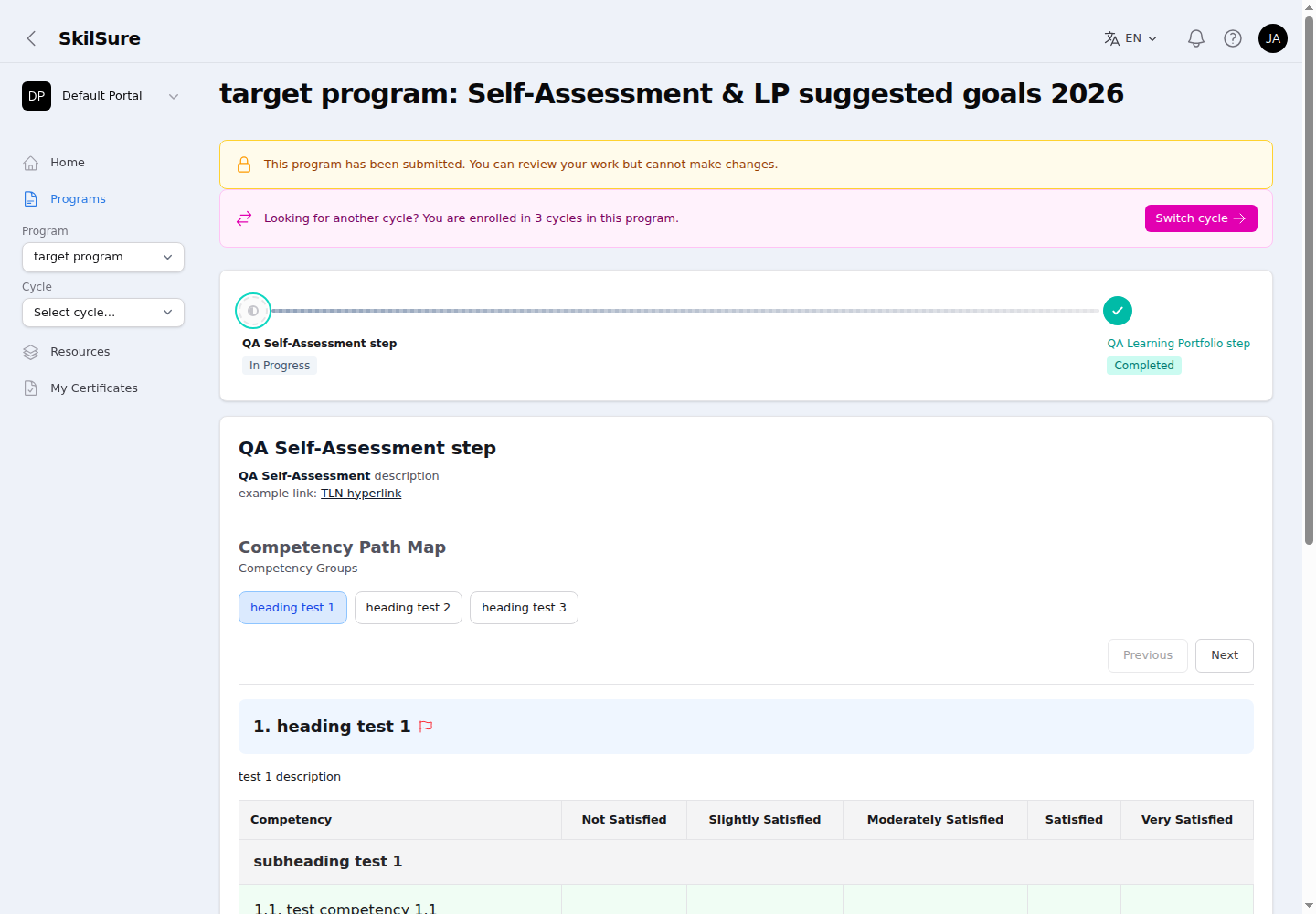 Step view. The step title and description sit at the top of every step; the content follows below. Work through it, then use the action button at the end to mark complete or submit.
- Open the step from the program page.
- Work through the content — read, watch, answer questions, or upload evidence.
- Click the action button at the end (Mark complete, Submit, or similar) to record your progress.
- You'll return to the program page with the step now showing as Completed.
Terms you can click for a definition
Some words in a step description carry a dotted underline and a small ⓘ icon. Click one to reveal an explanation just below the sentence; click it again to hide it.
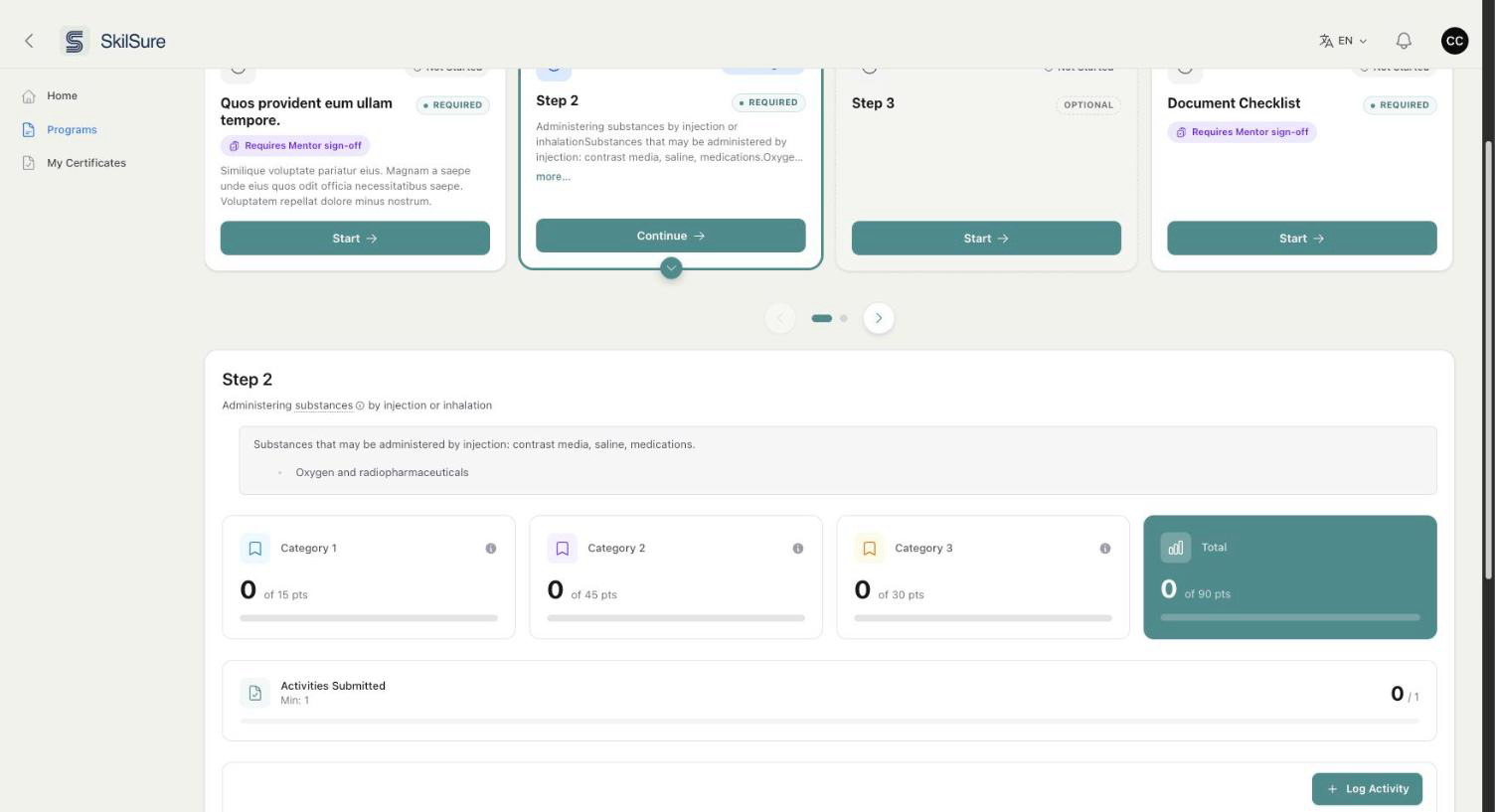 A step description with a definition open. The explanation appears directly beneath the sentence, so you keep your place while reading.
You can leave a definition open while you work — it stays put while you answer questions or fill in the rest of the step. Open as many as you like.
Printing
Definitions are always shown in full when you print or save a page as PDF, so nothing is hidden on your copy.
A dotted underline means the word explains itself. A normal solid link takes you somewhere else.
Required and optional steps
Not every step is required. On your program page, required steps are emphasised and optional ones are shown more faintly, so you can see at a glance what you must finish.
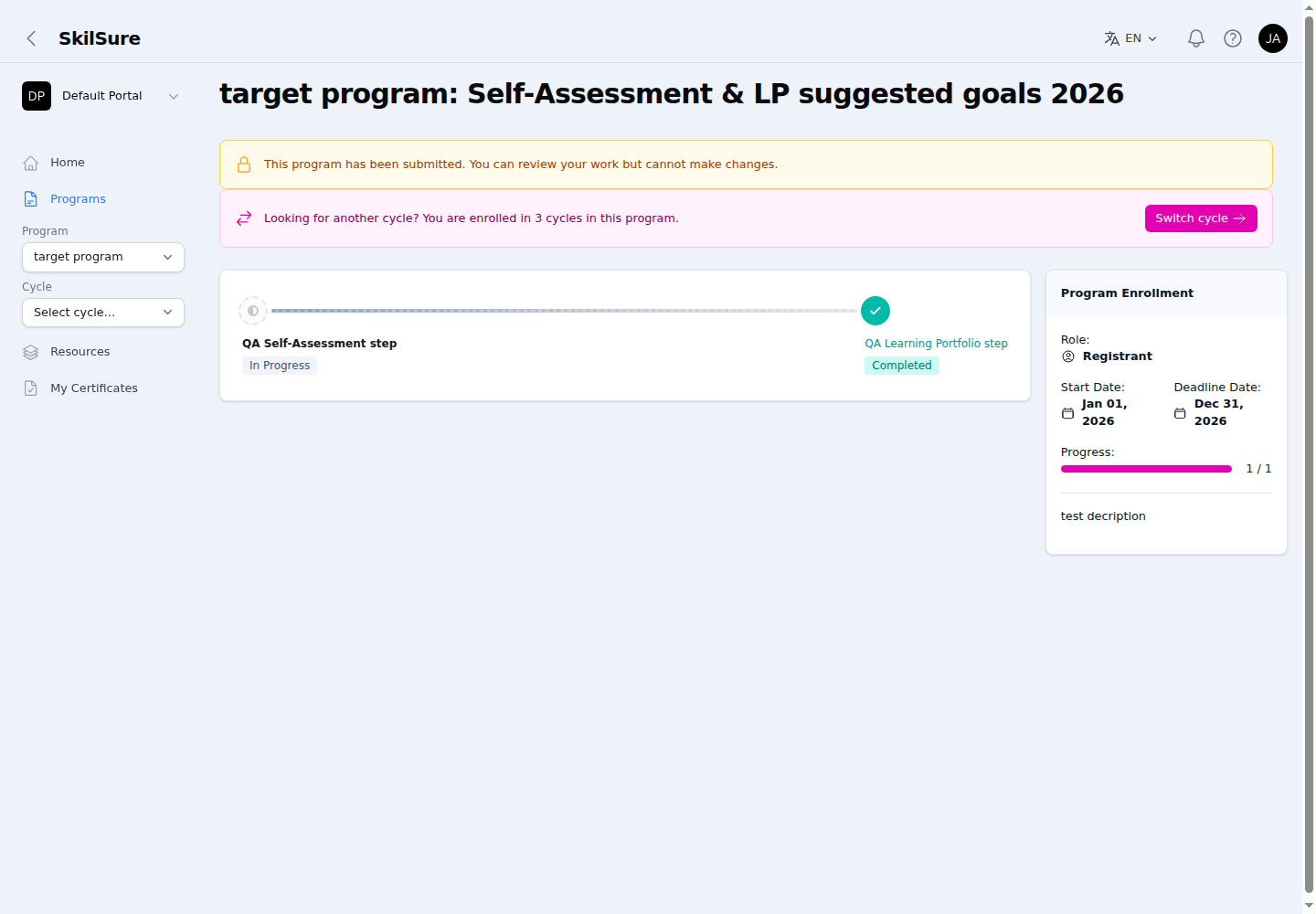 Your program page. The progress bar counts required steps only — here one required step is complete (Progress 1 / 1) even though an optional step is still in progress.
Your progress bar counts required steps only — optional steps don't hold your progress back or count against it.
Reviewable steps
Steps like activities or evidence uploads move to Submitted status until an administrator or reviewer approves them.
Reopen a step to change your answers
Once you finish a step it locks, so your submitted work can't change by accident. If your administrator has allowed it for that step, you'll see a Reopen button and can unlock it yourself to make a correction.
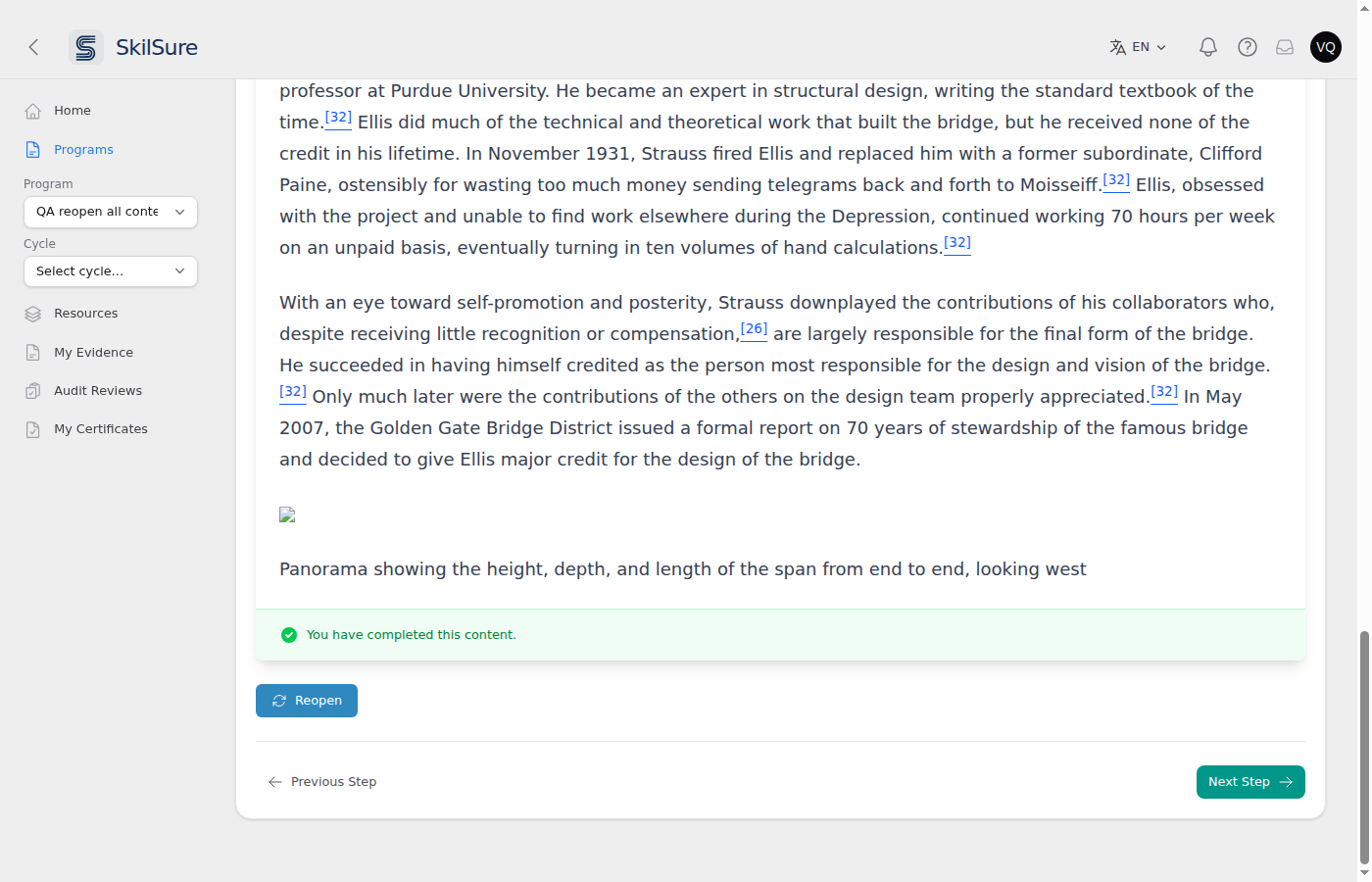 A completed step. Reopen sits at the bottom, just above the step navigation.
Select Reopen and confirm. The step goes back to In Progress and you can edit it as before — then finish it again the same way you did the first time.
Your organization can rename this button, so it may not say "Reopen" on your site.
On a learning portfolio step, Reopen appears at the top of the step next to the badge showing you submitted it. Because a portfolio holds several goals, you're asked which submitted goals to reopen.
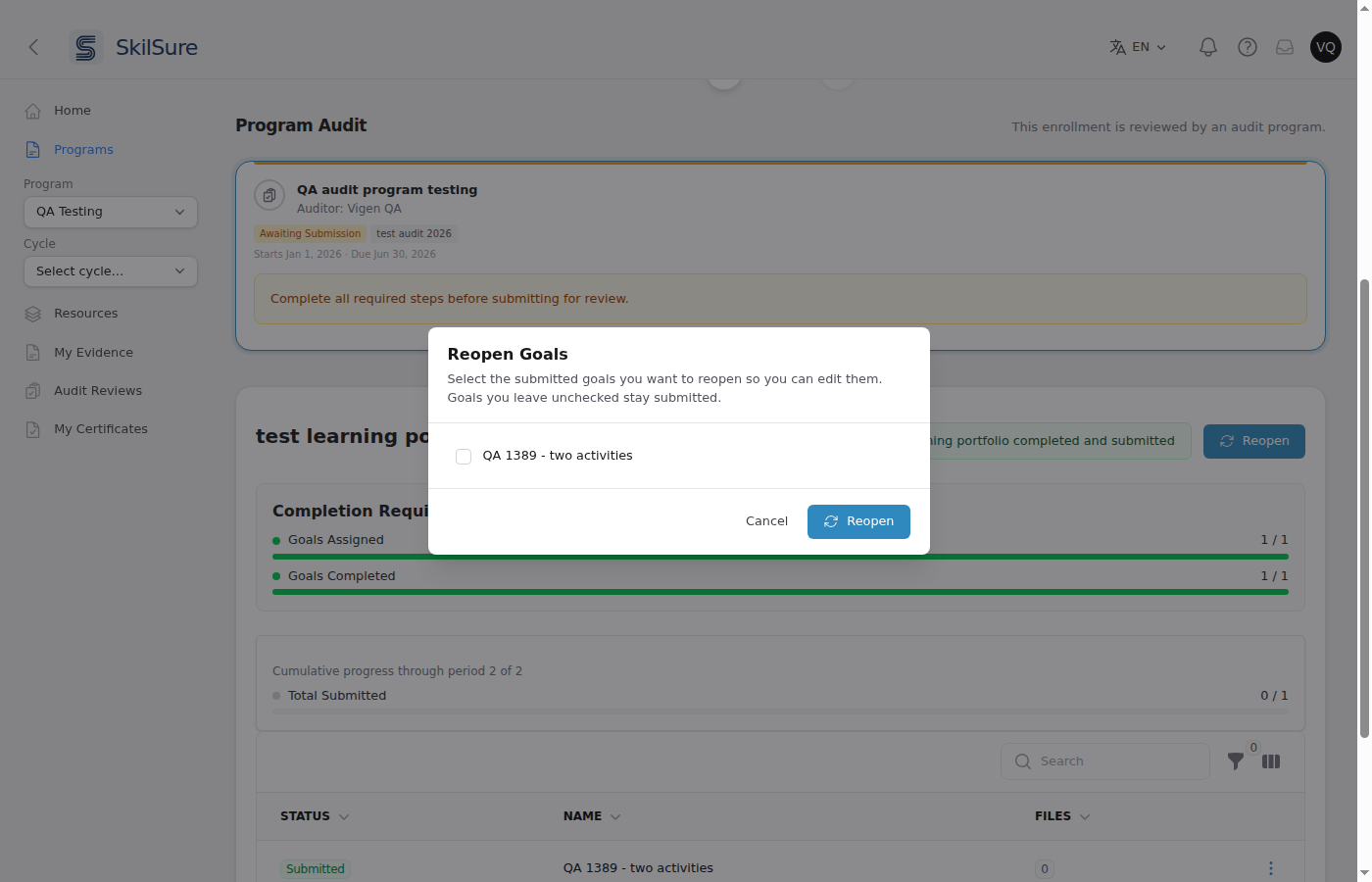 Choosing which goals to reopen. Tick only the ones you want to change — goals you leave unchecked stay submitted.
You must tick at least one goal. Reopening a goal returns it to editable and leaves your other submitted goals alone, so correcting one goal never costs you the rest.
On an activities step, Reopen asks which approved activities to unlock. An approved activity is locked, so this is how you get one back to editable.
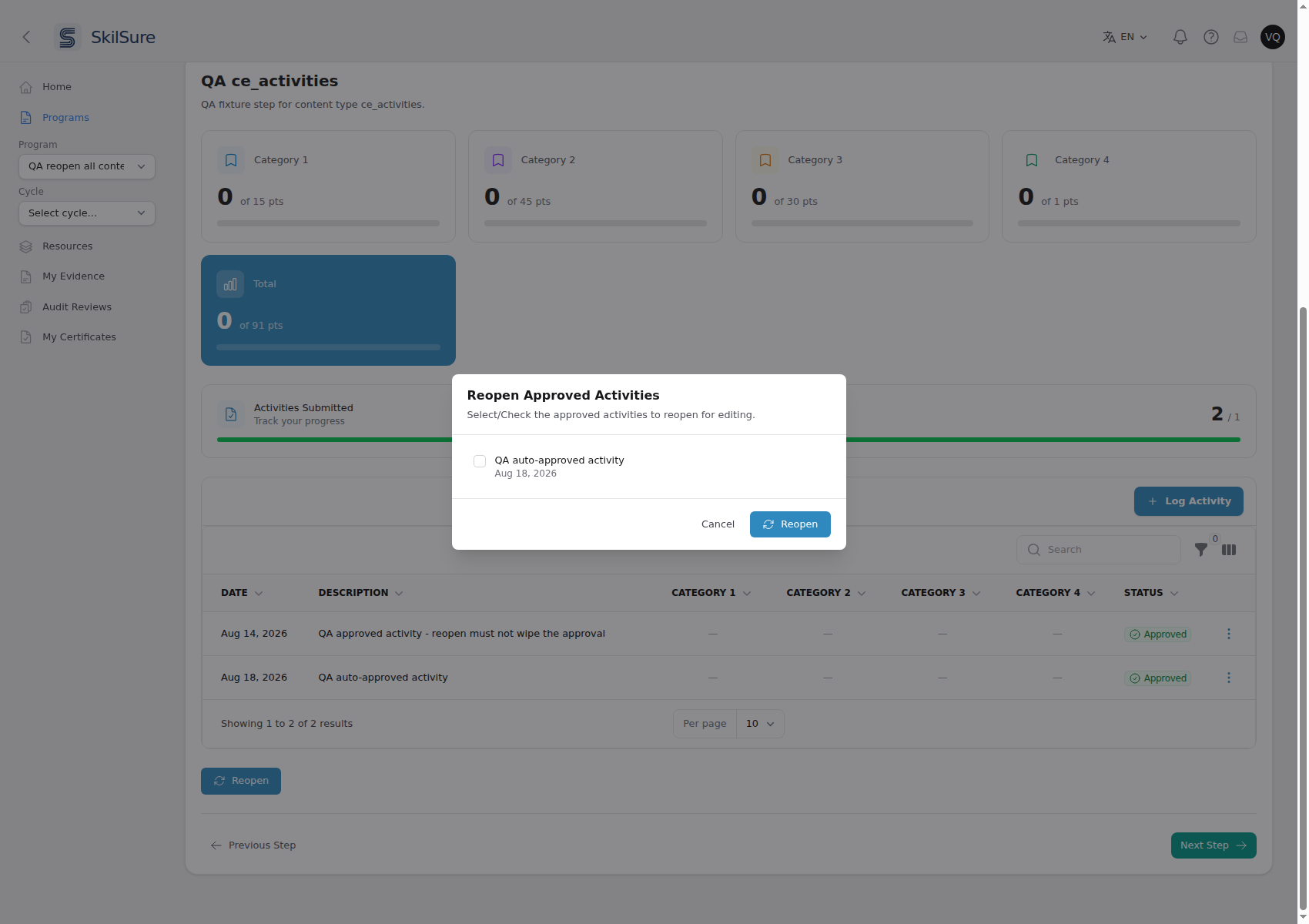 Only activities that were approved automatically are offered. The other Approved row in the table behind isn't listed, because a reviewer approved it.
- Tick only what you want to edit. Anything you leave unchecked stays approved.
- Activities a reviewer approved aren't offered — that decision is theirs to undo. Ask your administrator if you need one reopened.
- Activities still submitted or under review go back to draft whenever you reopen the step, whether or not you tick anything.
- If your activities step has its own Submit button, reopening clears that submission — so once you've made your corrections, use Submit again to hand the step back in. Steps that complete on their own don't need this.
- If nothing is available to unlock, Reopen still works — it just reopens the step, and any drafts are already editable.
No Reopen button?
It only appears when all of these are true, so its absence is normal:
- Your administrator switched it on for that particular step — it's off unless they enable it, and it's set per step, so one step may offer it while another doesn't.
- The step is Completed or Submitted. A step you haven't finished doesn't need reopening — just carry on with it.
- You're still inside the dates. Reopening stops once your deadline passes — including any grace period or extension you were given — and it also stops after a step's own due date, if it has one. Finishing your whole program does not stop it: if you spot a mistake right after completing everything, you can still fix it, as long as the deadline hasn't passed.
- Your work isn't sitting with an auditor. Once you submit or resubmit for review it's out of your hands until the auditor responds. If they send it back for changes, Reopen works again straight away — that's your window to make them.
- You're the person enrolled. Viewing someone else's step, for example as a mentor, never offers it.
If someone had to sign off on the step
Reopening a step that needed a sign-off means it has to be signed off again. When you finish it the second time it goes back to Submitted and waits for the same reviewers — they need to see the version you changed, not the one they already approved. So reopen it only if the correction is worth another round of review.
Activities that a reviewer already approved stay approved when you reopen the step, so you never lose an approval by fixing something else.
If your program tracks points, reopening an approved activity takes its points back out of your total until it's approved again — so the number you see stays honest about what's actually been approved.
While an audit review is in progress
If your enrollment has been submitted for audit review, reopening is switched off until the review finishes. The button is still there but greyed out, with a note explaining why.
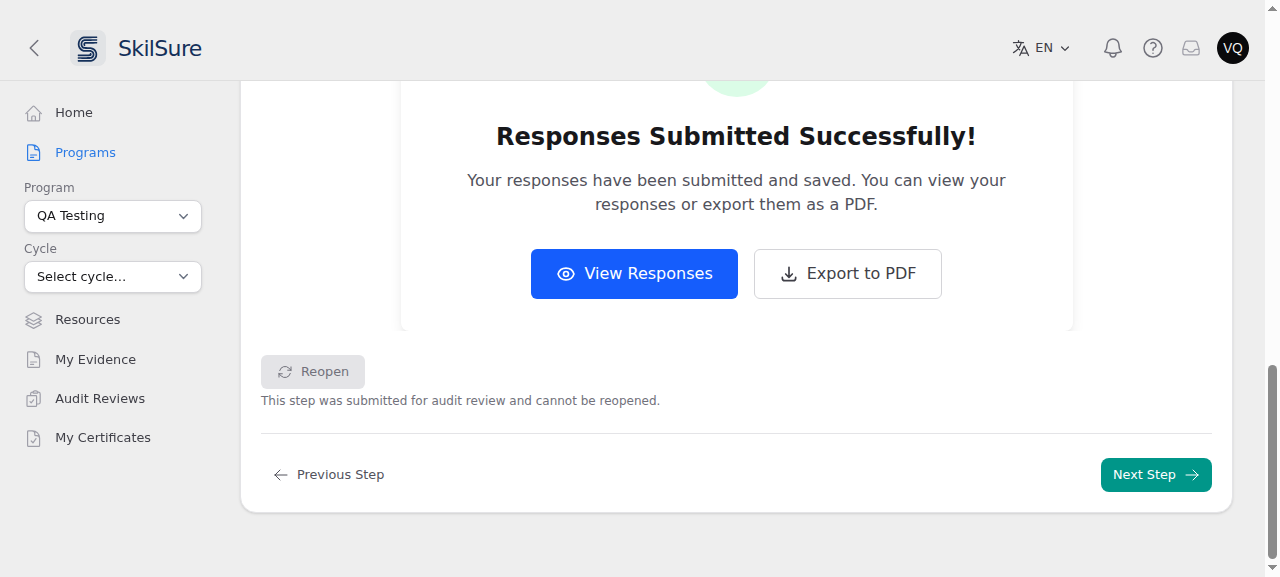 Reopening is unavailable while your work is with an auditor.
If the auditor asks you for changes, your steps are reopened for you — you don't need this button.
Rate yourself against competencies
A Competency Rating step asks you to rate yourself against a list of competencies, grouped into sections.
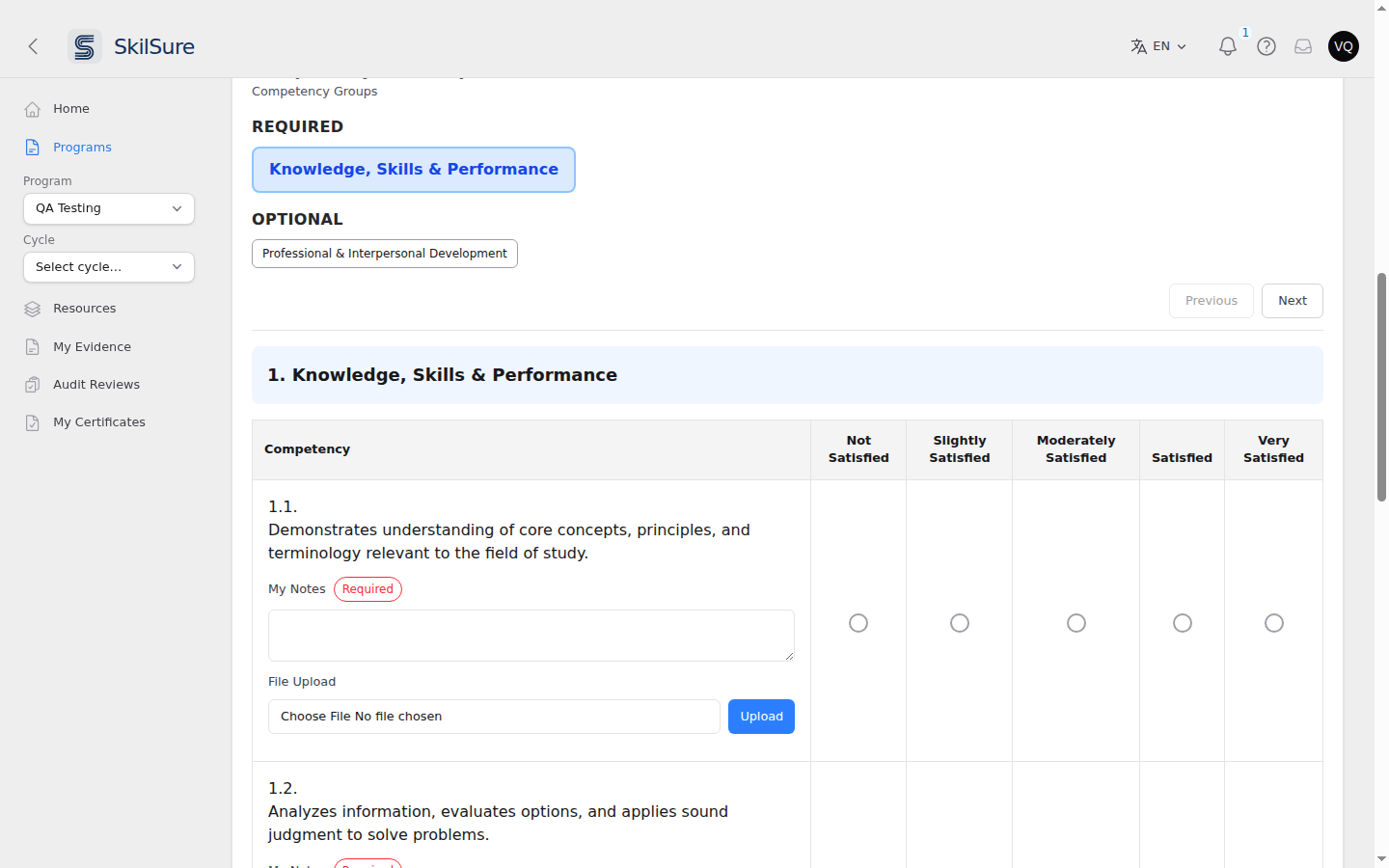
- Work through one group at a time. The buttons across the top move between groups; Previous and Next do the same.
- REQUIRED and OPTIONAL. When a step splits its groups this way, only the required ones have to be finished before you can submit. You may still rate the optional ones.
- A green check appears on a group's button once you have rated every competency in it and filled in anything marked Required.
- One rating or several. Most steps give you radio buttons — pick one rating per competency. Some give you checkboxes instead, and there you may pick more than one.
- Notes and files. A competency may ask for notes, and may let you attach a file as evidence.
Your answers are saved as you make them. There is also a Save button at the foot of the form if you would rather save deliberately before you leave the page.
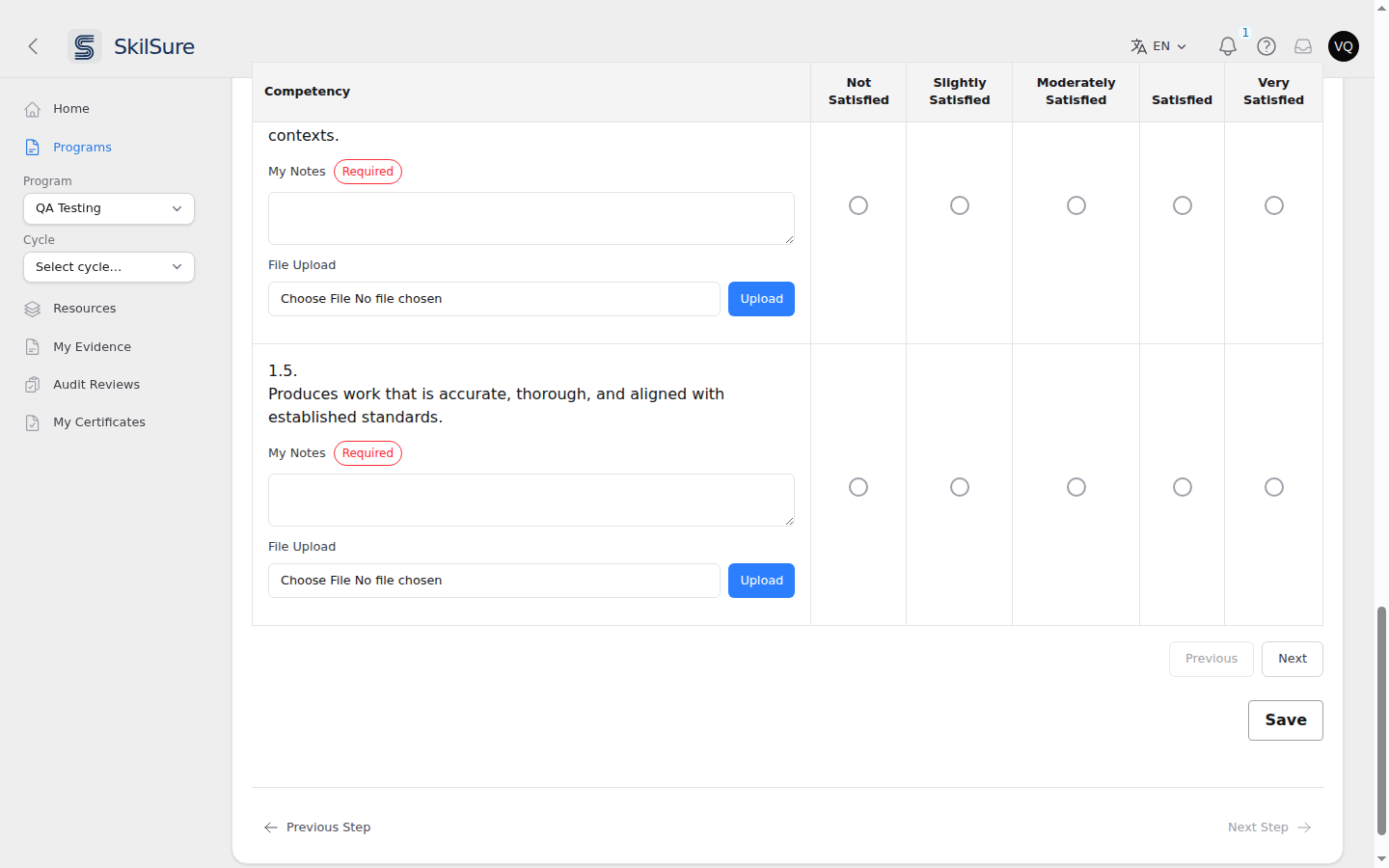
Guidance on a group
If a group heading has an expandable panel under it, open it — that is where the standard's full wording or extra examples live.
Choose your path
A Path Selection step asks you to choose how you will complete the program. Each card is one path, and lists the steps it contains.
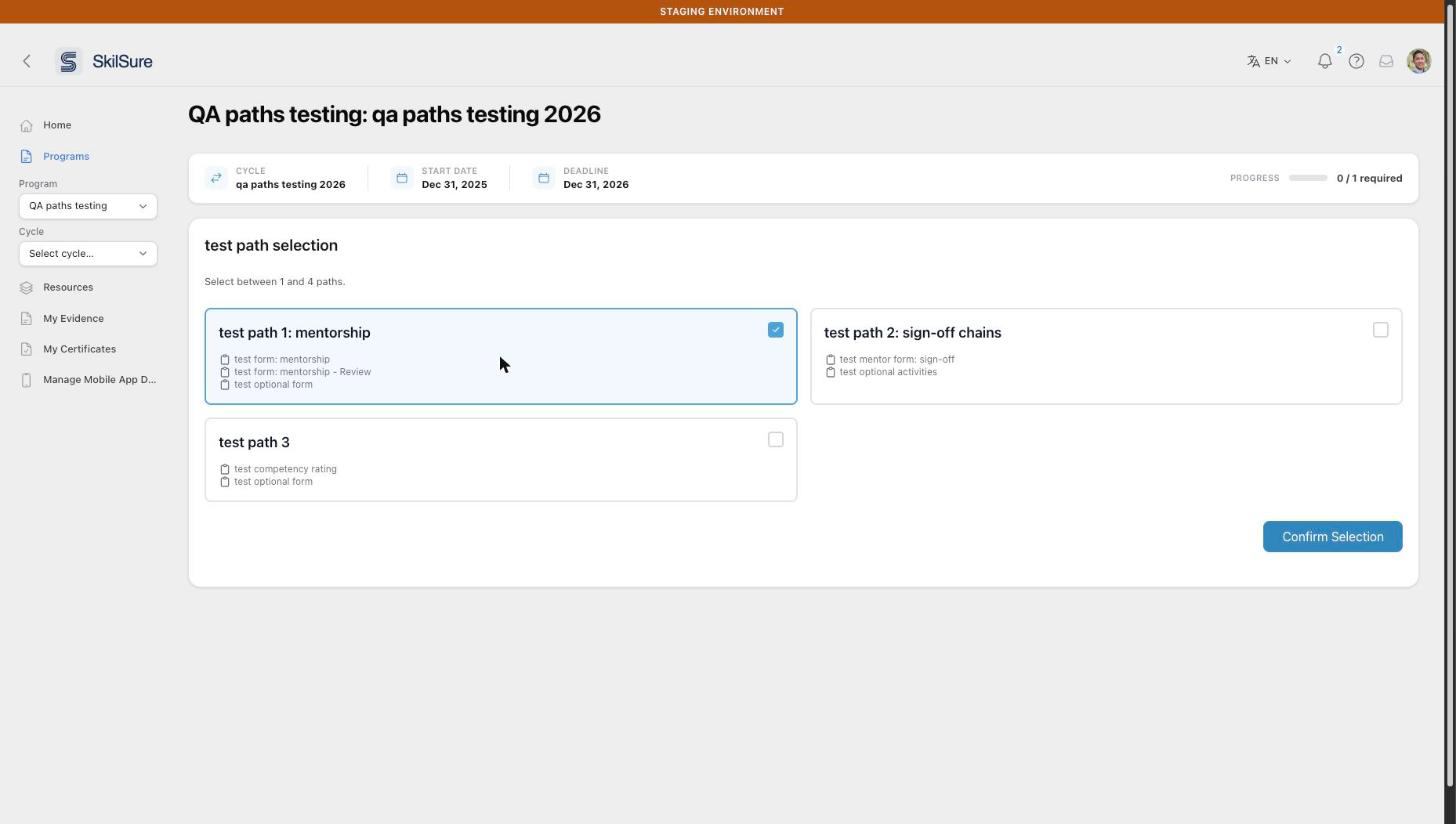 Tick a path, then select Confirm Selection.
- Tick the path you want. If the step lets you choose more than one, tick each path you want. If only one is allowed, the cards have round buttons and you pick one.
- Select Confirm Selection.
The steps on the path you chose are added to your program.
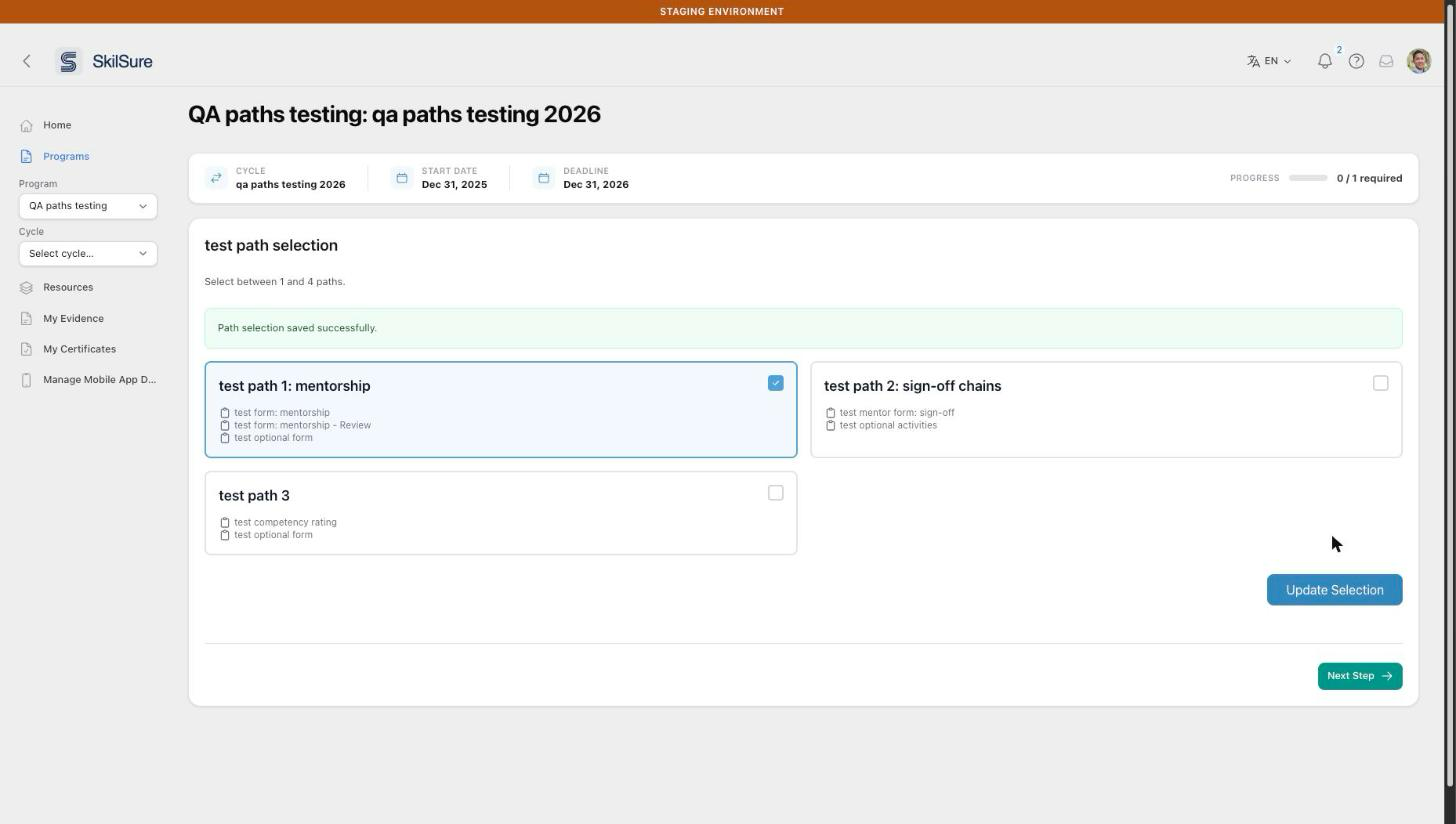 After confirming. Update Selection appears if you are allowed to change your mind.
Changing your path later
If Update Selection is shown, you can change your choice: tick a different path and select Update Selection. If the button isn't shown, your choice is final.
Some programs let you change your path only until you start work that depends on it, such as a form or a quiz on your chosen path. Once you save an answer, submit, or start a quiz there, your path is locked:
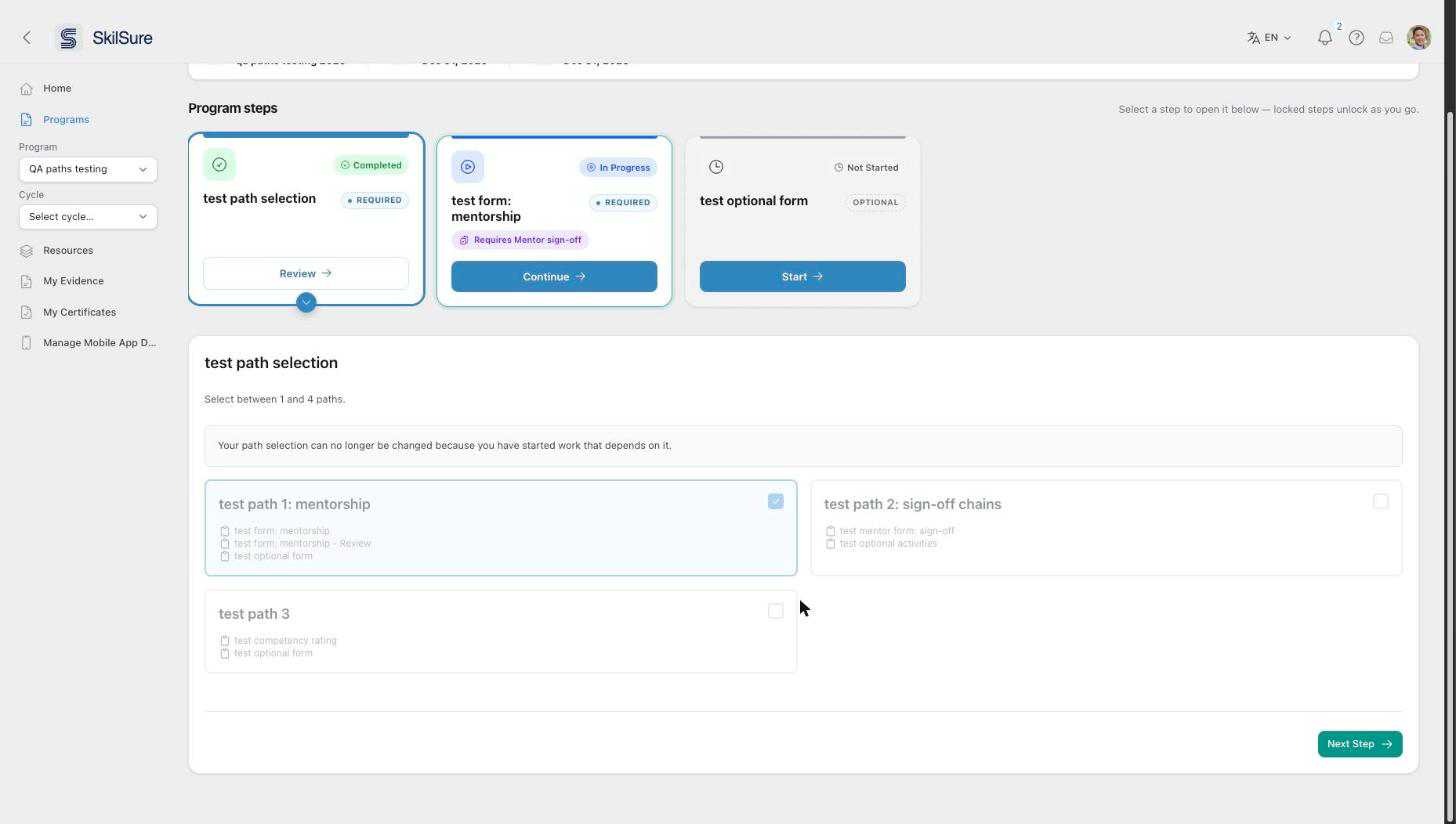 Your path is locked once you start work that depends on it.
Need to change a locked path?
Contact your program administrator. They can check why it is locked and whether it can be reopened.
Step types with their own guide
Some step types have a richer experience of their own:
- Work on a learning portfolio — build, work on, and submit goals.
- Log activities — record and submit activities for review.