
Appearance
UserWork on a learning portfolio
A Learning Portfolio step is where you build, work on, and submit your goals. Each goal moves through planning, activity, and reflection phases, and the step tracks your progress against the completion rules your program set.
Open the step from your program page — it opens inline, with your completion progress at the top and your goals in a table below.
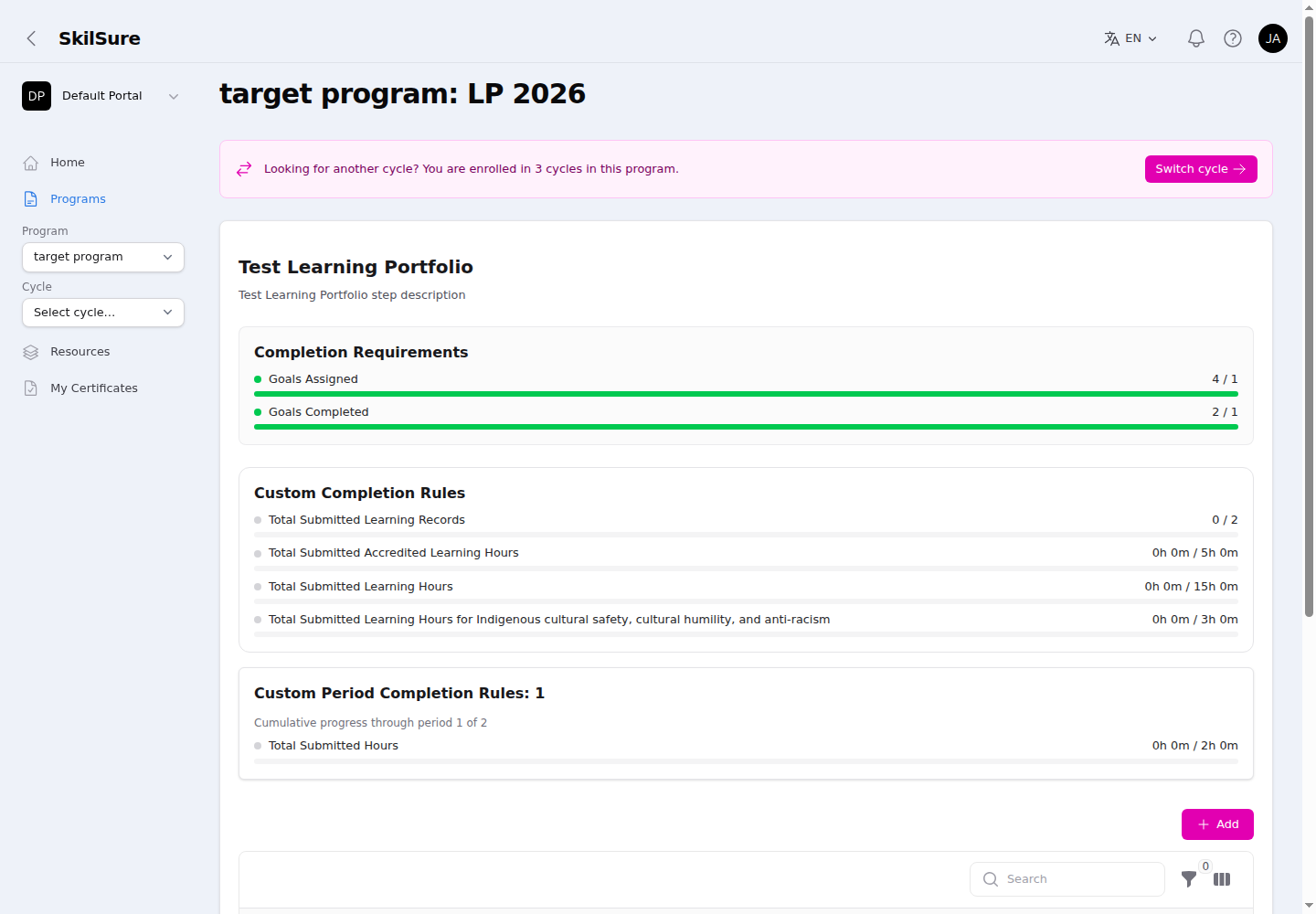 The Learning Portfolio step. The panels at the top show how close you are to completing the step; your goals live in the table below.
Read your progress
The panels at the top tell you what you still need to do:
- Completion Requirements — how many goals you've been assigned and how many you've completed, shown as completed / required (so Goals Completed 2 / 1 means 2 completed against a requirement of 1).
- Custom Completion Rules — totals your program tracks across all your goals, such as submitted learning records or accredited hours.
- Custom Period Completion Rules — progress within the current time period, when your program runs in periods. Only the current period needs to be met to submit the step — earlier periods that have already closed won't hold you back.
A bar turns green once that requirement is met.
Your goals table
Every goal you've been assigned or created appears as a row.
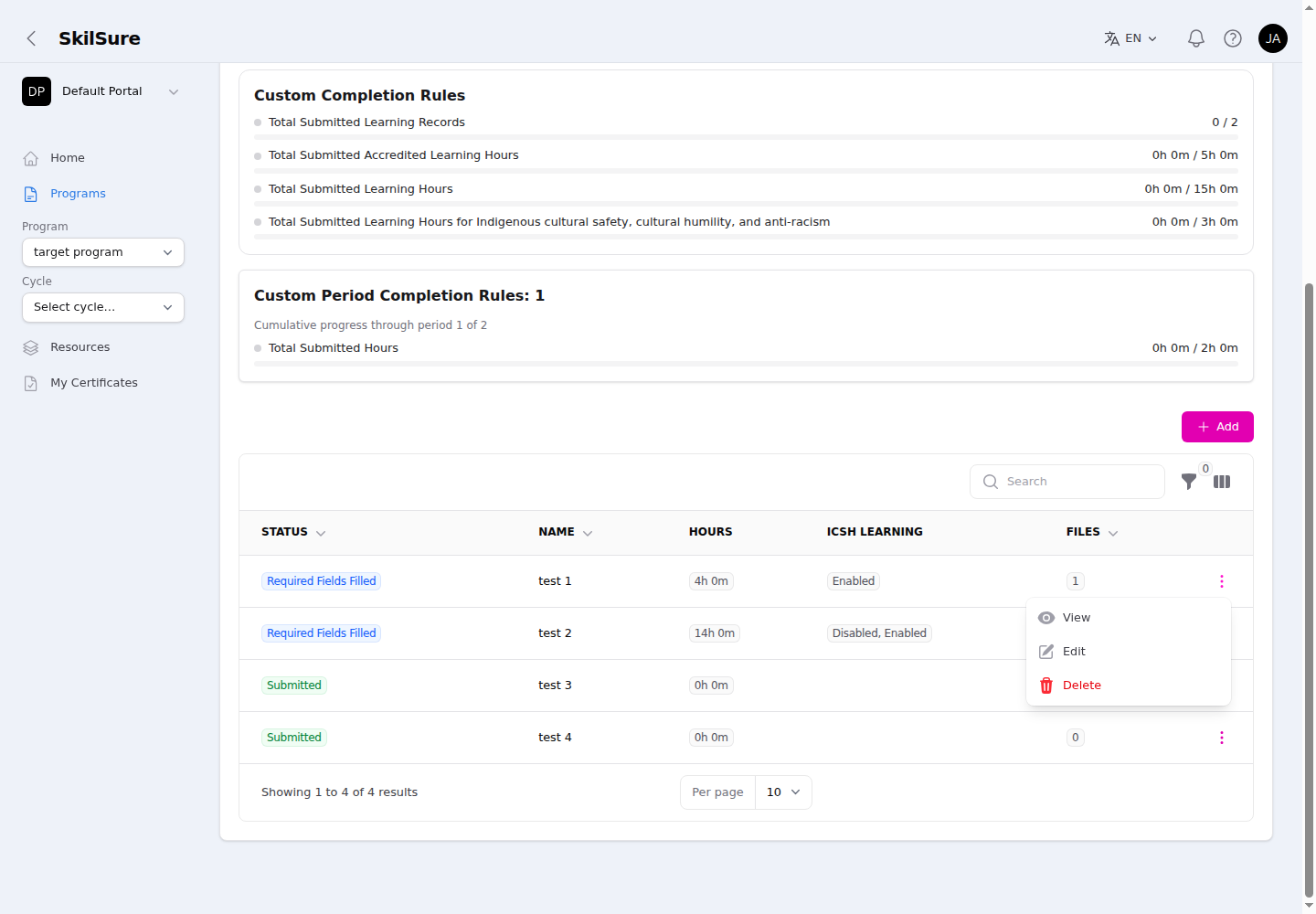 The goals table. Use the three-dot menu on any row to View, Edit, or act on a goal. Your program may add extra columns (here, Hours and ICSH Learning).
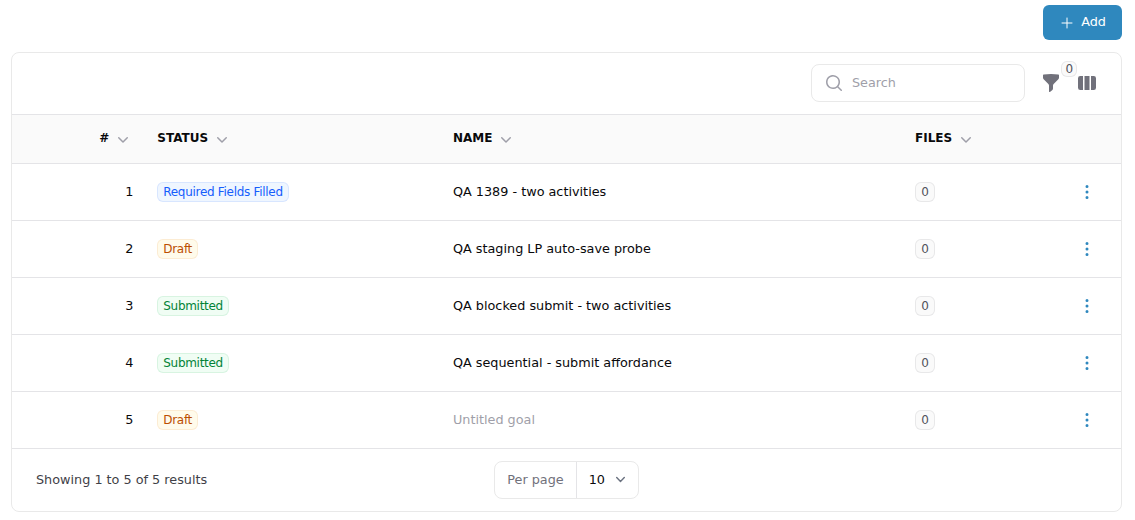 When your program turns it on, the # column numbers your goals from oldest (1) to newest.
- Search, filter, and sort the table, and use the column manager to show or hide columns.
- If your program turns it on, a # column comes first. It numbers your goals in the order you created them — your oldest goal is 1 — and each goal keeps its number however you sort or filter the table. This column is always shown.
- The Status column shows where each goal stands (e.g. Required Fields Filled, Submitted, Not Current).
- Your program may add custom columns — for example a running total of hours, or the options you selected — to the right of the built-in columns.
- The three-dot menu on each row offers:
- View — open the goal read-only.
- Edit — open the goal to work on it.
- Assign / Unassign — for goals your program manager defined, choose whether to work on them.
- Delete — remove a goal you created.
"Not Current" goals
A goal can reappear as Not Current when the date on one of its entries gets too old and your program asks you to refresh it. If a goal has several activities, it becomes Not Current as soon as any one of them is too old. While it is Not Current, the goal doesn't count toward your program's totals. If this happens after you'd finished the step, the step may reopen so you can act on it.
Refresh a Not Current goal
Open the goal with Edit. Each entry that is too old is marked No longer current.
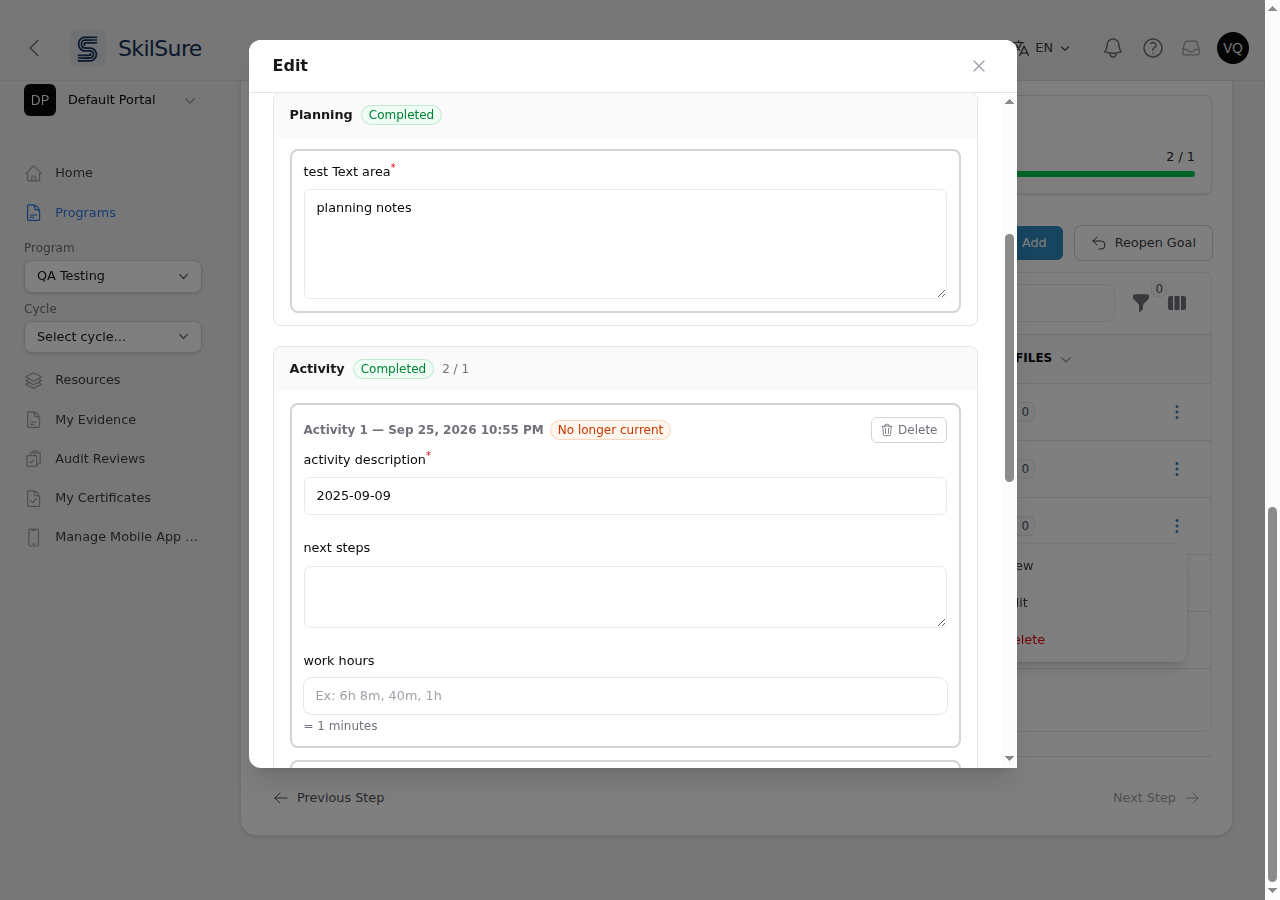 An activity marked No longer current. You can delete it, or update its date.
- Delete the entry, or update its date if it was entered wrong. Entries that are still current stay as they are.
- Then Submit the goal again.
You can't submit the goal while any entry is still marked No longer current — SkilSure tells you why:
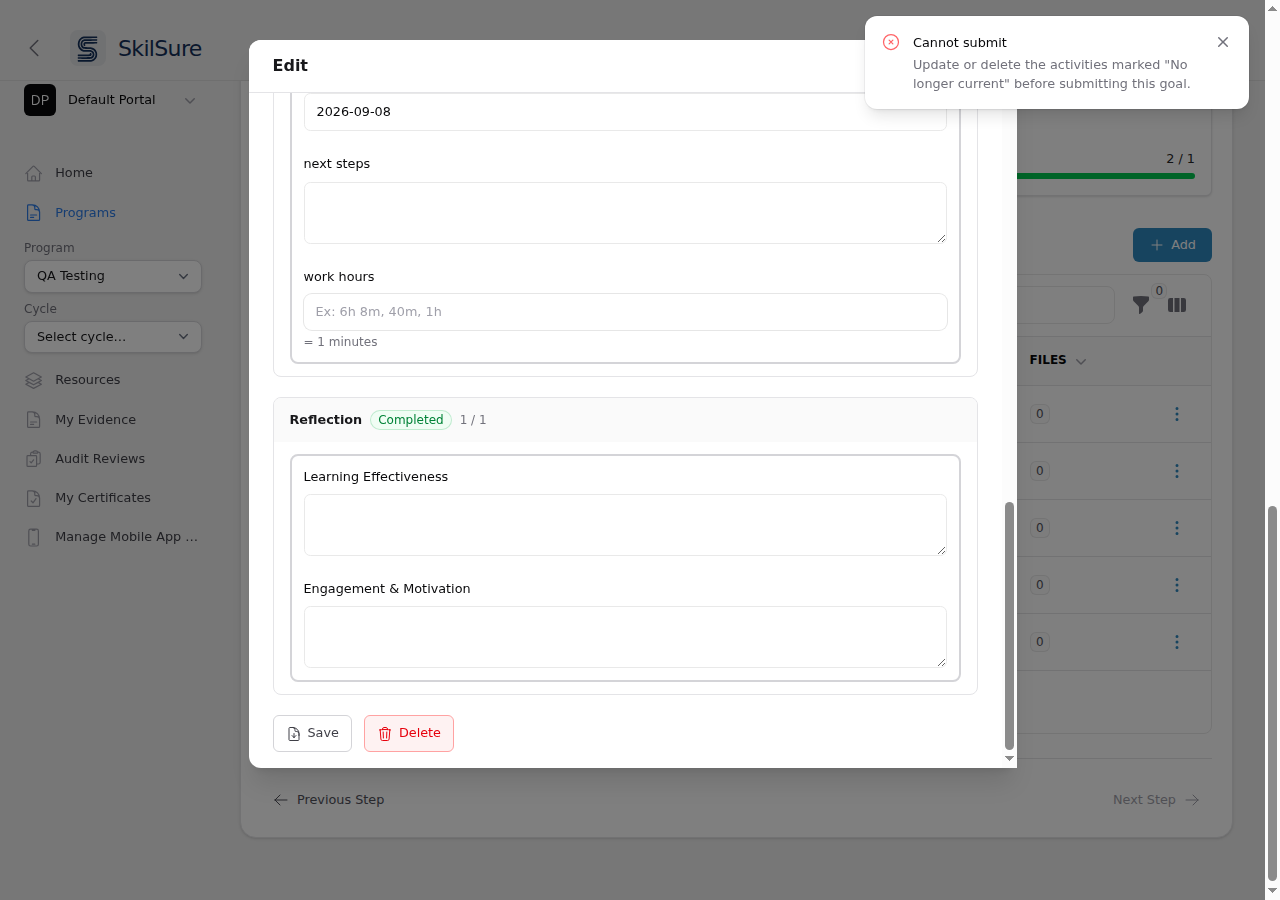 Submitting is refused until the entries marked No longer current are deleted or updated.
Add a goal
Click + Add above the table to create your own goal. SkilSure creates the goal and opens it straight away in the edit view, ready for you to fill in.
Until you give it a name, the goal shows in your table as Untitled goal — that's just a stand-in, not a name you have to keep. Type your own name over it and the table updates.
Suggested goals appear automatically
Some goals show up in your table without you adding them. Suggested goals are created for you automatically when you rate a competency low on a competency-rating step (such as a self-assessment) — the low rating flags it as something to develop, so SkilSure adds a goal for it. They're assigned to you automatically and appear in your goals table ready to work on; there's no Assign step for them.
A suggested goal arrives with its name, description, and competency already filled in, and those stay read-only — you can't rename it, reword its description, or change its competency. You still do the real work on it: fill in its phase forms, add activities and reflections, and submit it just like any other goal.
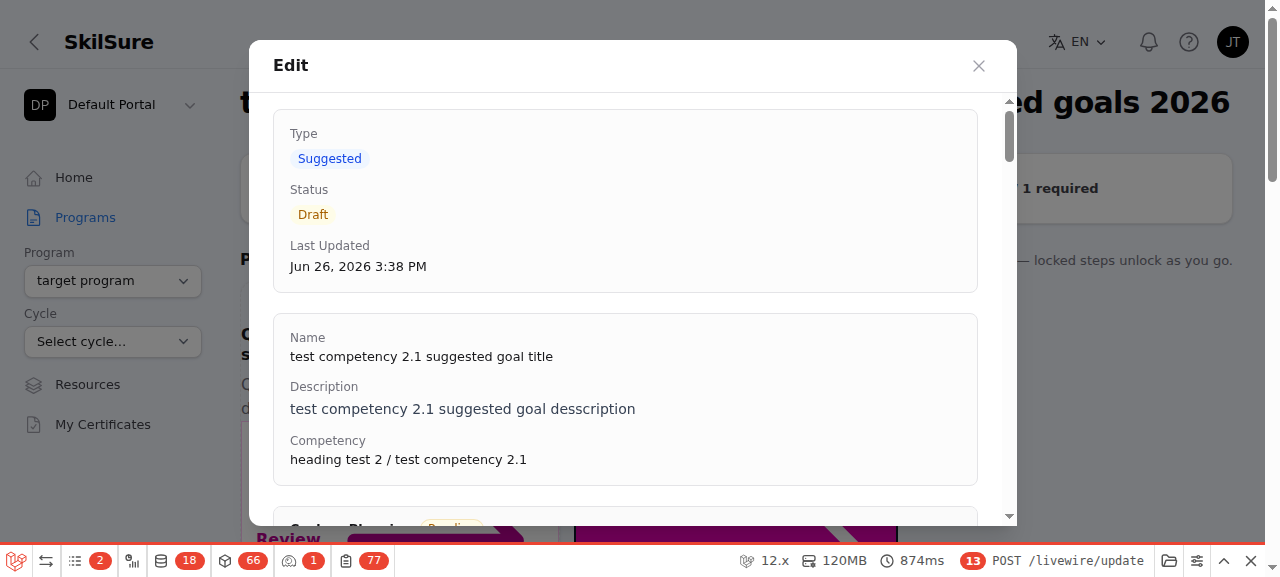 A suggested goal in the edit view. Its Name, Description, and Competency are read-only; you complete its phase forms below.
Only goals you create (user-defined goals) have an editable name and description. Goals your program manager defined are read-only in the same way.
View or edit a goal
Opening a goal shows everything in one scrollable view.
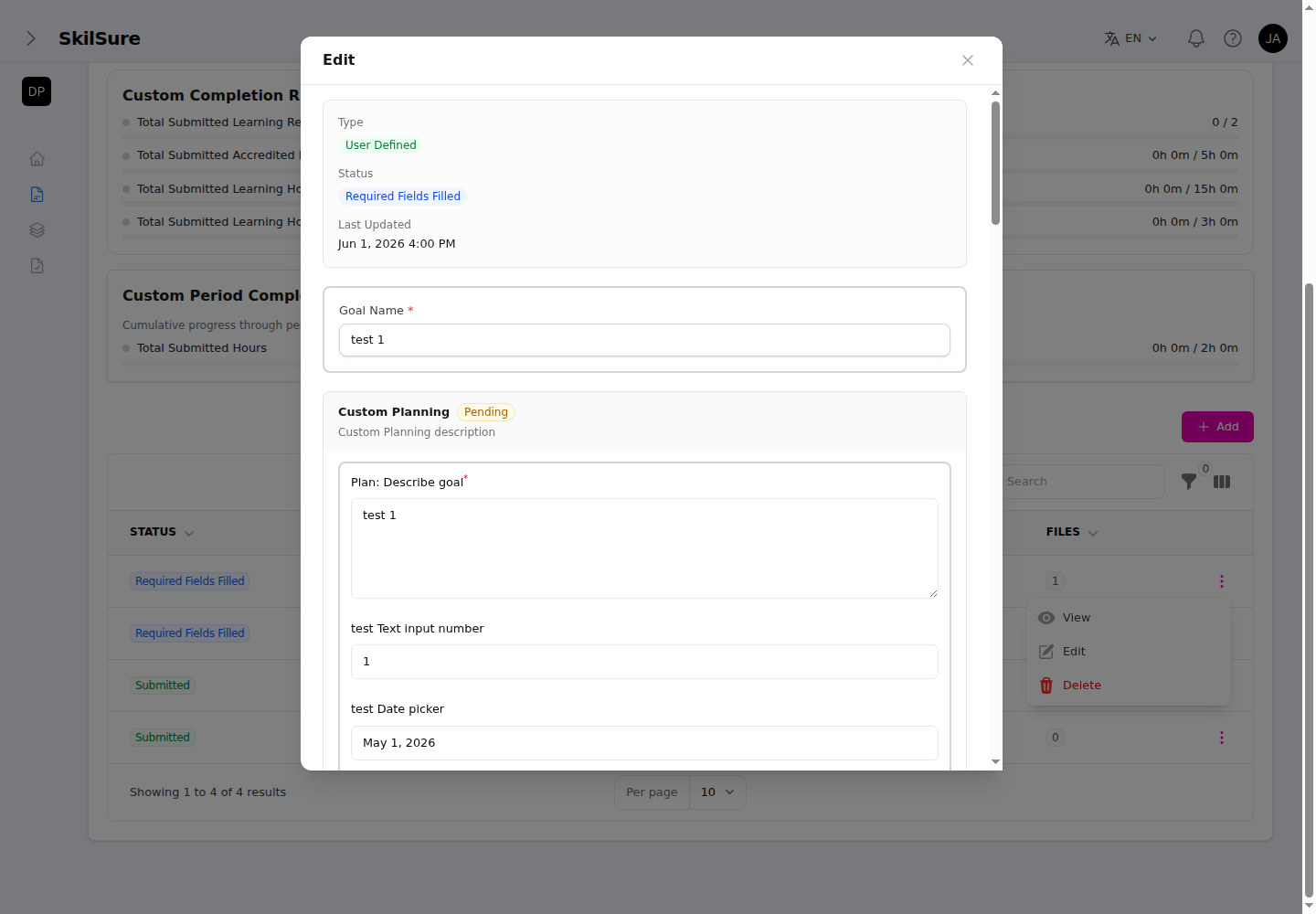 Editing a goal you created. The Status panel at the top is read-only; below it you fill in the goal name and each phase's form. Required fields are marked with a red asterisk.
- The Status panel at the top (Type, Status, Last Updated) is always read-only.
- The goal's name, description, and competency are editable only for goals you created. For suggested goals and manager-defined goals they're read-only.
- Below them are the goal's Planning, Activity, and Reflection phases. Each phase holds its own form; fill it in and add as many activity entries as the step allows.
- A time field your program set up to show 0h 0m works the way it does in Activities. If the field is required and has no minimum, leaving it at 0h 0m counts as 0 hours. If it has a minimum, enter at least that much time.
- Use Add Activity (or Add Reflection) to open another entry beneath the ones you already have. Your program may use different wording for these buttons.
- Each extra entry has its own Delete button, which removes only that entry. If you haven't typed anything into it yet, SkilSure asks you to confirm removing the empty form. Once you've typed into it, the entry has already been auto-saved as a draft, so SkilSure asks you to confirm deleting that entry — the draft is deleted too. Your other entries, and any files attached to them, are not affected.
- Required questions are marked with a red *.
- Some date fields limit how far you can pick — for example blocking future dates, or dates older than a set number of days back — so choose a date within the range the field allows.
When you're done, use the buttons at the bottom of the goal. Depending on how your program is configured you'll see either Submit or Complete Phase — not both:
- Save — keep your work without submitting; you can come back to it later. Saved-but-unsubmitted goals don't count toward the step's completion until you submit them.
- Complete Phase — finish the current phase and move on (shown when your program doesn't require a separate submit step).
- Submit — submit the whole goal once every required phase is complete (shown when your program requires a manual submit step — the default; otherwise the goal auto-submits when you complete its phases).
- Print — print or save a copy of the goal.
- Delete — remove a goal you created.
A completed phase locks its form, and submitting the goal closes the editor automatically.
Your typing is saved for you
You don't have to press Save to avoid losing work. A moment after you stop typing, pick an option from a list, choose a date, flip a switch, sign, or finish uploading a file, SkilSure saves what you've entered as a draft and briefly shows Auto-saved next to the buttons. Saving happens in the background, so you can keep typing. It works on the goal's name and description and on every phase form, so a closed tab, a dropped connection or an expired session won't cost you what you'd written.
Auto-saving only keeps your work — it never submits anything for you, and it never changes a goal you've already submitted. An auto-saved entry stays a draft until you finish it, so remember to Submit (or Complete Phase) when you're done.
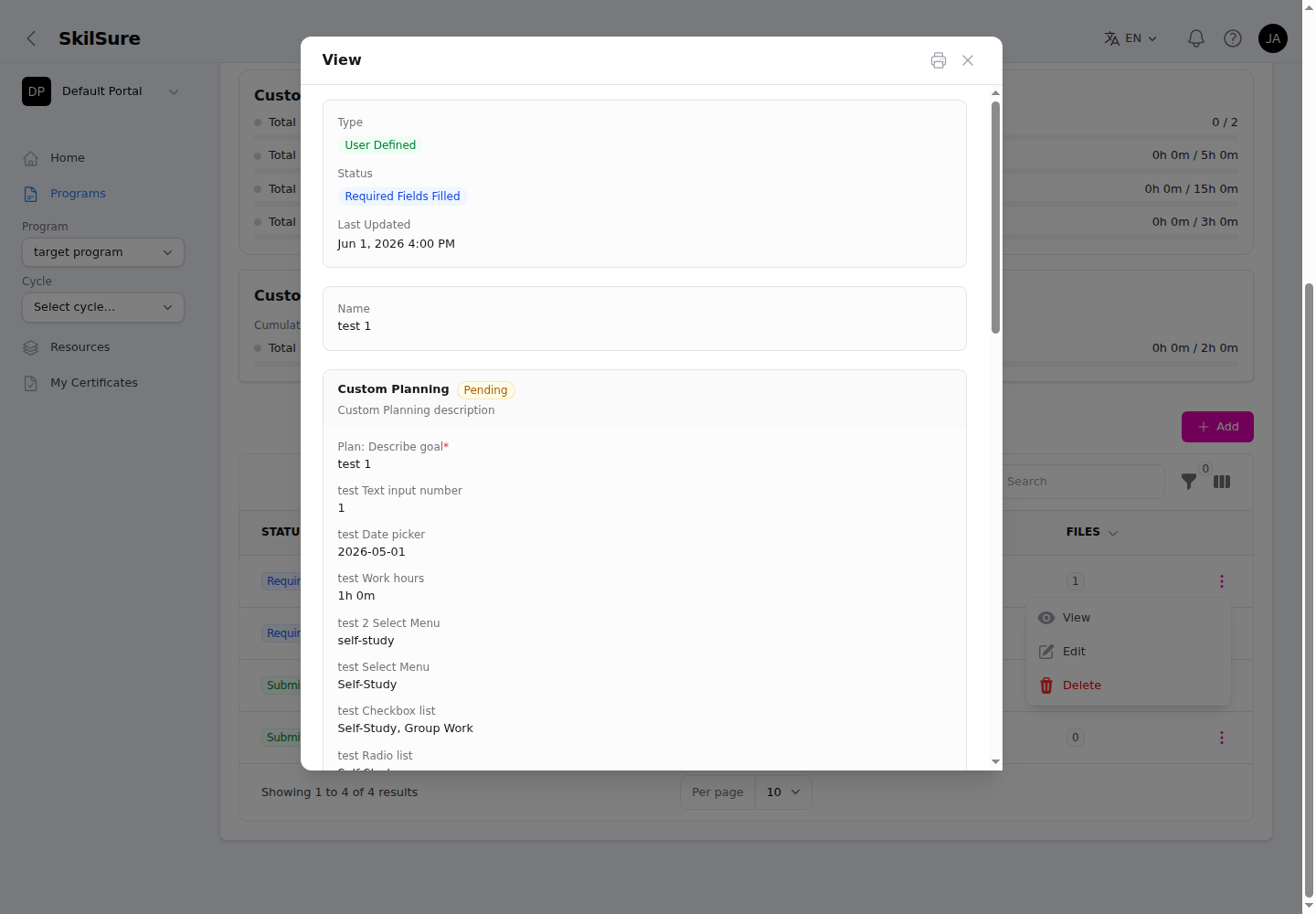 The View modal is fully read-only — use it to review a goal without changing anything.
Dates show in your timezone
Create and update dates throughout the Learning Portfolio step are shown in your own timezone.
Upload a file from a phone or tablet
Uploading works in any mobile browser — Chrome, Safari, Edge or another — and SkilSure does not limit how many files you can upload. When you tap an upload box, your phone opens its own file chooser, which lists every app on the device that can supply a file. Some third-party file, scanner or cloud apps in that list have limits of their own, such as a "free trial" of a few uploads. That limit comes from the app, not from SkilSure.
Pick the device's built-in option instead:
- Android — choose Files (or Photos, Media or Camera). If a different app opens on its own, use the chooser's ☰ menu or Browse and pick Files or your phone's storage.
- iPhone or iPad — choose Photo Library, Take Photo or Choose File.
A short reminder of this is shown under every upload box.
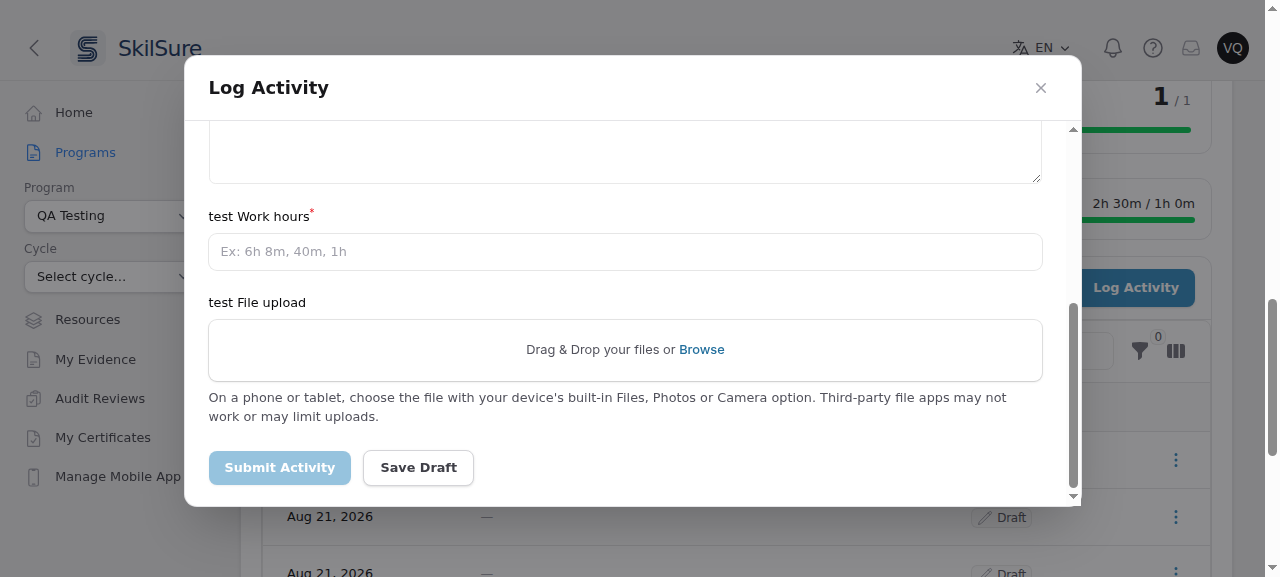 The reminder under an upload box. Your administrator may have reworded it.
Finish or remove any unfinished entry before submitting
A goal can't be submitted while one of its entries is still unfinished — for example a second activity you started, filled in partly, and left with a required question blank. Submitting would lock the goal and leave that entry out of every total, so the portfolio would count fewer hours than your record appears to show.
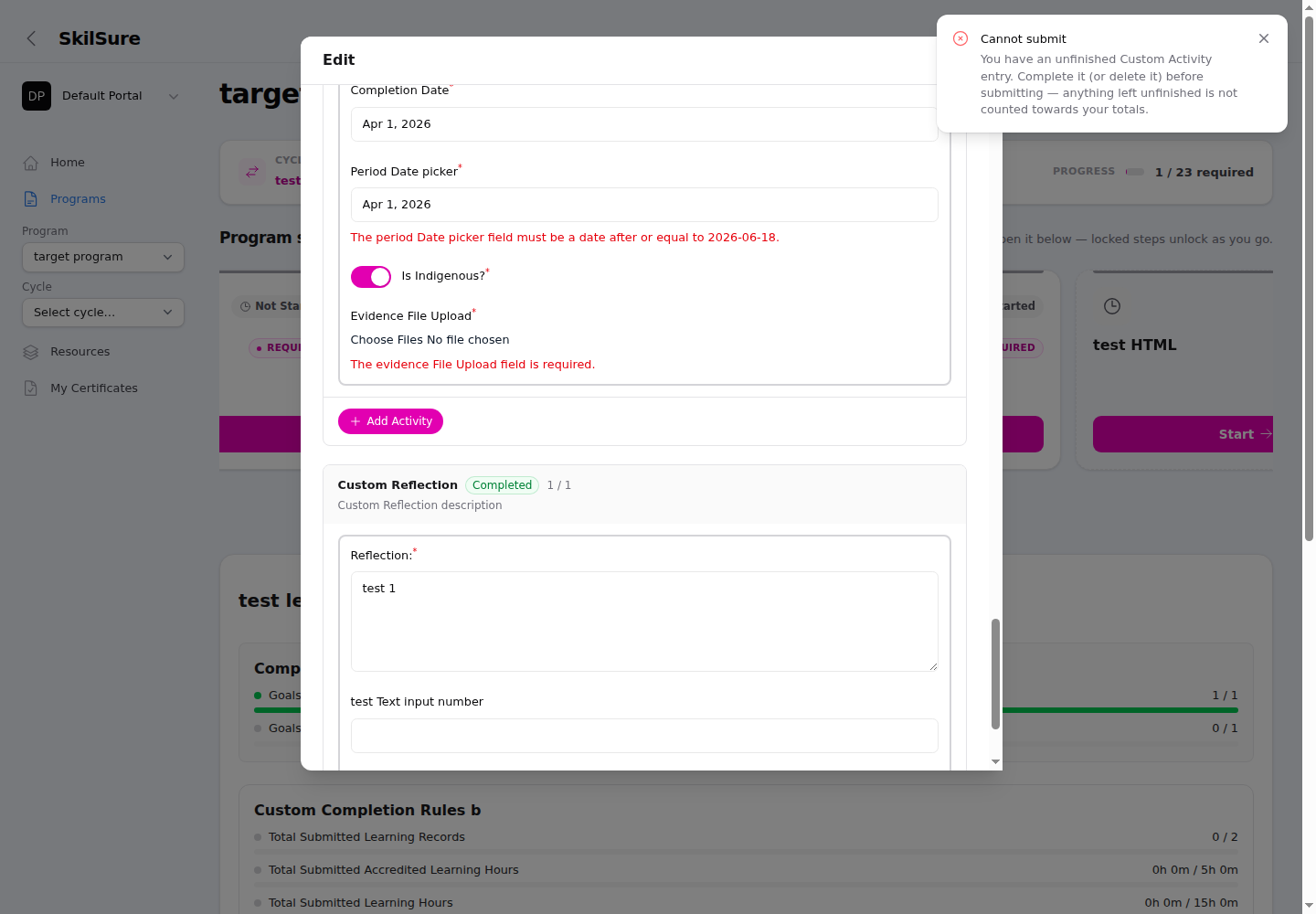 Submitting with an unfinished activity entry. The notification names the phase, and the entry's own required questions are highlighted in red.
To clear it, either:
- finish the entry — fill in the questions marked with a red *, then use the same button you started with: Submit if your program has one, or Complete Phase if it doesn't (see the button list above). Either one saves your fix and finishes the entry.
- delete the entry — use the Delete button on that entry if you no longer need it.
Your work is never lost in the meantime: everything you typed is saved as a draft, so you can come back and finish it later.
Saving is always safe
Save never triggers this — you can save a half-finished entry as often as you like. The check applies only when you submit the goal.
Reopen a submitted goal
If your program allows it, a Reopen Goal button appears above your goals table, next to + Add, while the step is still in progress. Use it when you need to change a goal you have already submitted:
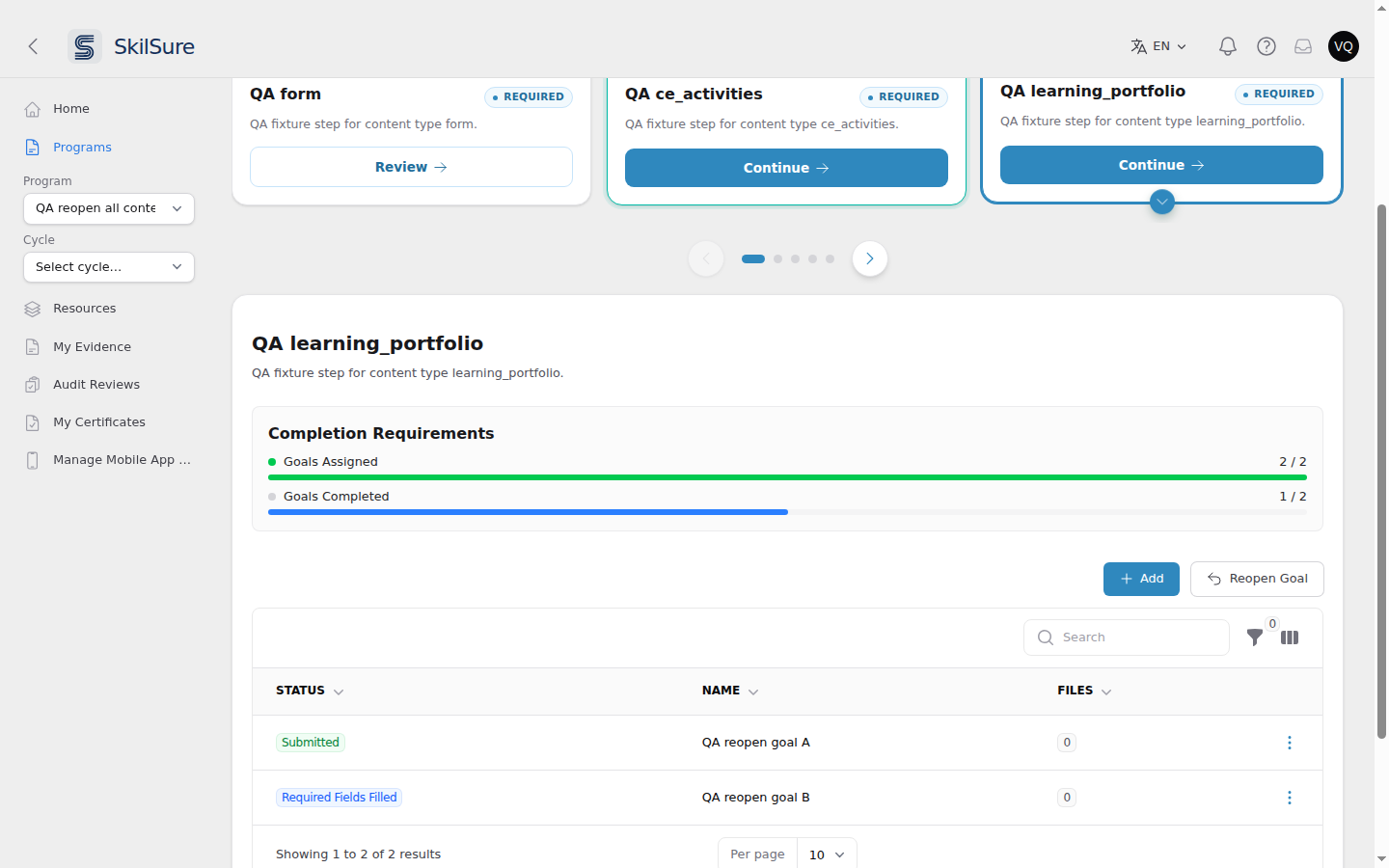 The Reopen Goal button appears while the step is in progress and you have at least one submitted goal.
- Click Reopen Goal. A Reopen Goals dialog lists your submitted goals.
- Tick the goals you want to change, then click Reopen Selected Goals.
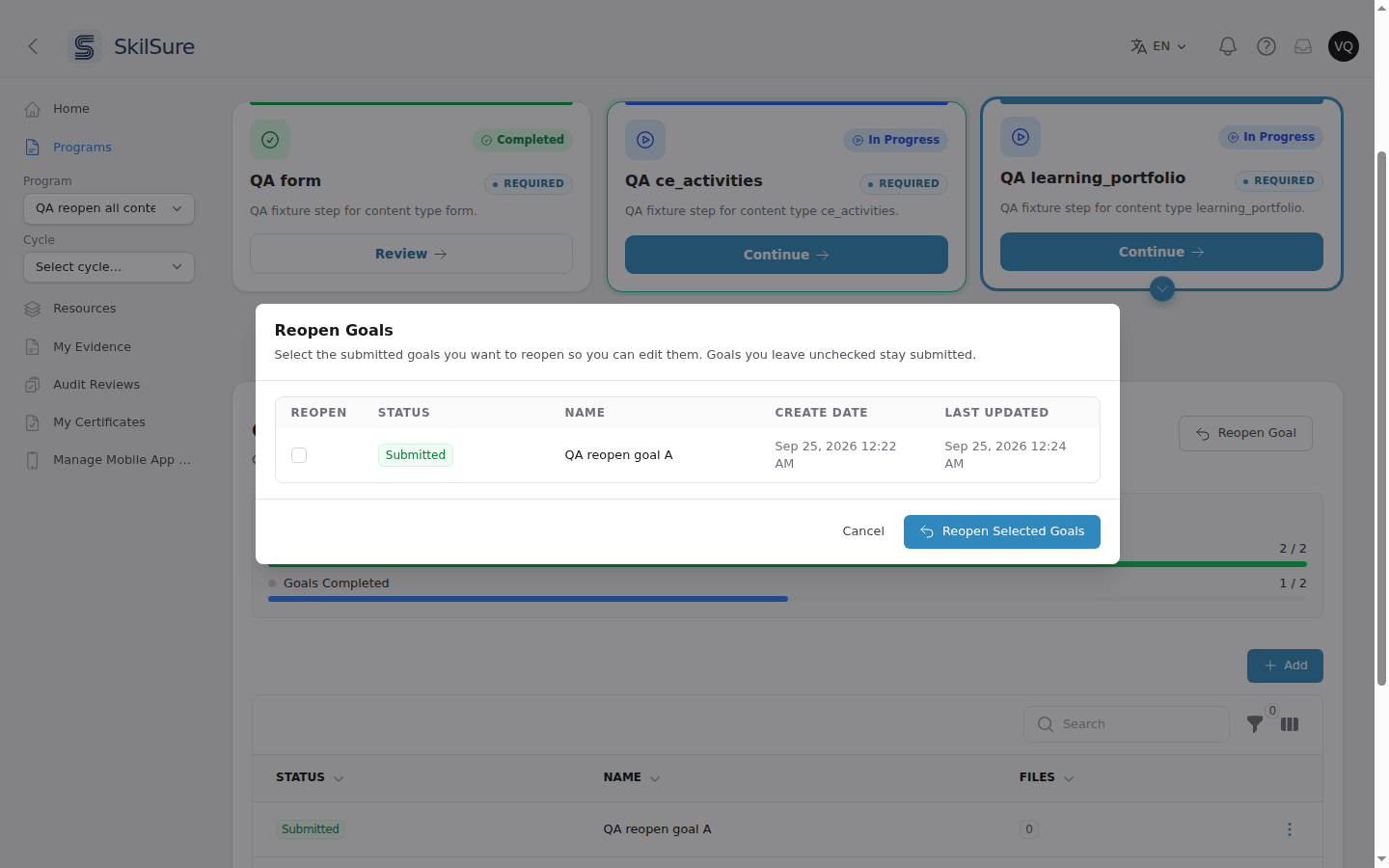 Only submitted goals are listed. Goals you leave unchecked stay submitted.
The goals you ticked become editable again, with your answers kept, and you can submit them again when you are done. Goals you leave unchecked stay submitted.
If the button is greyed out, your work has been submitted for audit review (or an auditor has finished reviewing this step), so goals can't be reopened.
Once the step itself is completed, Reopen Goal is no longer shown. If your program allows it, use the step's Reopen button instead — see After the step is submitted.
After the step is submitted
INFO
Once the step is submitted you can still review your goals. Goals you haven't submitted stay editable, but they can't be submitted until the step is reopened. + Add appears only if your program allows adding goals after submission.
If your program's requirements go up after you submit — for example a new period starts with higher targets — the step reopens automatically so you can add and submit more records. Your submitted records stay submitted; add what's needed, then submit the step again. This doesn't happen once your organization has confirmed the program as complete — for example, after your reinstatement has been accepted.
If your program allows it, a Reopen button appears at the top of the step beside the badge showing you submitted it, and you can reopen the step yourself — you'll be asked which submitted goals to reopen, so ticking one leaves the others submitted. Otherwise contact your administrator, who can reopen the step for you. See Reopen a step to change your answers.