
Appearance
AdminQuiz scoring & Angoff cut scores
Every quiz needs to answer one question: what counts as a pass? This page covers the three scoring methods, and — for rubric exams — how to choose between the two cut score strategies and what each one actually does.
Open a quiz from Content Management → Contents, then choose the Scoring tab.
Choose a scoring method
| Method | What it does | Use it when |
|---|---|---|
| Percentage | Traditional scoring. You set an optional Passing Score (%). | Most quizzes — knowledge checks, module tests, anything where a straight percentage is the standard. |
| Rubric (Angoff) | Weighted scoring against competency domains, with a cut score deciding pass/fail. | Formal certification or competency exams where the pass mark was set by a standard-setting panel. |
| Unscored | Marks the step complete on any submission, without scoring. | Surveys, reflections, and self-assessments where there is no right answer. |
Decide what counts as complete
Scoring decides the result. Completion Criteria decides whether that result completes the step — they are separate settings. Open the quiz from Content Management → Contents, then the Completion Configuration tab.
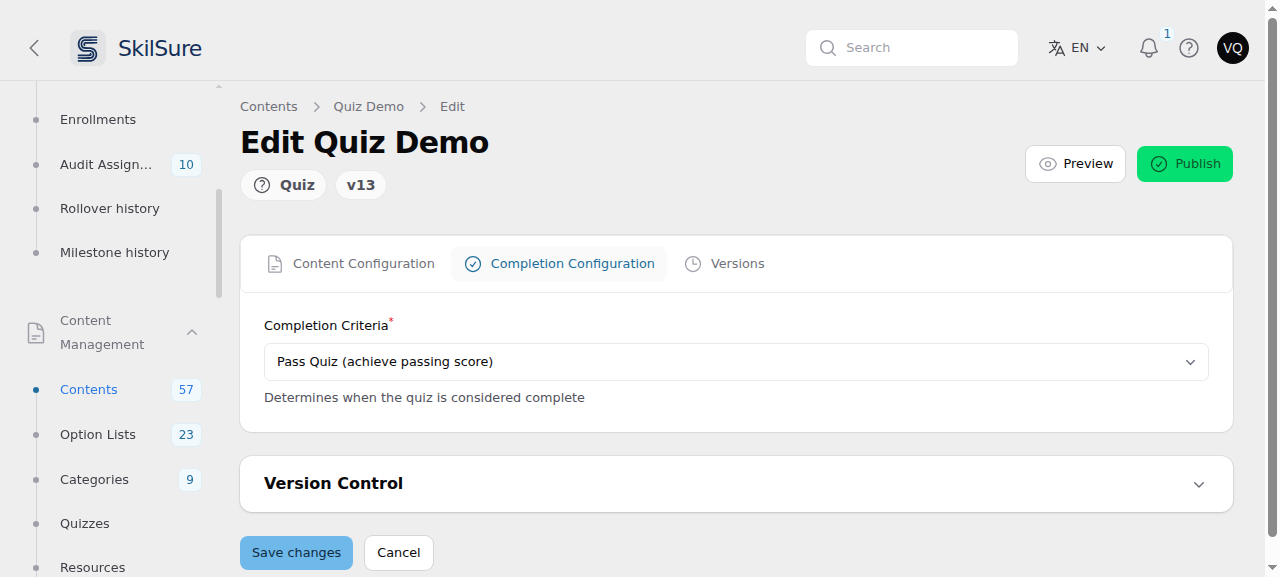 Content Management → Contents → a quiz → Completion Configuration. This quiz completes only once the member reaches its passing score.
| Criteria | The step completes when… |
|---|---|
| Submit Quiz (any score) | The member submits an attempt — whatever they scored. |
| Pass Quiz (achieve passing score) | Their best attempt reaches the Passing Score (%) from the Scoring tab, or clears the cut score on a rubric exam. |
| Achieve Minimum Score | Their best attempt reaches the Minimum Score (%) you enter here. |
Submit Quiz (any score) is the default on a new quiz. Any quiz people must actually pass needs this changed — left on the default, a member who scored 0 still completes the step.
Pass Quiz needs a passing score
Pass Quiz with the Passing Score left empty has nothing to compare against, so the step never completes for anyone. If you choose it on a Percentage-scored quiz, set a Passing Score as well.
The rest of this page is about Rubric (Angoff) scoring. If you picked Percentage or Unscored, there is nothing further to configure here.
How rubric scoring works
Each question carries a weight and is assigned to a scoring domain. A user's answers produce a total weighted score, which is compared against a cut score:
- The overall result — pass or fail — is decided by the overall cut score.
- Each domain result is reported back as feedback only (meets standard / below standard). Domain results never change the overall pass/fail outcome.
Domain results are feedback, not gates
A user can be below standard in one domain and still pass overall, as long as their total clears the overall cut. Domains exist to tell people where they were weak, not to add extra hurdles.
Choose a cut score strategy
This is the decision that matters most, and the two options behave very differently.
Static — you set the cut score
Use Static when the pass mark is a fixed number that does not change from one user to the next. You type the overall cut score, and optionally a cut score for each domain.
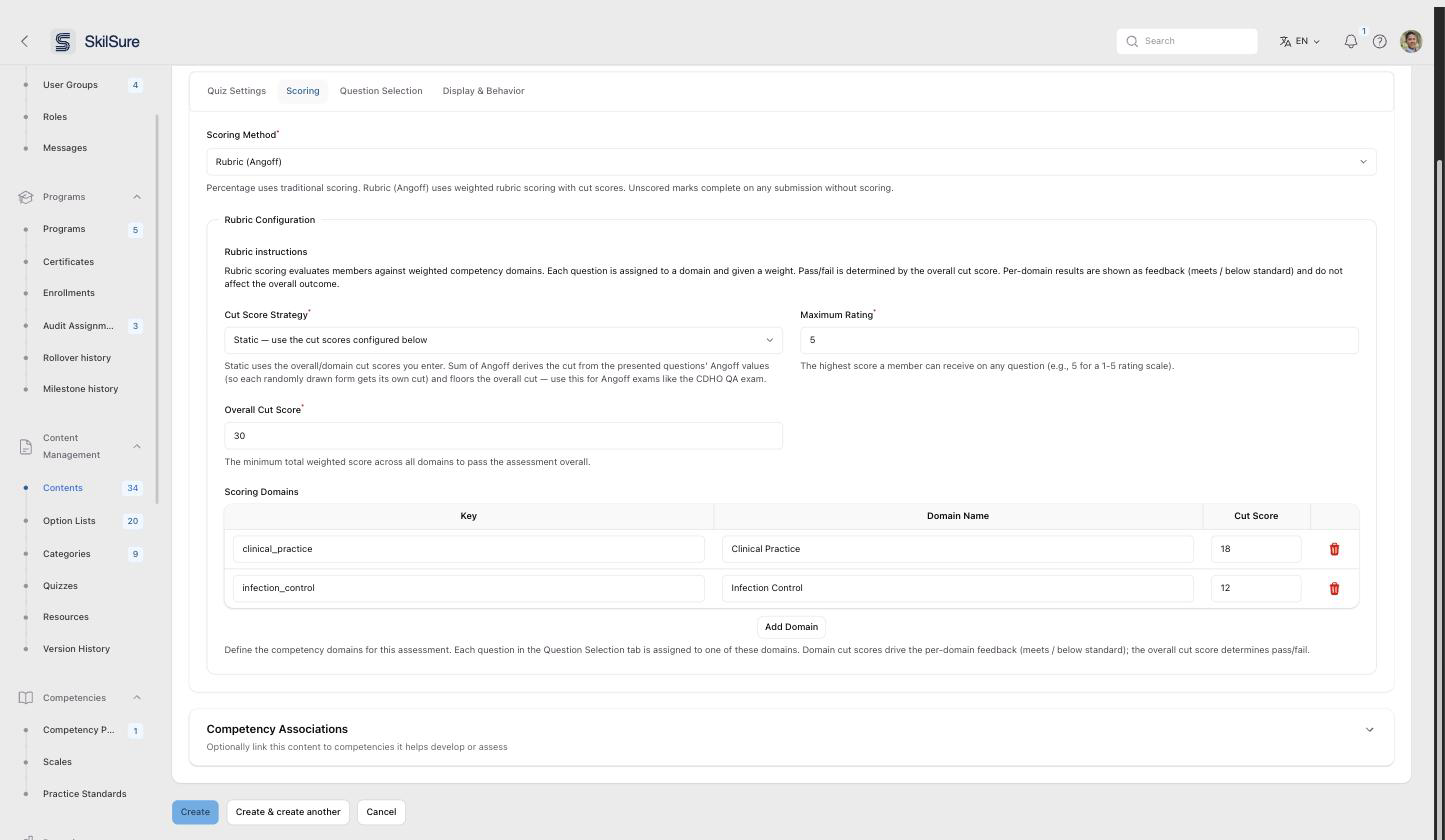 Content Configuration → Scoring, with Static selected. The Overall Cut Score and each domain's Cut Score are required and editable.
Choose Static when:
- Every user sees the same questions, or
- The pass mark is set by policy as a fixed total, regardless of which questions are drawn.
Static plus random question selection
If your quiz draws a random subset from a question pool, each user gets a different set of questions — but a static cut score applies the same fixed pass mark to all of them. If some draws are harder than others, that is unfair to the users who got the harder form. Use Sum of Angoff instead.
Sum of Angoff — the cut score is calculated per user
Use Sum of Angoff for standard-set exams. Instead of a fixed number, the pass mark is calculated for each user from the questions they were actually shown, by adding up those questions' Angoff values. Each randomly drawn form therefore gets its own cut score, matched to its own difficulty.
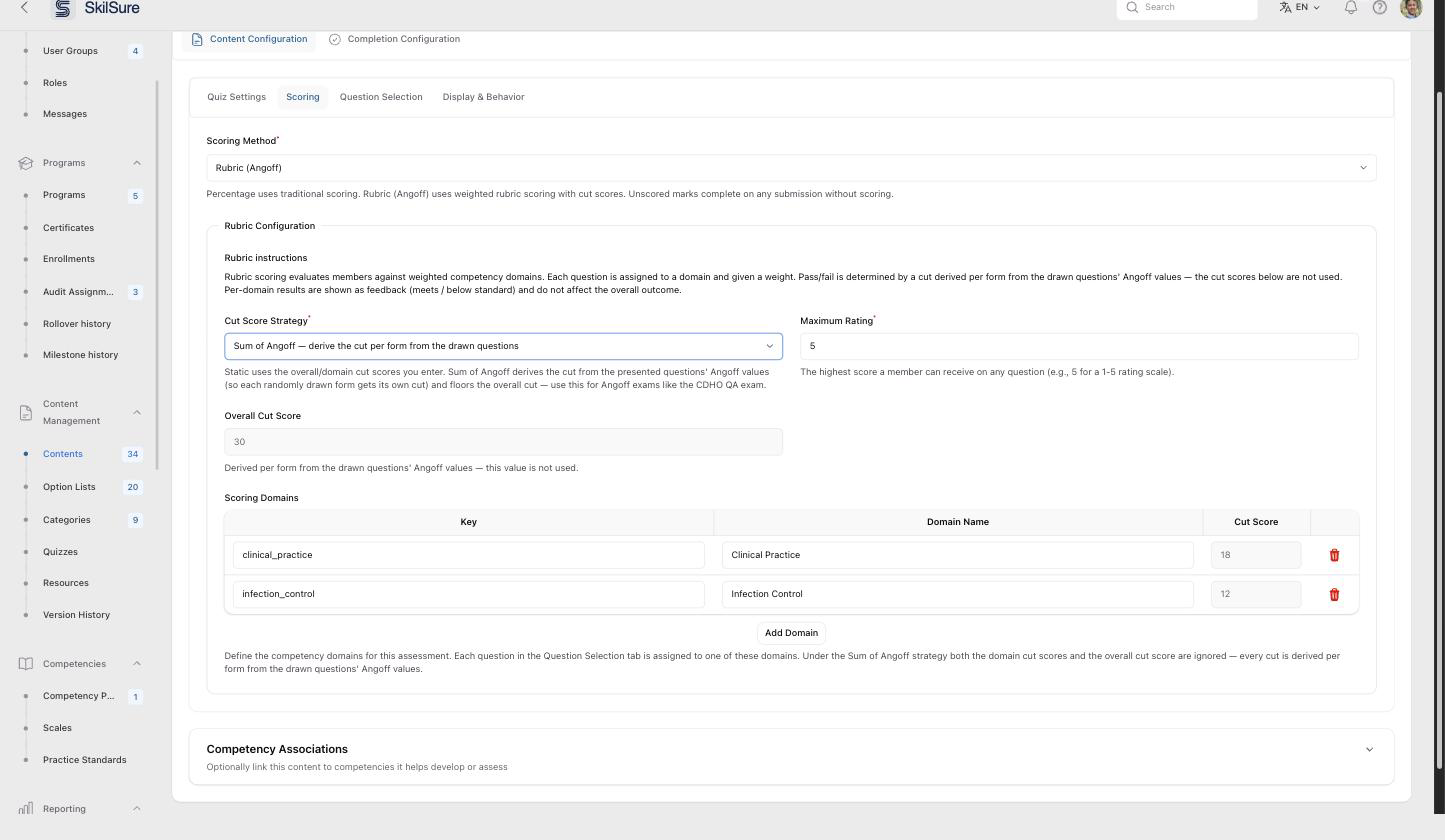 With Sum of Angoff selected, the cut score fields are disabled — they are not used, so there is nothing to fill in.
When you select Sum of Angoff:
- The Overall Cut Score and all domain Cut Scores are disabled and no longer required. They play no part in the result. Any values already saved are kept but ignored.
- The pass mark comes entirely from the Angoff Value on each question (see below).
- The overall cut is rounded down to a whole number. With one point per question, that makes the rule simply number correct ≥ the rounded cut.
Choose Sum of Angoff when:
- A standard-setting panel has assigned an Angoff value to each question, and
- Different users may see different questions.
Set the Angoff value on each question
Sum of Angoff depends entirely on data stored on the individual questions, not on the quiz. Open a question from Content Management → Quizzes → Questions and use its Settings tab.
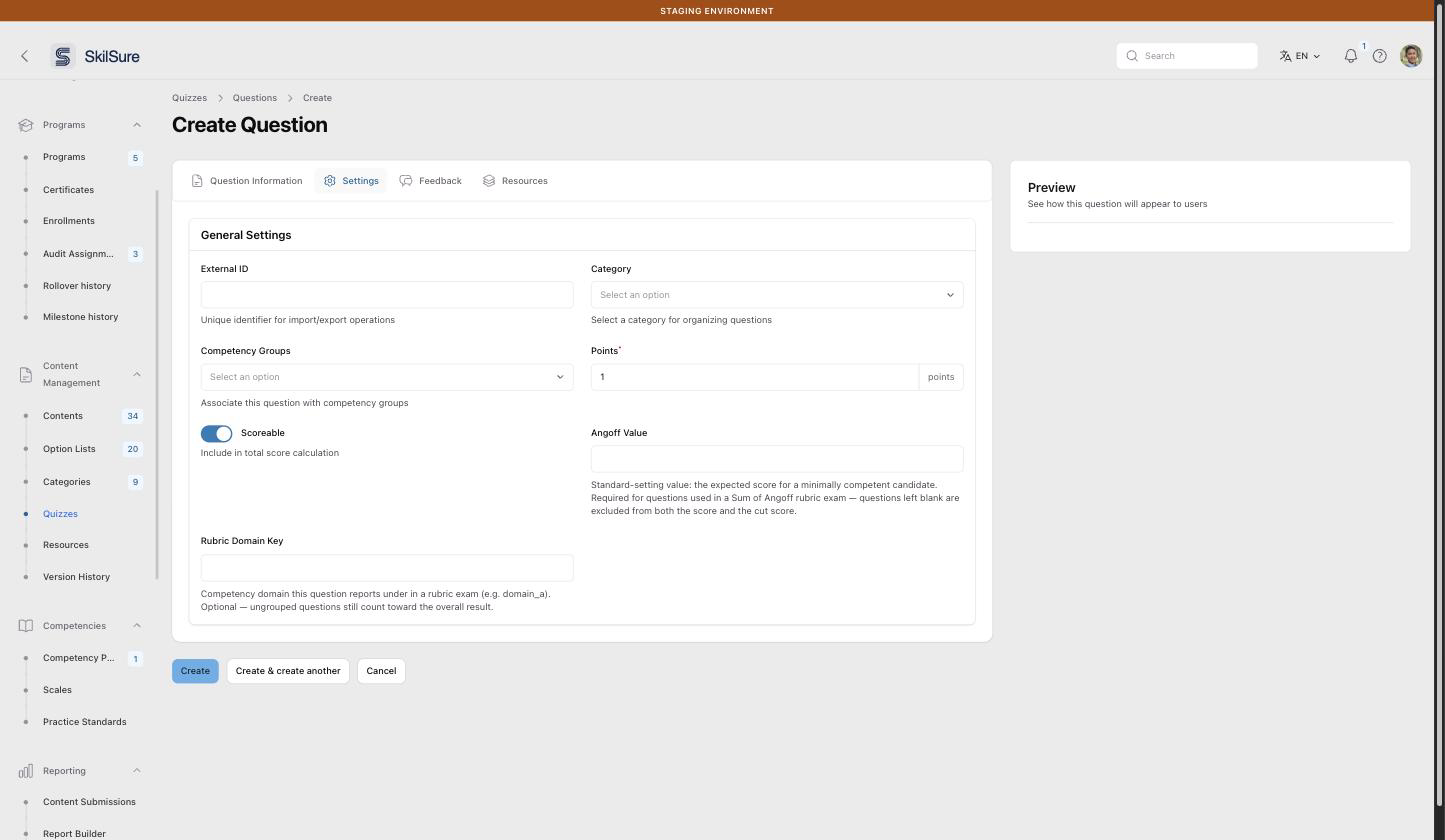 Question → Settings. Angoff Value feeds the calculated cut score; Rubric Domain Key decides which domain the question reports under.
- Angoff Value — the score a minimally competent candidate would be expected to get on this question. For a one-point question this is a number between 0 and 1: a value of
0.72means a borderline candidate would be expected to get it right about 72% of the time. Easier questions get higher values. - Rubric Domain Key — the domain this question reports under. It must match a Key in the quiz's Scoring Domains table exactly. Leaving it blank is allowed; the question still counts toward the overall result, it just won't appear in any domain's feedback.
Questions with no Angoff value are excluded
In a Sum of Angoff exam, a question left blank is dropped from both the user's score and the cut score. That is deliberate and safe — but it means a question you forgot to fill in silently stops counting. Set an Angoff value on every question in the exam.
You can set both fields in bulk when importing questions from a CSV, using the angoff_value and rubric_group_key columns. See Import on the Questions list.
Maximum Rating
Maximum Rating is the highest score a user can get on any single question. Set it to match how your questions are scored:
- 1 for right/wrong questions — the normal choice for an Angoff exam, where each question is worth one point.
- 5 (or whatever your scale tops out at) for questions marked on a rating scale.
Sum of Angoff pairs with a Maximum Rating of 1
Angoff exams are almost always scored one point per question. Setting Maximum Rating to 1 keeps the calculated cut score directly comparable to a count of correct answers, which is what makes the pass rule easy to explain to a candidate.
Safety check on Angoff exams
Because the cut score is calculated rather than typed, a data error could quietly produce an impossible pass mark. SkilSure checks each graded attempt and refuses to publish a result from implausible data. An attempt is flagged instead of scored when:
- Any question's Angoff value is zero, negative, or higher than the question is worth, or
- The calculated cut score comes out below 1 (which nobody could fail) or above the total points available (which nobody could pass).
A flagged attempt shows a Rubric Configuration Problem notice on its quiz attempt page explaining what is wrong. Fix the underlying Angoff values, then re-grade the attempt.
Before you switch an existing exam
Changing the strategy on a quiz that people have already taken changes how future attempts are judged.
Switching Sum of Angoff to Static
The saved Overall Cut Score on a Sum of Angoff quiz is usually 0, because it was never used. Switching that quiz to Static makes that 0 the real pass mark — and every user would pass. If you switch to Static, set a real cut score before anyone takes the quiz.
Attempts already submitted keep the result they were graded under; they are not re-scored by a configuration change.
Changing Completion Criteria does not revisit past submissions
Completion Criteria is applied when an attempt is submitted, and the outcome is stored on the member's submission. Changing the setting later does not re-evaluate submissions already recorded.
So a quiz left on Submit Quiz (any score) while people were taking it keeps every one of those members marked complete — including those who failed — even after you switch it to Pass Quiz. Set the criteria before the quiz goes live. If it was switched after the fact, ask your SkilSure contact to re-evaluate the affected submissions.
Related
- Quizzes — creating a quiz and choosing its questions
- Questions — the question bank, including bulk import
- Question pools — drawing a random subset per user
- Quiz attempts — reviewing and grading results