
Appearance
UserYour home dashboard
After signing in, users land on the portal home page. It's designed to surface what to do next.
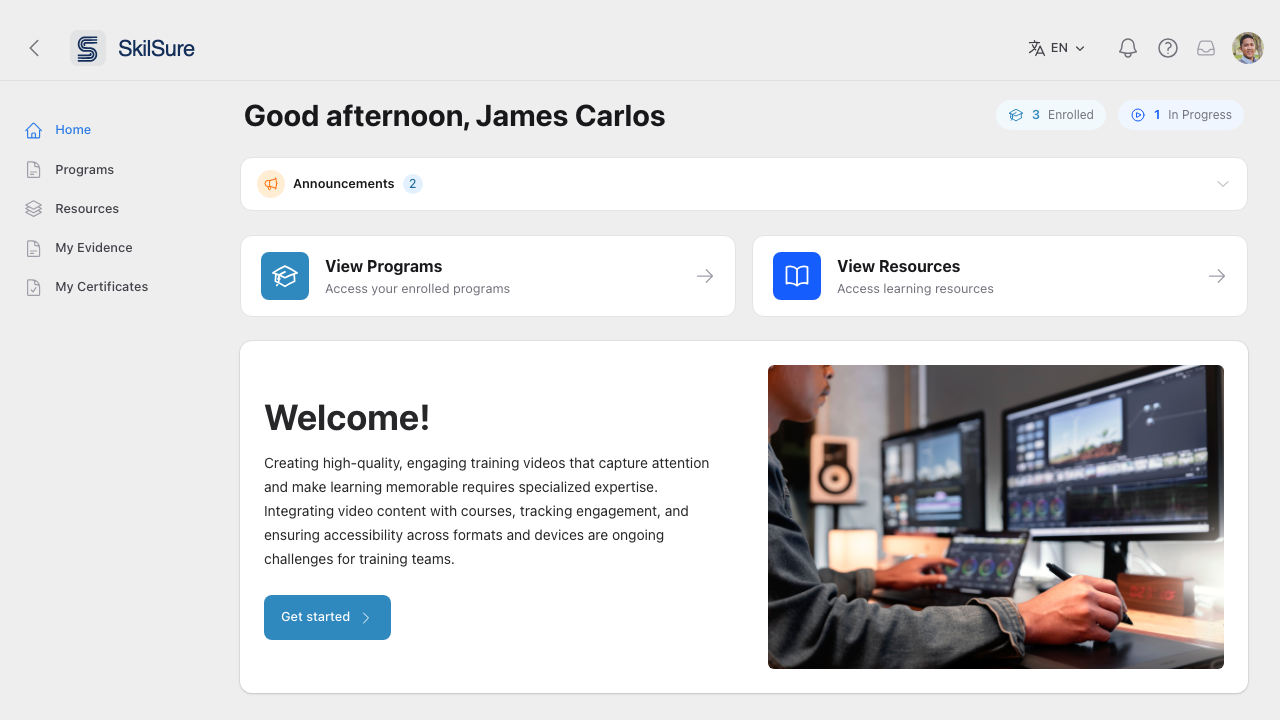 User home. The header shows the user's enrollments at a glance; announcements and quick actions are next.
- Greeting & counters. A personalised greeting plus tiles for programs enrolled and in progress.
- Announcements. Important messages from administrators — see Read announcements.
- Quick actions. Shortcuts to Programs and Resources.
- Welcome card. Editable from the portal's homepage configuration.
- Contact Us. The question-mark button in the top bar opens a message form — see below.
- Site footer. If your organisation has set one up, a footer sits at the bottom of the page — see below.
Contact Us
The question-mark button in the top bar opens a message form that reaches whoever supports this portal at your organisation. It is on every page, so you can raise something without losing your place.
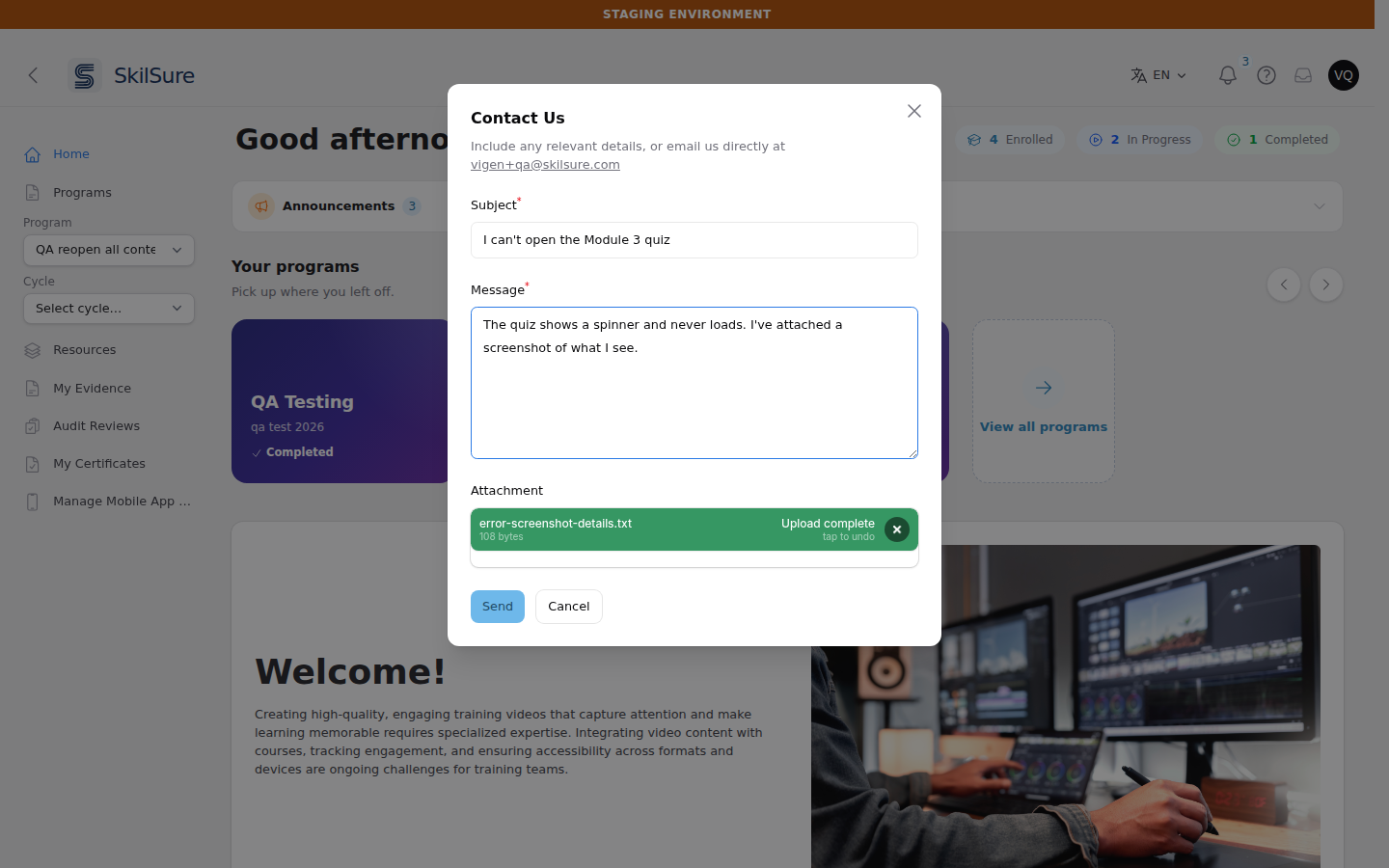 Contact Us. The address at the top is where your message goes — you can email it directly instead if you prefer.
Fill in a Subject and a Message, both required, and click Send. Replies come back to the email address on your account.
Attachment is optional — add one screenshot, document, or export if it helps explain the problem. PDFs, Word documents, spreadsheets, CSV and plain text files, PNG/JPEG/GIF images, and ZIP archives are accepted, up to 10 MB. Wait for the file to show Upload complete before clicking Send.
If the attachment does not go through
Very occasionally a file sits in the form long enough to expire before you send. When that happens your message is still delivered — you will see a warning saying the attachment could not be included, rather than the usual confirmation. Send a second message with the file attached again.
Not every portal has this button. If your organisation hasn't enabled it, use whatever support contact they have given you instead.
Site footer
Some portals show a footer at the bottom of the main content area. It appears on every page in the portal, not just the home page, and typically carries support contacts, office hours, or a notice your organisation wants always within reach.
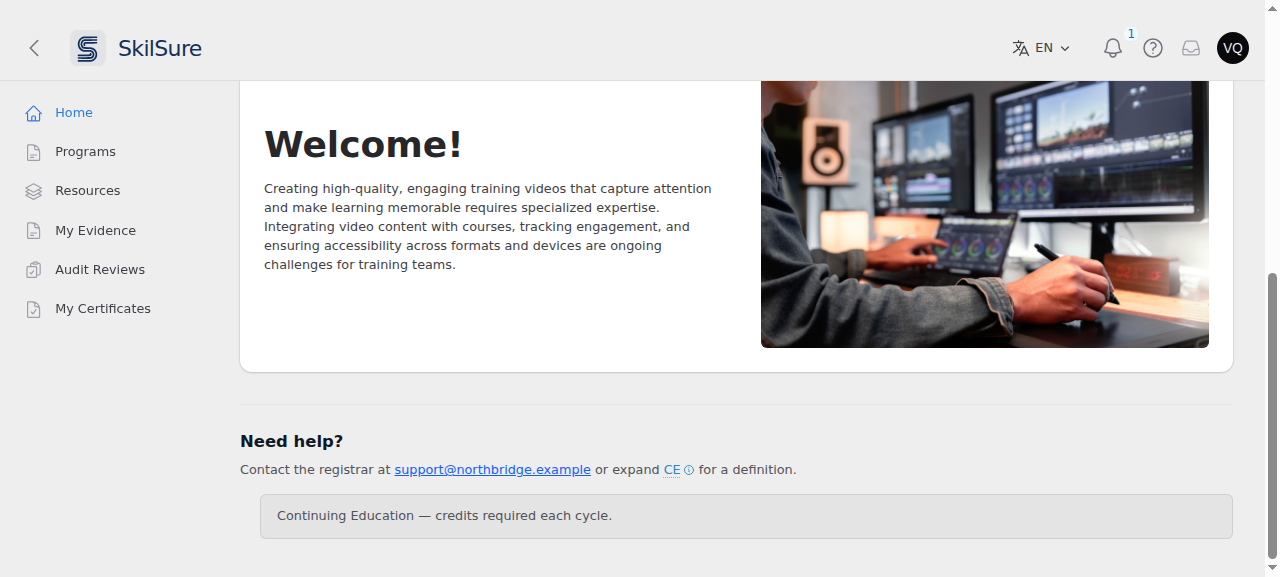 The site footer sits beneath the page content, separated by a divider. Underlined terms such as "CE" expand in place to show a definition.
The footer's wording comes from your organisation, and appears in your own language where they have provided it. If you spot something out of date in it, contact your administrator — it is configured per portal under Portal Settings.
Not every portal has one. If your organisation hasn't enabled a footer, no footer appears and nothing is missing.