
Appearance
AdminDates & time zones
SkilSure shows dates and times in your site's time zone, so deadlines, submission times, and reminders all read the way your users expect. This guide explains where to set that time zone and how the two different kinds of date behave — so a date never looks "off by a day" or "off by a few hours."
Set your site time zone
Open Settings → Site Settings → General and choose your Timezone.
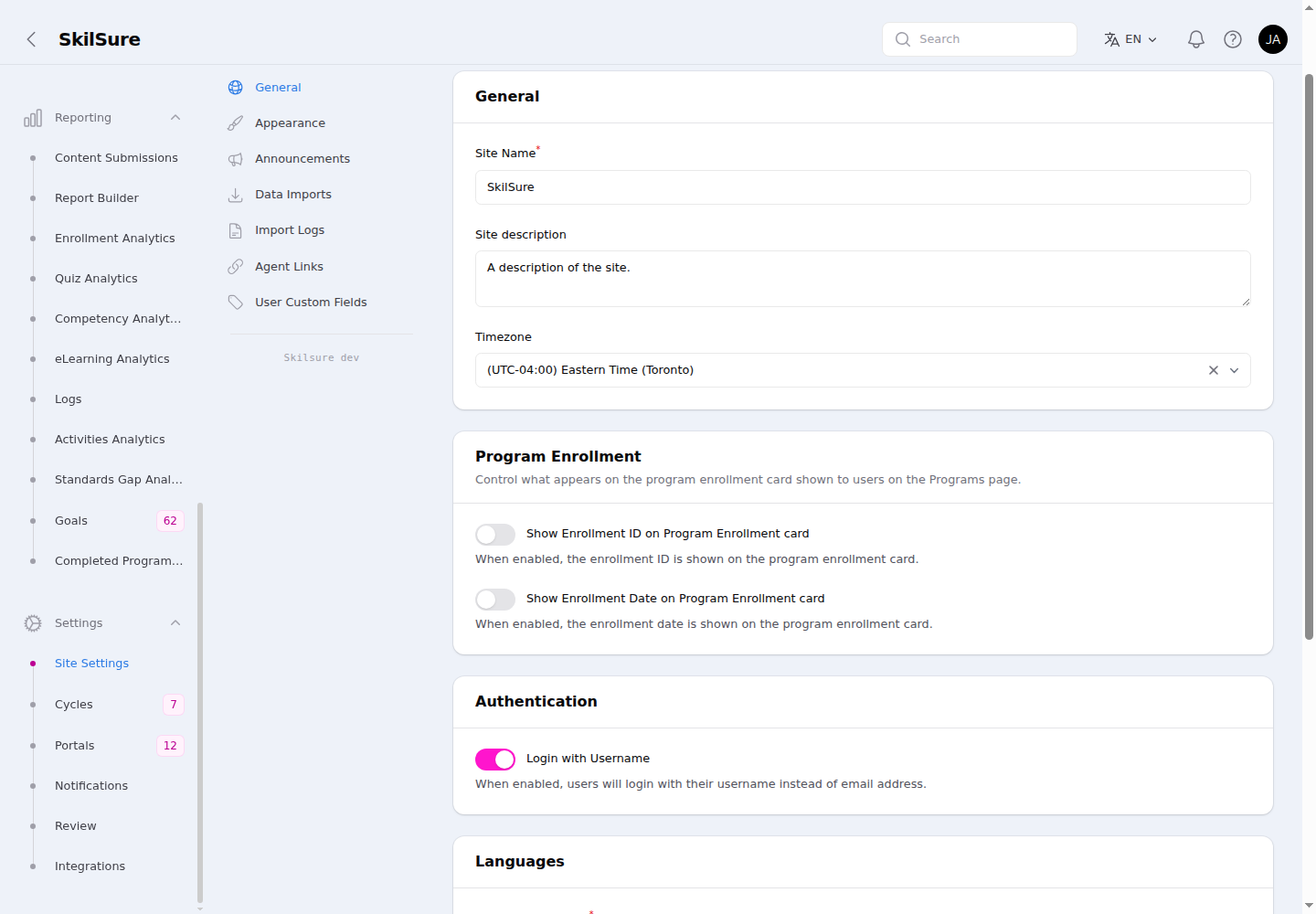 Site Settings → General. The Timezone you pick here is the default for everything users and admins see across the tenant.
This one setting is the anchor for the whole tenant. Pick the time zone your organization operates in, then Save changes.
Set this first
Until you choose a time zone, the site falls back to UTC. For an organization in, say, Eastern Time, that makes evening times and end-of-day deadlines look a day or several hours off. Setting your site time zone once fixes this everywhere.
Personal time zones
Individual people can also have their own time zone (on their My Profile page, or set by an admin on the user's record). Everything a person sees is shown in their personal time zone first, falling back to the site time zone when they haven't set one.
For whole-day dates like a cycle deadline, the moment the window closes is fixed for everyone — the end of that day in the site time zone. A user whose personal time zone differs from the site's sees that same moment on their own local calendar, which for someone far from the site's zone can read as the neighbouring day (a Jan 31 Eastern deadline shows as Feb 1 to a user in Tokyo — that's genuinely when it closes for them).
The two kinds of date
Dates in SkilSure fall into two groups that behave differently. Knowing which is which explains almost every "why does this show what it shows" question.
| Kind | Examples | How it's shown |
|---|---|---|
| Exact moment | Submission time, completion time, enrollment created, reminder sent | Converted to the viewer's time zone (personal → site), with the time of day |
| Whole calendar day | Cycle Start Date, Deadline Date, grace period, extension date; per-user date overrides | The day, anchored in the site time zone, shown on the viewer's local calendar |
Exact moments are points in time. A quiz submitted at 9:00 PM Eastern shows as 9:00 PM to an Eastern viewer (and as the matching local time to a viewer in another zone).
Whole calendar days are just that — a day, not a moment. When you enter Oct 12 as a cycle start date, it means all of October 12 in your site's time zone. A Deadline Date of Jan 31 is inclusive: users have until the end of January 31, your site time, before the cycle is treated as past due.
Cycle dates in practice
You set a cycle's dates when you create or edit it (see Programs & cycles).
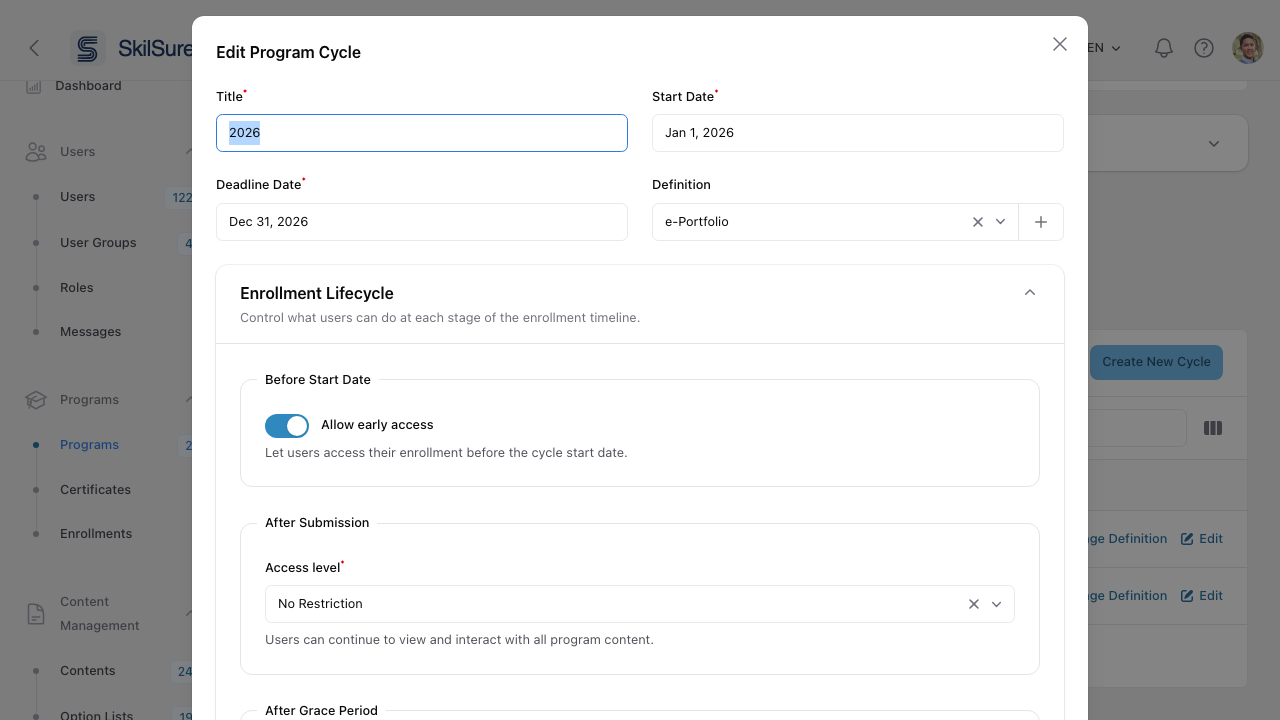 Edit Program Cycle. Start Date and Deadline Date are whole days, interpreted in your site time zone.
- Enter the calendar day you mean. It applies in your site time zone — no need to think about UTC or offsets.
- The Deadline Date is inclusive — the cycle stays open through the end of that day in your time zone.
- The grace period and any extension date follow the same whole-day, site-time-zone rule.
Per-user date overrides
On a program enrollment you can override an individual user's start, deadline, or extension date — for example, to grant one person an extension. These overrides behave exactly like cycle dates: they're whole days in your site time zone.
A user with an override sees their own effective dates — on their program page, in the cycle selector, and in their due-soon reminder emails — not the cohort's cycle dates. The dates listed beside each cycle in their selector are that user's own window for it, so a person you extended sees the extension there too.
Overrides also decide which cycle the program opens on. When a user opens a program, SkilSure lands them on the cycle that is current for them — so someone extended into a cycle that has closed for everyone else opens that cycle, not the most recent one. The selector marks the same cycle (Current).
A date looks off by a day?
Check two things. First, the site time zone — confirm Settings → Site Settings → General → Timezone matches where your organization operates; a cycle day always means that day in the configured zone. Second, the viewer's personal time zone (on their profile): someone whose personal zone is far from the site's sees boundary days on their own local calendar, which can legitimately differ by a day.
Related
- General settings — where the site time zone lives.
- Programs & cycles — set cycle start and deadline dates.
- Program enrollments — per-user date overrides.