
Appearance
AdminPath Selection steps
A Path Selection step lets users choose which path they follow through a program. The steps on the path they choose are added to their program. This page covers each setting on the step and when a user can change their choice.
Create the content under Content Management → Contents → New Content, choose Path Selection, then open its Content Configuration tab. Attach it to a step on the program's default path so every user reaches it.
Basic Settings
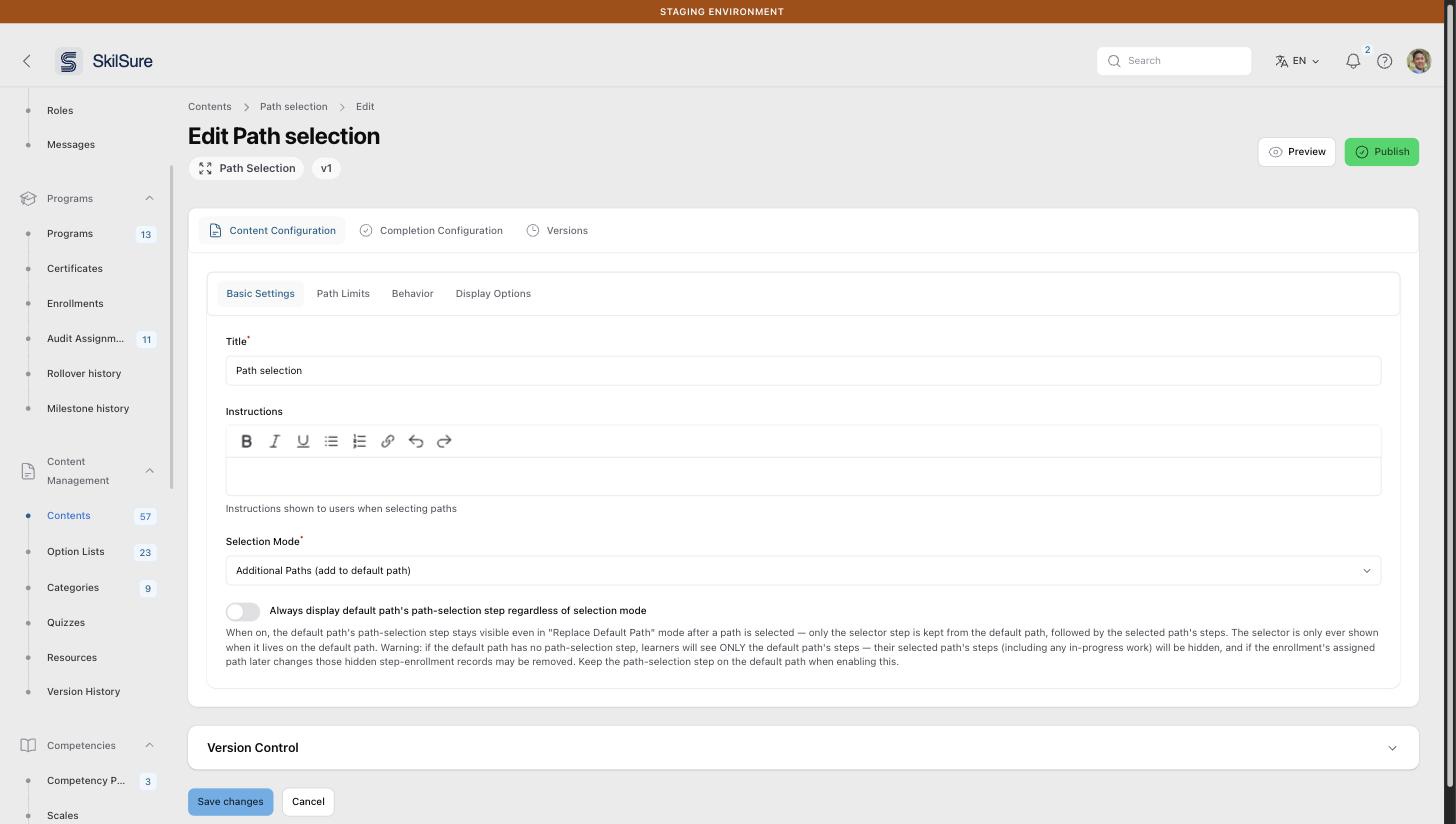 Content Configuration → Basic Settings.
- Instructions appear above the list of paths. If left blank, users see a short prompt such as "Select one path to continue".
- Selection Mode decides what happens to the default path once a user chooses:
- Additional Paths (add to default path): the chosen path's steps are added alongside the default path's steps.
- Replace Default Path: the chosen path's steps take the place of the default path's steps.
- Always display default path's path-selection step regardless of selection mode keeps this step visible in Replace Default Path mode after a path is chosen.
Keep the step on the default path
If you turn on Always display… and the default path has no Path Selection step, users see only the default path's steps. The steps on the path they chose are hidden, including any work in progress.
Path Limits
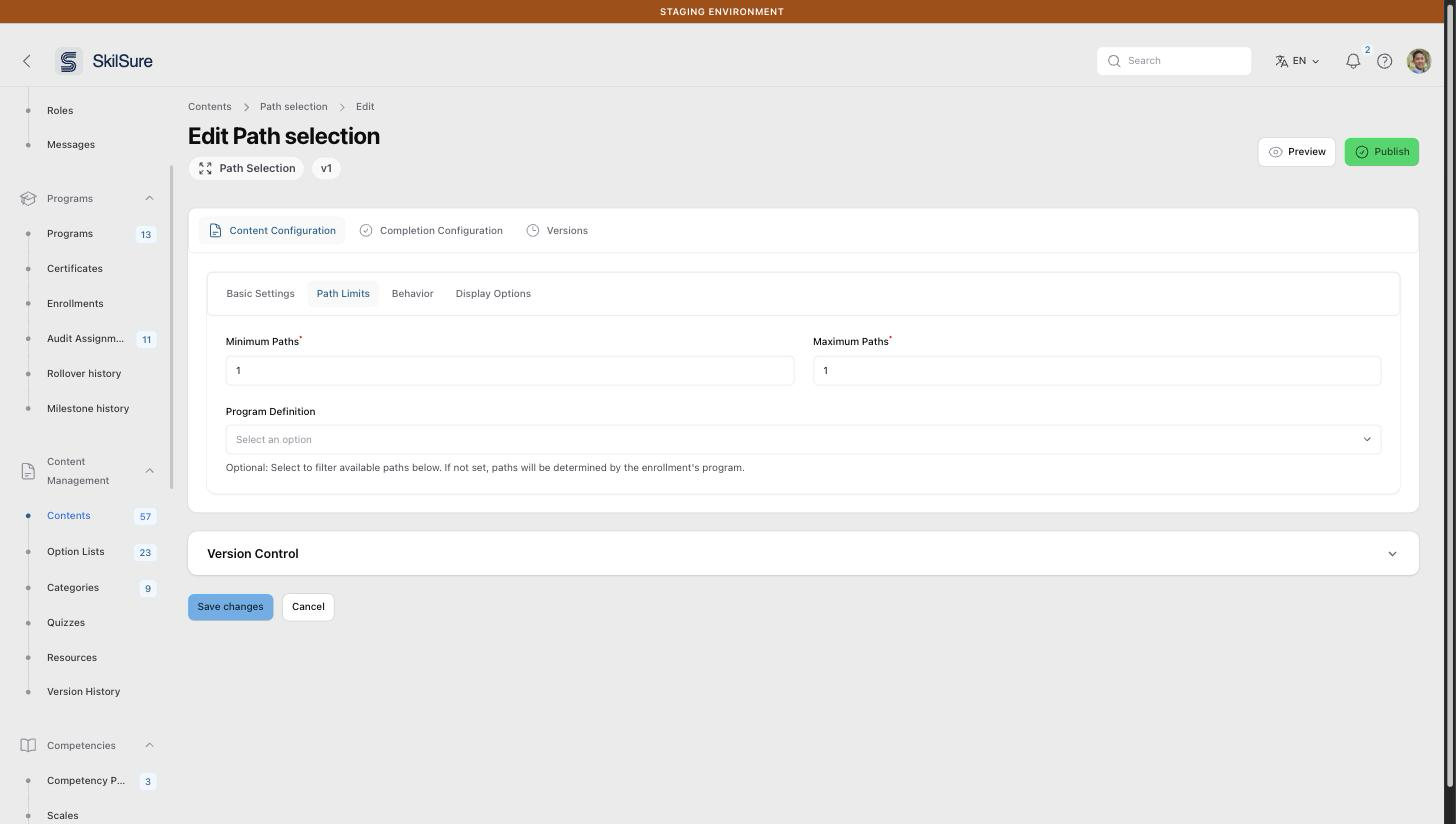 Content Configuration → Path Limits.
- Minimum Paths and Maximum Paths set how many paths a user must pick. When the maximum is 1, users pick one path; otherwise they can tick several paths.
- Program Definition (optional) filters the Available Paths list that appears once a definition is chosen. Pick the paths users may choose from, or leave it empty to offer every path in the definition.
Users never see the path they are already on, or any path their enrollment conditions rule out.
After selection
After selection, on the Behavior tab, decides whether a user can change their path after submitting a choice. The first choice is never blocked.
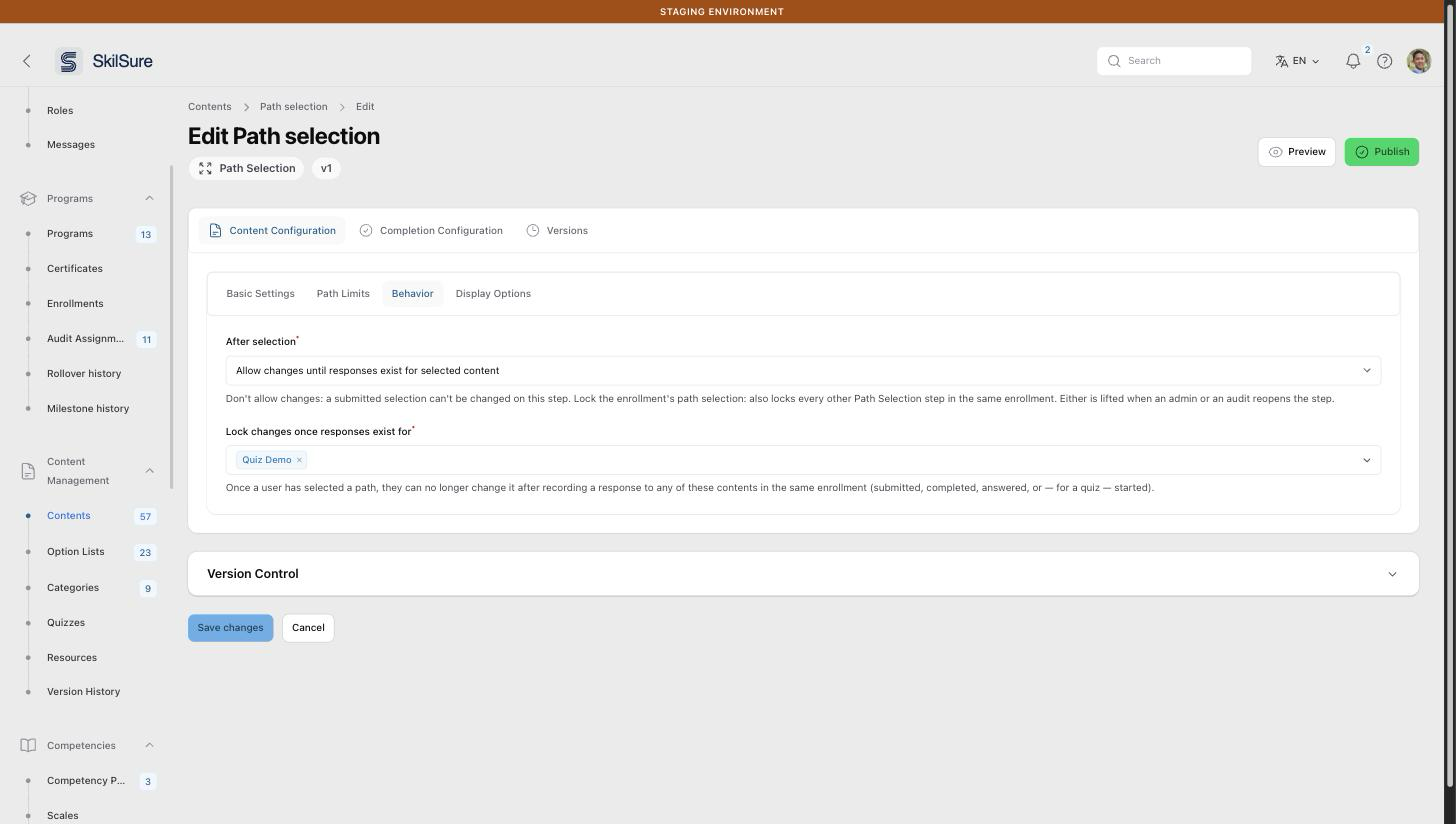 Content Configuration → Behavior, with Allow changes until responses exist for selected content chosen.
| Option | What users can do after submitting |
|---|---|
| Don't allow changes | Nothing: their choice on this step is final. |
| Allow changes | Change their path at any time. |
| Allow changes until responses exist for selected content | Change their path until they record a response to any content you list. |
| Lock the enrollment's path selection | Nothing, and every other Path Selection step in the same enrollment is locked too. |
An admin or an audit reopening the step lifts either of the no-change options, so the user can choose again.
Lock changes once users start dependent work
Pick Allow changes until responses exist for selected content when users should be free to change their mind only until they start work that depends on their path. For example, users can switch paths until they start an exam.
When you choose it, Lock changes once responses exist for appears. Add at least one content item. A user's path is then locked once they have recorded a response to any listed content, in any step of the same enrollment. A response counts when it has been:
- submitted or completed,
- saved with answers, or
- for a quiz, started, meaning the user clicked Start.
Opening a step without answering does not count. To let a user change their path again, reset the step that holds their response. Reopening the Path Selection step itself does not lift this lock.
What counts is limited to these signals
Some content types keep unsubmitted drafts in their own records, such as activity logs and learning portfolio goals. Those drafts don't lock the path until they are submitted.
Display Options
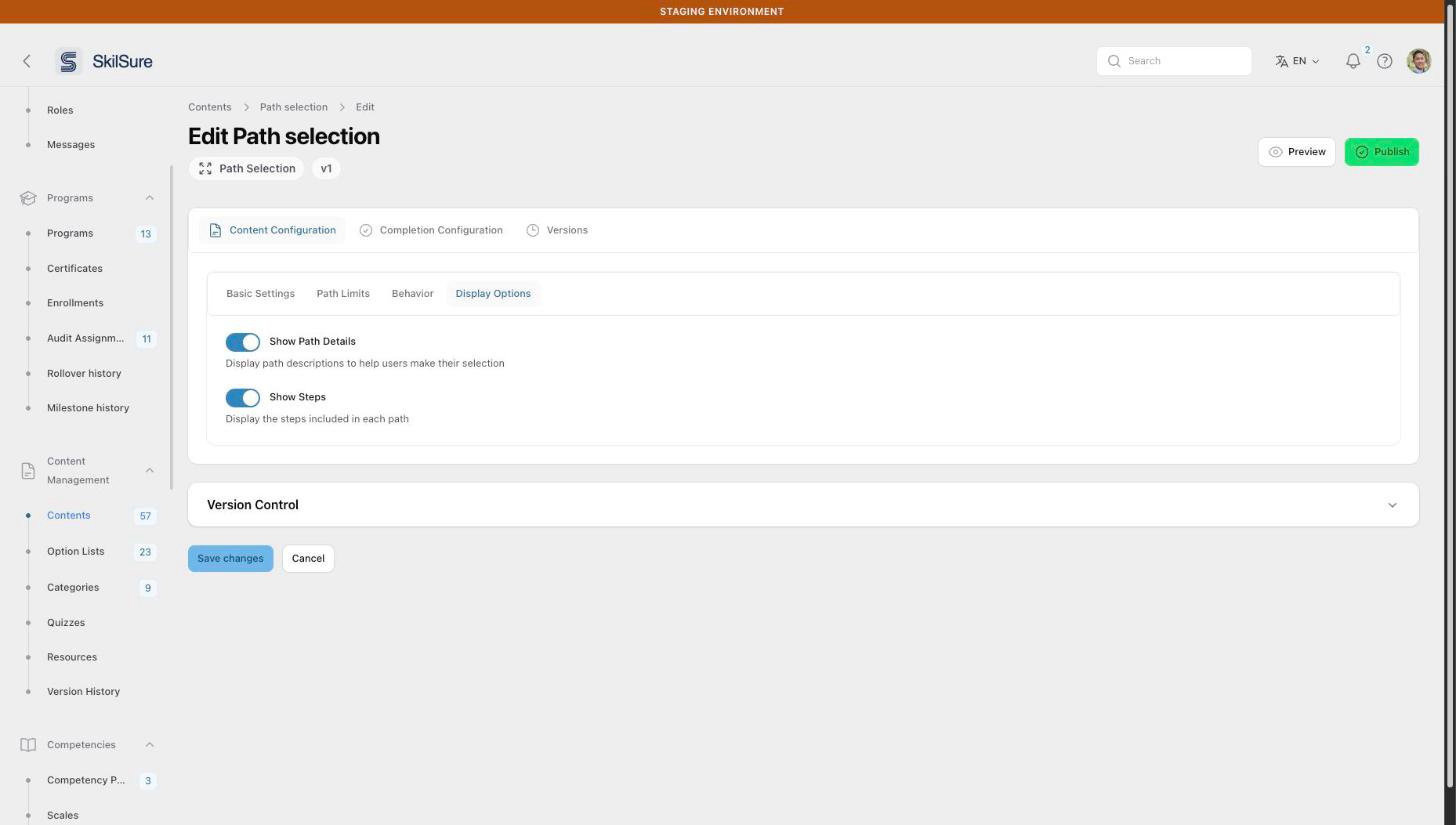 Content Configuration → Display Options.
- Show Path Details shows each path's description.
- Show Steps lists the steps each path contains, to help users compare paths.
What users see
Users choose their path on the step itself. See Choose your path.