
Appearance
AdminOption lists
An option list is a reusable set of choices — courses, sponsors, study clubs — that forms offer in a select menu, radio list or checkbox list. Find them under Content Management → Option Lists.
Manage a list's options
Open a list to edit it. The Name at the top saves with Save changes; the options themselves are managed in the Options table below it, and every change there saves straight away, one option at a time.
The table shows each option's Label (in your language, falling back to English), Key, whether it is the Default, its Status (Live, or Withdrawn with the date) and how many Fields it carries. Search by label or key, sort by either, and use the Status filter to see live options, withdrawn options or both.
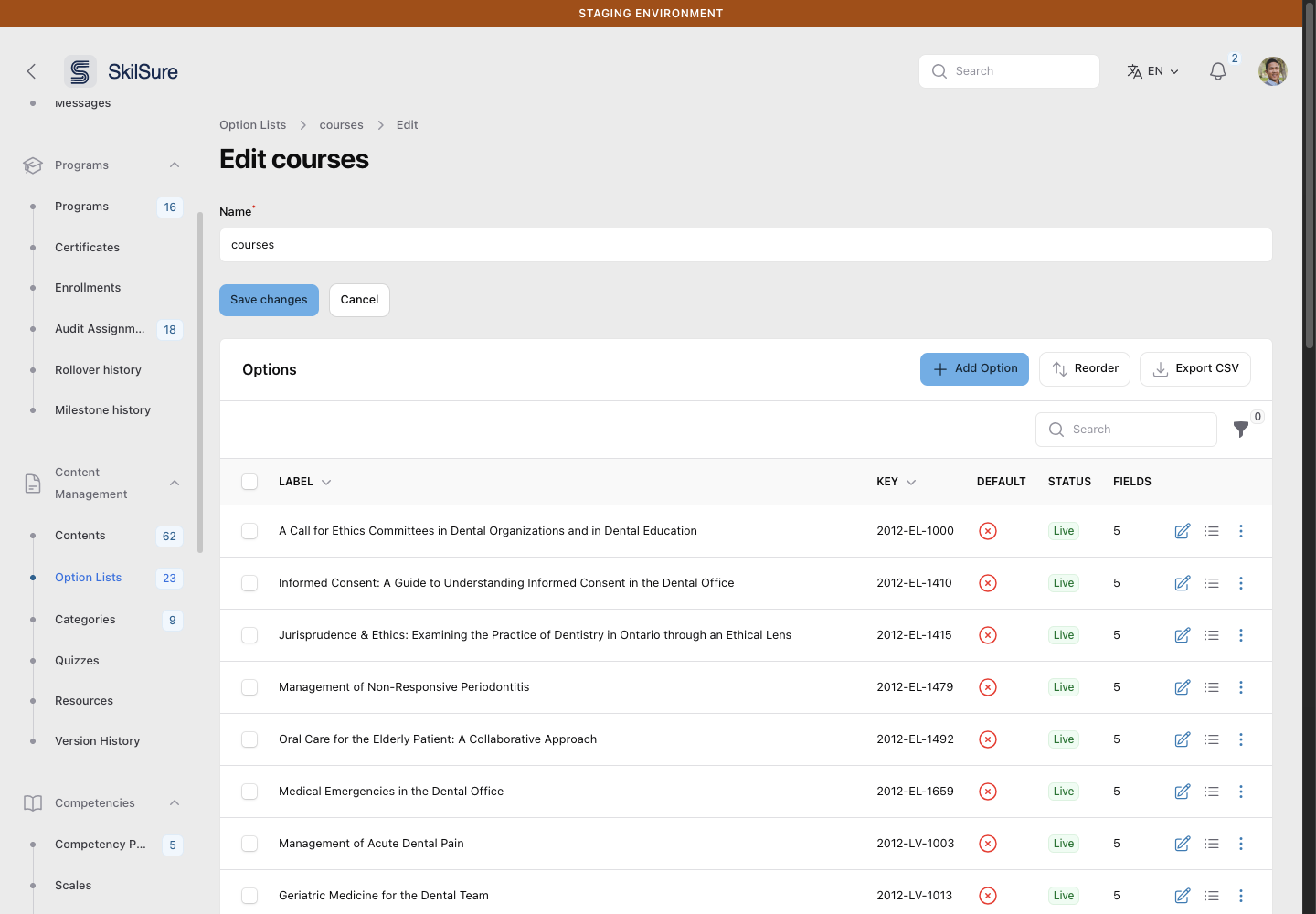 Content Management → Option Lists → edit a list. Each row has Edit and Fields buttons, and Withdraw and Delete under its menu.
- Add Option — enter a key, a label in at least one language, whether it is the default, and any fields. A key another option already uses is refused.
- Edit — change the labels, the default, or the key. Answers already saved keep the old key and lose their label, so change a key only to correct a mistake.
- Fields — extra name/value pairs stored with the option, such as a course's sponsor or points. Auto-populate and points rules read them by name. A few names are reserved for the system and are refused.
- Reorder — drag options into the order forms show them in, then Save order. If the list changed while the window was open (for example an import or the API added an option), nothing is saved; close it and open Reorder again.
- Export CSV — download the whole list. It is also on the row of each list in Option Lists, for roles that can view lists but not edit them.
Withdraw an option instead of deleting it
Withdraw stops offering an option without breaking answers already recorded against it. The option stays in the list with its label prefixed (Not Active, id: …), and:
- new form entries no longer offer it;
- an entry that already holds it still shows it and can still be saved;
- reports and saved answers keep reading its label.
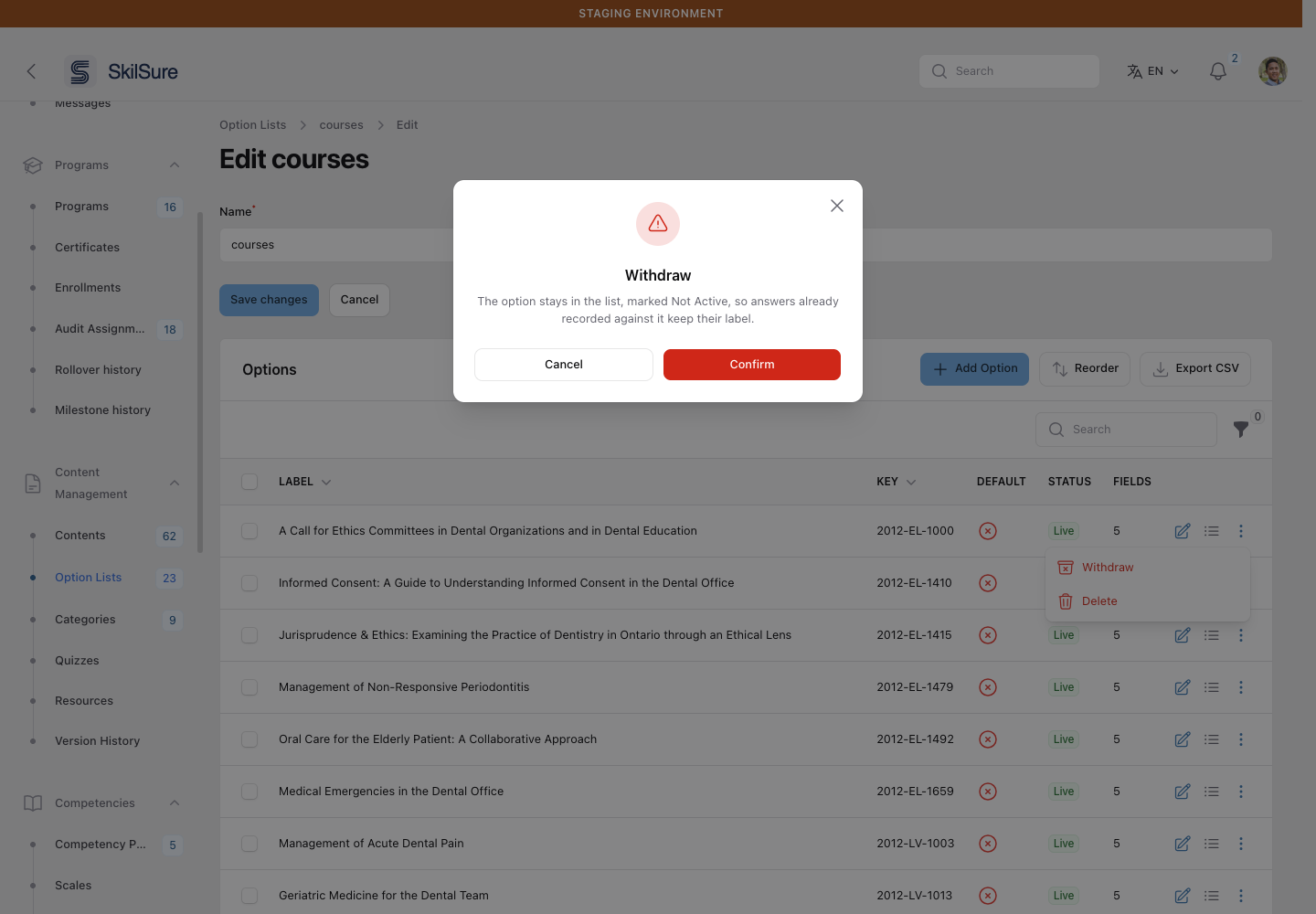 Withdraw is under each row's menu, beside Delete.
Restore puts a withdrawn option back on offer. Tick several options to Withdraw or Restore them together — the selection carries across pages, and selecting all covers every option matching your search and filter.
Delete removes the option for good, and every answer recorded against it loses its label. Withdraw is usually the right choice.
Imports and the API withdraw too
A list kept up to date by a data import or by your organization's system through the API uses the same withdrawal. An option the import file stops carrying is withdrawn, never deleted, and comes back when the file carries it again. Through the API, your system withdraws an option explicitly, and sending it again restores it.
Tell same-named options apart in a select menu
A list can hold several options with the same label, such as one course offered as a live session and as e-learning. A select menu shows only the label by default, so those options look identical. To tell them apart, open the form's Select Menu block and fill in Option label. Write the label with tokens in braces:
{label}is the option's label, in the reader's language;{key}is its key;- any other name is one of the option's Fields.
For example, {label} - {format} - {attendee_points} points ({key}) shows Oro-Facial Pain - E-learning - 3 points (2019-EL-1448). People can then search by anything in that label, including the key. If an option leaves a field empty, that part of its label is blank and the separators around it stay. Leave Option label empty to show the label alone.