
Appearance
AdminClose enrollments on SSO sign-in
An SSO connection's Cycle Enrollments rows normally enroll a member into a program cycle when they sign in. A row can instead close a member's open enrollments in other programs.
This is for a member who moves from one track to another. For example, a member reinstating their registration works through a Reinstatement program; when the registrar restores them to full membership, their next sign-in should close whatever is still open in Reinstatement, while an ordinary enroll row puts them into the renewal cycle.
Add a close rule
Open Settings → Integrations, click Configure on your SSO connection, and scroll to Cycle Enrollments. Add a row (or expand an existing one) and set Action to Close open enrollments.
The row then shows only what a close rule needs:
- Close enrollments in programs — the programs whose enrollments this rule closes. Pick one or more.
- Only close when… — the conditions, read from the member's sign-in payload, that must all pass for the rule to act. For the example above:
categoryequalsFULL. - Completion date field (optional) — the name of the imported member field that holds the College's completion date, for example
completion_date. See Lock confirmed reinstatements.
The cycle, resolution strategy, role and date settings belong to enroll rows and are hidden on a close row.
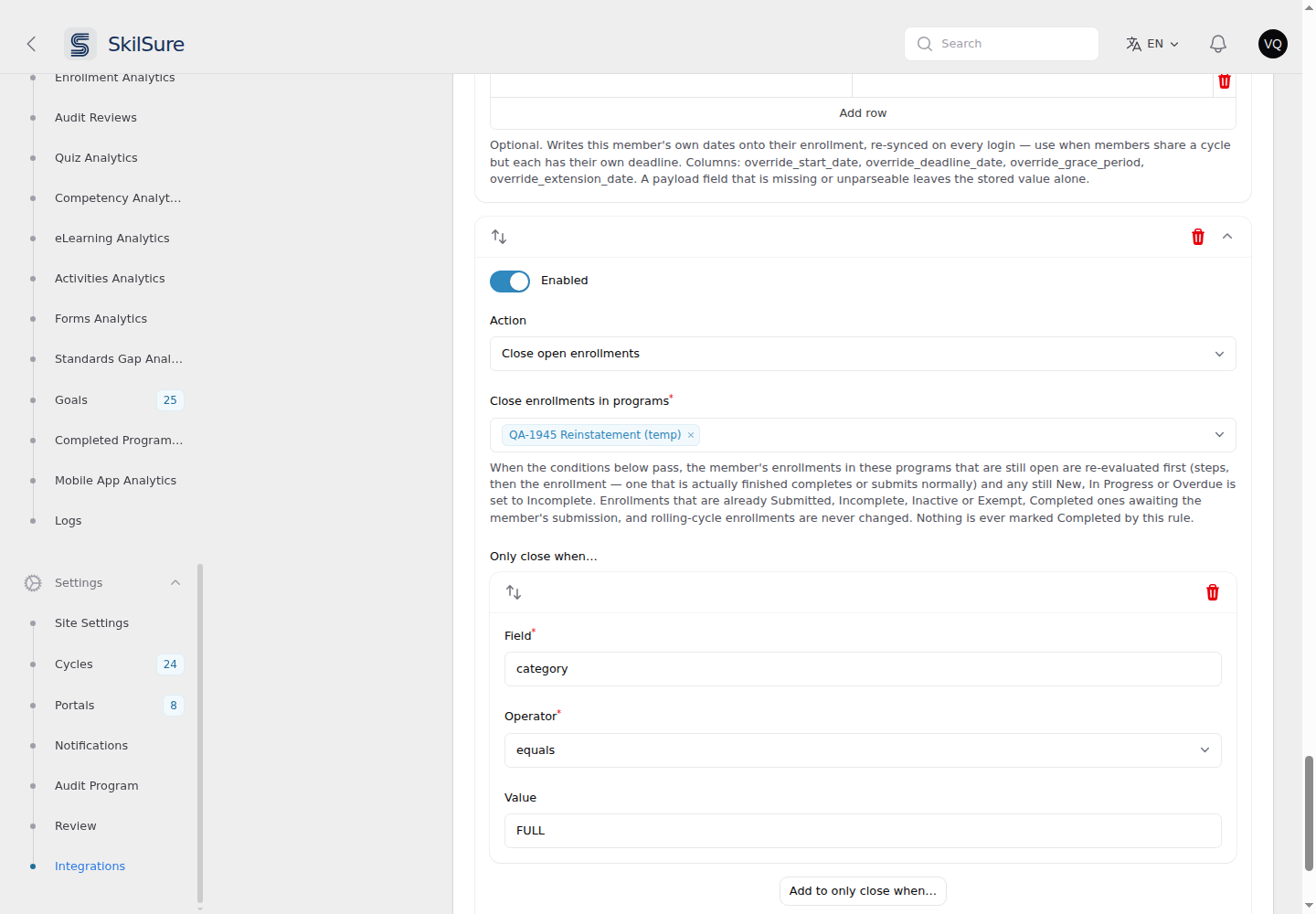 Settings → Integrations → Configure → Cycle Enrollments. A close rule shows only the target programs and its conditions.
Gate on signed fields
The conditions and the completion date are read from the member's sign-in data. For URL-payload sign-ins, only the fields in the connection's signed fields are protected, so gate a close rule — and name a completion date field — only on signed fields (or on fields that come from an API pull or file import).
What happens when a member signs in
When the conditions pass, each of the member's enrollments in the chosen programs is handled on its own:
- Already finished or closed — left alone. Enrollments that are Submitted, Incomplete, Inactive or Exempt are not touched.
- Re-evaluated first. The enrollment's steps are re-checked against the member's actual work, then the enrollment's status is re-evaluated the same way the scheduled status update does. A member who really finished lands on Completed (or is submitted automatically, if the program doesn't require them to submit) — exactly as if they had finished normally.
- Closed if still open. If the enrollment is still New, In Progress or Overdue after that, it is set to Incomplete.
A close rule never marks an enrollment Completed on its own, and closing does not send completion notifications or completion postbacks.
Some enrollments are never closed:
- Completed, awaiting the member's submission — the work is done, so it is left for the member to submit.
- Rolling-cycle enrollments — these only ever show New or In Progress.
Step statuses are left as the re-evaluation set them; unfinished steps are not marked incomplete.
Closing happens only once: a closed enrollment is Incomplete, so the member's next sign-in finds nothing left to close.
Reopening
An enrollment closed this way is an ordinary Incomplete enrollment. To give the member access again, reopen it from the enrollment as you would any other incomplete enrollment.
Lock confirmed reinstatements
A close rule also marks the member's enrollments in the chosen programs as confirmed, so the automatic Learning Portfolio reopen at a new period never reopens them. This applies to every enrollment in those programs, whatever its status — including ones that are Submitted or Completed, which the rule does not close.
An enrollment is locked when either:
- the conditions pass on the member's sign-in (for example their category is
FULL), or - the completion date in the field you named falls inside the enrollment's window — from its start to the latest of its deadline, grace period and extension. This check runs on every sign-in, even when the conditions don't pass.
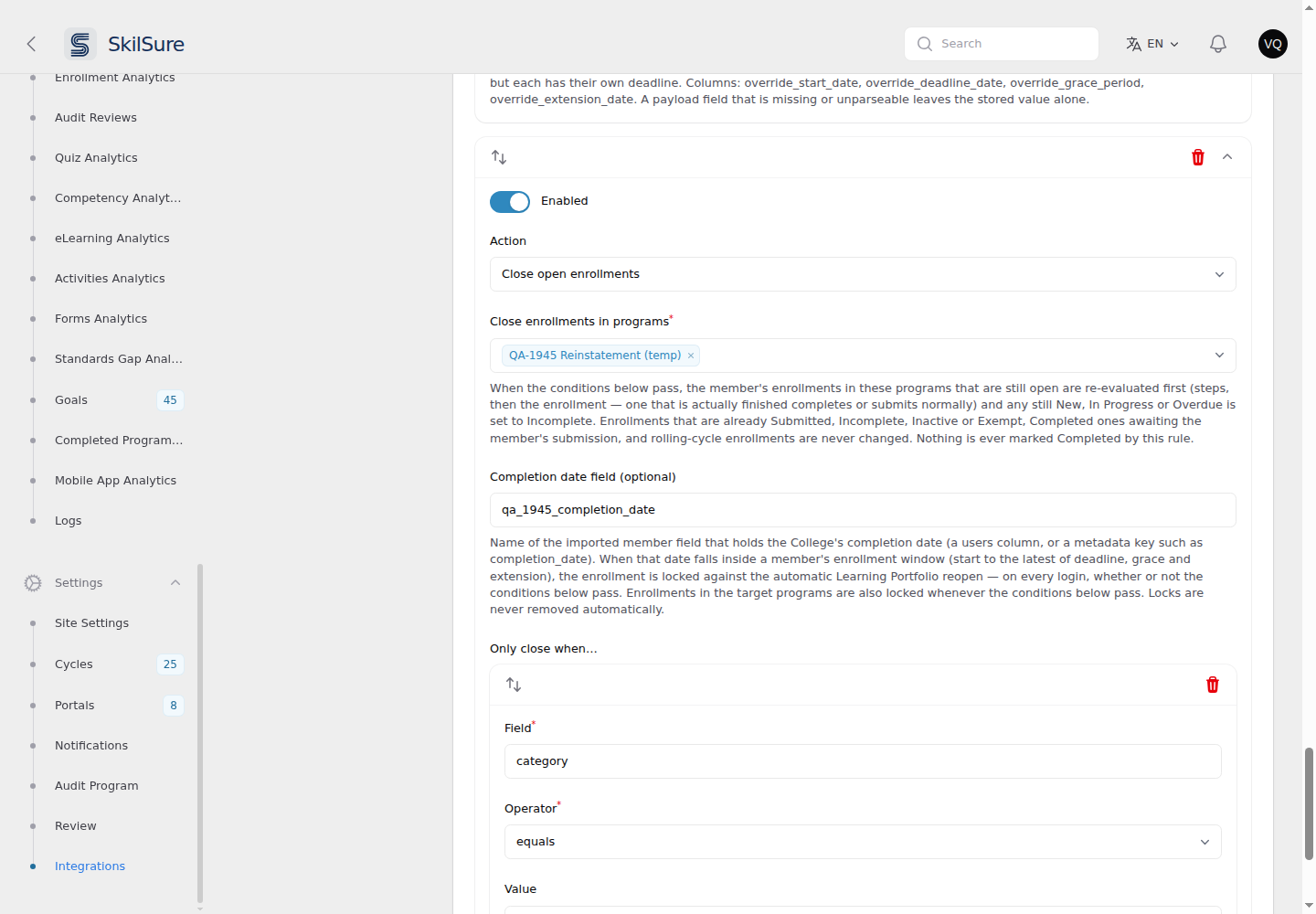 The optional Completion date field on a close rule.
Locking changes nothing else: statuses, dates and completions stay as they are, and nothing is sent to the College. Each enrollment is locked once; later sign-ins don't lock it again. A lock is never removed automatically.
Clear a lock
Open Programs → Enrollments, edit the enrollment and click Clear auto-reopen lock. The button only shows on a locked enrollment and needs permission to edit enrollments.
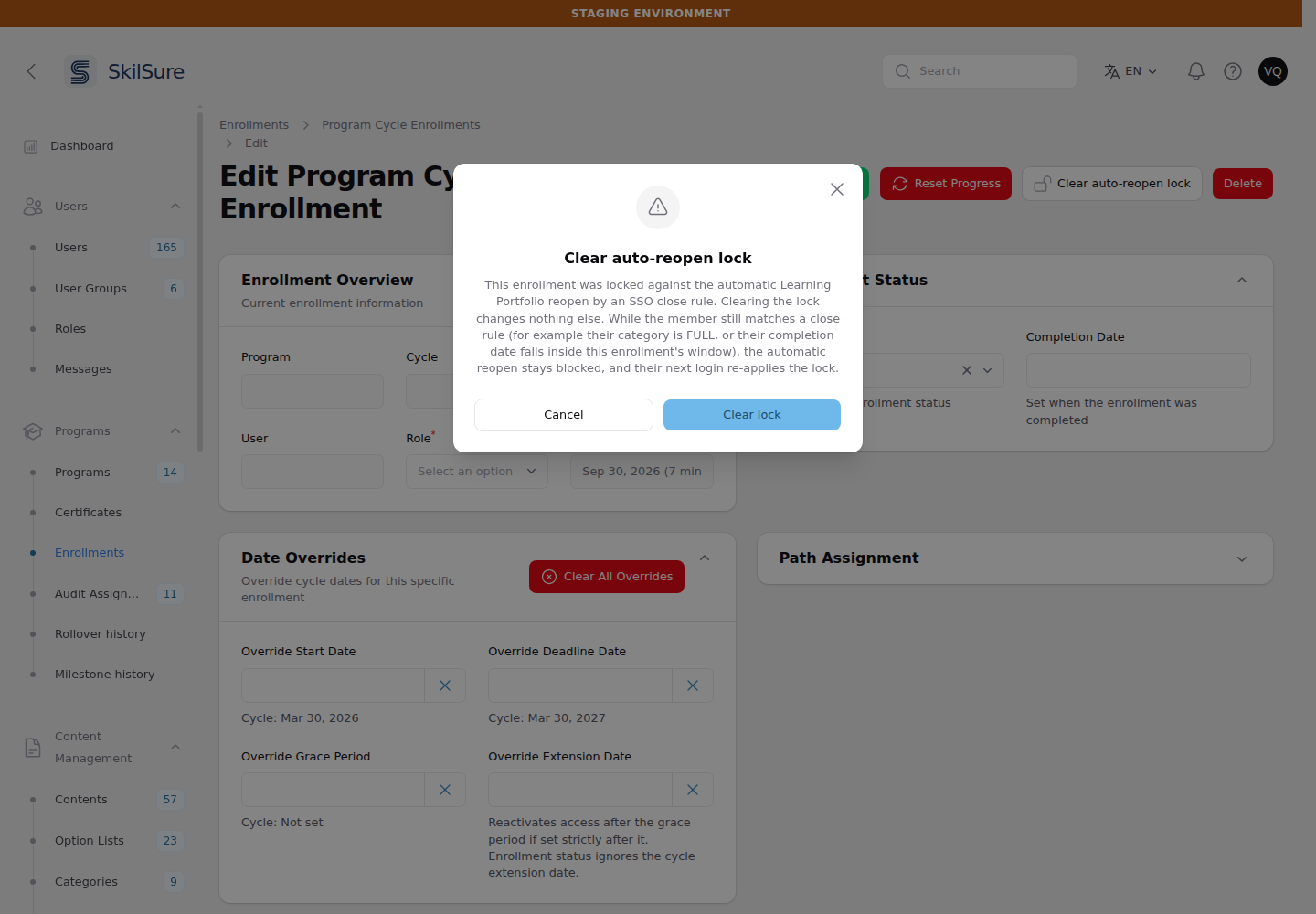 Programs → Enrollments → edit a locked enrollment → Clear auto-reopen lock.
Clearing is for a lock applied by mistake. While the member still matches the close rule, the automatic reopen stays blocked, and their next sign-in locks the enrollment again.
If a program is deleted
If a program chosen in Close enrollments in programs is later deleted, the rule stops closing enrollments in it. The deleted program still shows in the list, marked (deleted), so you can remove it; the connection still saves either way.
Check what happened
Open Reporting → Logs → Integration Logs and find the member's sign-in. The cycle enrollment entry for a close rule lists each enrollment it looked at, with the status before and after, and whether it was closed or only re-evaluated. Each closed enrollment's own activity log also records the change.
Scheduled member refreshes
A Scheduled SSO Member Refresh connection re-runs a sign-in's member import and cycle enrollment rules for selected users on a schedule, without them signing in. Each run writes one summary entry to Integration Logs:
- Set Type to Scheduled member refresh to list the runs. The description reads
Scheduled member refresh: <outcome> (run #<number>), and the entry shows System as the user who made the change. - The Outcome badge is green for completed, amber for partial (some users failed) or skipped (the run did not go ahead; the reason is in the description), and red for failed.
- The entry lists how many users were selected, refreshed, matched a rule, failed or were not attempted, and identifies each user who failed.
Each refreshed user's member import and cycle enrollment entries end with · scheduled refresh run #<number>. To see everything a run did, type run #<number> in the search box. Entries from an ordinary sign-in have no run number.
Availability
Integrations may not be enabled for every tenant, and each SSO provider is enabled separately. If you don't see Integrations under Settings, or your provider isn't listed, it isn't enabled for yours.