
Appearance
UserIf you see an error message
Most of the time an action just works. When one doesn't, SkilSure shows a short message in the top corner of the screen saying what went wrong and what to do next. The page itself keeps working, so you won't lose your place.
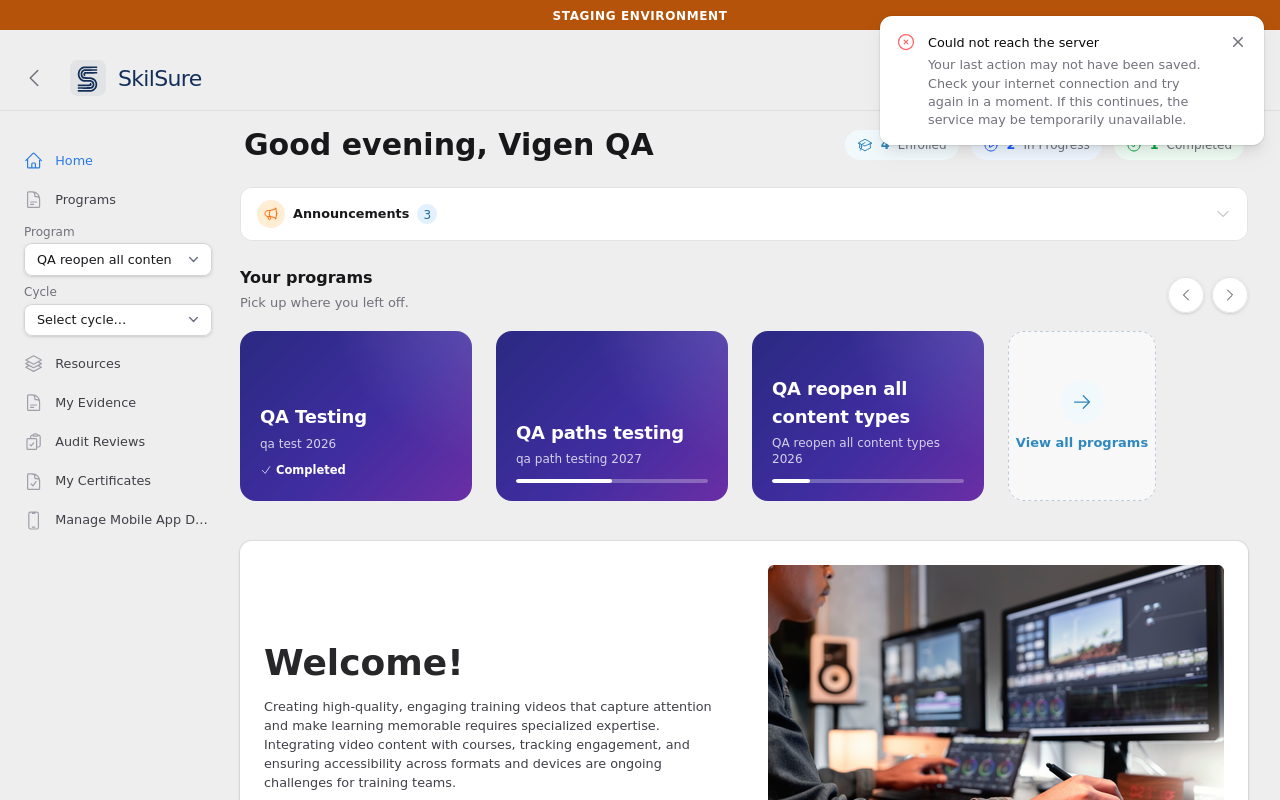 A notice after an action could not reach the server. Close it with the × or let it fade.
What each message means
| Message | What happened | What to do |
|---|---|---|
| Could not reach the server | Your action never got a reply, usually because the connection dropped for a moment. | Check your connection and try again. Your last action may not have been saved, so check it before you move on. |
| You no longer have access to this | Your permissions changed after you opened the page. | Reload the page. If you think you should still have access, contact your administrator. |
| This page is out of date | What you were working on was changed or removed after you opened the page. | Reload the page to see the current version. |
| Something went wrong | Anything else. | Reload the page and try again. If it keeps happening, contact your administrator. |
Your organization can change the wording of these messages, so yours may read a little differently.
TIP
You only see these messages for something you did, like clicking a button or saving a form. The app also checks for new notifications in the background, and if one of those checks fails it simply tries again a few seconds later without interrupting you.
Session expired
If your session has ended, for example after a long break or because you signed out on another device, a box asks you to sign in again. Click Sign in again. You'll come straight back to the page you were on.
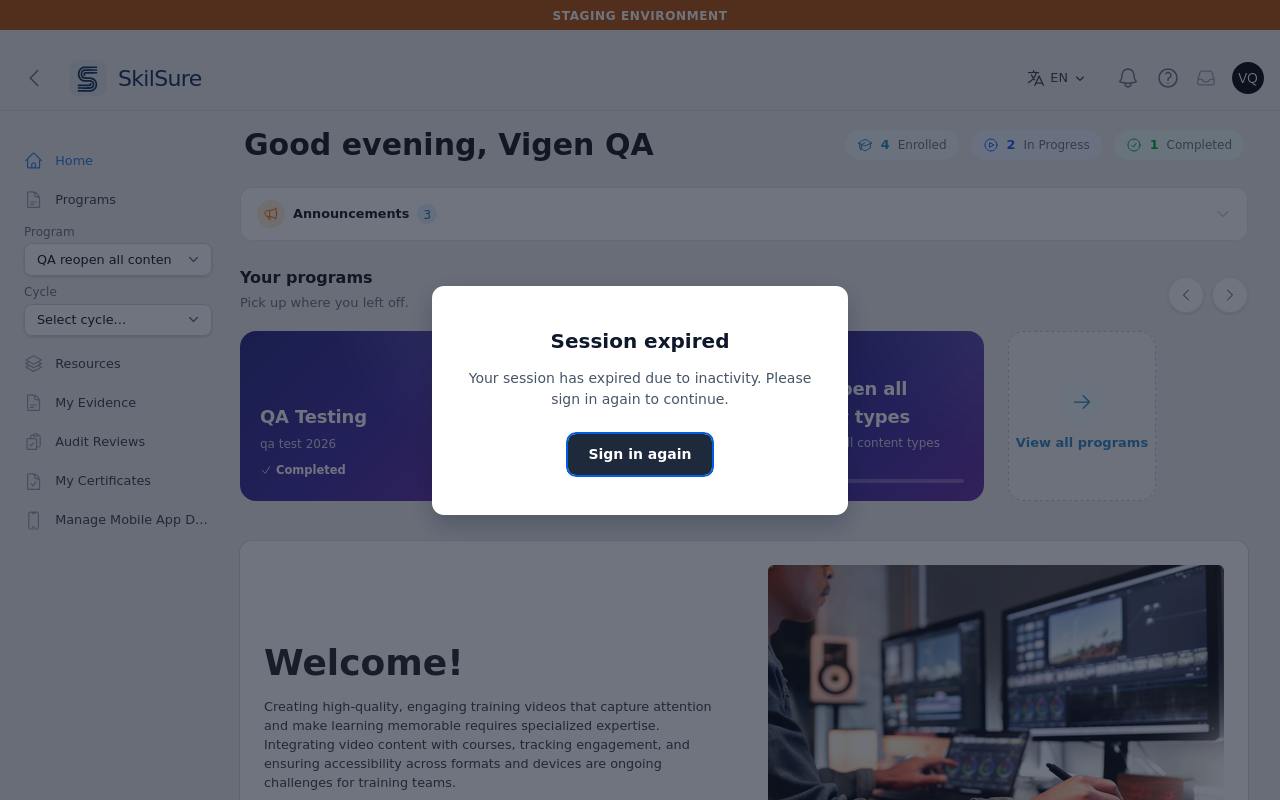 The Session expired box. It appears once, even if several requests failed at the same time.
See also If your session expires.
Page out of date
If you leave a page open while SkilSure is updated, your next click on that page can't be completed. A Page out of date box asks you to reload it. Click Reload page. You stay signed in and the page opens again in its current version.
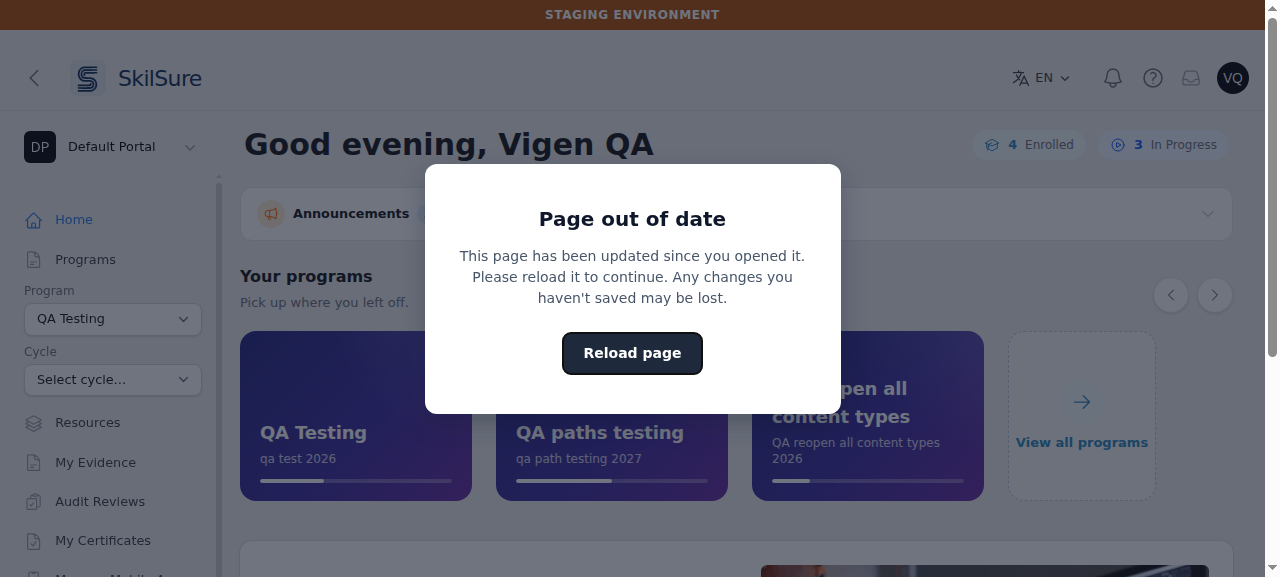 The Page out of date box. Reloading keeps you signed in.
The click that brought up the box was not carried out, and anything you typed on the page but hadn't saved yet may be lost. After the reload, do it again (for example, add the goal or save the entry).
This is a different message from the This page is out of date notice in the table above, which appears in the corner when something you were working on was changed or removed.